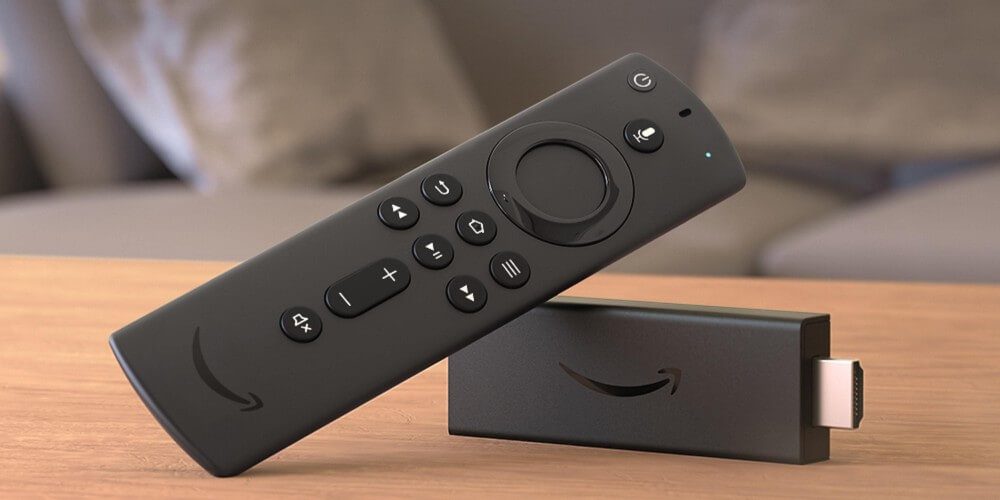
Amazon Fire TV Stick is a very fantastic device, enabling you to get your media streaming setup without any hassle and allowing you to take that system with you anywhere there has a screen to plug into. To make a more strong home theater setup, you may be wondering how to free the audio from your screen’s built-in speakers and also to a Bluetooth option.
Press the Fire TV’s settings button. Select Controllers and Bluetooth Devices, then select Different Bluetooth Devices. Make sure your speakers are in pairing mode. Select your device from the list of discovered devices.
When this doesn’t work automatically or trying to get creative and want to connect to headphones or multiple Bluetooth speakers simultaneously, there are many more below for you. Still, thankfully the basics of the system are pretty simple. When your Fire TV Stick is on and your favorite Bluetooth speaker is ready to go, then follow the next steps.
How to Connect a Bluetooth Device to a Fire TV Stick:
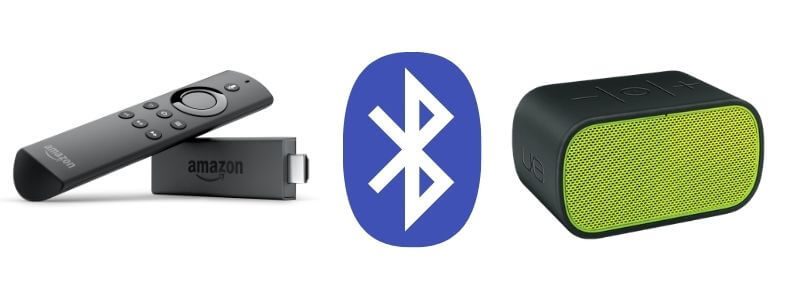
One quick suggestion here, these instructions are only for connecting the speakers directly to the Amazon Fire TV Stick.
This should be simple enough to use easily. When your TV and the Fire Stick are both powered on. It would be best if you needed to use your Television’s input selector so that it can navigate to the input that the Fire TV Stick is routed to. Then, To continue to the ‘settings page, you’ll need the Fire TV Stick’s remote.
One quick technique here: if you’ve misplaced your remote or the dog has already chewed it up, and you have also lost your remote, you may use Amazon’s Fire TV Remote app so that you can log in and control your TV from your phone or tablet.
2) Select ‘Controllers and Bluetooth Devices’, then ‘Other Bluetooth Devices’
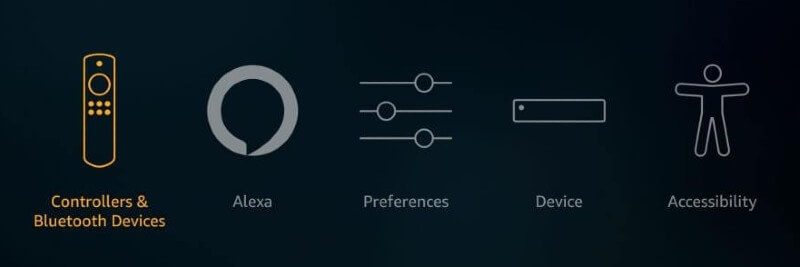
That should be much straight forward as well. When you are on the settings page, navigate first to the option which reads ‘Controllers and Bluetooth Devices.’ This the menu option that doesn’t call out speakers outright, but it’s where you can manage all of the Bluetooth connections. For example, if you want to add a new remote, this is where you should come to do it.
On the following page, select the option ‘Other Bluetooth Devices.’ If you’re trying to connect your speaker or headphones, this is where you’ll add your Bluetooth speaker or where you would select your Bluetooth headphones
3) Put Your Bluetooth Speakers in the Pairing Mode
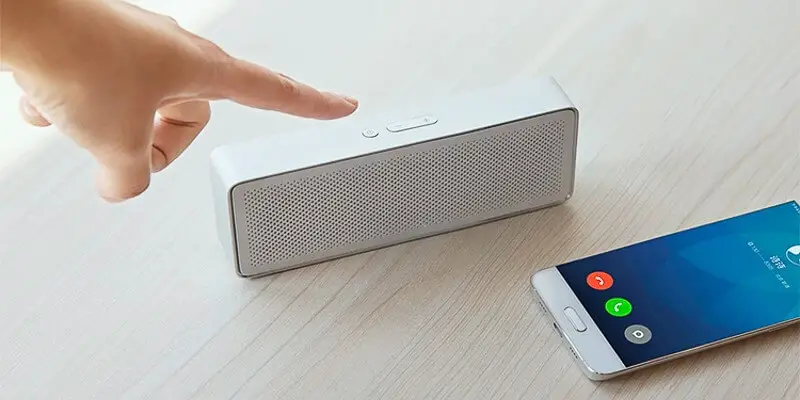
There is no matter what type of Bluetooth speaker you have; this step should be much easier. Generally, it affects simply holding the power button to get an extra long time to turn on the speaker. There are some speakers, which may require you to hit a separate button to begin this process. Reference your speaker’s instructions if it’s impossible to put the devices in the pairing mode properly.
If you do not have a Bluetooth speaker and you’re planning your new setup, rest ensured that there are plenty of options that are cheap and easy to use, like the Anker Soundcore Bluetooth Speaker (on Amazon), and if you want to fill the room with sound you can use something which has the higher sound like the Bose SoundLink Revolve (also on Amazon).
4) Select Your Device from the ‘Discovered Devices’ List
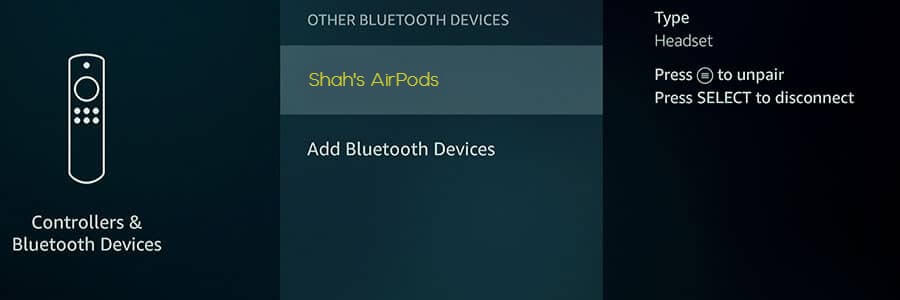
At last, now you are at the spot where you can see your speaker broadcasting its signal, and the Fire TV Stick is picking it up. If you see many options on this screen, you will have to use their reported names to determine which one you are the speaker, but it should be much clear.
Then select your speaker from the list, and wait for some hearable pairing notice (a chime or ding) from the speaker itself. At this point, the screen would also reflect that the speaker is connected. After that, you can get back out of this menu and start using the Fire TV Stick as normal. Now, only the sound should be coming through your speaker.
Troubleshooting
If you do not find your speaker on the ‘Discovered Devices’ list, there are a few things that you can try. First, you should turn the speaker on and off again while scanning for Bluetooth devices on the Fire TV Stick’s menu. If that doesn’t work, you should stop the power cycle both for the Bluetooth speaker and the Fire TV Stick to start from scratch.
If a signal still does not see by you at this point, you should check your speaker’s instructions and make sure that you are putting it in pairing mode properly. If that doesn’t go, see if there are any instructions on clearing the pairing history on the Bluetooth speaker. It might not be connecting because it has already connected to another device.
When the speaker seems to be connected but you can’t hear any sound, try to use the volume controls on the Fire TV Stick remote to raise the volume, and if that doesn’t work, try the physical volume buttons on the speaker itself.
But after all, you are not having any success; try to plug a Bluetooth speaker into a power outlet so that you can make sure it must have power. Some compact Bluetooth speakers have just enough power to turn on and go into Bluetooth pairing mode before powering down again when the battery is low, and that doesn’t make it automatically clear.
Connecting Multiple Speakers at the Same Time
So you have already got the Bluetooth speaker connected, but what happens if you’re going for a fuller, more room-filling sound. You might be wondering is it possible to connect multiple speakers to your Fire TV Stick, to get multi-channel sound in the room.
This gets a little more complicated. First of all, you won’t be able to get multi-channel/stereo sound, but you can reproduce the audio signal to go to two places. You will need another device, the TaoTronics Bluetooth 5.0 Transmitter/Receiver (on Amazon), which supports the connection of two Bluetooth devices.
You will need to connect this to your screen’s audio port because now you are not getting the sound from the Fire TV Stick’s source but the TV’s audio management. So, it would be best if you used the TaoTronics’ aux cable to plug into either your Television or Projector’s aux port. Finally, follow the TaoTronics instructions for pairing your multiple Bluetooth speakers to the device.
There might be one exception here if you have a device with Bluetooth 5 installed, in which case you can connect multiple speakers.
What About Headphones?
There are several cases where you would rather use Bluetooth headphones than a dedicated speaker, and follow all of the above instructions apply to Bluetooth headphones as well: you can follow the instructions above to connect to the Fire TV Stick, or you can also use the TaoTronics device to connect many pairs of headphones.
Conclusion
Since you can see, it’s quite straightforward to connect either a portable Bluetooth speaker or Bluetooth headphones to your Fire TV Stick. And it’s not too much complicated for connecting multiple speakers or headphones. That increases the flexibility of your system significantly. It also allows you to run a whole home theater system of a Fire TV Stick and take that experience with you on the go.
-our editorial board has reviewed this article and has been approved for publication according to our editorial policy.
Best Seller List of Bluetooth Speakers:
You May Also Like…
- How to Control Soundbar With TV Remote?
- What’s the Difference Between 2.1 and 3.1 Soundbar?
- How to Setup Logitech Harmony Hub?
- What is 4K Soundbar?
- Sonos Playbar vs. Bose SoundTouch 300
Last update on 2026-11-05