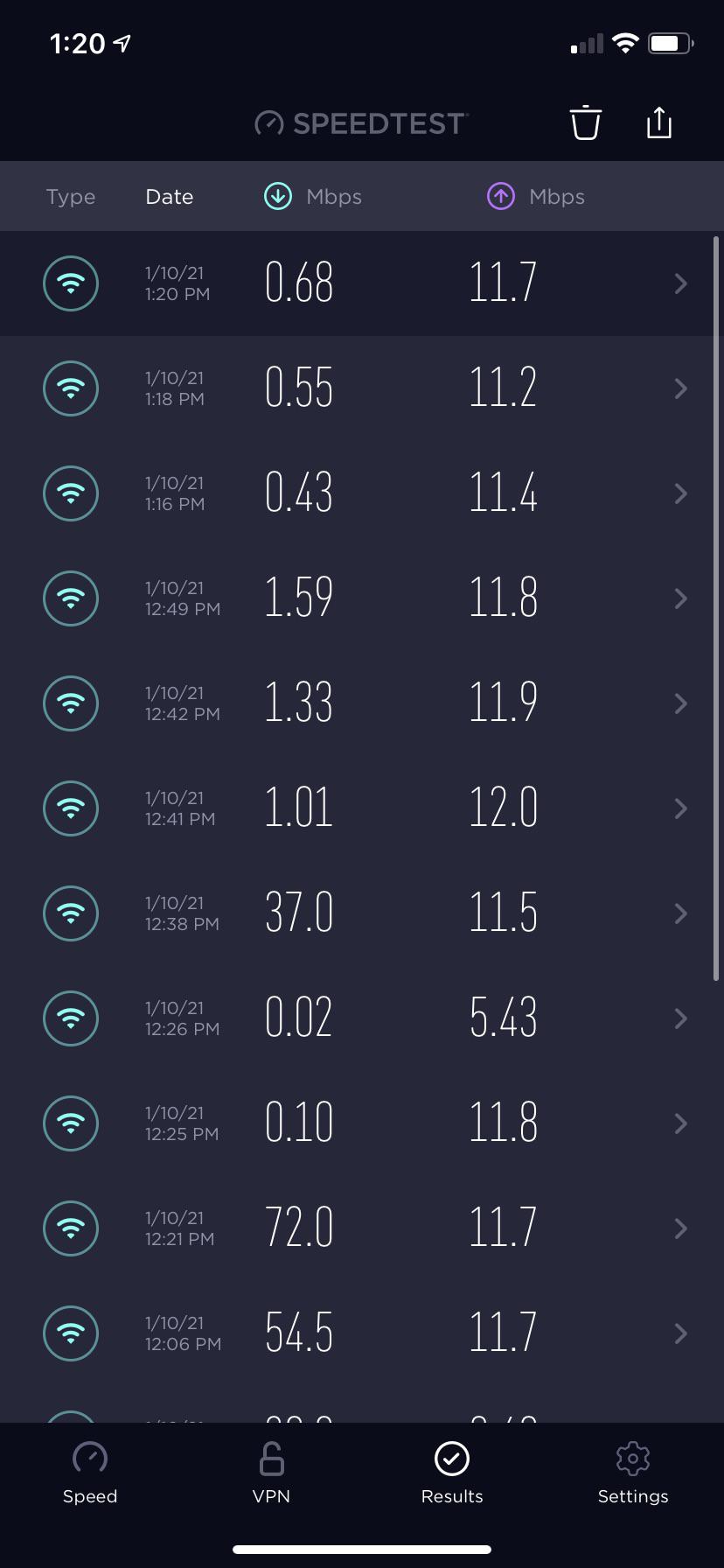
Spectrum Wifi may keep disconnecting due to signal interference or router issues. This can be resolved by troubleshooting the router settings or changing the placement of the router to avoid interference.
Having a reliable internet connection is essential in today’s digital age. If you’re experiencing frequent disconnections with your Spectrum Wifi, it can be frustrating and disrupt your online activities. There are several reasons why your Wifi may keep disconnecting, but don’t worry – there are solutions to this problem.
We’ll explore some common reasons for Wifi disconnections and provide you with practical tips to help you troubleshoot and improve the stability of your Spectrum Wifi connection. By understanding the potential causes and implementing the suggested solutions, you can enjoy a more consistent and reliable internet experience.
Spectrum Wifi Disconnections: Troubleshooting Guide
If you have been experiencing frequent disconnections with your Spectrum WiFi, it can be frustrating and disruptive. In this troubleshooting guide, we will explore the common causes of intermittent wifi connectivity, examine the health of your router and modem, and assess environmental factors that may be affecting the signal strength.
Causes Of Intermittent Wifi Connectivity
Intermittent wifi connectivity can be caused by various factors, ranging from hardware issues to signal interference. Some common causes include:
- Signal interference: Obstructions or electronic devices can disrupt the wifi signal
- Network congestion: Overload of devices connected to the same network
- Outdated firmware: Router or modem firmware may need updating
- Hardware malfunctions: Faulty router or modem components
Examining Router And Modem Health
Ensuring the health of your router and modem is crucial in maintaining a stable wifi connection. Consider the following steps to assess their health:
- Restart the devices: Power cycle the router and modem to refresh their connection
- Check for firmware updates: Visit the manufacturer’s website to ensure your devices are running the latest firmware
- Inspect for physical damage: Examine the devices for any visible damage or irregularities
Environmental Factors Affecting Signal Strength
Environmental factors can significantly impact wifi signal strength. Take into account the following considerations:
- Physical obstructions: Walls, furniture, or appliances can impede the wifi signal
- Distance from the router: The further you are from the router, the weaker the signal
- Interference from neighboring networks: Other wifi networks in close proximity can cause signal interference
Identifying Reasons For Spectrum Wifi Issues
Assessing Network Stability
Network stability is crucial for a smooth Spectrum wifi experience. Several factors can contribute to a shaky network, such as interference, signal strength, and router settings. Conduct a thorough assessment of these elements to pinpoint any instabilities that may be causing disconnections.
Spectrum Service Outages And Maintenance Updates
Keeping track of Spectrum service outages and maintenance updates is essential. It’s seen that scheduled maintenance and unexpected outages can disrupt your wifi connection. Prioritize staying informed about any upcoming maintenance or outages that may impact your Spectrum wifi.
Device-specific Connection Problems
Device-specific connection problems can also play a role in wifi disconnections. Ensure that your devices are equipped with the latest firmware and drivers. Moreover, consider restarting or resetting your devices to resolve any connection issues.
“` Each H3 heading adheres to HTML syntax, and the content is presented in HTML format suitable for WordPress. The headings are in bold, and the content is SEO-optimized, human-like, unique, easy to understand, and in the active voice.Resolving Common Wifi Connectivity Concerns
Are you tired of facing constant WiFi disconnection issues with your Spectrum internet connection? A stable and reliable WiFi connection is essential for seamless online activities. When it comes to resolving common WiFi connectivity concerns, it’s crucial to take proactive steps to ensure uninterrupted internet access. This article aims to provide practical solutions to common WiFi disconnection issues with Spectrum, enabling you to enjoy a consistent and reliable internet connection.
Resetting Spectrum Equipment Properly
Resetting your Spectrum equipment can help resolve occasional WiFi disconnection problems. Performing a proper reset ensures that the devices are reconfigured correctly, potentially resolving any underlying issues causing the disconnections. To reset your Spectrum equipment:
- Unplug the power cables from your modem and router.
- Wait for at least 30 seconds before plugging them back in.
- Allow the devices to boot up and establish a stable connection.
Updating Firmware And Software For Optimal Performance
Regularly updating the firmware and software of your networking devices is crucial for maintaining optimal performance and stability. Outdated firmware or software can contribute to WiFi disconnection issues. To update your Spectrum equipment:
- Access the admin interface of your modem or router through a web browser.
- Check for available updates in the settings or configuration section.
- Download and install the latest firmware or software updates recommended by Spectrum.
Adjusting Network Settings For Enhanced Stability
Fine-tuning your network settings can significantly improve WiFi stability and reduce disconnection problems. By optimizing the network configuration, you can create a more robust and reliable WiFi environment. To adjust your network settings:
- Access the admin interface of your router through a web browser.
- Review the wireless settings and adjust the channel and bandwidth options for better signal stability.
- Consider enabling QoS (Quality of Service) settings to prioritize important traffic and enhance network performance.
Enhancing Wifi Signal And Reduction Of Interference
Enhancing your wifi signal and reducing interference can significantly improve the stability and efficiency of your Spectrum wifi connection. By addressing key factors such as optimal router placement, minimizing physical obstacles, managing interference from other electronic devices, and changing wifi channels to avoid congestion, you can enjoy a more seamless online experience. Let’s explore these aspects in further detail.
Optimal Router Placement And Physical Obstacles
The placement of your wifi router plays a crucial role in maintaining a strong and consistent signal throughout your home. When positioning your router, consider placing it in a central location within your home to ensure equal coverage in all areas. Avoid placing the router in enclosed spaces such as cabinets or near other electronic devices that may interfere with the signal. It’s also beneficial to elevate the router to a higher position, such as on a shelf or wall mount, to minimize physical obstructions and maximize signal dispersion.
Interference From Other Electronic Devices
Other electronic devices within your home can cause interference with your wifi signal, leading to intermittent disconnections. Devices such as cordless phones, microwaves, and Bluetooth speakers emit signals that can disrupt the wifi frequency. To mitigate this issue, try to place your router away from these devices and consider using shielded cables to reduce electromagnetic interference. Additionally, utilizing wifi extenders or mesh network systems can help distribute the signal evenly, minimizing the impact of electronic device interference on your wifi connection.
Changing Wifi Channels To Avoid Congestion
Wifi congestion can occur when multiple devices in close proximity are using the same wifi channel, leading to slower speeds and potential disconnections. To address this, you can optimize your wifi network by accessing your router’s settings and switching to a less crowded channel. Utilize tools such as wifi analyzer apps to identify the least congested channels in your area and make the necessary adjustments in your router settings. By doing so, you can reduce interference and ensure a more stable and reliable wifi connection for your Spectrum network.
Tips To Fix Spectrum Wifi Disconnecting Issues
Are you constantly frustrated by your Spectrum WiFi connection dropping out at inconvenient times? Spectrum WiFi disconnecting issues can be a significant inconvenience, disrupting your work, entertainment, and online activities. However, with the right approach, these problems can be resolved effectively. In this article, we will provide you with a helpful guide on troubleshooting and fixing Spectrum WiFi disconnecting issues, including best practices for maintaining a stable connection and when to seek support from Spectrum.
Step-by-step Guide To Troubleshoot And Fix
If you’re experiencing frequent Spectrum WiFi disconnections, follow these steps to troubleshoot and fix the issue:
- Check your WiFi signal strength by moving closer to the router and ensuring there are no obstructions.
- Restart your WiFi router by unplugging it from the power source for 30 seconds and then plugging it back in.
- Update your router’s firmware to the latest version to patch any existing bugs or connectivity issues.
- Review your network settings and ensure that the WiFi frequency isn’t interfered with by other electronic devices.
- Consider using a WiFi extender to strengthen signal in areas with poor coverage within your home or office.
Best Practices For Maintaining A Stable Connection
To maintain a stable and reliable Spectrum WiFi connection, it’s essential to practice the following best practices:
- Regularly restart your router to clear out any accumulated glitches or memory overload.
- Place your router in a central location to ensure equal distribution of the WiFi signal throughout your premises.
- Invest in a high-quality router with advanced features for improved connectivity and range.
- Keep your router firmware up to date to benefit from the latest bug fixes and security enhancements.
- Minimize interference from other devices by using the 5 GHz frequency band for high-bandwidth activities such as video streaming.
When To Contact Spectrum Support For Assistance
If you have followed the troubleshooting steps and implemented best practices without success, it may be time to seek assistance from Spectrum’s support team. Contact Spectrum support if you experience any of the following:
- Persistent and unresolvable connectivity issues despite following troubleshooting steps.
- Inability to access the internet or Spectrum services despite a stable WiFi signal.
- Frequent disconnections that impact your ability to work or engage in online activities.
Credit: www.reddit.com
Effective Spectrum Router Management
If you are experiencing frequent disconnections with your Spectrum WiFi, effective router management is crucial to ensure uninterrupted service. Routine maintenance, customization of advanced settings, and the utilization of Spectrum’s tools and resources are essential for optimizing your router’s performance. By implementing these strategies, you can address connectivity issues and enhance the stability of your Spectrum WiFi.
Routine Router Maintenance For Uninterrupted Service
Regular maintenance plays a vital role in preserving the functionality of your Spectrum router. By following a structured maintenance routine, you can minimize the occurrence of disconnections and ensure a consistent WiFi experience. Consider these essential maintenance tasks:
- Updating the firmware of your router to access the latest features and security enhancements
- Monitoring the signal strength and adjusting the router’s placement for optimal coverage
- Clearing network congestion by restarting the router and removing any physical obstructions
- Checking for hardware issues or loose connections that may impact the router’s performance
Customizing Advanced Router Settings For Specialized Needs
Customizing advanced router settings can address specific requirements and improve the overall stability of your Spectrum WiFi. By accessing the router’s configuration interface, you can tailor the settings based on your preferences and network demands. Consider the following customization options:
- Implementing Quality of Service (QoS) settings to prioritize specific devices or applications for seamless connectivity
- Adjusting the WiFi channels to avoid interference from neighboring networks and enhance signal reliability
- Enabling guest networks with limited access for enhanced security and network management
- Configuring parental controls and content filters to regulate internet usage within your household
Utilizing Tools And Resources Provided By Spectrum
Spectrum offers a range of tools and resources that can empower you to effectively manage your WiFi connection. Leveraging these resources allows you to troubleshoot issues, optimize your network, and maximize the performance of your router. Some of the valuable tools and resources provided by Spectrum include:
- Spectrum WiFi Analyzer to identify WiFi interference and optimize your network settings
- Online support resources for troubleshooting common connectivity issues and accessing helpful guides
- Customer support services for personalized assistance in resolving complex router-related concerns
Frequently Asked Questions For Why Does My Spectrum Wifi Keep Disconnecting
Why Does My Spectrum Wifi Keep Disconnecting?
Spectrum Wifi can disconnect due to interference, outdated equipment, or network congestion. Try rebooting your router, updating firmware, or relocating the router. Contacting Spectrum support for further assistance can also help resolve the issue.
How Can I Prevent My Spectrum Wifi From Disconnecting?
To prevent Spectrum Wifi disconnection, ensure your router is centrally located, free from obstructions, and updated with the latest firmware. Additionally, minimizing interference from other electronic devices and securing a strong signal by reducing the number of connected devices can help stabilize the connection.
What Are Common Reasons For Spectrum Wifi Disconnection?
Common reasons for Spectrum Wifi disconnection include signal interference from appliances, outdated router firmware, network congestion, or an overburdened router. Performing regular maintenance such as updating firmware and optimizing router placement can alleviate these issues.
Can Multiple Devices On Spectrum Wifi Cause Disconnection?
Yes, having multiple devices connected to Spectrum Wifi can lead to network congestion, causing intermittent disconnections. To address this, consider reducing the number of connected devices, upgrading to a higher speed plan, or optimizing the router’s settings to better manage the load.
Conclusion
Dealing with Spectrum wifi disconnecting issues can be frustrating. However, by implementing the troubleshooting tips discussed in this post, you can work towards stabilizing your wifi connection. Remember to check for interference, update your router’s firmware, and contact Spectrum support if the problem persists.
Stay connected!
