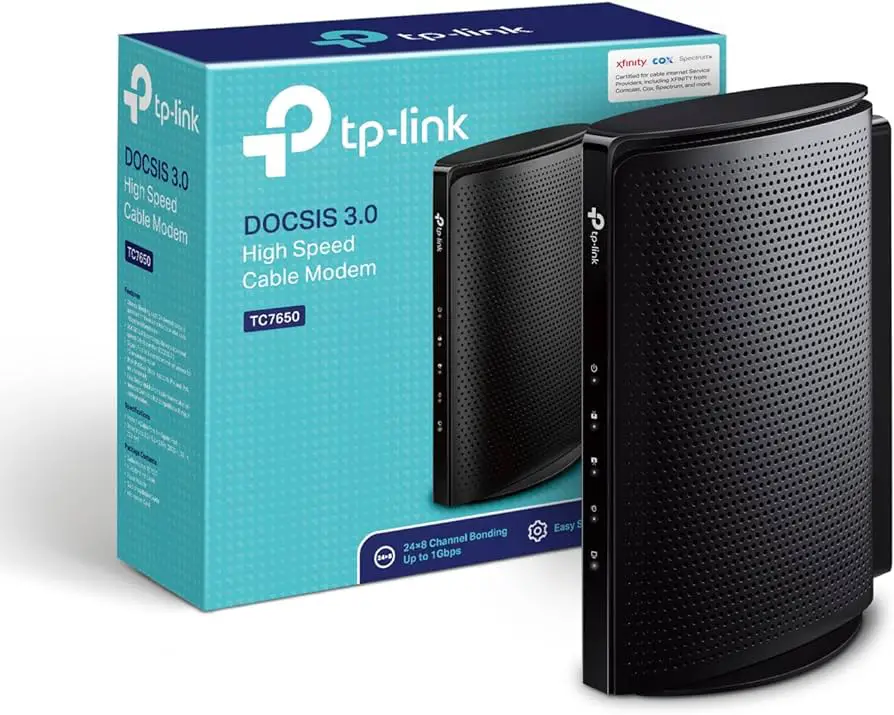
If your Spectrum internet is not reaching its full speed, try switching your Wi-Fi frequency band or checking your router’s ethernet ports to ensure they support gigabit connections. Additionally, placing your modem and router in a central location, away from obstructions, and periodically rebooting them may help increase your speed.
Consider conducting a speed test using services like Speedtest. net to assess your internet performance. If all else fails, restarting your modem can often resolve the issue. Rebooting your home network, checking for background programs or downloads, and ensuring your subscription matches the speed you’re paying for are other potential solutions to explore.
Troubleshooting Common Internet Speed Issues
If you’ve noticed that your Spectrum internet is not delivering the expected full speed, there are a few common issues that you can troubleshoot to improve your internet connection. Understanding the factors affecting your internet speed can help you diagnose and fix the problem efficiently. In this section, we will discuss the various factors affecting internet speed and provide you with step-by-step instructions for troubleshooting Spectrum internet speed issues.
Understanding the Factors Affecting Internet Speed
Several factors can affect your internet speed. By understanding these factors, you can better troubleshoot and improve your Spectrum internet connection.
- Connection Type and Plan: The speed of your internet connection will depend on the type of connection you have (such as DSL, cable, or fiber) and the plan you have subscribed to. Ensure that you have the appropriate plan for your needs.
- Network Congestion: Network congestion can occur during peak usage hours when many users are accessing the internet simultaneously. This can affect your internet speed. Consider using the internet during off-peak hours for faster speeds.
- Distance from the Router: The closer you are to your router, the stronger and faster your internet connection will be. If you are far away from the router, consider moving closer or using a Wi-Fi extender to boost your signal strength.
Diagnosing Spectrum Internet Speed Issues
Now that you have a basic understanding of the factors affecting internet speed, let’s dive into diagnosing Spectrum internet speed issues:
- Running a Speed Test: Start by running a speed test to determine your current internet speed. You can use websites such as Speedtest.net to check your download and upload speeds. Compare the results to the expected speeds provided by Spectrum.
- Comparing Expected and Actual Speeds: If your actual speeds are significantly lower than the expected speeds, there may be an issue with your internet connection. Keep in mind that slight variations are normal.
- Determining Consistency and Stability of the Connection: Check if your internet speed fluctuates or if it remains consistent over time. Inconsistent speeds may indicate a problem with your network setup or equipment.
- Checking for Spectrum Service Outages: Before troubleshooting further, it’s essential to determine if there are any service outages in your area. Visit Spectrum’s official website or use their mobile app to check for any reported issues.
- Contacting Spectrum Customer Support: If you have ruled out service outages and are still experiencing internet speed issues, it is recommended to contact Spectrum customer support. They can provide further assistance and guide you through the troubleshooting process.
By understanding the factors affecting your internet speed and following the troubleshooting steps mentioned above, you can address common internet speed issues with your Spectrum connection. Regularly test your internet speed and take necessary steps to optimize your internet connection for a smoother online experience.

Credit: www.forbes.com
Optimizing Your Spectrum Internet Speed
Optimizing Your Spectrum Internet Speed
Maximizing Wi-Fi Speeds for Optimal Performance
To maximize your Spectrum internet speed, it’s crucial to optimize your Wi-Fi speeds for optimal performance. There are several steps you can take to achieve this.
Changing Wi-Fi Frequency Band
Switching the Wi-Fi frequency band you’re using can significantly impact your wireless speeds and signal strength. Consider switching to the other band to see if it improves your internet speed.
Checking Ethernet Ports
Ensure that your router’s Ethernet ports support gigabit connections. These port numbers are typically listed near the ports themselves, making it easy to verify.
Enhancing Wi-Fi Coverage with Range Extenders
If you’re experiencing weak Wi-Fi coverage in certain parts of your home, consider using range extenders to improve coverage and boost your internet speed.
Improving Wi-Fi Signal Strength
Avoid signal blockers, such as baby monitors, wireless headphones, or microwaves, that can interfere with your Wi-Fi signal. Additionally, keep your Wi-Fi router away from obstructions like cabinets and windows to enhance signal strength.
Placing Modem and Router in Central Location
Position your modem and Wi-Fi router in a central location within your home to ensure consistent and strong signal throughout your living space.
Avoiding Signal Blockers
Keep your router away from devices that can block or interfere with the Wi-Fi signal, such as microwave ovens, cordless phones, and metal objects.
Removing Obstructions
Ensure that there are no physical obstructions, such as walls or large furniture, between your Wi-Fi router and the devices you’re using to access the internet. Clearing these obstructions can improve signal strength and speed.
Ensuring Up-to-Date Modem and Router Firmware
Regularly check for available firmware updates for your modem and router. Keeping the firmware up to date ensures optimal performance and can potentially fix any speed-related issues.
Checking for Available Firmware Updates
Visit the admin panel of your modem or router to check for available firmware updates. Follow the manufacturer’s instructions on how to perform the update to ensure a smooth process.
Performing Regular Reboots
Restarting your modem and router on a regular basis can help resolve any temporary issues and improve internet speed. Power-cycling these devices allows them to refresh and establish a new connection.
Restarting Modem and Router
Consider rebooting your modem and router by simply unplugging them from the power source, waiting for a minute, and plugging them back in. This can help clear any temporary glitches and optimize your internet speed.
Advanced Troubleshooting Techniques
When it comes to Spectrum not getting full speed, it can be frustrating to deal with slow internet connections. Fortunately, there are advanced troubleshooting techniques that can help optimize your network setup and enhance your internet speed. By implementing these techniques, you can address issues such as Wi-Fi channel interference, managing connected devices and bandwidth, utilizing quality of service (QoS) settings, prioritizing bandwidth usage, controlling network traffic, and troubleshooting hardware issues. Let’s explore each of these techniques in more detail:
Optimizing In-Home Network Setup
One of the first steps in troubleshooting Spectrum not getting full speed is to optimize your in-home network setup. Start by placing your modem and Wi-Fi router in a central location within your home. Avoid signal blockers such as baby monitors, wireless headphones, and microwaves. Additionally, ensure that your router is away from obstructions like cabinets and windows. Periodically rebooting your modem and router can also help refresh the network connection.
Checking Wi-Fi Channel Interference
Wi-Fi channel interference can significantly impact your internet speed. Try switching the Wi-Fi frequency band you’re using to see if it resolves the issue. Sometimes, temporary interferences can affect the signal strength and speed on a specific band. By switching to the other band, you can potentially improve your Wi-Fi connection.
Managing Connected Devices and Bandwidth
Having multiple devices connected to your network simultaneously can strain your bandwidth and result in slower speeds. It’s crucial to manage your connected devices and prioritize bandwidth usage. Identify devices that may be using excessive bandwidth, such as streaming devices or downloads, and limit their usage when required. Consider reducing the number of devices connected to your network to ensure optimal speed for essential devices.
Utilizing Quality of Service (QoS) Settings
Quality of Service (QoS) settings can help optimize your network performance by prioritizing specific types of internet traffic. By configuring QoS settings on your router, you can allocate more bandwidth to critical applications like video streaming or online gaming, ensuring a smoother experience. Adjusting these settings according to your usage patterns can lead to better internet speeds.
Prioritizing Bandwidth Usage
To ensure a seamless internet experience, it’s essential to prioritize bandwidth usage based on your needs. Identify the applications or devices that require high-speed internet and allocate more bandwidth to them. By prioritizing your internet usage, you can avoid congestion and ensure faster speeds for essential activities.
Controlling Network Traffic
Network traffic management plays a vital role in optimizing your internet speed. Ensure that no unnecessary background programs or downloads are consuming your bandwidth. Close any unused applications or browser tabs that may be taking up resources. By controlling network traffic, you can free up bandwidth and improve your overall internet speed.
Troubleshooting Hardware Issues
If you’ve exhausted other troubleshooting techniques and are still experiencing slow internet speeds, it might be necessary to inspect your hardware. Start by checking the cables and connections between your modem, router, and devices. Ensure that everything is securely plugged in and that there are no loose connections. Faulty or damaged cables can hinder your internet speed, so consider replacing them if necessary.
Inspecting Cables and Connections
To determine if problematic cables or connections are the cause of your Spectrum not getting full speed, visually inspect them for any signs of damage or wear. Look for frayed wires, loose connections, or bent pins. Sometimes, a simple cable replacement or reconnection can resolve speed issues.
Replacing Faulty Equipment
If you’ve checked all the cables and connections but are still experiencing slow internet speeds, it might be time to consider replacing faulty equipment. Older routers or modems may not be capable of providing the full speed that your Spectrum plan offers. Upgrading to newer and more advanced equipment can help you achieve faster and more stable internet speeds.
Frequently Asked Questions On Spectrum Not Getting Full Speed
Why My Wifi Is Not Giving Full Speed?
To increase your WiFi speed, try switching to a different frequency band to avoid interference. Check your router’s ethernet ports to ensure they support gigabit connections. Other common issues that may slow down your internet include problems with your internet provider or being too far from the router.
To maximize your WiFi speeds, place your modem and router centrally, away from signal blockers and obstructions. Reboot your modem and router periodically. Conduct a speed test to check your internet performance.
Why Am I Not Getting 1 Gigabit Speed?
If you’re not getting 1 gigabit speed, there could be a few reasons. First, check if your Wi-Fi frequency band is causing interference and switch to the other band. Also, make sure your router’s ethernet ports support gigabit connections. Additionally, factors like internet provider issues or distance from the router can affect speed.
To increase your spectrum speed, position your modem and router centrally, avoid signal blockers, and reboot them periodically.
Why Is My 400 Mbps Internet Slow?
Your 400 Mbps internet may seem slow due to various factors. It could be temporary interference on your Wi-Fi band, compatibility issues with your router’s ethernet ports, or common problems with your internet provider or home network. To improve your Spectrum speed, try switching Wi-Fi bands, checking ethernet port support for gigabit connections, or optimizing your Wi-Fi setup.
Additionally, you can maximize speeds by placing your modem and router centrally, avoiding signal blockers, and periodically rebooting your devices.
How Can I Increase My Spectrum Speed?
To increase your Spectrum speed, try the following: – Switch your Wi-Fi frequency band, as it can affect your speeds and signal strength. – Check that your router’s ethernet ports support gigabit connections. – Place your modem and router in a central location, away from obstructions.
– Reboot your modem and router periodically. Also, close any background programs or downloads and reset your modem/router if necessary.
Conclusion
In order to get full speed on your Spectrum internet, there are some steps you can take. First, switch your Wi-Fi frequency band to avoid temporary interference. Additionally, check your router’s ethernet ports to ensure they support gigabit connections. Other common issues that can impact internet speed include your internet provider having issues or being too far away from the router.
To optimize your Spectrum speed, place your modem and router in a central location, avoid signal blockers, and periodically reboot your devices. By following these tips, you can potentially increase your internet speed on Spectrum.