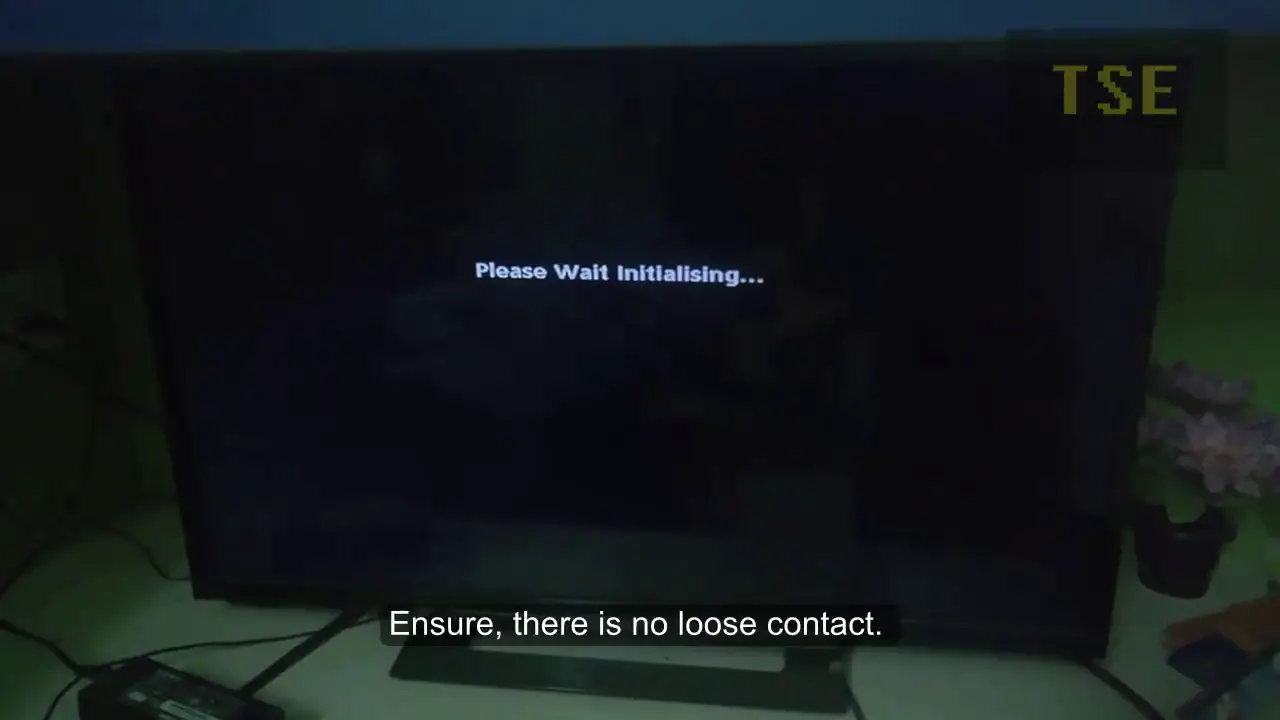
When Spectrum TV says “Please Wait,” it means that there may be an issue with loading programming from the cable company or difficulties in fetching channels. This can happen after a power outage or due to other network-related problems.
Why Does Spectrum Tv Keep Saying “Please Wait”?
If you are a Spectrum TV user, you may have encountered the frustrating message of “Please Wait” appearing on your screen. This can be quite annoying, especially when you are eager to watch your favorite shows or movies. In this section, we will explore the possible reasons behind this message and provide you with some troubleshooting tips to resolve the issue.
Possible reasons for the “please wait” message on Spectrum TV
- Weak or unstable internet connection: One of the most common reasons for the “Please Wait” message on Spectrum TV is a weak or unstable internet connection. When the signal is not strong enough, it can result in buffering issues, causing the message to appear. Ensure that your internet connection is stable and performing optimally.
- Outdated Spectrum TV app: If you are using an outdated version of the Spectrum TV app, it can lead to compatibility issues and trigger the “Please Wait” message. Check for any available updates for the app and ensure that you are using the latest version.
- Issues with the cable box: Another possible reason for the message is an issue with your cable box. If the box is experiencing a software glitch or undergoing updates, it may take some time to reboot, causing the “Please Wait” message to appear. Give it some time, and if the message persists, consider troubleshooting the cable box.
- Temporary service interruptions: Sometimes, the “Please Wait” message may indicate a temporary service interruption from Spectrum. This could be due to maintenance or technical issues on their end. In such cases, the issue usually resolves itself within a short period. Check if there are any reported service outages in your area.
Troubleshooting tips for resolving the issue
If you’re tired of seeing the “Please Wait” message on Spectrum TV, here are some troubleshooting tips to help you get rid of the issue:
- Check your internet connection: Ensure that your internet connection is stable and performing well. Try restarting your router or modem, and if the problem persists, consider contacting your internet service provider.
- Update the Spectrum TV app: Check for any available updates for the Spectrum TV app and install them. Updating the app can often resolve compatibility issues and improve its performance.
- Restart your cable box: If the issue is with your cable box, try restarting it. Unplug the power cord from the back of the box, wait for a few seconds, and then plug it back in. Allow the box to reboot completely before checking if the “Please Wait” message has disappeared.
- Contact Spectrum support: If none of the above solutions work, it’s best to reach out to Spectrum support for further assistance. They have dedicated technicians who can guide you through troubleshooting steps specific to your situation.
By following these troubleshooting tips, you can increase the chances of resolving the “Please Wait” issue on your Spectrum TV. Remember to check each possible cause and apply the corresponding solution to ensure a smooth and uninterrupted viewing experience.
Troubleshooting Steps For Spectrum Tv Loading Issues
If you’re experiencing issues with your Spectrum TV loading and continuously displaying the “Please Wait” message, follow these troubleshooting steps to resolve the problem:
Check internet connectivity
First, ensure that your internet connection is stable and working properly. A weak or unstable connection can affect the loading process of Spectrum TV. You can follow these steps to check your internet connectivity:
- Make sure your Wi-Fi or Ethernet connection is properly connected.
- Restart your router or modem to refresh the internet connection.
- Check if other devices connected to the same network are experiencing any issues.
Restart the Spectrum cable box
If the internet connection is working fine, the next step is to restart the Spectrum cable box. Sometimes, a simple restart can resolve any temporary glitches or errors. Follow these instructions to restart your Spectrum cable box:
- Locate the power cord of your Spectrum cable box.
- Unplug the power cord from the back of the cable box.
- Wait for at least 30 seconds before plugging the power cord back in.
- Allow the cable box to reboot and check if the “Please Wait” message disappears.
Reset the Spectrum TV receiver
If restarting the cable box doesn’t resolve the loading issue, you can try resetting the Spectrum TV receiver. This will restore the receiver to its default settings and can fix potential software glitches. Here’s how to reset the Spectrum TV receiver:
- Locate the reset button on the front or back panel of the Spectrum TV receiver.
- Using a paperclip or similar tool, press and hold the reset button for about 10 seconds.
- The receiver will restart, and you can check if the loading issue is resolved.
Refresh the Spectrum signal
If the previous steps didn’t solve the problem, refreshing the Spectrum signal might help. This process ensures that your cable box receives the latest updates and authorizations. Follow these steps to refresh the Spectrum signal:
- Sign in to your Spectrum account on the official Spectrum website.
- Navigate to the support section and select the option for refreshing the signal.
- Follow the on-screen prompts to complete the signal refresh process.
- Allow the cable box to reboot, and hopefully, the loading issue will be resolved.
By following these troubleshooting steps, you should be able to resolve any loading issues with your Spectrum TV and get rid of the “Please Wait” message. If the problem persists, you may need to contact Spectrum customer support for further assistance.
How To Reset Spectrum Tv?
Step-by-step guide to resetting the Spectrum TV
To resolve the frustrating issue of Spectrum TV constantly displaying the “Please Wait” message, a simple reset might be the solution you need. Here’s a step-by-step guide on how to reset your Spectrum TV:- Power off your Spectrum TV by unplugging it from the electrical outlet.
- Wait for at least 30 seconds before plugging it back in.
- Once plugged in, press the power button to turn on the TV.
- Wait for a few minutes and see if the “Please Wait” message disappears.
Common issues that resetting can fix
Resetting your Spectrum TV can help resolve several common issues. Here are some problems that can often be fixed by resetting your Spectrum TV:- Slow loading times
- Freezing or buffering issues
- Missing channels or programming information
- Unresponsive remote control
- Poor picture or sound quality
Tips for a successful reset
To ensure a successful reset and to avoid any unnecessary technical difficulties, here are a few helpful tips:- Ensure that your Spectrum TV is connected to a stable power source.
- Make sure your TV is properly connected to your Spectrum receiver or cable box.
- Double-check that all cables are securely plugged in.
- Avoid interrupting the reset process by pressing any buttons on the remote control or the TV itself.
- If the “Please Wait” message persists after resetting, contact Spectrum customer support for further assistance.

Credit: www.aacounty.org
Spectrum Tv Troubleshooting Guide: Wi-Fi, Internet & Cable
Welcome to the Spectrum TV Troubleshooting Guide: Wi-Fi, Internet & Cable. If you’re experiencing issues with your Spectrum TV service and constantly seeing the dreaded “Please Wait” message, we’ve got you covered. In this guide, we’ll provide you with some troubleshooting tips to help you resolve common Wi-Fi, internet, and cable issues that may be causing this problem.
Troubleshooting common Wi-Fi issues with Spectrum TV
If you’re facing Wi-Fi issues while using Spectrum TV, here are a few troubleshooting steps you can follow:
- Restart your Wi-Fi router and modem by unplugging them from the power source, waiting for 30 seconds, and then plugging them back in.
- Ensure that your Wi-Fi router and modem are placed in a central location in your home to provide better coverage to all areas.
- Change the Wi-Fi channel on your router to avoid interference from other devices in your vicinity.
- Check for any physical obstructions that may be blocking the Wi-Fi signal.
Tips for improving internet connection for uninterrupted streaming
If your Spectrum TV is constantly buffering or experiencing interrupted streaming, try these tips to improve your internet connection:
- Position your Wi-Fi router and modem closer to your streaming device for a stronger signal.
- Reduce the number of devices connected to your Wi-Fi network to alleviate congestion.
- Upgrade your internet plan to a higher speed tier for faster streaming.
- Consider using a wired ethernet connection instead of Wi-Fi for a more stable connection.
Cable troubleshooting tips for Spectrum TV
If you’re encountering issues with your Spectrum TV cable connection, follow these troubleshooting tips:
| Issue | Troubleshooting Steps |
|---|---|
| No signal | Check that the cable is securely connected to both your TV and the cable outlet. Try unplugging and replugging the cable. |
| Poor picture quality | Ensure that your TV is set to the correct input source and check the cable connections for any loose ends. |
| Channel not available | Perform a channel rescan on your TV or receiver to update the channel lineup. |
By following these troubleshooting steps, you should be able to resolve most common issues with Spectrum TV’s “Please Wait” message. If the problem persists, don’t hesitate to contact Spectrum customer support for further assistance.
Why Does It Take So Long To Reboot Spectrum Cable Box?
Explanation of the Boot Load Process in a Cable Box
The boot load process in a cable box refers to the series of steps it takes for the device to start up and become operational. When you power on your Spectrum cable box, it initiates a boot sequence that involves loading various software applications, checking for updates, and establishing security and authorization protocols. These processes are necessary for the cable box to function properly and provide you with access to your favorite TV channels and entertainment.
Factors That Contribute to the Reboot Time
The reboot time of your Spectrum cable box can vary depending on several factors. Here are some key factors that contribute to the duration it takes for the reboot process:
- Software Updates: If there are any pending software updates for your cable box, the reboot process might take longer as it needs to download and install these updates to ensure optimal performance.
- Network Speed and Congestion: Slow network speeds or network congestion can also impact the time it takes for your cable box to reboot. If the network is overloaded with traffic, it can slow down the communication between your cable box and the service provider’s servers.
- Device Configuration: The complexity of your cable box’s configuration can affect the reboot time. If there are numerous settings and customizations that need to be loaded during the boot process, it may take more time to complete.
Tips for Speeding up the Reboot Process
While you may not have complete control over the factors mentioned above, there are some tips you can try to help speed up the reboot process of your Spectrum cable box:
- Ensure Good Network Connectivity: Make sure your cable box is connected to a stable and high-speed internet connection. Check for any network issues and resolve them before initiating the reboot.
- Keep the Cable Box Updated: Regularly update your cable box’s software to ensure you have the latest firmware and patches. This can help optimize the boot load process and reduce the reboot time.
- Reduce Device Configurations: Remove any unnecessary customizations or settings on your cable box. Simplifying the device configuration can streamline the boot load process and speed up the reboot time.
- Power Cycle the Cable Box: Sometimes, a simple power cycle can resolve minor issues and improve the reboot time. Unplug the cable box from the power source, wait for a few seconds, and then plug it back in. This can refresh the device and help it reboot more quickly.
By following these tips, you can potentially minimize the reboot time of your Spectrum cable box and enjoy uninterrupted entertainment on your TV. Remember, if you encounter persistent issues or prolonged reboot times, it’s recommended to reach out to Spectrum’s customer support for further assistance.
Additional Troubleshooting Tips For Spectrum Tv Issues
If you’re experiencing issues with your Spectrum TV and seeing the frustrating “Please Wait” message, don’t worry – there are several troubleshooting steps you can take to resolve the problem. In this section, we’ll go over some additional tips to help you get your Spectrum TV up and running again.
Check for service outages in your area
If you’re encountering the “Please Wait” message on your Spectrum TV, the first thing you should do is check for any service outages in your area. Sometimes, the problem might not be with your individual device or app, but rather a larger issue affecting the entire Spectrum network. To check for service outages, you can visit the Spectrum website or contact their customer support.
Clear cache and data for the Spectrum TV app
If there are no reported service outages in your area, the next step is to clear the cache and data for the Spectrum TV app. This can help resolve any temporary issues or glitches that might be causing the “Please Wait” message. To clear the cache and data, follow these steps:
- Go to the settings on your device.
- Scroll down and find the “Apps” or “Application Manager” option.
- Search for the Spectrum TV app and tap on it.
- Select the “Storage” option.
- Click on the “Clear cache” and “Clear data” buttons.
Once you’ve cleared the cache and data, relaunch the Spectrum TV app and see if the issue is resolved.
Update the Spectrum TV app to the latest version
Outdated app versions can often cause compatibility issues and lead to the “Please Wait” message on Spectrum TV. To ensure you have the latest version of the app, follow these steps:
- Open the app store on your device.
- Search for “Spectrum TV” in the search bar.
- If there’s an available update for the Spectrum TV app, you’ll see an “Update” button next to it.
- Tap on the “Update” button to install the latest version of the app.
Updating the Spectrum TV app can often fix any bugs or glitches that might be causing the “Please Wait” message to appear.
Contact Spectrum customer support for further assistance
If you’ve tried the above troubleshooting steps and are still experiencing the “Please Wait” issue on your Spectrum TV, it’s time to reach out to Spectrum customer support for further assistance. They have dedicated technical support teams who can help diagnose and resolve any ongoing issues with your Spectrum TV service. You can contact Spectrum customer support either through their website or by phone.
By following these additional troubleshooting tips, you’ll hopefully be able to resolve the “Please Wait” issue on your Spectrum TV and enjoy uninterrupted viewing once again.
Frequently Asked Questions For Spectrum Tv Says Please Wait
Why Is My Spectrum Not Loading On My Tv?
If your Spectrum TV is not loading, it could be due to trouble fetching channels or issues after a power outage. To troubleshoot, you can try resetting your Spectrum TV or refreshing the Spectrum signal. If the issue persists, you may need to contact Spectrum for further assistance.
How Do I Reset My Spectrum Tv?
To reset your Spectrum TV, follow these steps: 1. Unplug your Spectrum cable box from the power outlet. 2. Wait for 15-30 seconds. 3. Plug it back in and let it reboot. 4. Wait for the TV to display the home screen.
5. Your Spectrum TV is now reset and ready to use. Note: Make sure to check your Spectrum TV guide or contact customer support if you encounter any issues.
How Do You Refresh A Spectrum Signal?
To refresh a Spectrum signal, wait for your TV to display “please wait” and then press the power button to turn it off. After a few seconds, press the power button again to turn it back on. This will refresh the signal and resolve any issues you may be experiencing.
Why Does It Take So Long To Reboot Spectrum Cable Box?
The Spectrum cable box takes a long time to reboot because it needs to load various apps, check for updates, and establish security and authorization back and forth through the coax network. This process is necessary for the box to operate properly.
Conclusion
If you are experiencing the frustrating “please wait” message on your Spectrum TV, there are a few troubleshooting steps you can try. Refreshing the Spectrum signal, resetting your Spectrum TV, or checking for any updates or network issues could potentially resolve the problem.
It’s important to be patient and allow the system to load the necessary programming and updates. If the issue persists, contacting Spectrum customer support is recommended for further assistance.
