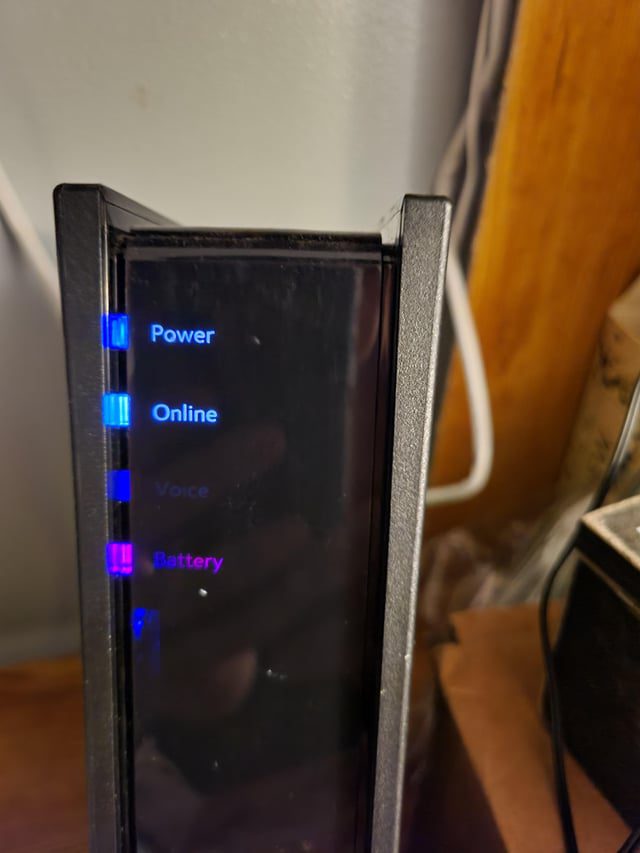
Spectrum internet cutting out randomly can occur due to various reasons, including signal interference or a faulty modem or router. If you’re experiencing this issue, there are a few troubleshooting steps you can try to resolve the problem.
Troubleshooting Tips And Tricks For Random Outages
Experiencing random internet outages can be incredibly frustrating, especially when trying to get work done or enjoy some downtime. Spectrum, like any other internet service provider, is not immune to these occasional disruptions. To help you troubleshoot and identify the cause of these random outages, we have put together a list of tips and tricks.
Understanding the Common Causes of Random Internet Outages with Spectrum
Before we dive into troubleshooting, it’s important to have a basic understanding of what could be causing these random internet outages with Spectrum. Here are a few common causes:
- Hardware or equipment issues: Faulty cables, routers, or modems can lead to intermittent outages.
- Network congestion: During peak hours, increased usage in your area may result in slower speeds or connection interruptions.
- Weather conditions: Storms and severe weather can affect the infrastructure and lead to temporary outages.
- Software or firmware updates: Occasionally, updates from Spectrum or software installed on your devices can interfere with the stability of your connection.
Steps to Identify if the Problem is with Spectrum or Your Own Network
Now that you know some of the common causes of random outages, let’s proceed with the steps to identify if the problem is with Spectrum or your own network. Following these steps can help you narrow down the issue and find an appropriate solution:
- Check the Spectrum outage map: Start by visiting Spectrum’s official website and look for their outage map. This map will show you if there are any reported outages in your area. If there is an outage, it’s likely that the problem is with Spectrum and not your own network.
- Test other devices: If the outage map doesn’t show any reported issues in your area, try connecting other devices to your network. If they also experience the same connectivity problems, it suggests the issue lies with your network rather than Spectrum.
- Restart your equipment: Power cycling your modem and router can often resolve minor connectivity issues. Turn them off, wait for a few seconds, and then turn them back on. Allow the devices to reconnect and check if the internet is working again.
- Connect directly to the modem: If you’re using a router, connect your computer directly to the modem using an Ethernet cable. This bypasses the router and helps determine if the issue is with the router or the modem itself.
- Contact Spectrum’s customer support: If none of the above steps solve the issue, it’s time to reach out to Spectrum’s customer support. They have the tools and knowledge to further diagnose the problem and provide you with a solution.
With these troubleshooting tips and tricks, you’ll have a better chance of identifying the cause of random outages and resolving them swiftly. Remember, maintaining a stable internet connection is essential for both work and play, and sometimes all it takes is a little troubleshooting to get everything back up and running smoothly.
Checking For Hardware Issues
If you’re experiencing random internet outages with your Spectrum internet connection, it’s crucial to investigate and rule out any potential hardware issues. In this section, we’ll guide you through inspecting and troubleshooting your modem and router connectivity, as well as verifying cable and power connections.
Inspecting and troubleshooting modem and router connectivity
First, ensure that both your modem and router are securely connected and powered on. Check if all the necessary cables are properly attached: the coaxial cable from the wall outlet should be connected to the modem’s input, and then an Ethernet cable should be running from the modem’s output to the router’s input.
If your modem and router are separate devices, try connecting your computer or device directly to the modem using an Ethernet cable, bypassing the router completely. This step helps determine if the issue lies with the modem or the router.
If you’re able to connect directly to the modem and your internet connection is stable, the problem might be with the router. In that case, consider restarting the router or performing a factory reset if needed. Consult the router’s manual or manufacturer’s website for specific instructions.
Verifying cable and power connections
Next, check that all cables are securely plugged in and that there are no visible damages or fraying. Ensure the power cables are firmly connected to both the modem and router, as any loose connections can cause intermittent internet outages.
When inspecting the cables, pay close attention to the coaxial cable that connects the modem to the wall outlet. Make sure it’s tightly screwed into both ends and doesn’t show any signs of wear or damage.
If you notice any issues with the cables or suspect that they might be causing the problem, consider replacing them with new cables. It’s always a good idea to have spare cables on hand for troubleshooting purposes.
In conclusion, when your Spectrum internet is cutting out randomly, checking for hardware issues is essential. By inspecting and troubleshooting your modem and router connectivity, as well as verifying cable and power connections, you can narrow down the potential causes of the problem. Fixing any hardware issues can significantly improve the stability and reliability of your internet connection.
Analyzing Signal Strength And Quality
If you’re experiencing random internet outages with your Spectrum connection, one possible cause could be a problem with the signal strength and quality. Understanding and analyzing these factors can help you identify and resolve the issue effectively. In this section, we’ll explore how you can utilize Spectrum’s online tools to check the signal strength and quality, as well as learn about the impact of signal interference and how to minimize it.
Using Spectrum’s online tools to check signal strength and quality
One of the most convenient ways to assess your Spectrum internet’s signal strength and quality is by using the online tools provided by the company. Spectrum offers a user-friendly interface that allows you to monitor and analyze various aspects of your connection.
To get started, follow these steps:
- Login to your Spectrum account on their official website.
- Navigate to the “My Account” section.
- Click on the “Internet” tab.
- Look for the option to check your “Signal Strength” or “Connection Status.”
Once you locate the relevant section, you will be able to view detailed information about your internet connection, including the signal strength and quality. These metrics are usually represented in decibel milliwatts (dBm) or signal-to-noise ratio (SNR). The higher the numbers, the better the signal strength and quality.
Understanding the impact of signal interference and minimizing it
Signal interference is a common issue that can disrupt your internet connection and cause it to cut out randomly. It can be caused by various factors such as:
- Physical barriers like walls, furniture, or appliances blocking the signal.
- Electrical interference from nearby devices or power sources.
- Wireless signals from neighboring networks overlapping with your own.
To minimize signal interference and improve your internet reliability, consider the following tips:
- Place your wireless router in a central location to ensure better coverage throughout your home.
- Keep the router away from obstructions and electrical appliances.
- Change the wireless channel of your router to avoid conflicts with neighboring networks. Spectrum’s online tools usually provide an option to change the channel.
- Consider using Wi-Fi extenders or mesh network systems to amplify the signal in areas with weak coverage.
By analyzing the signal strength and quality of your Spectrum internet connection and taking steps to minimize signal interference, you can significantly reduce the likelihood of random outages and enjoy a more reliable online experience.

Credit: www.reddit.com
Resetting Network Devices And Modem
If you are experiencing frequent interruptions with your Spectrum Internet, you may find that resetting your network devices and modem can help resolve the issue. Resetting these devices can clear any temporary glitches or conflicts that may be causing the random cutouts.
Performing a hard reset of the router and modem
To perform a hard reset of your router and modem, follow these steps:
- Locate the power button on your router and modem.
- Press and hold the power button for about 10 seconds.
- Release the power button and wait for the devices to fully power off.
- After a few minutes, press the power button again to turn on the router and modem.
Configuring network settings after the reset
After resetting your network devices and modem, it’s essential to configure your network settings to ensure a stable and uninterrupted Internet connection. Here are the steps to follow:
- Connect a device, such as a laptop or smartphone, to the newly restarted router using an Ethernet cable or through a Wi-Fi connection.
- Open a web browser on the connected device and enter the IP address of your router in the address bar. This IP address is usually found on the router or in the user manual.
- Login to the router’s administration interface using the username and password provided by your Internet Service Provider (ISP).
- Within the router’s interface, navigate to the network settings section.
- Verify that the connection type is set to DHCP or Automatic configuration.
- Save the changes and restart the router.
By resetting your network devices and modem and properly configuring your network settings, you can significantly improve the stability of your Spectrum Internet connection. If the random cutouts persist, it may be worth contacting Spectrum customer support for further assistance.
Checking For Service Outages In Your Area
Dealing with internet connectivity issues can be frustrating, especially when your Spectrum Internet cuts out randomly. However, before you start troubleshooting your own equipment, it’s essential to determine whether there is a service outage in your area. By utilizing Spectrum’s service outage checker, you can quickly find out if there are any known issues that might be causing your internet to intermittently drop out.
Utilizing Spectrum’s service outage checker
Spectrum provides a convenient and straightforward way to check for service outages in your area. Follow these steps to utilize their service outage checker:
- Open your preferred web browser and visit the official Spectrum website.
- Navigate to the support section of the website, where you’ll find various resources and tools for troubleshooting your internet connection.
- Locate the service outage checker tool on the support page. It is usually prominently displayed or can be found under the “Internet” category.
- Click on the service outage checker tool to access it.
- Enter your ZIP code or address in the designated field. This information helps Spectrum pinpoint your location accurately.
- Click on the “Check” or “Submit” button to initiate the outage checker.
Once you’ve completed these steps, the service outage checker will display information regarding any known outages in your area. If there is a service disruption, you can rest assured that Spectrum is already working on resolving the issue.
Reporting service outages to Spectrum
If you’ve confirmed that there is an outage in your area through Spectrum’s service outage checker, it’s still crucial to report the issue directly to Spectrum. Reporting the outage helps Spectrum gather valuable data and ensures that they’re aware of the problem affecting their customers.
To report the service outage, follow these steps:
- Contact Spectrum’s customer support by phone or online chat. Ensure you have your account information readily available.
- Inform the customer support representative that you’ve used the service outage checker and confirmed a service disruption in your area.
- Provide any additional details or observations you may have about the outage to assist Spectrum in resolving the issue as quickly as possible.
- Follow any troubleshooting steps or instructions provided by the customer support representative to ensure that the issue isn’t related to your own equipment.
Remember, reporting the service outage not only helps Spectrum address the problem promptly but also ensures that your individual case is documented, which may be useful for any future discussions or reimbursements related to the interruption of your internet service.
Optimizing Wi-Fi Network Performance
In order to prevent Spectrum Internet from cutting out randomly, it is crucial to optimize your Wi-Fi network performance. By implementing effective strategies, you can ensure a stable and reliable connection throughout your home. In this article, we will explore two key aspects of optimizing your Wi-Fi network performance: managing Wi-Fi channels to reduce interference and enhancing Wi-Fi signal strength through location and range.
Managing Wi-Fi Channels to Reduce Interference
Interference from neighboring Wi-Fi networks can often lead to sporadic connectivity issues. By properly managing your Wi-Fi channels, you can minimize interference and improve the overall performance of your network.
Enhancing Wi-Fi Signal Strength through Location and Range
The location and range of your Wi-Fi router play a crucial role in the strength and coverage of your wireless network. Here are some tips to enhance your Wi-Fi signal strength:
- Choose an optimal router location: Place your router in a central location within your home, away from walls and obstructions. This will help ensure that the Wi-Fi signal reaches all areas of your house evenly.
- Adjust your router’s antenna: Most routers have adjustable antennas that can be positioned for maximum signal strength. Experiment with different angles to find the best configuration.
- Consider Wi-Fi range extenders: If you have a large home or multiple floors, Wi-Fi range extenders can help amplify and extend the coverage of your network.
- Reduce interference from household appliances: Certain household appliances, such as cordless phones and microwave ovens, can interfere with your Wi-Fi signal. Keep your router away from these devices to minimize interference.
Identifying And Resolving Network Congestion Issues
In today’s digital age, a reliable and uninterrupted internet connection is essential. However, there are times when even the most dependable service providers experience issues that result in internet cutouts. One common culprit behind such disruptions is network congestion. By understanding the impact of network congestion on internet performance and learning techniques to manage it effectively, you can ensure a smoother online experience.
Understanding the impact of network congestion on internet performance
Network congestion occurs when the demand for data exceeds the available capacity of the network infrastructure. During peak usage times, such as evenings or weekends when more people are accessing the internet, congestion becomes more prevalent. This can result in reduced download and upload speeds, latency, increased packet loss, and, in severe cases, complete internet dropouts.
When multiple users are using the same network simultaneously, the available bandwidth is divided among them. This sharing of resources can cause network congestion, leading to a degraded internet experience for all users. Identifying the signs of network congestion is crucial in understanding and minimizing its impact on your internet connection.
Techniques for managing network congestion during peak usage times
Fortunately, there are several strategies you can employ to manage network congestion and ensure a reliable internet connection, even during peak usage times.
1. Prioritize essential tasks and devices
When network traffic is high, it’s important to prioritize essential tasks and devices. For example, if you’re conducting an important video conference, consider temporarily disabling bandwidth-heavy applications such as video streaming services or large file downloads on other devices connected to your network. This will free up bandwidth for your crucial activity.
2. Optimize your network setup
To minimize the impact of network congestion, optimize your network setup. Ensure that your router is placed in a central location, away from obstructions, to provide the best coverage throughout your home or office. Additionally, using the latest router firmware and adjusting its settings, such as choosing the optimal channel, can significantly improve your network’s performance.
3. Consider upgrading your internet plan
If network congestion is a recurring issue, upgrading your internet plan might be a viable solution. Higher-tier plans typically offer more bandwidth, allowing for a smoother experience even during peak usage. Contact your internet service provider to explore available options and determine the best plan for your needs.
4. Use a wired connection
While Wi-Fi provides convenience, it can be susceptible to interference and signal degradation, especially in crowded areas. Using a wired connection, such as an Ethernet cable, can help bypass these issues and ensure a more stable and consistent internet connection.
By understanding the impact of network congestion and implementing these techniques, you can effectively manage and resolve network congestion issues. Remember, a reliable and uninterrupted internet connection is within your reach, even during times of high demand.
Contacting Spectrum Support And Customer Service
If you’re experiencing random internet cutouts with your Spectrum connection, you’re not alone. Many Spectrum internet users have encountered this frustrating issue, which disrupts their online activities and productivity. Fortunately, Spectrum provides reliable support and customer service to help you resolve this problem as quickly as possible.
Obtaining the necessary information before contacting support
Before reaching out to Spectrum support, it’s essential to gather all the necessary information related to your internet issue. This will enable the support representatives to better understand your problem and provide you with appropriate solutions. Here’s the information you should have handy:
- Your Spectrum account number or customer ID
- The exact time and date of the internet outage
- The frequency and duration of the cutouts
- Any error messages or codes displayed on your modem or router
- A description of the activities you were doing when the internet cut out
Taking note of these details will save you time during the support call and help the representative diagnose the issue more efficiently.
Explaining the issue effectively to support representatives
When you contact Spectrum support, it’s crucial to effectively communicate your internet issue to ensure a smooth resolution process. Keep the following tips in mind:
- Be concise and clear: Clearly describe the problem in simple terms without using technical jargon.
- Provide relevant details: Mention the specific error messages, if any, and describe the impact the internet cutouts have on your daily activities.
- Highlight previous troubleshooting steps: If you’ve already attempted any troubleshooting steps, let the representative know to avoid repeating those actions.
- Ask questions: Don’t hesitate to ask the support representative for clarifications or additional information.
By effectively explaining your issue to the support representative, you can expedite the troubleshooting process and increase the likelihood of a speedy resolution.
Exploring Alternative Internet Service Providers
Exploring Alternative Internet Service Providers
If you find yourself dealing with persistent issues of Spectrum internet cutting out randomly, it might be time to consider other internet service providers. Having a reliable internet connection is crucial in today’s connected world, and experiencing frequent disruptions can be frustrating and disruptive to your daily activities. Thankfully, there are several alternative options available that you can explore to ensure reliable internet connectivity. In this article, we will discuss the importance of considering other internet providers and provide tips on researching and comparing alternative options.
Considering other internet providers in case persistent issues occur
Dealing with internet connection issues on a regular basis can have a significant impact on your productivity and online experience. While Spectrum is a popular choice for many households, it’s essential to have a backup plan in case the issues persist. Exploring alternative internet service providers can offer you a reliable alternative and ensure you stay connected.
Researching and comparing alternative options for reliable internet connectivity
Once you decide to look for alternative internet providers, it’s crucial to approach the research phase with a systematic approach. By comparing various options, you can find a provider that best suits your needs. Here’s a step-by-step guide to help you with your research:
- Identify your needs: Start by making a list of your internet requirements. Consider factors such as speed, data limits, customer support, and pricing. This will help you narrow down your options and focus on providers who can meet your specific needs.
- Gather information: Begin your research by gathering information on different providers in your area. Look for reviews, ratings, and feedback from existing customers. Visit their websites to get an idea of the services they offer and any promotional deals or discounts available.
- Compare pricing and plans: Determine the pricing plans offered by each provider and compare them side by side. Pay attention to any hidden fees or additional costs that may impact your overall expenses. Consider the value for money and the reliability of the provider’s network.
- Check availability and coverage: Ensure that the alternative providers you are considering offer service in your area. Look for coverage maps or use their online tools to check if your location is within their service range. Cross off any providers that are not available in your area.
- Consider customer support: Reliability and customer support go hand in hand. Research the level of customer support provided by each provider. Look for testimonials or seek advice from friends or family members who may have experience with the provider’s customer service.
- Make a decision: Based on your research, create a shortlist of alternative providers that align with your needs and expectations. Compare the pros and cons of each and make an informed decision based on the information gathered.
Remember, switching to an alternative internet service provider not only provides a solution to ongoing connectivity issues but also opens up the possibility of accessing better service, faster speeds, and improved customer support. Take the time to research and compare your options to ensure you make the right choice for your internet connectivity needs.
Frequently Asked Questions Of Spectrum Internet Cutting Out Randomly
Why Does My Spectrum Internet Keep Cutting Out Randomly?
It is frustrating to experience random internet drops. This issue can be caused by various factors such as outdated equipment, signal interference, or network congestion. To resolve this, try troubleshooting steps like resetting your modem/router, moving devices away from potential interference, or contacting Spectrum support for assistance.
How Can I Fix Intermittent Internet Connection Issues With Spectrum?
If your Spectrum internet connection is intermittent, start by rebooting your modem and router. Ensure all cables are securely connected. If the issue persists, try connecting your device directly to the modem via an Ethernet cable to rule out any Wi-Fi connection problems.
If none of these steps work, reach out to Spectrum technical support for further assistance.
Is It Common For Spectrum Internet To Randomly Drop?
Yes, intermittent internet drops with Spectrum are not uncommon. This can be due to various reasons such as network congestion, signal interference, or equipment issues. However, persistent dropouts may require further investigation and troubleshooting to address the underlying problem. Consider reaching out to Spectrum’s customer support for assistance in resolving the issue.
How Can I Improve The Stability Of My Spectrum Internet Connection?
To improve the stability of your Spectrum internet connection, ensure that your modem and router are properly positioned in a central location, away from obstructions. Additionally, keep your devices updated with the latest software/firmware versions. It may also help to reduce interference from other electronic devices by minimizing their proximity to your internet equipment.
Conclusion
Experiencing random internet cutouts with Spectrum can be frustrating and disruptive. While there can be various factors causing this issue, such as signal interference or hardware problems, it is crucial to troubleshoot and report the problem to Spectrum’s customer support.
By addressing the issue promptly, you can ensure a smoother and more reliable internet connection in the long run. Stay connected and enjoy uninterrupted browsing!
