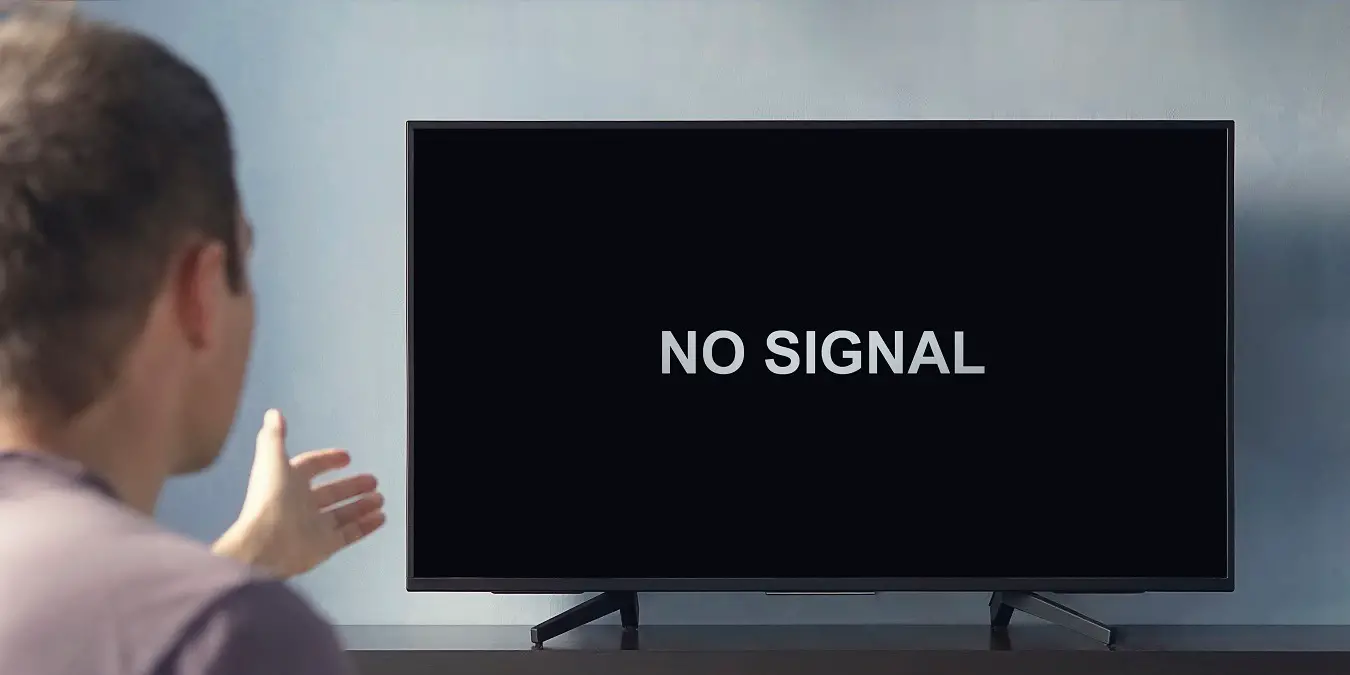
When your TV displays “No Signal” on the spectrum, it means that the TV is not receiving a signal from the TV box. This can occur if the TV box is turned off, not properly connected to the TV, or if the TV is set to the wrong input.
To fix this issue, start by checking if the TV box is powered on and securely connected to the TV. Make sure that the TV is set to the correct input source for the TV box. If the problem persists, try power resetting the cable box by unplugging it from the wall outlet or power strip, waiting for a minute, and then plugging it back in and turning it on.
Understanding The “No Signal” Message
What does the “No Signal” message mean?
When you see the “No Signal” message on your TV screen, it means that your TV is not receiving a signal from your TV box. This message can appear due to various reasons, including the TV box being powered off, improper connection between the TV box and the TV, or the TV being set to the wrong input. Understanding the cause of this message is essential in troubleshooting the issue and getting your TV working again.
Common reasons for the “No Signal” message
There are several common reasons why you might encounter the “No Signal” message on your television. These include:
- TV box turned off: If your TV box is powered off, it cannot send a signal to your TV.
- Incorrect input: When the TV is set to the wrong input source, it will not receive the signal from the TV box.
- Loose cables: Loose or improperly connected cables between your TV and the TV box can result in a loss of signal.
- Outage in your area: Sometimes, the “No Signal” message can be caused by a temporary outage in your area.
By identifying these common reasons, you can take the necessary steps to resolve the issue and restore the signal to your TV.
Importance of troubleshooting the issue
Troubleshooting the “No Signal” issue is crucial to getting your TV back up and running. Here’s why:
- Time-saving: By narrowing down the possible causes and following a systematic troubleshooting approach, you can quickly identify and resolve the issue.
- Cost-effective: Troubleshooting the issue yourself can save you the cost of calling a technician or potentially purchasing unnecessary equipment.
- Convenience: Fixing the “No Signal” problem allows you to enjoy your favorite shows and movies without interruption.
- Preventive measures: Understanding the root cause of the issue can help you take preventive measures to avoid similar problems in the future.
Now that you have a better understanding of the “No Signal” message and its common causes, you can begin troubleshooting the issue with confidence. In the following sections, we will explore various troubleshooting steps to help you resolve the issue and get your TV back to working condition.
Troubleshooting Steps For A Clear Connection
Step 1: Check cable connections and inputs
Ensuring cables are securely connected
One of the first steps to troubleshoot a “No Signal” issue on your TV spectrum is to check your cable connections. Make sure that all cables are securely plugged into their respective ports on both the TV and the cable box. Loose or disconnected cables can cause signal disruptions or no signal at all.
Selecting the correct input on your TV
Another common reason for a no signal message is selecting the wrong input on your TV. Your TV may have multiple HDMI or AV inputs, and if you have connected your cable box to a different input than the one you are currently using, you won’t get a signal. Use your TV remote to navigate through the input options and select the correct one for your cable box.
Step 2: Power reset your cable box
Unplugging the cable box for a minute
If checking cable connections and selecting the correct input doesn’t resolve the issue, the next step is to power reset your cable box. Locate the power cord connected to your cable box and unplug it from the wall outlet. Leave the cable box unplugged for at least one minute. This reset process helps to clear any internal glitches or errors that may be causing the no signal problem.
Plugging it back in and turning it on
After the one-minute power reset, plug the cable box back into the power outlet. Wait for the box to power up completely, which can take a few minutes. Once it’s fully powered on, turn on your TV and check if the signal has been restored.
Step 3: Refresh the signal on your Spectrum cable box
Sending a refresh signal to your cable box
If the previous steps haven’t resolved the no signal issue, you can try refreshing the signal on your Spectrum cable box. This sends a signal to your box to update its connection with the network and can often solve signal-related problems.
Steps to perform a refresh signal
- Log in to your Spectrum account
- Click on the “Services” tab
- Click on “TV”
- Click on “Refresh Equipment”
- Follow the prompts to send a refresh signal to your cable box
Performing a refresh signal typically takes a few minutes, and your cable box may restart during the process. After the refresh is complete, check if your TV spectrum signal has been restored.
Additional Troubleshooting Tips
If you’re experiencing a “No Signal” issue on your TV spectrum, there are a few additional troubleshooting tips you can try before contacting customer support. These tips can help you identify and resolve the problem quickly and easily. Let’s take a look:
Checking for any loose or damaged cables
If you’re seeing a “No Signal” message on your TV screen, the first thing you should do is check all the cables connected to your TV and cable box. Sometimes, a loose or damaged cable can disrupt the signal and prevent your TV from receiving any channels. Start by visually inspecting all the cables connected to your TV and cable box. Ensure that they are securely plugged in and that there are no obvious signs of damage such as frayed wires or bent connectors. If you do find any loose or damaged cables, try reinserting them or replacing them with new ones to see if that resolves the issue.
Testing with a different HDMI or coaxial cable
If you have any spare HDMI or coaxial cables lying around, try swapping them out with the ones currently connected to your TV and cable box. This can help determine whether the issue lies with the cables themselves. Sometimes, cables can become faulty over time, causing a loss of signal. By testing with different cables, you can rule out any cable-related problems and ensure that your TV spectrum is receiving a strong, uninterrupted signal.
Resetting your TV to factory settings
If checking and replacing cables didn’t solve the “No Signal” issue, you can try resetting your TV to its factory settings. This can help resolve any potential software glitches or misconfigurations that may be causing the problem. To reset your TV, refer to the user manual for instructions on how to perform a factory reset. Keep in mind that resetting your TV will erase any settings or preferences you’ve customized, so make sure to jot down any important settings before proceeding.
Contacting Spectrum customer support for assistance
If none of the previous troubleshooting tips work, it’s time to contact Spectrum customer support for further assistance. They have a dedicated team of technicians who can help you diagnose and resolve the “No Signal” issue. Reach out to them via phone or online chat, providing them with the necessary details such as your account information, the problem you’re experiencing, and the steps you’ve already taken. They’ll guide you through any additional troubleshooting steps or schedule a technician visit if needed.
By following these additional troubleshooting tips, you can increase your chances of resolving the “No Signal” issue on your TV spectrum. Take the time to check and replace cables, reset your TV if necessary, and don’t hesitate to seek assistance from Spectrum customer support. Before you know it, you’ll be back to enjoying your favorite shows without any interruption.

Credit: www.spectrum.net
Frequently Asked Questions For No Signal On Tv Spectrum
How Do I Send A Refresh Signal To My Spectrum Cable Box?
To send a refresh signal to your Spectrum cable box, follow these steps: 1. Log in to your Spectrum account. 2. Click on the Services tab and select TV. 3. If you’re experiencing issues, click on “Experiencing Issues? “. 4. Then, click on “Refresh your signal to your Spectrum cable box”.
5. This will send a refresh signal to your cable box and help resolve any connectivity problems.
How Do You Reboot Signal Spectrum?
To reboot the signal spectrum, unplug the cables from your TV and cable box and plug them back in securely. This should help fix the “No Signal” issue.
What Does No Signal Mean?
A “No Signal” message on your TV means that it is not receiving a signal from your TV box. This can be due to the TV box being powered off, incorrect connections, or wrong input settings on your TV. To fix this, ensure that the TV box is powered on, properly connected, and set to the correct input.
How Do I Fix My Cable Box Without Signal?
To fix your cable box without a signal, try power resetting it. Unplug the box from the outlet, wait for a minute, then plug it back in and turn it on. Make sure it’s directly connected to the wall outlet instead of a power strip or surge protector.
Conclusion
If you’re experiencing a “No Signal” error on your TV, there could be a few possible reasons. It could be due to the TV box being turned off, improper connections between the TV and box, or the TV being set to the wrong input.
To troubleshoot, try power resetting the cable box by unplugging it for a minute and plugging it back in. Also, double-check the cable connections. By following these steps, you can resolve the “No Signal” issue and get back to enjoying your favorite shows.
