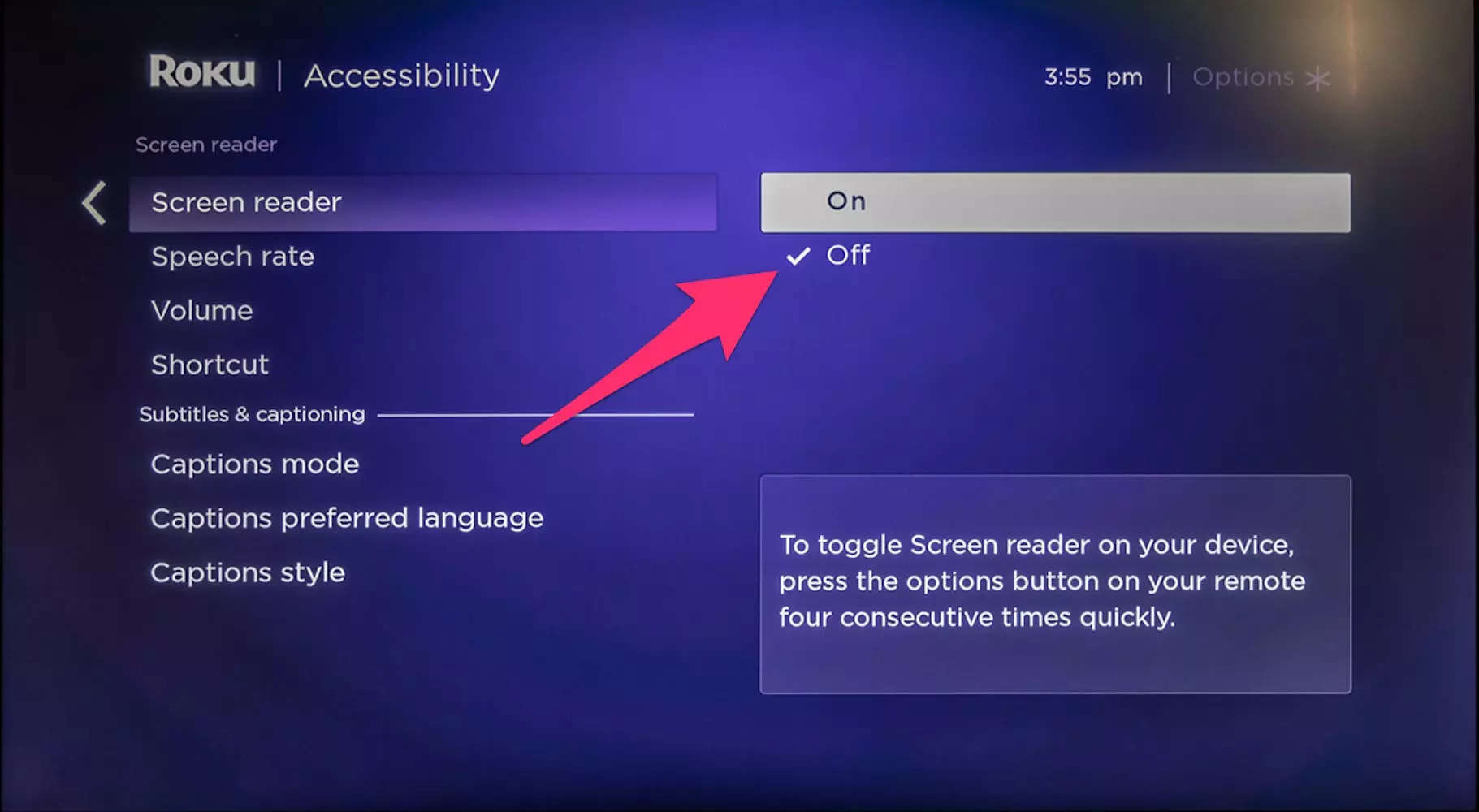
To turn off captions on Spectrum TV Roku, go to the Settings menu on your Roku, select Accessibility, and then choose Closed Captions. Use the toggle switch to turn off the captions.
When it comes to enjoying your favorite shows without distractions, turning off captions on your Spectrum TV Roku is essential. Captions can be helpful for those who are hearing impaired, but if you prefer a caption-free viewing experience, knowing how to disable them is important.
In this guide, you will learn the simple steps to turn off captions on Spectrum TV Roku, allowing you to fully immerse yourself in the content you love without any unnecessary text on the screen. Whether you’re watching a movie, sports, or your favorite TV series, being able to easily disable captions can enhance your entertainment experience.
Mastering Spectrum Tv Roku Settings
Configuring your Spectrum TV Roku settings can greatly enhance your viewing experience. From adjusting captions to customizing the display, mastering these settings allows you to personalize your entertainment setup to match your preferences and requirements. In this guide, we’ll delve into the process of turning off captions on Spectrum TV Roku, offering valuable insights into the importance of captioning for accessibility as well as a brief overview of Spectrum TV Roku features.
Importance Of Captioning For Accessibility
Captions serve as a crucial accessibility feature, providing individuals with hearing impairments the opportunity to fully engage with the content they are watching. Enabling captions ensures that everyone, regardless of their hearing abilities, can comprehend and enjoy the programs and movies offered by Spectrum TV Roku. It promotes inclusivity and enhances the overall viewing experience for all users.
Brief Insight On Spectrum Tv Roku Features
Spectrum TV Roku comes equipped with a host of features designed to maximize entertainment. From access to a wide variety of channels to the convenience of on-demand content, Spectrum TV Roku caters to diverse viewing preferences. The platform also offers customizable settings that allow users to tailor their experience, making it a versatile and user-friendly option for streaming and live TV.
Access The Caption Settings
When it comes to enhancing your entertainment experience on Spectrum TV Roku, you may want to turn off the captions for a more immersive viewing experience. To do this, you will need to access the caption settings on your Spectrum TV Roku device. Follow the steps below to navigate through the menu options and locate the accessibility features to turn off the captions on Spectrum TV Roku.
Once you’re on the Spectrum TV Roku interface, use your remote control to navigate to the top menu and select the “Settings” option.
Scroll down and choose “Accessibility” from the list of menu options to proceed to the accessibility settings.
Locating Accessibility Features
Within the Accessibility menu, you will find the option for “Caption Settings.” Select this option to access the settings related to captions.
Once you’re in the Caption Settings, you can proceed to disable the captions by toggling the appropriate setting.
Customize Your Viewing Experience
Watching TV should be an experience tailored to your preferences. Spectrum TV Roku allows you to personalize your viewing experience to match your needs and preferences. One of the ways you can do this is by adjusting the captions to suit your viewing style.
Adjusting Captions On Spectrum Tv Roku
Turning off captions on Spectrum TV Roku is a straightforward process that involves a few simple steps. Whether you want to eliminate distractions or you no longer require the captions, follow these steps to customize your viewing experience:
- Launch the Spectrum TV channel on your Roku device.
- Press the ‘‘ button on your Roku remote to access the Spectrum TV app menu.
- Select “Settings” from the menu options.
- Choose “Accessibility” to locate the closed caption options.
- Toggle the closed caption setting to “Off” to disable captions during your TV viewing.
Personalizing Caption Font And Size
Aside from turning off captions altogether, Spectrum TV Roku also allows you to personalize the appearance of your closed captions. This gives you greater control over the viewing experience. Here’s how you can customize the caption font and size:
- Access the Settings menu within the Spectrum TV channel on your Roku device.
- Navigate to the “Accessibility” section to find the caption customization options.
- Select the “Font Style” option to choose from a variety of font styles that suit your preference.
- Similarly, you can adjust the “Caption Size” to make the text larger or smaller according to your comfort.
By following these simple steps, you can adjust and personalize the closed captions on Spectrum TV Roku to make your viewing experience more enjoyable and accommodating to your needs.
How To Turn Off Captions Efficiently
In this section, we will discuss how to efficiently turn off captions on Spectrum TV Roku. Disabling captions can enhance your viewing experience by providing a distraction-free environment. To ensure a smooth and hassle-free process, follow the step-by-step guide below and troubleshoot common issues that may occur during the process.
Step-by-step Guide To Disabling Captions
Turning off captions on your Spectrum TV Roku is a simple process. Follow these steps to efficiently disable the captions:
- Start by ensuring that your Roku device is powered on and connected to your TV.
- Navigate to the “Settings” menu on your Roku home screen.
- Select “Accessibility” from the list of options.
- Choose “Caption Mode” and then select “Off” to disable captions.
- Once disabled, exit the settings and return to your Spectrum TV to enjoy your content without captions.
Troubleshooting Common Issues
If you encounter any issues while attempting to turn off captions, try the following troubleshooting steps:
- Restart your Roku device and try disabling captions again.
- Ensure that your Roku and Spectrum TV are both updated to the latest firmware.
- If the issue persists, check the connection between your Roku and TV to ensure all cables are securely connected.
- Consult the user manual for your specific Roku model for additional troubleshooting tips.
Ensuring Captions Are Off
If you want to enjoy your Spectrum TV Roku experience without captions, you need to ensure that they are turned off. It’s a simple process, but it’s crucial for those who prefer an uninterrupted viewing experience. Here’s how to ensure captions are off on Spectrum TV Roku.
Confirming Changes On Various Content
After turning off captions on Spectrum TV Roku, it’s essential to confirm that the changes have taken effect across various content. This ensures that you won’t be unexpectedly interrupted with captions when switching between different TV shows or movies.
What To Do If Captions Persist
If despite your efforts, captions persist, there are a few steps you can take to troubleshoot the issue. First, double-check the settings on your Roku device to ensure that captions are indeed turned off. Next, try restarting the Spectrum TV app to see if that resolves the issue. If the problem still persists, you may need to reach out to Spectrum customer support for further assistance.
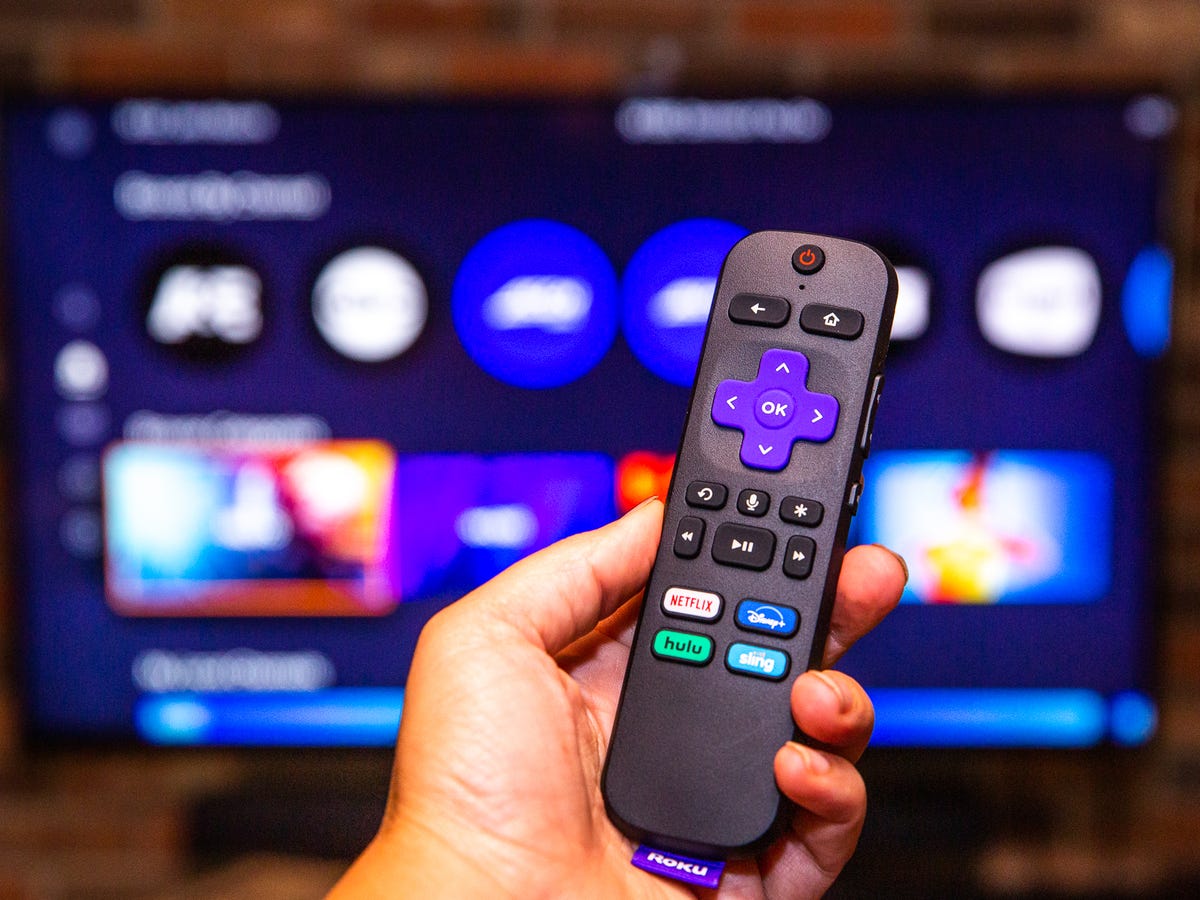
Credit: www.cnet.com
Optimizing Your Spectrum Roku Setup
If you are a Spectrum TV Roku user, optimizing your setup can greatly enhance your viewing experience. One important aspect of this is knowing how to turn off captions, as it can be distracting for some viewers. In this guide, we’ll discuss how to optimize your Spectrum Roku setup and provide tips for maintaining preferences. Let’s dive in!
Additional Settings To Enhance Viewing
Once you have your Spectrum TV app installed on your Roku device, there are a few additional settings you can adjust to enhance your viewing experience. By customizing these settings, you can tailor your Roku setup to meet your preferences.
- Adjust video display settings such as brightness, color, and sharpness.
- Explore audio settings to ensure the sound quality meets your expectations.
- Manage closed captioning and language preferences for subtitles.
Tips For Maintaining Preferences
After customizing your Spectrum Roku setup, it’s important to maintain your preferences to ensure consistent viewing satisfaction.
- Regularly review and update your display and audio settings based on your viewing environment and personal preferences.
- Keep an eye on closed captioning settings and language preferences to stay up to date with any changes or improvements.
- Experiment with different settings to find the optimal configuration for your unique viewing needs.
Frequently Asked Questions Of How To Turn Off Captions On Spectrum Tv Roku
How Can I Disable Captions On Spectrum Tv Roku?
To turn off captions on Spectrum TV Roku, navigate to the gear icon in the Spectrum TV app, select “Accessibility,” then disable “Closed Captioning. “
Where Can I Find The Closed Caption Settings On Spectrum Tv Roku?
To access closed caption settings on Spectrum TV Roku, go to the gear icon in the Spectrum TV app, choose “Accessibility,” then disable the “Closed Captioning” option.
What Are The Steps To Turn Off Captions On Spectrum Tv Roku?
To disable captions on Spectrum TV Roku, open the Spectrum TV app, select the gear icon, go to “Accessibility,” and turn off the “Closed Captioning” option.
Is It Possible To Remove Closed Captions On Spectrum Tv Roku?
Yes, you can remove closed captions on Spectrum TV Roku by accessing the settings in the Spectrum TV app and disabling the “Closed Captioning” option.
Conclusion
Turning off captions on Spectrum TV Roku is a straightforward process that allows you to enjoy your favorite content without distractions. Whether you prefer to watch movies, shows, or live events, adjusting the settings will enhance your viewing experience. By following the steps outlined in this guide, you can easily manage your caption preferences on Spectrum TV Roku.
