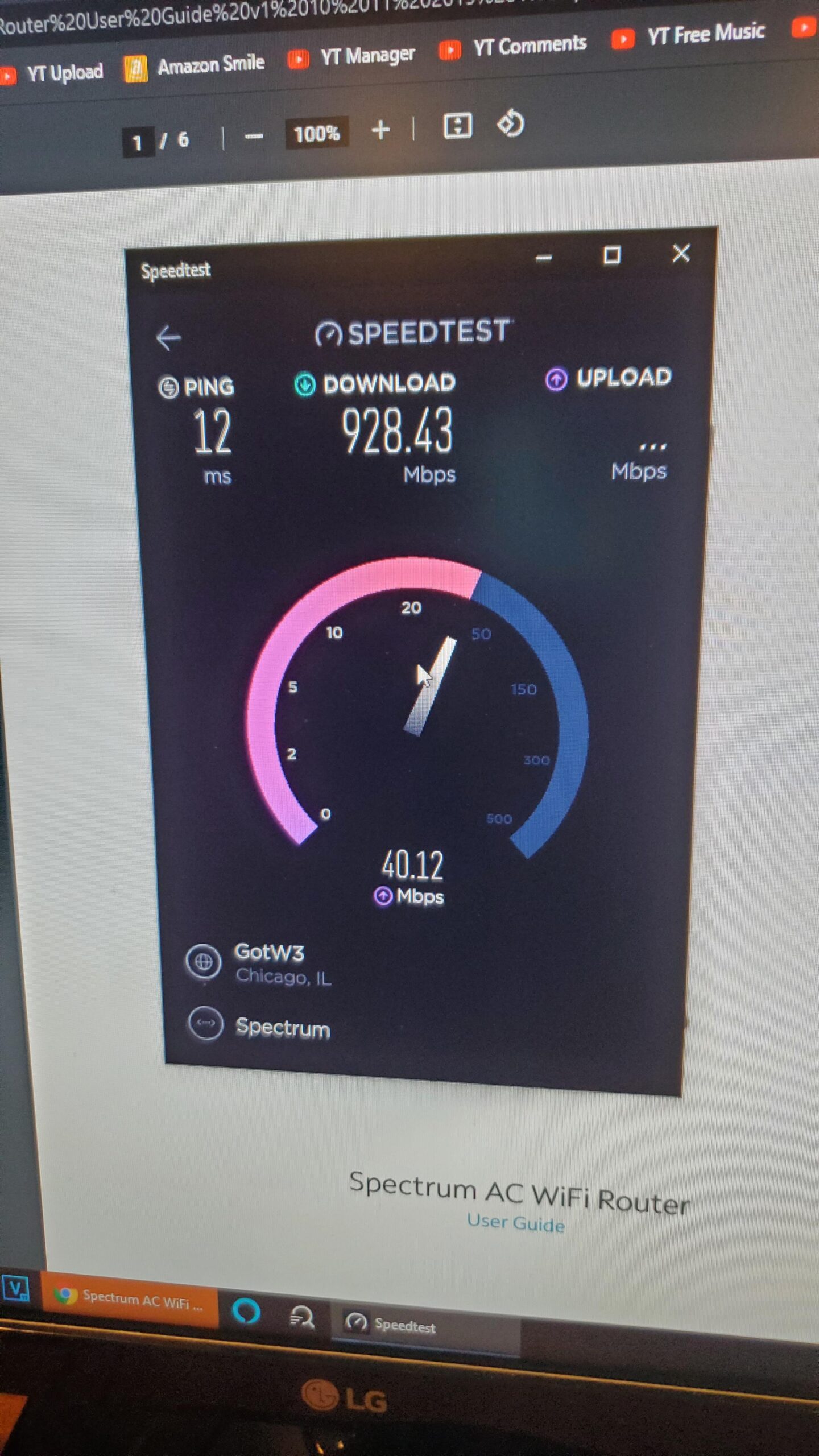
Spectrum slow upload speeds can be improved by installing software updates and upgrading older devices with outdated WiFi technology. Additionally, placing the modem and WiFi router in a central location, avoiding signal blockers, and periodically rebooting the modem and router can also help improve upload speed.
Using an Ethernet cable instead of a wireless connection can further enhance upload speeds. Troubleshooting steps such as restarting the modem and router, checking cables, and connecting via Ethernet can also be effective in addressing slow upload speeds on Spectrum.
Understanding The Impact Of Slow Upload Speed
The Role of Upload Speed in Internet Performance
Upload speed is an essential component that contributes to the overall internet performance. While download speed determines how quickly you can access data from the internet, upload speed controls how fast you can send data to others or interact with online platforms. It plays a crucial role in activities such as video calls, online gaming, file sharing, and cloud-based applications. Understanding the impact of slow upload speed is important to ensure a seamless online experience.
How Slow Upload Speed Affects Various Online Activities
A slow upload speed can significantly hamper several online activities, making them frustrating and time-consuming. Let’s take a closer look at how slow upload speed can impact different online activities:
Video Calls and Live Streaming
Video calls and live streaming require a decent upload speed to transmit your audio and video data effectively. Slow upload speed can lead to poor video quality, pixelation, and buffering issues. This can result in choppy video calls, delayed responses during online meetings, and an overall unsatisfactory video streaming experience.
Online Gaming
In online gaming, a slow upload speed can lead to game lags, delays in actions, and poor responsiveness. This can be frustrating for gamers, especially in multiplayer games where quick reactions are crucial. Slow upload speed can also affect the ability to stream your gameplay on platforms like Twitch or YouTube, limiting your ability to share your gaming skills with others.
File Sharing and Backup
When it comes to file sharing or backing up data to cloud storage services, slow upload speed can be a major hindrance. Uploading large files or folders can take a significant amount of time, causing delays in sending important documents or backing up essential files. This can impede productivity and make it challenging to collaborate with others.
Cloud-Based Applications
Many businesses rely on cloud-based applications for various tasks, such as project management, document collaboration, and customer relationship management. With slow upload speed, accessing and saving data to these applications can become sluggish, affecting workflow efficiency and productivity.
Common Causes of Slow Upload Speed
Slow upload speed can arise from various factors. Understanding these common causes can help you identify and address the issue:
- Outdated Modem or Router: Using outdated hardware can limit your upload speed. Consider upgrading to a newer model that supports higher upload speeds.
- Network Congestion: High network traffic in your area or on your internet service provider’s network can impact your upload speed. This is especially noticeable during peak hours when many users are online simultaneously.
- Interference: Signal interference from neighboring devices or physical obstacles can weaken your Wi-Fi signal, leading to lower upload speed. Place your modem and router in a central location and away from potential signal blockers.
- Upload Speed Restrictions: Some internet service providers may impose upload speed restrictions on specific plans or during certain times of the day. Check if your plan has any limitations that could be causing the slow upload speed.
- Software or Firmware Issues: Outdated software or firmware on your modem or router can affect your upload speed. Regularly check for updates and install them to ensure optimal performance.
By identifying and addressing these common causes, you can improve your upload speed and enjoy a smoother online experience.
Improving The Upload Speed Of Your Spectrum Internet Connection
If you’re experiencing slow upload speeds with your Spectrum internet connection, there are several steps you can take to improve your experience. In this article, we’ll explore some strategies to help you optimize your upload speed, including upgrading your modem and router, optimizing Wi-Fi performance, and minimizing interference. By following these tips, you can ensure a faster and more reliable upload speed for your Spectrum internet connection.
Upgrading Your Modem and Router
One of the first steps to improving your upload speed is to consider upgrading your modem and router. Older hardware may not be capable of handling higher upload speeds, so investing in newer equipment can make a significant difference. Look for modems and routers that support the latest standards, such as DOCSIS 3.1 for modems and Wi-Fi 6 for routers. These standards are designed to provide faster upload speeds and better overall performance.
Additionally, make sure to regularly update the firmware of your modem and router. Manufacturers often release firmware updates that include performance improvements and bug fixes. By keeping your devices up to date, you can ensure that you’re getting the most out of your internet connection.
Optimizing Wi-Fi Performance
Another common cause of slow upload speeds is poor Wi-Fi performance. When using wireless connections, it’s important to optimize your Wi-Fi network for maximum performance.
Start by placing your modem and router in a central location, away from any signal blockers such as baby monitors, wireless headphones, or microwaves. This will ensure that your devices receive a strong and stable Wi-Fi signal.
Additionally, avoid placing your router near obstructions such as cabinets or windows, as these can interfere with the signal. By positioning your router in an open space, you can maximize the coverage area and improve the upload speed.
Finally, consider using Ethernet connections whenever possible. Wired connections are generally more stable and faster than wireless connections. If you have devices that require high upload speeds, connecting them directly to the router with an Ethernet cable can provide the best performance.
Minimizing Interference for a Faster Upload Speed
Interference from other devices can also impact your upload speed. To minimize interference and maximize your upload speed, consider the following:
- Avoid using cordless phones or other electronics that operate on the same frequency as your Wi-Fi network.
- Ensure that your router is using a less congested Wi-Fi channel. You can use tools like Wi-Fi Analyzer to identify the least crowded channel and change it in your router settings.
- Disable any unnecessary devices connected to your network. Multiple devices using the internet simultaneously can lead to slower upload speeds.
- If possible, use a 5 GHz Wi-Fi network instead of a 2.4 GHz network. The 5 GHz band is less crowded and provides faster speeds.
- Consider using a Wi-Fi extender or mesh network system to improve Wi-Fi coverage throughout your home.
By minimizing interference, you can create a clean and optimized environment for your network, resulting in faster upload speeds for your Spectrum internet connection.
In conclusion, upgrading your modem and router, optimizing Wi-Fi performance, and minimizing interference are effective strategies for improving the upload speed of your Spectrum internet connection. By implementing these suggestions, you can ensure a faster and more reliable upload experience, allowing you to upload files, videos, and other content with ease.
Advanced Techniques For Boosting Spectrum Upload Speed
In today’s fast-paced digital world, having a reliable and fast upload speed is essential for seamless online activities such as video conferencing, gaming, and file sharing. However, if you’re experiencing a slow upload speed with your Spectrum connection, there are advanced techniques you can implement to give it a much-needed boost. In this article, we’ll explore three effective methods that can help improve your Spectrum upload speed.
Implementing Quality of Service (QoS) Settings
Quality of Service (QoS) is a powerful feature that allows you to prioritize certain types of internet traffic, ensuring a smoother and faster upload experience. By allocating bandwidth to specific applications or devices, you can eliminate congestion and optimize your upload speed. To implement QoS settings:
- Access your Spectrum router’s administration page by entering its IP address in your web browser.
- Locate the QoS settings section, which may vary depending on your router model.
- Enable QoS and specify the applications or devices you want to prioritize.
- Adjust the bandwidth allocation to give priority to your upload traffic.
- Save the settings and reboot your router for the changes to take effect.
Using Ethernet Connection for Faster Uploads
An Ethernet connection is typically faster and more stable than a wireless connection. By connecting your device directly to the router using an Ethernet cable, you can bypass any potential interference and enjoy faster upload speeds. Here’s how you can set up an Ethernet connection:
- Obtain an Ethernet cable that is long enough to reach from your device to the router.
- Connect one end of the Ethernet cable to the Ethernet port on your device.
- Connect the other end of the Ethernet cable to an available Ethernet port on your Spectrum router.
- Disable the wireless connection on your device to ensure it uses the Ethernet connection.
Resetting Your Modem and Router for a Fresh Start
If all else fails, performing a reset on your modem and router can often resolve slow upload speed issues. This process clears any temporary glitches or configuration errors that might be affecting your connection. Follow these steps to reset your modem and router:
- Locate the reset button on your modem and router. It is usually located on the back or bottom of the device.
- Using a small, pointed object like a paperclip, press and hold the reset button for about 10-15 seconds.
- Release the reset button and wait for the modem and router to reboot.
- After the reboot, configure your network settings again if necessary.
Implementing these advanced techniques can significantly improve your Spectrum upload speed, allowing you to seamlessly upload files, stream videos, and engage in online activities without frustrating delays. Try these methods and enjoy a faster and more efficient internet experience with Spectrum.

Credit: www.amazon.com
Troubleshooting Tips For Slow Upload Speed On Spectrum
If you’re experiencing slow upload speed on your Spectrum internet connection, there are a few troubleshooting tips you can try to resolve the issue. In this section, we’ll discuss some common problems that might be causing the slow upload speed and provide you with solutions to fix them.
Checking for Firmware Updates on Your Devices
Software and firmware updates play a crucial role in optimizing your internet speed. If you’re using outdated firmware on your devices, it could be limiting your available upload speed. To check for firmware updates, follow these steps:
- Access the settings menu on your device.
- Look for the “System” or “Software Update” option.
- If an update is available, download and install it.
- Restart your device after the update is complete.
Identifying and Resolving Network Congestion Issues
Network congestion can occur when multiple devices are connected to your network and using bandwidth simultaneously. This can lead to slower upload speeds. To identify and resolve network congestion issues, you can:
- Disconnect devices that are not in use.
- Limit bandwidth-heavy activities, such as streaming and gaming, on multiple devices simultaneously.
- Consider upgrading your internet plan to a higher bandwidth option.
- Optimize your router settings to prioritize certain devices or applications.
Contacting Spectrum Customer Support for Assistance
If you’ve tried the above troubleshooting tips and are still experiencing slow upload speed on your Spectrum connection, it’s recommended to reach out to their customer support for further assistance. Spectrum’s technical support team is well-equipped to help diagnose and resolve any underlying issues affecting your upload speed.
To contact Spectrum Customer Support, you can:
- Visit the Spectrum website and navigate to their support section.
- Find their customer support contact details, including phone numbers and live chat options.
- Provide them with relevant details about your connection and the troubleshooting steps you’ve already taken.
- Follow their guidance and instructions to resolve the slow upload speed issue.
By following these troubleshooting tips and reaching out to Spectrum Customer Support if necessary, you can improve your upload speed and enjoy a smoother browsing and uploading experience on your internet connection.
Frequently Asked Questions Of Spectrum Slow Upload Speed
Why Is My Spectrum Upload Speed So Slow?
There are two common reasons for slow upload speeds on Spectrum. First, outdated routers and devices can limit your internet speed. Make sure to install software updates and consider upgrading older devices. Second, interference from signal blockers like baby monitors or microwaves can affect your WiFi signal.
Place your modem and router in a central location and away from obstructions. Restart your modem and router periodically.
How Do I Fix Slow Upload Speed On Spectrum?
To fix slow upload speed on Spectrum, try these steps: 1. Use a wired Ethernet connection instead of wireless. 2. Close any programs or downloads running in the background. 3. Reset your internet modem and/or router using your online profile or the My Spectrum app.
4. Place your modem and WiFi router in a central location, away from signal blockers and obstructions. 5. Periodically reboot your modem and router. These steps will help improve your Spectrum upload speed.
How Can I Improve My Upload Speed Spectrum?
To improve your upload speed on Spectrum, follow these steps: 1. Update software for your router and devices to ensure optimal speed. 2. Avoid signal blockers like baby monitors and microwaves near the router. 3. Place the router in a centralized location away from obstructions.
4. Periodically reboot your modem and router. 5. Consider using a wired Ethernet connection instead of wireless for a more stable connection. These steps will help maximize your upload speed on Spectrum.
What Is A Normal Upload Speed For Spectrum?
A normal upload speed for Spectrum can vary depending on your location and plan. However, a good upload speed typically ranges from 10 Mbps to 20 Mbps. To improve your upload speed, consider using a wired Ethernet connection, updating your router’s software, and placing your modem and router in a central location.
Conclusion
To improve your Spectrum upload speed, make sure to update both your software and hardware. Routers may need software updates, and older devices may be using outdated WiFi technology. Consider upgrading your devices and placing your modem and WiFi router in a central location, away from signal blockers.
Reboot your modem and router periodically to ensure optimal performance. By following these steps, you can enhance your upload speed on Spectrum and enjoy a smoother internet experience.
