Spectrum Caller ID not showing on TV? This issue may occur due to signal problems or incorrect settings.
Are you experiencing an issue where the Spectrum Caller ID is not displaying on your TV screen? This problem can be caused by signal problems or incorrect settings. Fortunately, there are a few troubleshooting steps you can take to resolve this issue.
We will discuss the possible reasons for the Caller ID not showing on your TV and provide you with some easy-to-follow solutions. By following these steps, you should be able to restore the Caller ID functionality on your Spectrum TV. So, let’s dive in and fix this problem once and for all.
Disable And Re-Enable Caller Id Display On Spectrum Tv Box
If you are facing issues with your Spectrum caller ID not showing on your TV, there may be a simple solution. By disabling and re-enabling the caller ID display on your Spectrum TV box, you can often resolve any technical glitch causing the issue. In this article, we will guide you through the steps to disable and re-enable the caller ID display on your Spectrum TV box.
Steps to disable and re-enable Caller ID display on Spectrum TV box:
Step 1: Access the Caller ID settings
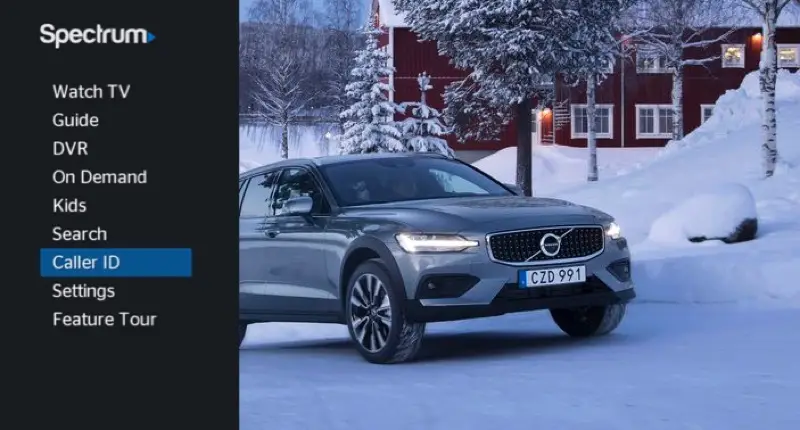
To begin, you need to access the settings menu on your Spectrum TV box. Press the ‘Menu’ button on your remote control and navigate to the ‘Settings’ tab. Look for the ‘Caller ID’ option in the menu and select it.
Step 2: Disable Caller ID display
Within the Caller ID settings, you will find an option to enable or disable the caller ID display. Locate this option and make sure it is set to ‘Disabled’. If it is already disabled, skip to the next step. If it is enabled, select it to disable the caller ID display.
Step 3: Reboot your Spectrum TV box
After disabling the caller ID display, it is recommended to reboot your Spectrum TV box. You can do this by unplugging the power cord from the back of the box, waiting for a few seconds, and then plugging it back in. Allow the TV box to power up completely before moving to the next step.
Step 4: Enable Caller ID display
Once your Spectrum TV box has rebooted, go back to the Caller ID settings. Locate the option to enable the caller ID display and select it. This will re-enable the caller ID feature on your TV.
Step 5: Test the Caller ID display
To ensure that the caller ID display is working properly, ask someone to make a test call to your home phone. The caller’s information should now appear on your TV screen when the call comes in. If the caller ID is still not showing, you may need to contact Spectrum customer support for further assistance.
By following these simple steps, you can easily disable and re-enable the caller ID display on your Spectrum TV box. This troubleshooting method often helps resolve the issue of caller ID not showing on your TV. Give it a try before reaching out for technical support.
Check Connection And Settings
If you’re experiencing issues with your Spectrum Caller ID not showing on your TV, the first step to troubleshoot is to check your connection and settings. Sometimes, a simple adjustment can make all the difference. This section will guide you through the necessary steps to verify your cable connection, ensure the correct input source on your TV, and adjust the display settings.
1. Verify cable connection
Before diving into more complex solutions, it’s important to make sure your cable connection is secure. Loose or disconnected cables can cause signal problems, resulting in a missing caller ID. Follow these steps to verify your cable connection:
- Inspect the cable that connects your cable box to your TV and ensure that both ends are firmly plugged in. If any connectors are loose, gently push them in until they are snug.
- If you’re using an HDMI cable, try unplugging it from both the cable box and the TV, then plug it back in securely.
- Check if there are any visible damages or cuts in the cable. If so, consider replacing it with a new one.
By ensuring a proper cable connection, you’ll eliminate any potential issues stemming from loose or faulty connections.
2. Ensure correct input source on TV
If the cable connection is fine, the next step is to verify that your TV is set to the correct input source. Incorrect input source selection can prevent the caller ID from displaying on your screen. Here’s how to check and adjust the input source:
- Turn on your TV and locate the remote control.
- Look for a button labeled “Input” or “Source” on your remote control and press it.
- A list of available input sources will appear on your screen. Select the input source that corresponds to the cable connection where your cable box is connected.
- Once you’ve selected the correct input source, wait for a few moments to allow the TV to establish a connection with the cable box.
By ensuring the correct input source on your TV, you’ll ensure that the caller ID information is being displayed on the correct channel.
3. Adjust display settings on TV
If the cable connection and input source settings are correct, the final step is to adjust the display settings on your TV. Sometimes, the issue lies with the display settings, which can be easily resolved. Follow these steps to adjust the display settings:
- Access the settings menu on your TV by pressing the “Menu” or “Settings” button on your remote control.
- Navigate through the menu to find the display settings. The exact location may vary depending on your TV model.
- Adjust the display settings such as brightness, contrast, and aspect ratio to ensure optimal visibility of the caller ID. If these settings are too low or too high, it may cause the caller ID information to be unrecognizable or hidden.
- Once you’ve made the necessary adjustments, exit the settings menu and wait for a few seconds for the changes to take effect.
By adjusting the display settings on your TV, you’ll enhance visibility and ensure that the caller ID is prominently displayed.
By following these steps to check your connection and settings, you’ll be well on your way to resolving any issues with Spectrum Caller ID not showing on your TV. Remember, a solid cable connection, correct input source selection, and appropriate display settings are the key to a seamless caller ID experience.
Restart Spectrum Receiver And Tv
If your Spectrum Caller ID is not showing on your TV, one of the first troubleshooting steps you can try is restarting both your Spectrum receiver and TV. Restarting the devices can help refresh their connection and resolve any temporary issues that may be causing the problem. Here are the steps to restart the Spectrum receiver and TV:
Power off and unplug Spectrum receiver and TV
- First, locate the power button on your Spectrum receiver and TV.
- Press the power button on both devices to turn them off.
- Next, unplug the power cords from the back of both the Spectrum receiver and TV.
Wait for a few minutes and then plug them back in
After powering off and unplugging the devices, it is important to wait for a few minutes before plugging them back in. This waiting period allows for any residual power to dissipate and ensures a clean restart.
Power on the devices and check if Caller ID is now showing on TV
- Once the waiting period is over, plug the power cords back into the Spectrum receiver and TV.
- Finally, press the power buttons on both devices to turn them on.
- Wait for the devices to fully restart and establish a connection.
- Check if the Caller ID information is now displaying on your TV screen.
By restarting both the Spectrum receiver and TV, you are giving them a fresh start and allowing them to reconnect properly. This troubleshooting method often resolves issues with Caller ID not showing on the TV screen. If the problem persists, you may need to contact Spectrum customer support for further assistance.

Credit: www.amazon.com
Reset Spectrum Receiver
Are you facing issues with your Spectrum Caller ID not showing on your TV? Don’t worry, there is a simple solution for that! Resetting your Spectrum receiver can often fix this problem and get your Caller ID working again. In this article, we will walk you through the steps to reset your Spectrum receiver and resolve any issues with Caller ID not displaying on your television screen.
Steps to Reset the Spectrum Receiver
To reset your Spectrum receiver, follow these simple steps:
- Unplug the power cord from both your Spectrum receiver and your television.
- Wait for about 60 seconds to allow the receiver to fully power down.
- While waiting, check the connections between the receiver, television, and any other devices such as cable boxes or sound systems to ensure they are secure.
- After 60 seconds, plug the power cord back into the receiver. You should see a red light indicating it is powering up.
- Wait for the receiver to fully initialize, which may take a few minutes. The receiver will display a series of messages on your television screen during this process.
- Once the receiver has fully initialized, turn on your television. You should now see the Caller ID displaying on your screen.
If the Caller ID is still not showing on your TV after following these steps, you may need to contact Spectrum customer support for further assistance.
Resetting your Spectrum receiver is a quick and easy troubleshooting method to resolve Caller ID issues. It allows the receiver to refresh and establish a connection with the Caller ID feature. By following these steps, you can ensure that your Spectrum Caller ID is working correctly and conveniently displayed on your television screen.
Contact Spectrum Customer Support
Introduction: If you’re facing the frustrating issue of Spectrum Caller ID not showing on your TV screen, don’t worry, as there’s a way to resolve it. The first step in resolving this problem is to get in touch with Spectrum Customer Support. By contacting their representatives, you can discuss the issue with them and seek their assistance and troubleshooting advice. In this section, we will provide you with the necessary customer support contact information and guide you on the steps to take when reaching out for assistance.Customer support contact information:
To contact Spectrum Customer Support, you have several options available. Whether you prefer to reach out via phone, chat, or social media, Spectrum has you covered. Here are the various ways to get in touch with their support:- Phone: You can call the Spectrum Customer Support line at 1-855-757-7328. This allows you to directly interact with a representative and discuss the issue you’re facing with your Caller ID.
- Chat: Alternatively, you can visit the Spectrum website and engage in a live chat with a support agent. This way, you can describe the problem and receive real-time guidance on how to resolve it.
- Social Media: Spectrum has an active presence on social media platforms, such as Facebook and Twitter. You can send them a direct message detailing the Caller ID issue, and they will respond to you promptly.
Discussing the issue with Spectrum representative:
Once you have obtained the contact information, it’s time to get in touch with a Spectrum representative. When speaking with their representative, make sure to clearly explain the problem you are experiencing with your Caller ID. Provide all relevant details, such as the model of your TV, the type of cable box or receiver you are using, and any error messages you may have encountered. Remember to maintain a friendly and patient attitude throughout the conversation. The Spectrum representative will guide you through some basic troubleshooting steps, such as resetting your cable box or verifying the connection between your TV and the cable box. If these initial steps do not resolve the issue, do not hesitate to ask for further assistance or additional troubleshooting advice.Seeking further assistance or troubleshooting advice:
If the initial troubleshooting steps discussed with the Spectrum representative do not resolve the Caller ID problem, don’t worry. Spectrum’s customer support team is well-equipped to assist you further. They may escalate your issue to a higher level of support or schedule a technician visit to your home if necessary. During the conversation, make sure to inquire about any specific troubleshooting advice related to your TV model or cable box. The representative may be able to provide you with step-by-step instructions tailored to your setup. It’s important to note that Spectrum is dedicated to resolving customer issues promptly and efficiently. By engaging with their customer support, you can rest assured that they will work diligently to get your Caller ID functioning properly on your TV. In conclusion, by contacting Spectrum Customer Support, discussing the issue with their representatives, and seeking further assistance or troubleshooting advice, you can resolve the problem of Spectrum Caller ID not showing on your TV. Take advantage of the various contact options available, provide clear and accurate details, and stay patient throughout the process. Spectrum’s customer support team will guide you towards a solution, ensuring you have a seamless TV viewing experience with accurate Caller ID information.Bonus Tips For Optimal Spectrum Caller Id Display
When it comes to Spectrum Caller ID not showing on TV, there are a few additional steps you can take to ensure an optimal display. By following these bonus tips, you can ensure that you never miss important calls and have accurate Caller ID information right on your television screen.
Check for software updates on Spectrum receiver
One of the first things you should do if you’re experiencing issues with Spectrum Caller ID not showing on your TV is to check for software updates on your Spectrum receiver. Outdated software can sometimes cause display issues, so making sure that you have the latest updates installed is essential.
Replace faulty cables or equipment if necessary
If your Spectrum Caller ID display is still not working properly after checking for software updates, the next step is to inspect and potentially replace any faulty cables or equipment. Faulty cables or equipment can interfere with the signal and result in a poor or non-existent Caller ID display. Ensure that all cables are securely connected and in good condition.
Ensure a strong and stable internet connection for accurate Caller ID information
A strong and stable internet connection is crucial for accurate Caller ID information on your TV. Unreliable internet can lead to delays or inconsistencies in the display of Caller ID information. To ensure a stable connection, consider positioning your modem or router closer to your Spectrum receiver, minimizing signal interference, and avoiding bandwidth-heavy activities while using Caller ID.
By following these bonus tips, you can optimize your Spectrum Caller ID display and have confidence in the accuracy and reliability of your Caller ID information.
Frequently Asked Questions For Spectrum Caller Id Not Showing On Tv
Why Is My Spectrum Caller Id Not Showing On Tv?
Sometimes, the Spectrum Caller ID feature may not be available due to technical issues. Ensure that your TV is connected to the cable box correctly and try rebooting both devices. If the issue persists, contact Spectrum customer support for further assistance.
How Can I Fix The Problem Of Spectrum Caller Id Not Appearing On My Tv Screen?
To resolve the issue of Spectrum Caller ID not showing on your TV, try power cycling your TV and cable box. If that doesn’t work, make sure the Caller ID feature is enabled in the cable box settings. If the problem persists, contact Spectrum customer support for further troubleshooting.
Is There A Way To Enable The Spectrum Caller Id On My Tv?
Yes, to enable the Spectrum Caller ID on your TV, access the cable box settings menu. Look for the Caller ID feature and ensure it is enabled. If you’re unsure how to access the settings or enable the feature, refer to the user manual or contact Spectrum customer support for assistance.
My Spectrum Caller Id Used To Work, But Now It’S Not Showing On My Tv. What Should I Do?
If your Spectrum Caller ID was previously working but has stopped displaying on your TV, check if the Caller ID feature is still enabled in the cable box settings. Reboot both your TV and cable box, and if the issue persists, contact Spectrum customer support for further troubleshooting and assistance.
Conclusion
Resolving the issue of Spectrum Caller ID not showing on your TV can be a simple and straightforward process. By following the troubleshooting steps outlined in this blog post, you can ensure that you have a seamless viewing experience with accurate and visible caller ID information.
Whether it’s checking your cable connections, resetting your equipment, or contacting Spectrum customer support, there are various solutions available to resolve this problem. Remember to stay patient and persistent, and you’ll soon be enjoying the convenience of caller ID on your TV once again.
