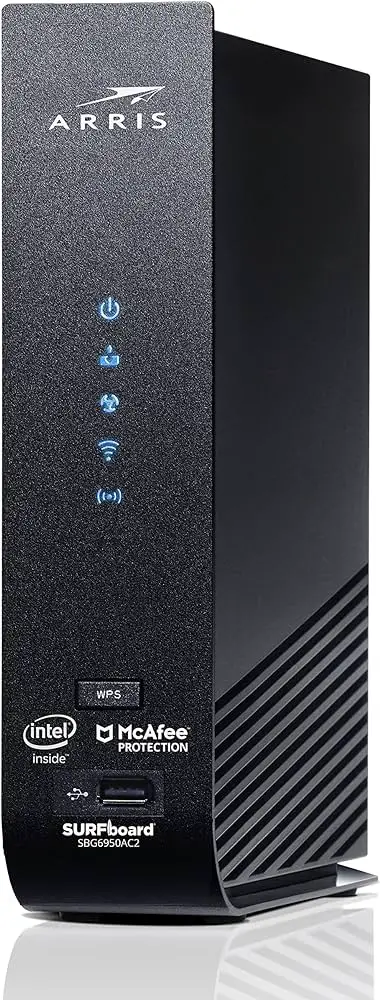
The reason for intermittent internet connection with Spectrum could be loose connections or visible damage to cables. Even if there is no visible problem, the cables could be internally damaged.
Trying spare cables might help resolve the issue. Spectrum internet can also be affected by issues with the ISP, modem or router problems, wireless interference, outdated network drivers, or malware/viruses on the device. Weak Wi-Fi signal, congested ISP network, or hardware issues can also cause connectivity problems.
Troubleshooting and diagnosing the main line connection can be requested to fix intermittent internet issues. Rebooting the router/modem or using an ethernet cable are suggested initial fixes.
Understanding Intermittent Internet Connection Issues
Common causes of intermittent internet connection
Intermittent internet connection can be extremely frustrating, causing disruptions in work, communication, and entertainment. It is important to understand the common causes of this issue in order to effectively address and fix it. Some of the common causes include:
- Issues with the internet service provider (ISP)
- Problems with the modem or router
- Wireless interference
- Outdated network drivers
- Malware and viruses on the device
Impact of loose or damaged cables on internet connection
One of the main culprits behind intermittent internet connection is loose or damaged cables. Even if the damage is not immediately visible, internal damage can still be a factor causing the issue. Loose cables or cables with damaged connectors can disrupt the flow of data, leading to frequent disconnects or slow speeds. It is important to address cable issues as they can significantly impact internet performance.
Testing cables to identify the source of the issue
To determine if the cables are the source of the intermittent internet connection issues, it is recommended to test them. Here’s a simple guide:
- Inspect the cables for any visible damage or loose connections.
- If you have spare cables, try replacing the existing ones with the spare cables to see if the issue persists.
- Test each cable individually by connecting them directly to the modem or router.
- Check if the internet connection stabilizes with the new cables.
If the intermittent connection problem is resolved with the new cables, it confirms that the original cables were indeed the issue. In such cases, it is advisable to replace the damaged or loose cables to ensure a stable internet connection.
Troubleshooting Interference And Network Drivers
Troubleshooting Interference and Network Drivers Intermittent internet connection can be frustrating, especially when you’re in the middle of an important task. One of the common reasons for such connectivity issues is wireless interference and outdated network drivers. In this section, we will delve into how to identify wireless interference, the impact it has on your internet connection, and how to update your network drivers for resolving intermittent connection issues.Identifying wireless interference and its impact on internet connection
Wireless interference can significantly affect the performance of your internet connection. It occurs when other electronic devices or physical barriers disrupt the signals between your device and the Wi-Fi router. Some common sources of wireless interference include cordless phones, microwave ovens, baby monitors, and neighboring Wi-Fi networks. To identify wireless interference, follow these steps: 1. Survey your surroundings: Look for electronic devices that might be causing interference. 2. Move closer to the Wi-Fi router: If you notice improved connectivity when you’re in close proximity to the router, it could indicate interference from other devices or physical barriers. 3. Use diagnostic tools: Many routers have built-in diagnostic tools that can help identify interference sources. Access your router settings and look for options such as “Wi-Fi analyzer” or “interference detection.” Once you have identified the sources of interference, try to minimize their impact by relocating devices or adjusting the router’s position. This can help optimize your internet connection and reduce intermittent connectivity issues.Updating network drivers to resolve intermittent connection issues
Outdated network drivers can also contribute to intermittent connection issues. Network drivers are essential software components that allow your computer to communicate with the network interface card (NIC) or the wireless adapter. To update your network drivers, follow these steps: 1. Identify the network driver: Open the Device Manager on your computer by pressing “Windows key + X” and selecting “Device Manager” from the menu. Locate the “Network adapters” section and expand it to view the installed network drivers. 2. Check for updates: Right-click on the network driver you want to update and select “Update driver.” Windows will automatically search for the latest driver updates and install them if available. 3. Download drivers from manufacturer’s website: If Windows fails to find the latest drivers, you can visit the manufacturer’s website and manually download the updated drivers. Look for the support or downloads section on the website and locate the appropriate driver for your device model. 4. Install the updated driver: Once you have downloaded the updated driver, run the installer and follow the on-screen instructions to install it. Updating network drivers can help resolve intermittent connection issues by ensuring that your device effectively communicates with the network. Regularly checking for updates and installing the latest drivers is a recommended practice to maintain a stable and reliable internet connection. By troubleshooting wireless interference and updating network drivers, you can resolve intermittent internet connection issues and enjoy a smooth online experience. Don’t forget to also check for malware and viruses that may be affecting your internet performance, as they can also cause intermittent connectivity problems.Resolving Wi-Fi Connectivity Issues
Having a stable and reliable internet connection is vital for both work and leisure activities. However, intermittent internet connection issues can disrupt your workflow and cause frustration. In this section, we will explore common Wi-Fi connectivity issues and provide effective solutions to resolve them.
Addressing Weak Wi-Fi Signals for a Stable Internet Connection
A weak Wi-Fi signal can lead to intermittent internet connection issues, causing slow browsing speeds and frequent disconnections. To address this problem, consider the following:
- Ensure that your Wi-Fi router is placed in a centralized location, away from obstructions such as walls and metal objects. This allows for better signal distribution throughout your home or office.
- Update your router’s firmware regularly. Router manufacturers often release firmware updates to improve Wi-Fi signal strength and stability.
- Invest in a Wi-Fi range extender or repeater. These devices amplify your Wi-Fi signal, extending its coverage to areas with weak connectivity.
- Consider using a mesh Wi-Fi system. Mesh systems consist of multiple access points that work together to provide seamless Wi-Fi coverage throughout your space.
Dealing with Congested ISP Networks and its Impact on Wi-Fi Performance
Congested ISP networks can significantly affect your Wi-Fi performance, leading to intermittent internet connection problems. Here are some steps you can take to overcome this issue:
- Switch to a less congested Wi-Fi channel. Many routers allow you to manually select a Wi-Fi channel, so try experimenting with different channels to find the one with the least interference.
- Upgrade your internet plan. If you frequently experience slow speeds during peak hours, consider upgrading to a higher-tier plan offered by your ISP.
- Use a wired connection whenever possible. Connecting your device directly to the router using an Ethernet cable can provide a more stable and reliable internet connection.
- Limit the number of devices connected to your Wi-Fi network. Too many devices sharing the same network can strain its capacity, leading to reduced performance.
Troubleshooting Hardware Issues Affecting Wi-Fi Connectivity
Hardware problems can also contribute to intermittent internet connection issues. Here are some troubleshooting steps to identify and resolve these issues:
- Check all physical connections. Ensure that your router, modem, and cables are properly connected and free from any visible damage.
- Restart your router and modem. Sometimes, a simple restart can resolve temporary glitches and restore stable connectivity.
- Update your router’s firmware and network drivers. Outdated firmware and drivers can cause compatibility issues, leading to Wi-Fi connection problems.
- Consider replacing outdated or malfunctioning hardware. If you have tried all the troubleshooting steps and are still experiencing intermittent connectivity, it may be time to upgrade your equipment.
By addressing weak Wi-Fi signals, dealing with congested ISP networks, and troubleshooting hardware issues, you can significantly improve your Wi-Fi connectivity. Implement these solutions to enjoy a stable and uninterrupted internet connection.
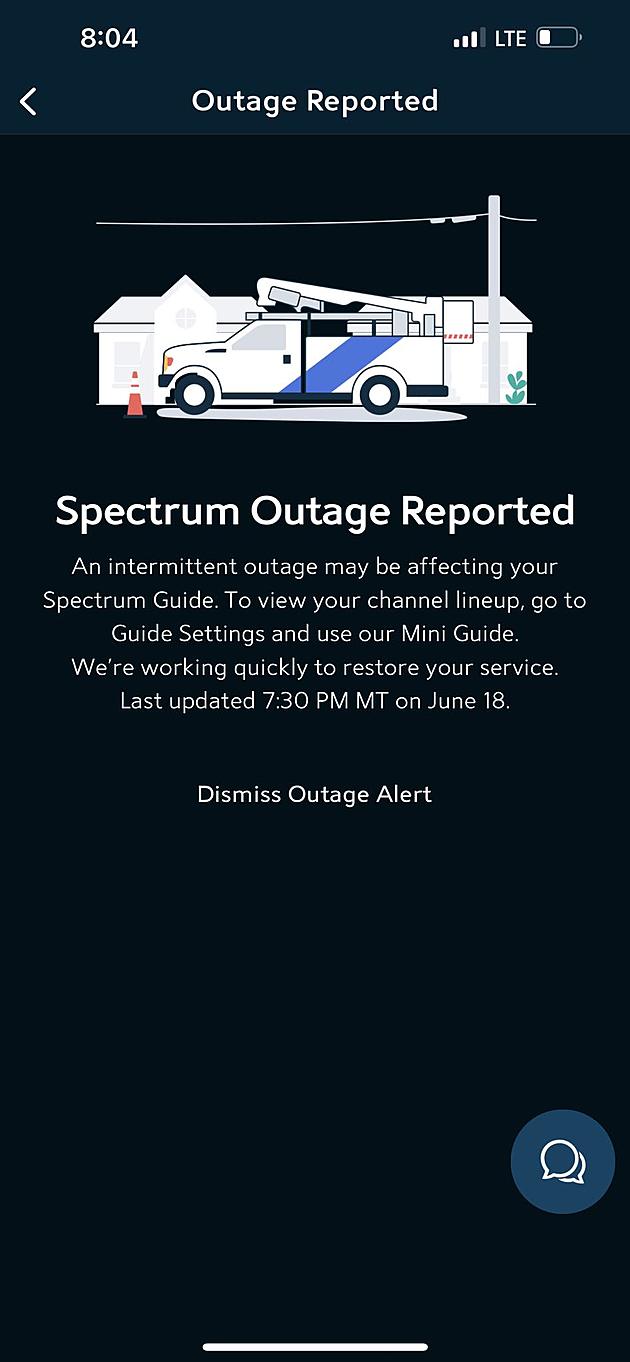
Credit: kisscasper.com
Seeking Technical Support
Seeking Technical Support
When to contact the internet service provider (ISP) for assistance
If you are experiencing intermittent internet connection issues with Spectrum, it is important to know when to reach out to your internet service provider (ISP) for assistance. Here are some scenarios where contacting your ISP would be appropriate:
- Consistent and repeated internet outages or disconnections
- Significantly slower internet speeds than what you are paying for
- No internet connection despite proper setup and troubleshooting
- Experiencing connection issues that multiple devices are encountering
By communicating your specific problem to your ISP, they will be able to guide you through the troubleshooting process more effectively.
Tips for effectively communicating and troubleshooting with technical support
When reaching out to your ISP’s technical support team, it is important to effectively communicate your issue in order to receive the most efficient assistance. Here are some tips to help you effectively troubleshoot and communicate your problem:
- Provide specific details about your connection issue, such as the frequency of outages or the exact error messages you encounter.
- Describe the steps you have already taken to troubleshoot the problem. This will help the technical support team understand your level of expertise and avoid repeating unnecessary steps.
- Be prepared to follow any troubleshooting instructions given by the support team. They may ask you to reset your modem, check cable connections, or perform other troubleshooting steps.
- Keep track of any changes or updates you have made to your network or devices leading up to the connection issue. This information can give valuable insights to your ISP’s technical support team.
- Stay patient and remain calm throughout the troubleshooting process. Technical issues can be frustrating, but maintaining a positive attitude will help the support team better assist you.
Remember, the more information you can provide to your ISP’s technical support team, the faster they will be able to identify and resolve the intermittent internet connection problem.
Understanding the role of the ISP in resolving intermittent internet connection issues
When dealing with intermittent internet connection issues, it is important to understand the role of your ISP in resolving the problem. Your ISP is responsible for providing the internet service and maintaining the infrastructure that connects you to the internet.
If you experience intermittent connection issues, the first step is to contact your ISP’s technical support. They will work with you to troubleshoot the issue and determine if it is related to your home network, your modem, or an issue on their end.
Your ISP may ask you to perform various troubleshooting steps, such as resetting your modem or running network diagnostics. They may also perform tests from their end to check the quality of the connection to your home.
If the issue lies with the ISP’s infrastructure or network, they will take the necessary steps to resolve the problem. This could involve repairing damaged cables, optimizing network settings, or addressing any other technical issues that may be causing the intermittent connection problem.
By understanding the role of your ISP and effectively communicating with their technical support team, you can increase the chances of resolving the intermittent internet connection issues and getting back to a stable and reliable internet experience.
Additional Considerations For Stable Internet Connection
Additional Considerations for Stable Internet Connection
The importance of regular equipment maintenance for uninterrupted connectivity
The stability of your internet connection heavily relies on the condition of your equipment. Regular maintenance is key to ensuring uninterrupted connectivity. Checking cables, routers, and modems for loose connections, visible damage, or signs of wear and tear is essential. Even if no visible issues are present, internal cable damage could still be the culprit behind intermittent connection problems. To rule out cable issues, try using spare cables and monitor if the problem persists. Regularly updating firmware and software can also improve the performance and stability of your equipment.
Using power cycling as a troubleshooting technique for intermittent connection problems
Power cycling can be an effective technique for troubleshooting intermittent internet connection problems. By power cycling your modem, router, and devices, you can reset their connections and clear any temporary glitches. To power cycle, follow these steps:
- Turn off and unplug the modem, router, and devices connected to your network.
- Wait for at least 30 seconds to ensure all residual power is drained.
- Plug in and turn on the modem, allowing it to fully establish a connection.
- After the modem is online, plug in and turn on the router.
- Finally, connect and power on your devices.
Power cycling can help refresh your network’s connections and resolve intermittent issues caused by temporary glitches or conflicts.
Exploring alternative internet connection options for more reliable service
If you continue to experience intermittent internet connection problems despite troubleshooting efforts, it may be worth exploring alternative internet connection options for a more reliable service. Here are a few alternatives to consider:
- Switching to a different internet service provider (ISP) that offers more stable connectivity in your area.
- Investing in a wired connection, such as Ethernet, for a more direct and stable connection.
- Exploring mobile hotspot options if you require internet on the go or as a backup solution.
- Considering satellite internet for rural areas where traditional wired connections may be limited.
Exploring these alternative options can provide you with a more stable and reliable internet connection, ensuring uninterrupted browsing, streaming, and productivity.
Frequently Asked Questions On Intermittent Internet Connection Spectrum
Why Is My Spectrum Internet Cutting In And Out?
Spectrum internet may be cutting in and out due to loose connections or damaged cables. Even if cables look fine, they could still be the problem. Try using spare cables to see if the issue persists. Other factors like ISP problems, outdated drivers, or device malware can also cause intermittent internet connection.
How Do I Fix Intermittent Internet Connection Spectrum?
To fix intermittent internet connection on Spectrum, try these steps: 1. Check for loose connections or visible damage to cables. Even if they look fine, they could be damaged internally. Try using spare cables. 2. Ensure your modem and router are working properly and up to date.
3. Check for wireless interference and move your router to a better location if needed. 4. Update your network drivers and scan for malware or viruses. 5. If the issue persists, contact Spectrum for assistance. Remember to reboot your modem and router and consider relocating your devices.
Why Am I Getting Intermittent Internet Connection?
Intermittent internet connection can be caused by various factors. These include issues with your internet service provider, problems with your modem or router, wireless interference, outdated network drivers, or malware and viruses on your device. Try checking for loose connections or visible damage to your cables.
If you have spare cables, try using them to see if the issue persists.
Why Does My Internet Keep Disconnecting And Reconnecting?
If your internet keeps disconnecting and reconnecting, it may be due to loose connections or damaged cables. Even if you don’t see any visible problems, the cables could be the issue. Try using spare cables to see if the problem persists.
Other potential causes include a weak Wi-Fi signal, congested ISP networks, or hardware issues.
Conclusion
Intermittent internet connection issues can be frustrating and disruptive. If you’re experiencing this problem with Spectrum, there are a few troubleshooting steps you can try. Check for loose connections or visible damage to cables, as they may be the cause of the issue.
Additionally, outdated network drivers or malware on your device could be the culprits. It’s also worth checking for wireless interference or a weak Wi-Fi signal. If all else fails, contacting Spectrum for assistance is recommended. By following these tips, you can hopefully resolve the intermittent internet connection problems and enjoy a more seamless online experience.
