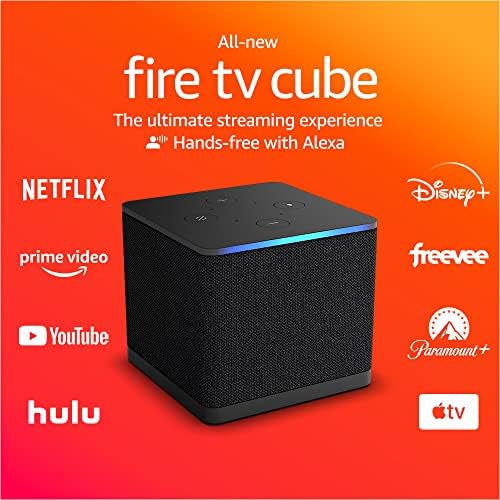
To watch Spectrum on Firestick, download the Spectrum TV app from the Amazon Appstore. Then, log in with your Spectrum account details.
Spectrum TV app allows you to stream live TV, on-demand content, and more on your Firestick. Spectrum offers a wide variety of entertainment options, including live TV, on-demand movies and shows, and sports events. With the Spectrum TV app on your Firestick, you can access your favorite channels, shows, and movies from anywhere with an internet connection.
This convenient streaming option provides flexibility and convenience for Spectrum subscribers who want to enjoy their entertainment on the big screen. Whether you’re at home or on the go, the Spectrum TV app on Firestick gives you access to your entertainment whenever you want it.
Spectrum On Firestick: Ultimate Streaming Guide
Are you looking to stream your favorite entertainment content on your Firestick? The Spectrum app on Firestick provides an all-in-one solution for streaming live TV, on-demand shows, movies, and much more. In this ultimate streaming guide, we’ll walk you through the step-by-step process to set up Spectrum on Firestick, troubleshoot common issues, and navigate its features effortlessly, ensuring you have a seamless streaming experience.
Steps For Initial Setup
- Go to the Amazon Appstore on your Firestick and search for the “Spectrum TV” app.
- Select the “Spectrum TV” app from the search results and click on “Download” to install it on your Firestick.
- Once installed, open the Spectrum TV app and follow the on-screen instructions to log in with your Spectrum account details.
Troubleshooting Common Issues
- If you encounter streaming issues, try restarting your Firestick and modem/router.
- Ensure that your Firestick’s software is up to date by going to “Settings” > “My Fire TV” > “About” > “Check for updates.”
- If the Spectrum app freezes or crashes, clear its cache and data by navigating to “Settings” > “Applications” > “Manage Installed Applications” > “Spectrum TV” > “Clear data” and “Clear cache.”
| Feature | Description |
|---|---|
| Live TV | Access live TV channels and browse through the program guide. |
| On-Demand | Explore a library of on-demand shows and movies for streaming. |
| Search | Effortlessly search for your favorite content by titles, actors, or genres. |
Preparing Your Firestick For Spectrum
To watch Spectrum on Firestick, first ensure your Firestick is connected to the internet. Then, download the Spectrum app from the Amazon Appstore or sideload it. Log in using your Spectrum account details and start streaming your favorite content.
Checking Device Compatibility
Before watching Spectrum on Firestick, it’s important to ensure that your device is compatible. Not all Firestick models may support the Spectrum app. You can check compatibility by visiting the official Spectrum website or contacting their customer support for a list of compatible devices and software versions.
Ensuring Internet Connection Quality
For a seamless streaming experience, a stable and high-speed internet connection is crucial. Ensure that your Firestick is connected to a reliable Wi-Fi network with sufficient bandwidth for streaming Spectrum content without interruptions. You can also perform a speed test using online tools to verify the quality of your internet connection.
Updating Firestick Firmware
To optimize the performance of your Firestick for Spectrum, it’s essential to keep the firmware up to date. Regular firmware updates not only improve system stability but also ensure compatibility with the latest apps and services. To check for updates, navigate to the Firestick settings menu, select “My Fire TV,” then click on “About.” Here, you can check for any available firmware updates and install them if necessary.
Easy Spectrum App Installation
When it comes to streaming your favorite shows and movies, Spectrum TV on Firestick offers a hassle-free way to stay entertained. The easy Spectrum app installation process ensures that you can access a wide range of content with just a few simple steps. Whether you’re a new user or looking for a seamless streaming experience, this guide will walk you through the process of downloading, installing, and signing in to the Spectrum app on your Firestick.
Locating Spectrum App In The Fire Tv Store
Before you begin the installation process, you’ll need to locate the Spectrum app in the Fire TV store. Follow these easy steps:
- From the home screen of your Firestick, navigate to the search option.
- Using the on-screen keyboard, type in “Spectrum” and select the app from the search results.
- Once you’ve located the Spectrum app, proceed to the next step to download and install it.
Download And Install Spectrum App
After you’ve located the Spectrum app, it’s time to download and install it on your Firestick. Here’s how to do it:
- Click on the Spectrum app icon to open the app information page.
- Next, select the “Download” button to initiate the download and installation process.
- Once the app is downloaded and installed, you’re ready to sign in with your Spectrum account.
Signing In With Your Spectrum Account
With the Spectrum app successfully installed, the final step is signing in with your Spectrum account to access all your favorite content. Here’s how you can do it:
- Open the Spectrum app on your Firestick and select the “Sign In” option.
- Enter your Spectrum account credentials, including your username and password.
- After entering your credentials, select the “Sign In” button to complete the process.

Credit: www.techhive.com
Personalizing Your Spectrum Streaming Experience
Customizing App Settings
When it comes to watching Spectrum on Firestick, you can enhance your viewing experience by customizing the app settings. Customizing the app settings allows you to tailor the streaming app to your preferences, making it easier and more enjoyable to use. From adjusting video quality to setting up closed captions, you have the power to personalize your streaming experience.
Favorite Channels And Parental Controls
Setting up favorite channels on your Spectrum app enables you to access your most-watched channels quickly, saving you time and hassle while navigating through the app. Additionally, putting in place parental controls ensures that your viewing content is appropriate for your household, providing peace of mind when it comes to what your family is watching.
By utilizing navigation shortcuts within the Spectrum TV app, you can swiftly move through the content and features, making the overall viewing experience seamless and efficient. Whether you want to quickly access your favorite channels or toggle through different categories, navigation shortcuts are a handy tool that enhances your streaming experience.
Maximizing Spectrum App Potential
As a Spectrum app user on Firestick, there are various ways to maximize your viewing experience. From accessing on-demand and live TV options to integrating with Alexa for seamless voice control, there are numerous features to explore and utilize. Additionally, there are helpful streaming tips that can enhance your overall Firestick and Spectrum app usage. Let’s delve into these aspects to fully maximize the potential of the Spectrum app on Firestick.
Exploring On-demand And Live Tv Options
The Spectrum app offers a wide array of on-demand content and live TV options, providing viewers with a diverse selection of entertainment. From catching up on missed episodes to accessing a library of movies, the on-demand feature allows for flexibility in viewing. Moreover, the live TV options offer access to a range of channels, including sports, news, and entertainment, ensuring that there is always something to watch.
Integrating With Alexa For Voice Control
By integrating the Spectrum app with Alexa, viewers can enjoy the convenience of voice control, making the navigation and selection of content more seamless. With simple voice commands, users can search for specific shows or movies, adjust volume, or even switch between channels, enhancing the overall viewing experience. This feature provides an intuitive and hands-free way to interact with the Spectrum app on Firestick.
Additional Streaming Tips For Firestick Users
To further optimize the streaming experience on Firestick, consider the following tips:
- Ensure a stable internet connection to minimize buffering and interruptions.
- Regularly update the Spectrum app to access new features and improvements.
- Explore the use of parental controls within the app to manage content for family viewing.
- Utilize the app’s settings to personalize the viewing experience, such as adjusting subtitles or closed captioning settings.
Troubleshooting Common Spectrum Issues On Firestick
Troubleshooting Common Spectrum Issues on Firestick is an essential part of ensuring a seamless streaming experience. While Spectrum is a popular choice for Firestick users, technical glitches can sometimes disrupt the viewing experience. In this guide, we will address some of the common issues that users encounter and provide troubleshooting tips to resolve them.
Identifying And Resolving Connectivity Problems
One of the most common issues when streaming Spectrum on Firestick is connectivity problems. This can manifest as buffering, freezing, or low-quality video streams. To identify and resolve connectivity problems, you should:
- Ensure that your Firestick is connected to a stable Wi-Fi network with a strong signal.
- Restart your Firestick and modem/router to refresh the network connection.
- Position the Firestick closer to the Wi-Fi router to improve signal strength.
Audio And Video Quality Optimization
Optimizing the audio and video quality is crucial for an immersive viewing experience. To enhance the audio and video quality when watching Spectrum on Firestick, consider the following:
- Adjust the display settings on your Firestick to match the resolution of your TV.
- Ensure that your TV and Firestick are capable of supporting high-definition content.
- Check for any audio or video settings on the Spectrum app and adjust them for optimal performance.
App Not Working – Quick Fixes
If the Spectrum app is not working as expected on your Firestick, there are some quick fixes you can try to resolve the issue:
- Force close the Spectrum app and relaunch it to see if the problem persists.
- Check for updates for the Spectrum app in the Amazon Appstore and install any available updates.
- Uninstall the Spectrum app, restart your Firestick, and then reinstall the app to see if that resolves the issue.
Frequently Asked Questions For How To Watch Spectrum On Firestick
Can I Watch Spectrum Tv On Firestick?
Yes, you can watch Spectrum TV on Firestick by downloading the Spectrum TV app from the Amazon Appstore. Once installed, you can log in with your Spectrum credentials to access live TV, on-demand content, and more.
Is Spectrum Tv App Free On Firestick?
Yes, the Spectrum TV app is free to download on Firestick. However, to access the app’s content, you must have an active Spectrum TV subscription. Once you log in with your Spectrum credentials, you can enjoy your favorite shows and movies.
How Do I Install Spectrum Tv App On Firestick?
To install the Spectrum TV app on Firestick, simply search for “Spectrum TV” in the Amazon Appstore and select the app. Then, click on “Download” and follow the on-screen prompts to install the app. Once installed, log in with your Spectrum credentials to start watching.
What Channels Can I Watch On Spectrum Tv App?
With the Spectrum TV app on Firestick, you can access a wide range of channels based on your subscription package. From popular networks to local channels, sports, news, and more, the app provides a comprehensive selection of live TV content for your enjoyment.
Conclusion
Watching Spectrum on Firestick is a convenient way to enjoy your favorite content. By following the simple steps outlined in this guide, you can easily access a wide range of entertainment options. With the flexibility and freedom it provides, Spectrum on Firestick is a great choice for entertainment lovers.
