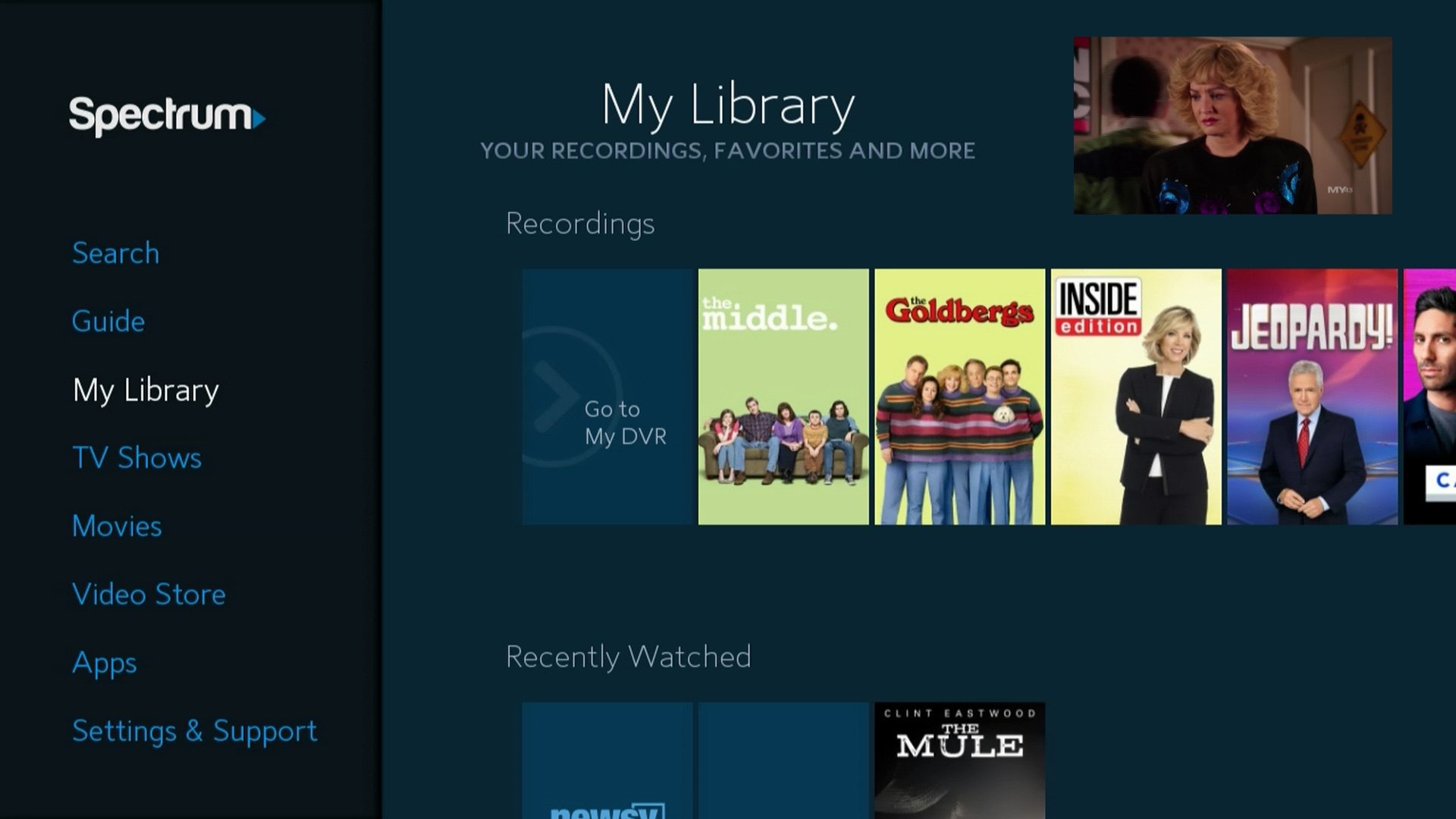
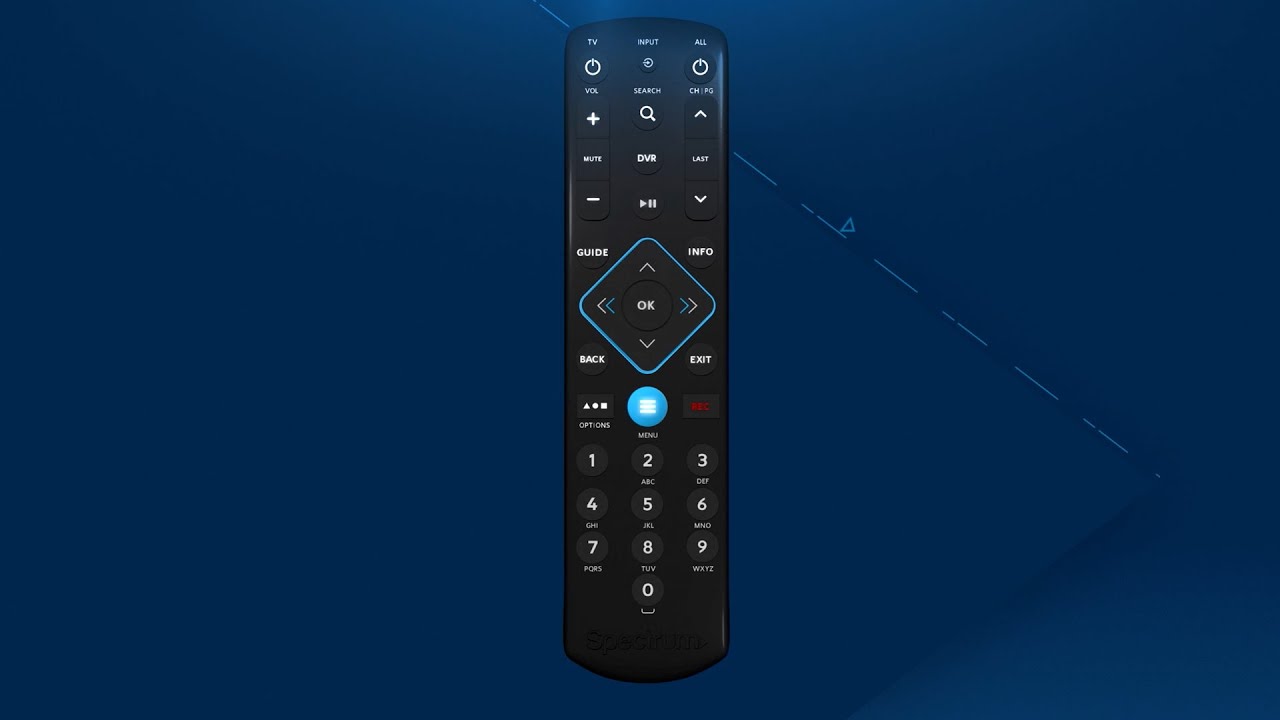
To reset your Spectrum remote, press and hold the “OK” and “Menu” buttons simultaneously. Then release them when the mode button blinks twice.
Need to reset your Spectrum remote? It’s a simple process that can help resolve various issues, such as unresponsive buttons or connectivity problems. In this guide, we’ll walk you through the steps to reset your Spectrum remote quickly and easily.
Whether you’re using the standard Spectrum remote or a more advanced model, the reset process is generally the same. By following these instructions, you can ensure that your remote is functioning as intended, allowing you to enjoy your entertainment without any disruptions.
Identify Your Spectrum Remote Model
If you’re facing issues with your Spectrum remote or simply need to reset it, the first step is to identify the model of your remote. Knowing the model number will help you find the appropriate reset instructions and troubleshoot effectively. Below, we’ll discuss two methods to find your Spectrum remote model.
Check The Manual Or Spectrum’s Website
Many Spectrum remotes come with a manual that contains information on the model number. Locate the manual that came with your remote and search for the model details. If you no longer have the manual, head to Spectrum’s official website and navigate to the support section. Look for the product information related to your remote model. This method usually provides detailed instructions and specifications for your specific remote model.
Locate The Model Number On The Remote Itself
If the manual is not available, you can find the model number directly on the remote. Look for a sticker or label on the back or bottom of the remote. The model number is typically a combination of letters and numbers, such as “UR5U-8780L” or “UR3-SR3S.” Once you have located the model number, note it down for future reference during the reset process.
Reasons To Reset Your Spectrum Remote
Resetting your Spectrum remote can help resolve various issues that may arise during its use. Whether you are facing unresponsive buttons, difficulties in controlling your cable box or TV, or simply need to pair it with a new device, a reset can often provide a quick and effective solution to these common problems.
Troubleshoot Unresponsive Buttons
If you find that some buttons on your Spectrum remote are not responding as they should, a reset may be all it takes to get them working again. Resetting the remote can clear any temporary glitches that may have caused the unresponsiveness, allowing you to regain full control of your entertainment system.
Fix Issues With Controlling The Cable Box Or Tv
Difficulty in controlling your cable box or TV using the Spectrum remote can be frustrating. By performing a reset, you can often resolve these issues and restore seamless operation. Whether it’s the volume, channel selection, or power functions, a reset may be the key to getting everything back on track.
Pair With A New Or Different Device
When you need to pair your Spectrum remote with a new or different device, resetting it can facilitate a smooth and successful pairing process. This ensures that your remote is ready to communicate and control the specific device it’s being paired with, allowing you to enjoy uninterrupted usage without any compatibility hiccups.
Simple Steps For A Soft Reset
One of the most common issues with Spectrum remotes is unresponsiveness. An easy fix for this is to perform a soft reset, which can often resolve the problem without the need for complex troubleshooting. Below are the simple steps for performing a soft reset on your Spectrum remote.
Remove Batteries And Press Each Button
To begin, take out the batteries from your Spectrum remote. Next, gently press each button on the remote control. This helps to discharge any residual power and ensures a complete reset. After pressing each button, leave the remote without batteries for approximately 1 minute.
Reinsert Batteries And Check Functionality
Once a minute has passed, reinsert the batteries into the remote. Make sure that they are properly aligned and secure within the battery compartment. After reinserting the batteries, check the functionality of the remote by pressing various buttons to ensure that it is responding as expected.
Credit: www.youtube.com
Factory Reset Your Spectrum Remote
When it comes to troubleshooting issues with your Spectrum remote, performing a factory reset can often resolve connectivity or functionality problems. Here’s how to factory reset your Spectrum remote to restore it to its default settings.
Accessing The Remote’s Setup Menu
To begin the factory reset process, you’ll need to access the setup menu on your Spectrum remote. This can be done by following these steps:
- Press the “Menu” button on your remote control.
- Navigate to “Settings” using the arrow keys and press “OK”.
- Select “Remote Control” from the list of options.
- Choose “Reset Remote” from the menu and then select “OK” to confirm.
Entering The Correct Factory Reset Code
Once you have accessed the setup menu, you will need to enter the correct factory reset code to initiate the process. Ensure that you follow these steps carefully:
- Locate the factory reset code for your specific Spectrum remote model. This can usually be found in the user manual or on the Spectrum website.
- Enter the factory reset code using the number pad on your remote control.
- Once the code is entered, press “OK” to confirm and initiate the factory reset process.
Pairing Remote Again After Reset
If you have recently reset your Spectrum remote and need to pair it again with your cable box, you may encounter some issues. In this section, we will guide you through the steps to re-pair your remote with your Spectrum cable box and troubleshoot any pairing issues that may arise after the reset.
Steps To Re-pair With Your Spectrum Cable Box
Follow these simple steps to re-pair your Spectrum remote with your cable box after a reset:
- Turn on your TV and cable box.
- Press and hold the “Menu” and “OK” buttons on your remote simultaneously for 3 seconds, until the mode buttons flash twice.
- Enter the code “9-8-1” using the number buttons on your remote.
- Press the “Channel Up” button once every 2 seconds. When the cable box turns off, press “OK” to save the code.
- Check if the remote now works with your cable box. If not, repeat the steps with the next code in the list until the remote operates your cable box.
Troubleshooting Pairing Issues Post-reset
If you are experiencing issues pairing your remote with your cable box after a reset, here are some troubleshooting tips:
- Ensure that the batteries in the remote are properly inserted and have sufficient power.
- Check if there are any obstructions between the remote and the cable box that may be affecting the signal.
- Power cycle both your cable box and TV by unplugging them for 30 seconds, then plugging them back in.
- Try resetting the remote again by following the steps provided in the user manual.
- If the issue persists, contact Spectrum customer support for further assistance.
Ensuring Full Remote Functionality
Resetting your Spectrum remote is an essential step to ensure its smooth functionality. After performing the reset, it’s crucial to test all the buttons and confirm control over all devices to guarantee that your remote is fully operational.
Testing All Buttons
After resetting your Spectrum remote, it’s imperative to test all the buttons to ensure they are responsive and functional. This involves pressing each button individually and in combination with others if applicable, checking for any unresponsive or sticky buttons.
Confirming Control Over All Devices
Once the buttons have been tested, it’s important to confirm that the remote has control over all associated devices. This includes devices such as your TV, cable box, and audio system. By ensuring that the remote can successfully operate each device, you can guarantee full remote functionality.
Contacting Spectrum Support
If you’ve followed the steps to reset your Spectrum remote and still encounter issues, it’s time to reach out to Spectrum Support for further assistance. Their technical specialists can help troubleshoot the problem and provide solutions tailored to your specific remote model and setup. Here’s how to tackle common issues that may arise, and when to seek further support.
When The Reset Process Fails
If the standard reset process for your Spectrum remote is unsuccessful, there might be deeper issues at play. Here are a few steps you can take if the remote is still not functioning properly after a reset:
- Check the batteries and ensure they are correctly inserted.
- Inspect the infrared sensor on the remote to see if it’s blocked or obstructed.
- Try resetting the remote again after replacing the batteries.
If the remote still doesn’t respond, you may need to consider professional help from Spectrum Support to diagnose any hardware or communication issues.
For Issues Beyond Resetting The Remote
If you’re experiencing ongoing issues with your Spectrum remote that extend beyond a simple reset, it’s crucial to seek the assistance of Spectrum Support. They can provide specialized troubleshooting tailored to your remote model and home setup, ensuring that any underlying technical issues are addressed comprehensively.
Frequently Asked Questions For How To Reset Your Spectrum Remote
How Do I Reset My Spectrum Remote?
To reset your Spectrum remote, press and hold the ‘Setup’ button until the LED light changes from red to green. Then, enter code 991 and press the ‘Power’ button. Finally, press the ‘Channel Up’ button repeatedly until your device turns off.
What Should I Do If My Spectrum Remote Is Not Working?
If your Spectrum remote is not working, check the batteries and replace them if necessary. Ensure a clear line of sight between the remote and the device, and power cycle your equipment. If issues persist, consider reprogramming the remote or contacting Spectrum customer support for assistance.
How Can I Program My Spectrum Remote To Control My Tv?
To program your Spectrum remote to control your TV, find the manufacturer’s code for your TV model. Press and hold the ‘TV’ button on the remote until it blinks twice, then enter the 3 or 4-digit code. Test the remote by pressing the ‘Power’ button to turn the TV on and off.
What Do The Different Flashing Lights On My Spectrum Remote Mean?
The flashing lights on your Spectrum remote indicate various functions, such as when the remote is in programming mode or transmitting a signal. Refer to the user manual for detailed explanations of the different light patterns and their meanings.
Conclusion
In a few simple steps, you can easily reset your Spectrum remote, ensuring smoother TV viewing. Follow our guide and fix any issues that may arise with your remote control. Say goodbye to frustration and hello to convenience as you take control of your home entertainment experience.
Get ready to enjoy seamless and hassle-free remote operations.
