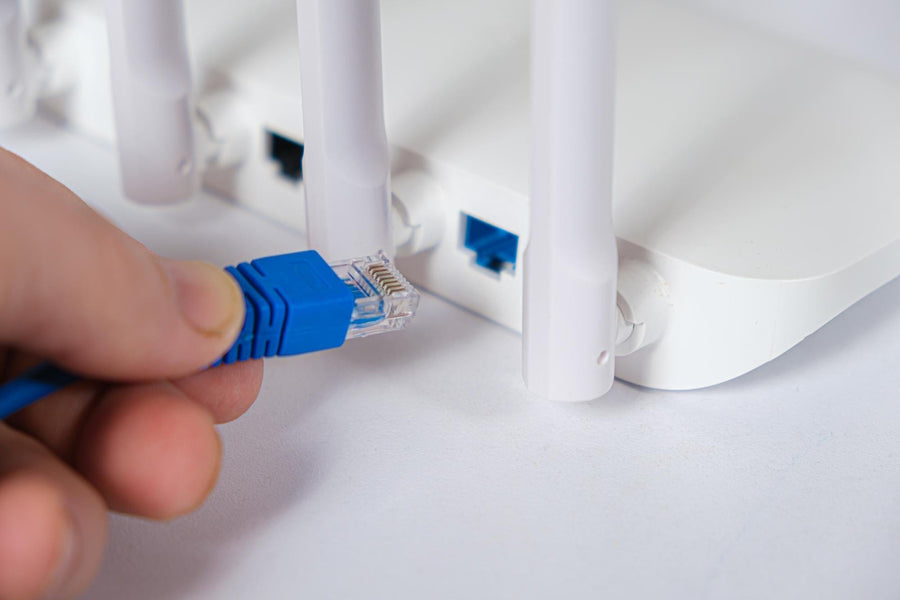
To reset a Spectrum Wifi router, press and hold the reset button for 30 seconds and release it. Then wait for the router to reboot.
Resetting a Spectrum Wifi router is a quick and simple process that can help resolve connectivity issues and improve performance. Whether you’re experiencing slow speeds or connection problems, resetting the router can often provide a quick fix. It’s important to know how to perform this basic troubleshooting step, as it can save time and frustration when dealing with internet issues.
In the following guide, we’ll walk you through the steps to reset your Spectrum Wifi router and get your network back up and running smoothly.
Understanding Your Spectrum Router
Different Spectrum Router Models
When it comes to Spectrum routers, there are several models available to users. Each model may have different reset processes and methods, so it’s essential to know which model you have to perform a successful reset. Some common models include:
- Spectrum Wave 2
- Spectrum RAC2V1K
- Spectrum SAC2V1K
Importance Of Regular Router Resets
Regularly resetting your Spectrum router can help in improving its performance and resolving network issues. It allows the router to clear out any temporary glitches and refresh connections, which can ultimately provide a more stable and reliable internet experience for users.
Warning Signs That Your Router May Need A Reset
It’s crucial to recognize the warning signs that indicate a need for a router reset. Some common signs include:
- Slow network speeds
- Frequent disconnections
- Inconsistent signal strength
- Difficulty connecting to devices
Credit: www.allconnect.com
Pre-reset Preparations
Before resetting your Spectrum WiFi router, it’s important to make preparations to ensure a smooth process. This includes backing up router settings, gathering necessary equipment, and locating the reset button.
Backing Up Router Settings
Before initiating the reset process, it’s crucial to back up your router settings to avoid losing any customized configurations. You can do this by accessing the router’s administrative interface and saving a copy of the current settings. Alternatively, take note of any customized settings such as port forwarding rules, wireless network configurations, and security settings.
Gathering Necessary Equipment
For the reset process, you will need a few essential items, including a paperclip or a small pointed object to press the reset button, a stable internet connection to access any online resources or backup instructions, and a computer or smartphone to configure the router after the reset.
Locating The Reset Button
The reset button on a Spectrum WiFi router is typically located on the back or bottom of the device. Consult the router’s manual or manufacturer’s website to locate the reset button specific to your router model. Ensure that the router is powered on and accessible before proceeding with the reset.
Before You Press The Reset Button
Before pressing the reset button on your Spectrum WiFi router, it’s essential to take a few important steps to ensure that the process goes smoothly. By following these preliminary measures, you can avoid potential complications and effectively reset your router to resolve any network issues. Read on to learn about the necessary preparations that will set the stage for a successful router reset.
Checking Your Current Network Status
Start by assessing your current network status to determine if the issue can be resolved without resorting to a router reset. Utilize the following steps to evaluate your network:
- Check if your devices are connected to the WiFi network.
- Test the internet connection to identify any performance issues.
- Verify if other devices are experiencing similar network problems.
Noting Down Router Configuration Details
Prior to initiating the router reset, gather and note down the current configuration details of your Spectrum WiFi router. This crucial step will help you to swiftly restore your network settings after the reset. Take note of the following router details:
- Wi-Fi network name (SSID)
- Wi-Fi password
- Security type (WPA, WPA2, etc.)
- IP address and subnet mask
- Domain Name System (DNS) server addresses
The Reset Process
Resetting your Spectrum Wi-Fi router can resolve many connectivity issues and ensure a stable internet connection. Following the correct reset process is essential to restore the router’s settings to their default state and troubleshoot problems effectively. Here’s a step-by-step guide on how to reset your Spectrum Wi-Fi router.
Step-by-step Instructions To Properly Reset The Router
When it becomes necessary to reset your Spectrum Wi-Fi router, follow these simple steps:
- Locate the reset button on your router. It is usually a small hole labeled “Reset”.
- With the router powered on, use a paperclip or similar tool to press and hold the reset button for about 30 seconds.
- Release the reset button and wait for the router to restart. This process may take a few minutes.
- Once the router has restarted, the factory settings should be restored, and the reset process is complete.
Verifying The Router’s Lights And Signals Post-reset
After resetting the router, you should verify the lights and signals to ensure that the reset was successful:
- Power Light: Check if the power light is solid and not blinking, indicating that the router is properly powered on.
- Internet Light: Confirm that the internet light is solid, indicating an established internet connection.
- Wi-Fi Network: Using a device, check if the Wi-Fi network is available and connectable.
Securing Your Wifi Network
Securing your WiFi network is essential in ensuring the confidentiality and integrity of your internet connection, as well as protecting your personal data. By taking proactive steps to secure your WiFi network, you can minimize the risk of unauthorized access and potential cyber threats. This means creating a strong password, updating firmware for optimal performance, and implementing other security measures. In this guide, we will focus on these critical aspects to strengthen the security of your Spectrum WiFi network.
Creating A New Wifi Password
One of the first and most important steps in securing your Spectrum WiFi router is to create a strong and unique password. A robust password can significantly reduce the risk of unauthorized access to your network. It is advisable to use a combination of uppercase and lowercase letters, numbers, and special characters. Make sure to avoid using easily guessable phrases or personal information when creating your password.
Updating Firmware To Ensure Optimal Performance
Regular firmware updates are crucial in maintaining the security and performance of your Spectrum WiFi router. Firmware updates often include security patches, bug fixes, and enhancements that can help protect your network from potential vulnerabilities. To update your router’s firmware, you can log in to the router’s admin panel and check for available updates. It is important to stay current with the latest firmware to ensure your router operates at its best.
Troubleshooting Common Issues
When it comes to troubleshooting common issues with your Spectrum WiFi router, there are a few steps you can take to ensure a smooth and seamless experience. It’s common to encounter difficulties with resetting the router, but with the right approach, most issues can be resolved without the need for professional support.
What To Do If The Router Doesn’t Reset
If you find that your Spectrum WiFi router is not resetting as expected, there are a few troubleshooting steps you can take to address the issue. Here are some common approaches to try:
- Ensure that the power source is functioning properly and that the router is receiving power.
- Check the connection between the power outlet and the router to make sure it is secure.
- Attempt to perform a hard reset by holding down the reset button on the router for at least 30 seconds.
- If the above steps do not resolve the issue, consider contacting Spectrum support for further assistance.
When To Contact Spectrum Support
If you have attempted the troubleshooting steps mentioned above and are still experiencing difficulties with resetting your Spectrum WiFi router, it may be time to seek assistance from Spectrum support. Contact Spectrum support if:
- The router fails to reset after multiple attempts.
- You are uncertain about the proper method for resetting the router.
- You suspect that the router may be faulty and in need of replacement.
Frequently Asked Questions Of How To Reset A Spectrum Wifi Router
How Do I Reset My Spectrum Wi-fi Router?
To reset your Spectrum Wi-Fi router, locate the reset button on the back. Use a paperclip to press and hold the button for 10 seconds until the lights blink. This will restore the router to its factory settings.
Why Should I Reset My Spectrum Wi-fi Router?
Resetting your Spectrum Wi-Fi router can resolve connectivity issues, speed up slow connections, and improve overall performance. It’s a quick and effective way to troubleshoot common network problems without the need for technical expertise.
Will Resetting My Spectrum Wi-fi Router Delete My Settings?
Yes, resetting your Spectrum Wi-Fi router will erase any custom settings or configurations. It will revert the router to its default state. Be sure to document any important settings beforehand so you can reconfigure the router after the reset.
Conclusion
In just a few simple steps, you can successfully reset your Spectrum WiFi router, ensuring smooth and uninterrupted internet connectivity. By following the guidelines provided, you can troubleshoot common issues and optimize your wireless network for better performance. A properly reset router can significantly improve your online experience, so don’t hesitate to take action when needed.
