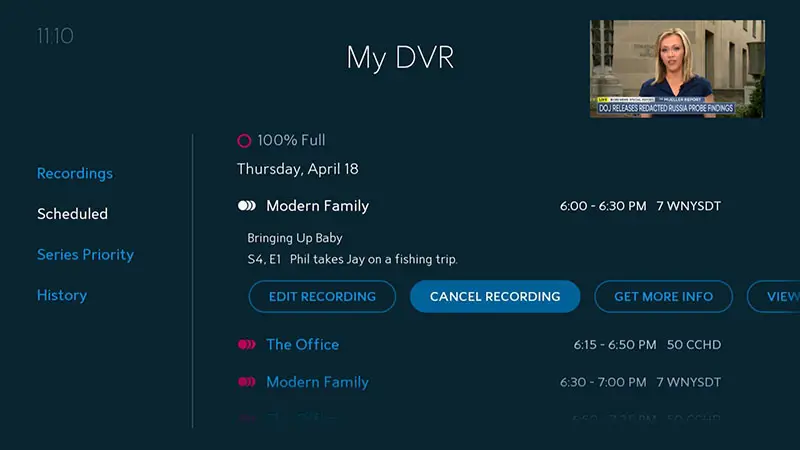
To record a show on Spectrum, simply press the “Record” button on your remote control. Now, let me explain how you can easily record your favorite shows on Spectrum.
As the world of entertainment continues to evolve, keeping up with your favorite shows can sometimes be a challenge. Thankfully, Spectrum provides an easy solution by allowing users to record their shows and watch them at their convenience. Whether you’re a fan of thrilling dramas, hilarious sitcoms, or exciting sports events, recording your shows on Spectrum ensures that you never miss a moment.
We will guide you through the process of recording a show on Spectrum, so you can enjoy your favorite programs whenever you want.
Why You Should Record Your Favorite Shows On Spectrum
Why You Should Record Your Favorite Shows on Spectrum
<h3>Keep up with your favorite shows</h3>
Life can get busy, and it’s not always possible for us to sit down and watch our favorite shows when they air live. That’s why it’s essential to have a way to keep up with them. With Spectrum’s recording feature, you don’t have to worry about missing out on any episodes. Whether it’s a gripping drama, a thrilling sports event, or a hilarious comedy, you can record your favorite shows and have them available whenever you want to watch.
<h3>Never miss an episode</h3>
Spectrum’s recording feature ensures that you never have to miss an episode of your favorite show again. Whether you’re caught up with work, out with friends, or simply unable to be in front of the TV at the exact time a show airs, you can rest easy knowing that it will be waiting for you in your recorded listings. Say goodbye to the frustration of missing crucial plot twists or character developments. With Spectrum, you have the power to stay up to date with every episode, on your own time.
<h3>Watch shows on your own schedule</h3>
One of the greatest benefits of recording your favorite shows on Spectrum is the flexibility it provides. No longer are you tied to the TV schedule dictated by broadcasters. Instead, you have the freedom to watch shows on your own schedule. Whether you prefer to binge-watch an entire season in one weekend or catch up on episodes during your lunch break, Spectrum’s recording feature allows you to enjoy your favorite shows at a time that suits you best.
Choosing The Right Spectrum Receiver For Recording
Understanding Different Receiver Options
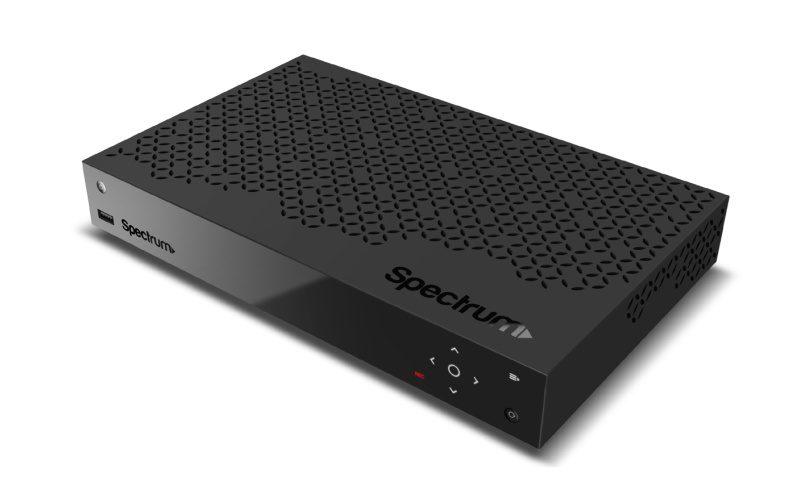
When it comes to recording your favorite shows on Spectrum, choosing the right receiver is essential. Spectrum offers different receiver options, each with its own set of features and capabilities. Understanding the different receiver options available to you will help you make an informed decision and enhance your TV viewing experience.
Features to Consider When Choosing a Receiver
Before selecting a Spectrum receiver for recording, it’s important to consider the features that best suit your needs. Here are some key factors to keep in mind:
- Storage Capacity: A receiver with ample storage capacity allows you to save a larger number of shows and movies.
- Number of Tuners: If you have multiple shows airing simultaneously, a receiver with multiple tuners allows you to record multiple programs at once.
- High-Definition (HD) Support: Ensure that the receiver supports HD if you want to record shows and movies in high definition.
- Streaming Capabilities: Some receivers offer streaming options, allowing you to access popular streaming services directly from your receiver.
- Compatibility: Check if the receiver is compatible with any additional devices or features you might want to integrate.
How to Set Up Your Spectrum Receiver for Recording
Setting up your Spectrum receiver for recording is a straightforward process. Here’s a step-by-step guide to help you get started:
- Connect your Spectrum receiver to your TV using an HDMI or component cable.
- Make sure your receiver is connected to the internet either through an ethernet cable or Wi-Fi.
- Turn on your TV and receiver, and follow the on-screen prompts to set up your receiver.
- Once your receiver is set up, navigate to the program or show you want to record using the remote control.
- Press the “Record” button on your remote to start recording the selected show. Some receivers also allow you to schedule recordings in advance.
Now that you have chosen the right Spectrum receiver and set it up for recording, you can enjoy the convenience of recording your favorite shows and never missing out on any TV moments again. Happy recording!
Step-By-Step Guide: How To Effortlessly Record A Show On Spectrum!
Step-by-Step Guide: How to Effortlessly Record a Show on Spectrum!
Are you tired of missing out on your favorite shows? With Spectrum, you can easily record your favorite programs and watch them at your convenience. In this step-by-step guide, we will walk you through the process of effortlessly recording a show on Spectrum, ensuring you never miss a moment of your favorite content again.
Accessing the Spectrum Guide
Before you can start recording your favorite show on Spectrum, you need to access the Spectrum guide. The guide allows you to browse through the available channels and find the show you want to record. To access the Spectrum guide, follow these simple steps:
- Using your Spectrum remote, press the “Guide” button. This will open up the Spectrum guide on your screen.
- Use the arrow keys on your remote to navigate through the guide and find the channel on which the show you want to record is airing.
- Once you have located the channel, press the “OK” button on your remote to select it.
Finding the Show You Want to Record
Now that you have the Spectrum guide open, it’s time to find the show you want to record. Follow these steps to locate and select the show:
- Use the arrow keys on your remote to scroll through the guide until you find the date and time slot when the show airs.
- Once you have found the correct time slot, highlight the show by using the arrow keys.
- Press the “OK” button on your remote to select the show.
Setting Up a Recording
With the show selected, it’s time to set up a recording. Follow these steps to ensure you don’t miss a moment of the action:
- On the show’s information page, locate the “Record” button and press the “OK” button on your remote to initiate the recording.
- A confirmation message will appear on your screen, indicating that the show has been successfully scheduled for recording.
One-time Recordings
One-time recordings allow you to record a specific episode of a show at a particular time. To set up a one-time recording, follow these steps:
- Locate the show on the Spectrum guide using the provided steps above.
- On the show’s information page, select the “Record” button to schedule the one-time recording.
Series Recordings
If you’re a fan of a particular show and don’t want to miss any episodes, you can set up a series recording. This will automatically record every new episode of the show for you. To set up a series recording, follow these steps:
- Find the show on the Spectrum guide as described earlier.
- On the show’s information page, select the “Record Series” button.
Managing Your Recorded Shows
Once you have recorded your favorite shows on Spectrum, it’s essential to know how to manage them. Follow these steps to access and organize your recorded shows:
- Using your Spectrum remote, press the “DVR” button to access your recorded shows.
- Scroll through the list of recorded shows using the arrow keys on your remote.
- Select a show by highlighting it and press the “OK” button to play it.
- To delete a recorded show, press the “OK” button on your remote while the show is selected, and choose the “Delete” option.
With this step-by-step guide, recording your favorite shows on Spectrum has never been easier. Follow these instructions, and you’ll never have to worry about missing out on the entertainment you love.
Credit: hometheaterreview.com
Tips And Tricks For Effortless Recording On Spectrum!
Recording your favorite shows and movies on Spectrum is a convenient way to never miss out on your entertainment. However, there may be times when you encounter issues such as recording conflicts, limited storage space, or the need to transfer recordings to other devices. In this blog post, we will share some handy tips and tricks to make the recording process smooth and effortless. Read on to discover how you can enhance your Spectrum recording experience!
Recording conflicts and how to resolve them
As a Spectrum subscriber, you may have experienced the frustration of scheduling multiple shows for recording, only to find that some of them clash in timing. Fortunately, Spectrum offers an easy solution to resolve recording conflicts. Follow these steps to ensure you never miss any of your favorite programs:
- Access your Spectrum receiver’s program guide and identify the conflicting shows.
- Prioritize your recordings by determining which shows are more important to you.
- Select the show with the highest priority and press the “options” button on your remote control.
- From the options menu, choose the “resolve conflict” option.
- Spectrum will then give you alternative time slots for the conflicting show, allowing you to reschedule it and avoid missing out.
Managing storage space on your Spectrum receiver
With limited storage space on your Spectrum receiver, it’s essential to manage your recordings efficiently. Follow these tips to make the most of your available space:
- Regularly delete unwanted and watched recordings to free up space for new ones. Spectrum allows you to delete multiple recordings at once, making the process quick and hassle-free.
- Prioritize recordings by importance and delete those that you no longer wish to keep. Remember, you can always re-record shows at a later date.
- Consider using an external storage device. If your Spectrum receiver supports it, you can connect a USB device to expand your storage capacity and keep more of your favorite content.
How to automatically delete watched recordings
Automatically deleting watched recordings is a convenient way to save time and free up storage space on your Spectrum receiver. Here’s how you can enable this handy feature:
- Access your Spectrum receiver’s settings menu.
- Navigate to the “Recording Preferences” section.
- Select the “Auto Delete” option.
- Choose the desired criteria for automatic deletion, such as deleting recordings after a specific number of days or when storage space is low.
- Once configured, Spectrum will automatically remove watched recordings, allowing you to maintain a clutter-free list of shows and movies.
Transferring recordings to other devices
If you want to enjoy your Spectrum recordings on other devices such as smartphones, tablets, or laptops, you can easily transfer them. Follow these steps to ensure seamless transfer:
- Install the Spectrum TV app on your desired device.
- Log in to the app using your Spectrum account credentials.
- Navigate to the “My Library” section within the app.
- Locate the recording you want to transfer and select the “Transfer” option.
- Choose the device where you want to transfer the recording and follow the on-screen instructions.
- You can now enjoy your Spectrum recordings on the go, wherever and whenever you want!
By following these tips and utilizing the features offered by Spectrum, you can take full advantage of the recording capabilities and enhance your entertainment experience. Whether it’s resolving conflicts, managing storage space, automating deletion, or transferring recordings, Spectrum makes it easy and convenient for you. So, start recording your favorite shows effortlessly and never miss out on the entertainment you love!
Troubleshooting Common Recording Issues On Spectrum
Are you encountering problems while trying to record your favorite show on Spectrum? Don’t worry; we’ve got you covered. In this article, we will explore some of the common recording issues Spectrum customers face and provide you with the solutions to troubleshoot them effectively.
<h3>Recording Failures and Error Messages</h3>
One of the most frustrating issues users encounter is when their recording fails, accompanied by various error messages. Let’s take a look at some of the common error messages and what they indicate:
- No available space: This error message suggests that your DVR’s storage is full. To resolve this, you need to delete some of your previously recorded shows to free up space.
- DVR not available: If you see this message, ensure that your DVR is powered on and connected to the cable signal properly. If the issue persists, try restarting your DVR by unplugging it for a few seconds and plugging it back in.
- Recording failed: This generic error message can occur due to various reasons. Check your internet connection stability and ensure that your DVR is receiving a strong signal from the cable provider. If the problem persists, it’s recommended to contact Spectrum customer support for further assistance.
<h3>Poor Picture or Sound Quality on Recorded Shows</h3>
It can be disappointing to discover that the picture or sound quality of your recorded shows on Spectrum is subpar. To improve the quality, try the following steps:
- Check your connections: Make sure that all the cables connecting your DVR to your TV are securely plugged in. Loose connections can result in poor quality.
- Adjust your display settings: Access the settings menu on your DVR and adjust the display settings to ensure they match the capabilities of your TV. This can have a significant impact on the picture quality.
- Reboot your DVR and modem: Sometimes, a simple reboot can solve audio and video quality issues. Unplug your DVR and modem simultaneously, wait for a few minutes, and then plug them back in.
- Check signal strength: A weak cable signal can lead to poor picture or sound quality. Using the Spectrum TV app or contacting customer support, check the signal strength in your area. If it’s low, contact Spectrum to have them investigate and resolve the issue.
<h3>DVR Playback Issues and Solutions</h3>
Experiencing trouble while playing back your recorded shows on Spectrum? Here are some common issues and their solutions:
- Freezing or buffering: Slow internet speeds or network congestion can cause playback issues. Check your internet connection speed and try reducing the number of devices using the network simultaneously.
- Playback not starting: If you’re unable to start playback on your DVR, make sure that the show has finished recording. Some shows may take longer to process before they become available for playback.
- Audio out of sync: If the audio and video are not in sync during playback, try pausing the show for a few seconds and then resuming. If the problem persists, restarting your DVR can often resolve the issue.
- Playback skipping or pixelation: This issue can result from a weak cable signal or a problem with your DVR’s hard drive. Check your cable connections and try restarting your DVR to see if it improves the playback experience.
<h3>Contacting Spectrum Customer Support for Help</h3>
If the troubleshooting steps mentioned above do not resolve your recording issues on Spectrum, it’s time to reach out to their customer support. Spectrum offers various ways to get in touch:
- Phone support: Dial the customer support number, and a representative will assist you with the problem you’re facing.
- Live chat: Engage in a live chat session with a support agent through Spectrum’s website or mobile app.
- Online forums: Explore Spectrum’s online forums where you can seek advice from other users or find solutions to common issues.
Remember to provide a detailed description of your problem to the support representative, specifying the exact error messages and steps you have already taken. This will help them diagnose and resolve your issue more efficiently.
By following the troubleshooting steps and reaching out to Spectrum’s customer support, you’ll be able to overcome your recording issues and enjoy seamless entertainment on your DVR.
Final Thoughts: Enjoying Your Favorite Shows Hassle-Free
Recording your favorite shows on Spectrum allows you to enjoy a hassle-free TV experience. With Spectrum’s state-of-the-art DVR technology, you have the power to capture your must-watch programs and never miss a moment. In this final section, we will discuss the benefits of recording shows on Spectrum, how to make the most out of the recording features, and the convenience that Spectrum’s DVR technology brings to your entertainment routine.
Benefits of recording shows on Spectrum
When it comes to recording shows, Spectrum offers a range of valuable benefits that enhance your TV-watching experience. Let’s take a look at some of these:
- Flexibility: With Spectrum DVR, you have the flexibility to record shows and movies whenever it suits you. No longer will you be tied to fixed schedules or worry about missing out on your favorite shows due to conflicting commitments. You can simply set the DVR to record and watch your shows at your convenience.
- Time-saving: Recording shows on Spectrum saves you valuable time. Instead of spending hours scrolling through channels to find what you want to watch or sitting through commercials, you can fast-forward through ads and jump to the parts that interest you the most. This allows you to maximize your TV time and eliminate unnecessary interruptions.
- Never missing an episode: Spectrum’s DVR ensures you never miss an episode of your beloved series. If you happen to be unavailable when a new episode airs, don’t worry! By recording your shows, you can catch up later and stay up-to-date with all the latest plot twists and turns.
- Family-friendly entertainment: With Spectrum’s DVR, you can record shows that the whole family can enjoy. Instead of limiting viewing to live broadcasts, you have the freedom to curate a selection of family-friendly content in advance. This means no more flipping through channels trying to find something suitable for everyone – it’s all available at your fingertips.
- Pause and rewind live TV: Spectrum’s DVR technology allows you to pause and rewind live TV, giving you complete control over your entertainment experience. Whether you need to take a quick break or want to rewatch a memorable scene, you can do so without any hassle.
Making the most out of your Spectrum recording features
Now that you’re aware of the benefits, let’s delve into how you can make the most out of Spectrum’s recording features:
- Schedule recordings in advance: With Spectrum’s DVR, you can schedule recordings in advance to ensure you don’t miss any of your favorite shows. Simply browse the TV guide, select the desired programs, and set the DVR to record them at the specified times.
- Manage storage space: Spectrum’s DVR comes with ample storage space, allowing you to record multiple shows and movies. However, it’s important to manage your storage to avoid running out of space. Regularly delete recordings you’ve already watched or no longer need to free up storage for new content.
- Utilize series recording: To automatically record all episodes of a particular series, take advantage of Spectrum’s series recording feature. This way, you won’t have to manually schedule each episode, ensuring you never miss a single installment of your favorite show.
- Customize recording settings: Spectrum’s DVR also allows you to customize recording settings according to your preferences. You can choose between recording only new episodes, reruns, or both. This level of customization ensures you have full control over what gets recorded and what doesn’t.
Embracing the convenience of Spectrum DVR technology
With Spectrum’s DVR technology, enjoying your favorite shows hassle-free is a breeze. Here are some additional ways to embrace the convenience that Spectrum’s DVR brings:
- Access your recordings from any device: Spectrum’s DVR can be accessed from multiple devices, including your TV, computer, smartphone, or tablet. This means you can catch up on your recorded shows wherever you are, whether you’re lounging on the couch, traveling, or simply on the go.
- Create personalized playlists: Spectrum allows you to create personalized playlists of your recorded shows. This feature lets you organize your content based on your preferences, making it easier to find and enjoy your favorite programs.
- Enjoy buffer-free playback: Spectrum’s DVR technology ensures smooth and buffer-free playback so that you can immerse yourself in your favorite shows without any interruptions or delays.
By utilizing these features and embracing the convenience of Spectrum’s DVR technology, you can enjoy your favorite shows hassle-free, on your own terms.
Frequently Asked Questions Of How To Record A Show On Spectrum
How Can I Record A Show On Spectrum?
To record a show on Spectrum, simply press the DVR button on your remote. Then, navigate to the channel and program you want to record, and press the record button. You can also set up scheduled recordings by accessing the DVR Manager on the Spectrum TV app or website.
Can I Record Multiple Shows At The Same Time On Spectrum?
Yes, you can record multiple shows simultaneously on Spectrum. Spectrum DVR allows you to record up to six different shows at once, so you’ll never miss your favorite programs. Just make sure your DVR is set up and has enough available recording space.
Can I Record Shows On Spectrum While Watching Something Else?
Absolutely! With Spectrum DVR, you can record shows while watching another one. The DVR functionality allows you to seamlessly switch between live TV and the recorded programs without interrupting your viewing experience. Simply use the remote to toggle between the different channels or recorded content.
Conclusion
Recording a show on Spectrum is a simple and convenient process. By following the steps outlined you can effortlessly schedule and record your favorite shows to watch later. With Spectrum’s user-friendly interface and reliable recording capabilities, you’ll never miss out on your must-watch programs again.
Start enjoying the flexibility and convenience of recording shows on Spectrum today!
