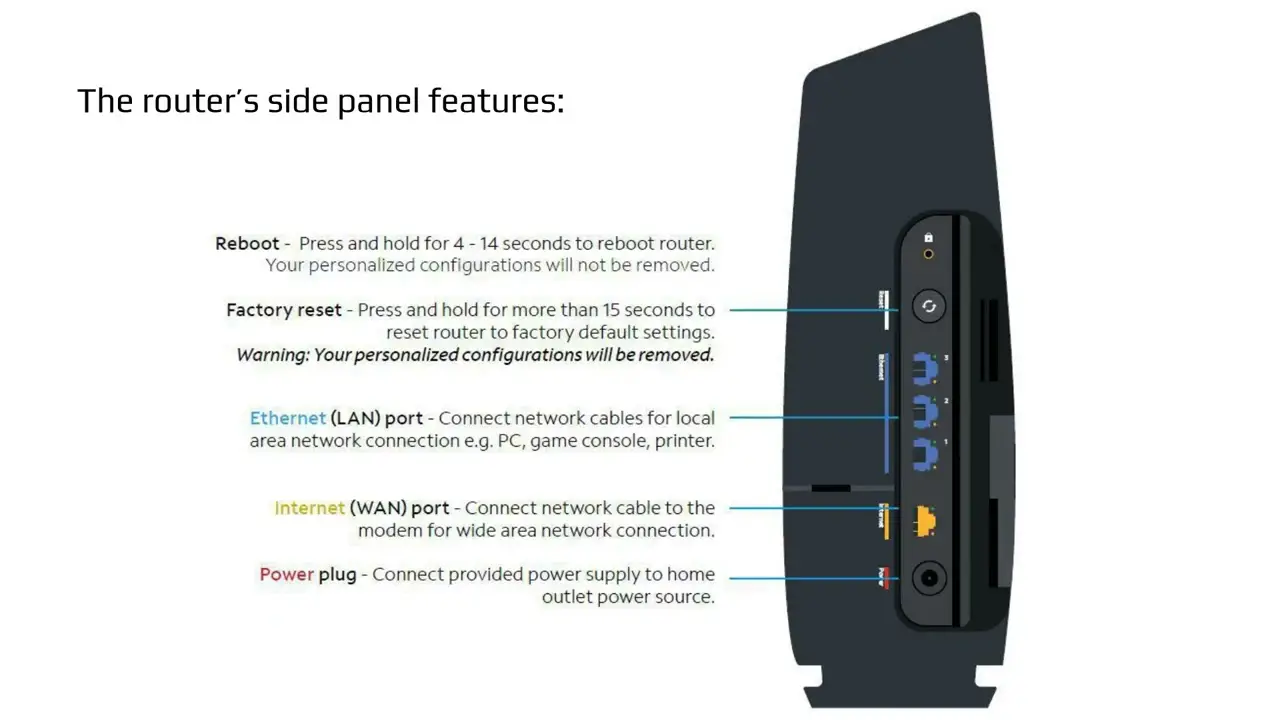
To reboot your Spectrum WiFi, simply unplug the modem and router, then wait 30 seconds before plugging them back in. This will power cycle the devices and restart the WiFi connection.
Having a reliable and fast WiFi connection is essential in today’s digital age. Whether you need to stream your favorite shows, work from home, or simply stay connected with friends and family, a strong WiFi signal is a must-have. If you’re experiencing issues with your Spectrum WiFi, a quick reboot can often solve the problem.
In this guide, we’ll walk you through the simple steps to reboot your Spectrum WiFi and get your connection back up and running smoothly. So, let’s dive in and learn how to reboot your Spectrum WiFi in no time!
Rebooting Spectrum Router For Better Performance
Rebooting your Spectrum router can significantly improve its performance when experiencing connectivity issues or slow speeds. Whether you are encountering frequent drop-offs, sluggish internet, or difficulty connecting to devices, a reboot can often resolve these common problems.
Identifying When A Reboot Is Necessary
If you notice any of the following signs, it may be time to reboot your Spectrum router:
- Frequent Drop-offs: If your connection drops consistently while streaming, gaming, or browsing, a reboot can help resolve this issue.
- Slow Internet: When web pages take longer to load than usual, rebooting the router could refresh the connection and improve speeds.
- Intermittent Connectivity Problems: If your devices seem to connect and disconnect from the network sporadically, a reboot may stabilize the connection.
Common Issues Resolved By Rebooting
Rebooting your Spectrum router can address various common connectivity issues, such as:
- Network Congestion: Clearing the router’s cache through a reboot can alleviate network congestion, especially in densely populated areas or during peak usage times.
- Software Glitches: Many software-related issues can be resolved with a simple reboot, including firmware glitches and network configuration errors.
- Stale Connections: Rebooting the router can terminate stale connections or sessions, allowing for a fresh start and improved performance.
Credit: www.spectrum.com
Preliminary Checks Before Reboot
Before proceeding to reboot your WiFi spectrum, it is important to conduct some preliminary checks to ensure that the issue is not related to other factors. Below are some essential checks to perform before proceeding with the reboot.
Ensuring Cable Connections Are Secure
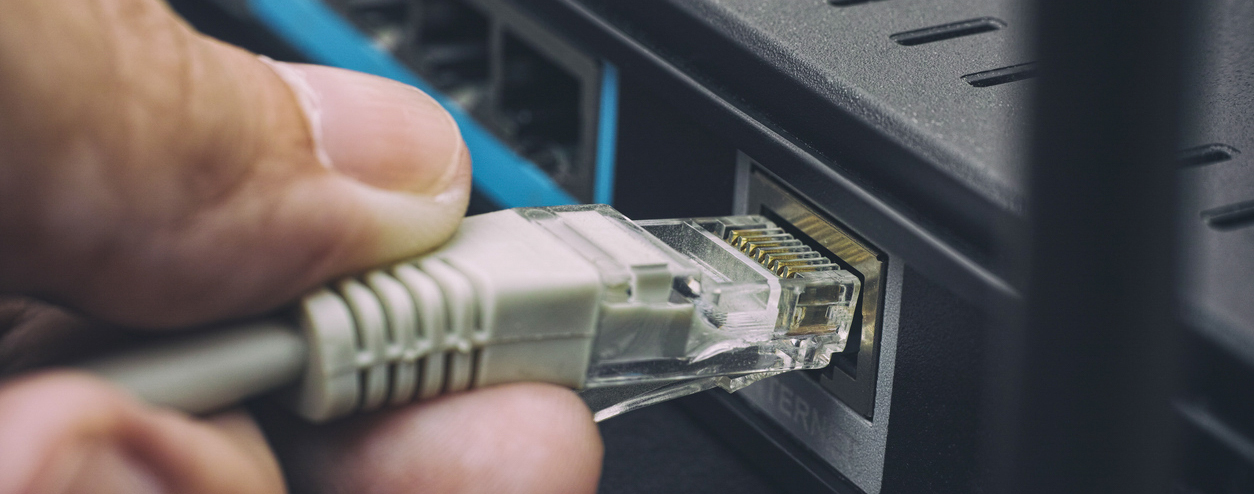
One of the first steps in troubleshooting your WiFi spectrum is to ensure that all cable connections are securely in place. Loose or faulty cable connections can lead to intermittent connectivity issues. Take a moment to inspect the cables connecting your router and modem to ensure they are firmly plugged in and not damaged.
Checking For Router Overheating
Overheating can significantly impact the performance of your router and lead to connectivity issues. Check that your router is placed in a well-ventilated area and not surrounded by objects that could obstruct airflow. Feel the router to see if it is unusually hot to the touch. If overheating is suspected, consider relocating the router to a cooler environment or utilizing a cooling pad to alleviate the issue.
Verifying Isp Service Status
Before rebooting your WiFi spectrum, it is crucial to verify the status of your Internet Service Provider (ISP). Visit your ISP’s official website or contact their customer support to check if there are any reported outages or service disruptions in your area. Ensuring that the issue is not related to the ISP service will help in narrowing down the cause of the connectivity problem.
How To Reboot Wifi Spectrum: Step-by-step
Are you experiencing slow internet or connectivity issues with your Spectrum Wifi? Rebooting your Wifi Spectrum can often solve these problems. In this step-by-step guide, we’ll walk you through the different methods to reboot your Wifi Spectrum, ensuring a smooth and uninterrupted internet experience.
Power Cycling The Router Manually
If you’re experiencing connectivity issues, power cycling your router manually can help resolve the problem. Follow these steps to perform a manual power cycle:
- Unplug the power cable from your Spectrum router and wait for 30 seconds.
- Plug the power cable back into the router and wait for the device to fully reboot, indicated by all lights being stable.
- Once the lights are stable, check your internet connection to ensure it’s functioning properly.
Using Spectrum’s Online Account Portal
Spectrum provides an online account portal where you can manage and troubleshoot your Wifi settings. Here’s how to reboot Wifi Spectrum using their online account portal:
- Log in to your Spectrum online account using your credentials.
- Navigate to the “Internet” section and locate the option to restart your router.
- Click on the “Restart” button and wait for the router to complete the reboot process.
Employing Spectrum’s Mobile App Features
Spectrum’s mobile app provides convenient features for managing your Wifi network. Follow these steps to reboot your Wifi Spectrum using the Spectrum mobile app:
- Download and install the Spectrum mobile app from the app store.
- Open the app and log in using your Spectrum account credentials.
- Navigate to the “Wifi Settings” section and locate the option to restart your router.
- Tap on the “Restart” button and wait for the router to complete the reboot process.
Troubleshooting Tips Post-reboot
After rebooting your WiFi spectrum, it’s essential to implement certain post-reboot troubleshooting tips to ensure a seamless and optimized WiFi experience. Follow these essential steps to address any potential issues and make the most of your network’s capabilities.
Adjusting Router Placement For Optimal Signal
Router placement plays a crucial role in the strength and stability of your WiFi signal. Optimally positioning your router can minimize signal interference and maximize coverage. Ensure that the router is placed centrally within your property, away from obstructions such as walls or metal objects, and at a suitable height to distribute the signal evenly. Additionally, restricting the distance between the router and the connected devices can help maintain a strong and reliable connection.
Updating Router Firmware Regularly
Regular updates to your router’s firmware are essential for enhancing security and improving performance. Check for firmware updates on a monthly basis and install them promptly to ensure your network is equipped with the latest features and security patches. This proactive approach can also resolve potential connectivity issues post-reboot and maintain the overall stability of your WiFi spectrum.
Password Protecting Your Wifi Network
Securing your WiFi network with a strong and unique password is a fundamental precautionary measure against unauthorized access. Implement WPA2 encryption and create a complex password consisting of alphanumeric characters and special symbols. Regularly updating the password further strengthens the network’s security defenses, preventing any potential infiltration or disruption.
Ensuring Reliable Spectrum Connection
When it comes to staying connected in today’s digital world, a reliable Wi-Fi spectrum connection is crucial. Whether it’s for work, entertainment, or staying in touch with loved ones, a strong wireless network can make all the difference. To ensure a seamless internet experience, it’s essential to monitor network speeds and performance, schedule regular reboots for network health, and know when to contact Spectrum support for help. Here’s how you can keep your spectrum connection reliable and robust.
Monitoring Network Speeds And Performance
Monitoring your network speeds and performance is essential for maintaining a reliable Wi-Fi spectrum connection. Keep an eye on the download and upload speeds, latency, and overall network stability. This can be done using various online speed testing tools or by logging into your Spectrum account to view network performance metrics. Regular monitoring allows you to identify any potential issues early on and take proactive measures to ensure a consistent connection.
Scheduling Regular Reboots For Network Health
Scheduling regular reboots for your Wi-Fi router is a simple yet effective way to maintain network health. Set a recurring schedule, such as once a week or once a month, to automatically reboot your router. This helps clear out any accumulated clutter, refreshes the connection, and can resolve minor technical hiccups that may impact network performance. By automating this process, you can ensure that your spectrum connection remains stable and reliable over time.
When To Contact Spectrum Support For Help
Knowing when to seek assistance from Spectrum support is crucial if you encounter persistent connectivity issues. If despite your best efforts, your Wi-Fi spectrum connection continues to falter, it’s time to reach out to the professionals. Contact Spectrum’s customer support for expert guidance and troubleshooting. They can assist with resolving complex technical issues, conducting remote diagnostics, and even scheduling on-site visits if necessary. Don’t hesitate to leverage their expertise when your spectrum connection requires a helping hand.
Frequently Asked Questions For How To Reboot Wifi Spectrum
How Do I Reboot My Wifi Spectrum Router?
To reboot your Wifi Spectrum router, simply unplug it from the power source, wait for about 30 seconds, and then plug it back in. This will reset the router and resolve various connectivity issues.
Why Is It Important To Reboot Wifi Spectrum Regularly?
Regularly rebooting your Wifi Spectrum router helps to clear out any built-up cache or memory leaks, improving its overall performance and resolving network issues.
Can Rebooting Wifi Spectrum Fix Slow Internet Speed?
Yes, rebooting your Wifi Spectrum router can often resolve slow internet speed issues by refreshing the connection and clearing out any network congestion or interference.
How Often Should I Reboot My Wifi Spectrum Router?
It’s recommended to reboot your Wifi Spectrum router at least once a month to ensure optimal performance and to resolve any potential connectivity issues that may arise.
Conclusion
Rebooting your WiFi spectrum can help to resolve connectivity issues and improve the overall performance of your network. By following the steps mentioned in this guide, you can effectively troubleshoot and address any problems with your WiFi. Stay proactive in maintaining your WiFi spectrum to ensure a reliable and robust internet connection for your daily activities.
