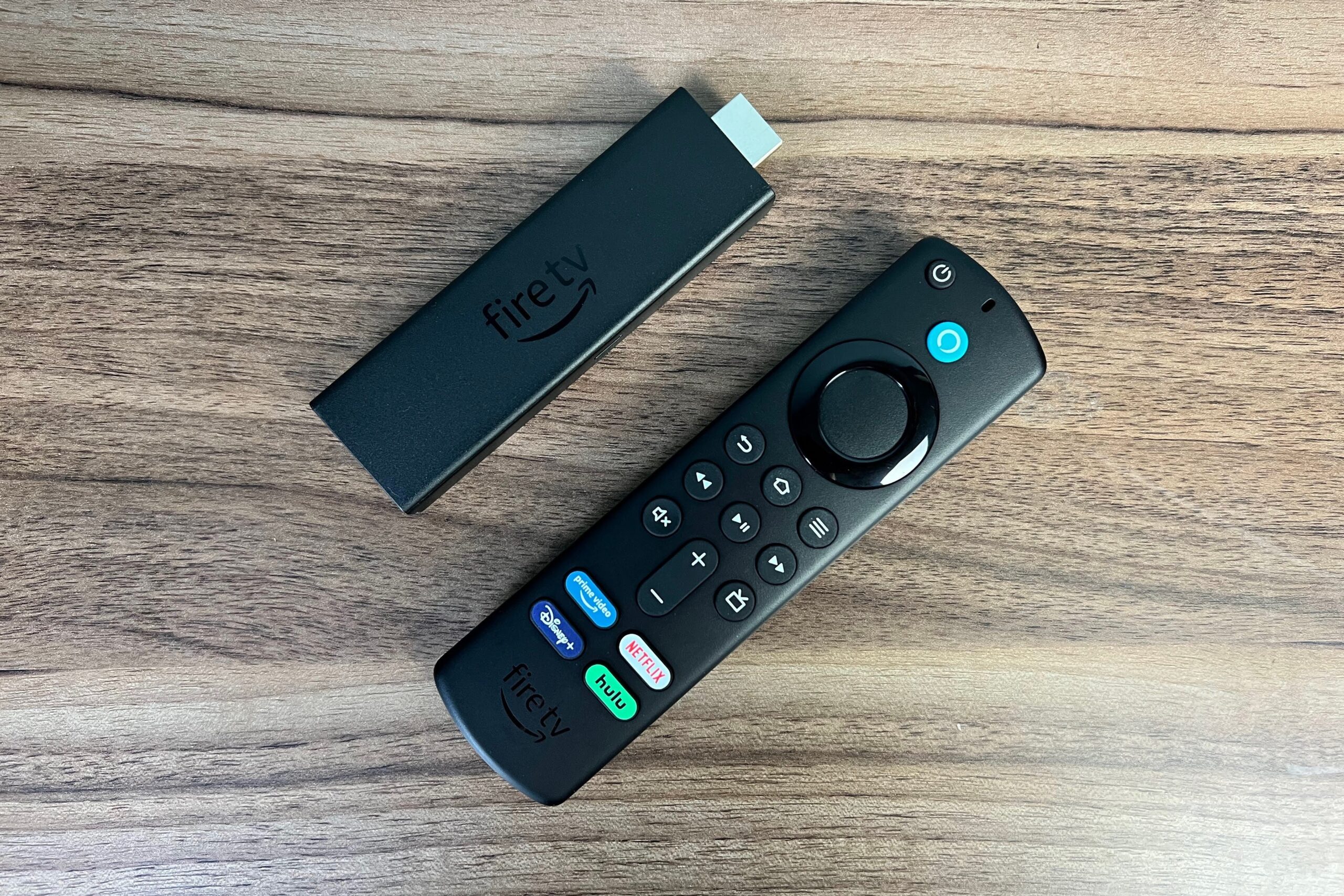
To pair your Spectrum remote to your TV, power off the cable box and TV, open the remote’s back cover, remove the old batteries, and check for any battery deformities or leakage. Once done, power on the TV, point the remote at the TV, and press and hold the “TV” and “OK” buttons simultaneously until the TV button lights up.
Release the buttons and enter the code “991” using the number keys on the remote. Finally, press the “TV Power” button to test if the remote is paired with the TV. Pairing your Spectrum remote to your TV is a simple process that allows you to control your TV using the remote.
By following a few steps, you can easily pair your remote with your TV and enjoy the convenience of controlling both the cable box and TV with a single remote. We will guide you through the process of pairing your Spectrum remote to your TV without any hassle. Whether you have a new remote or need to re-pair your existing remote, these steps will help you get your remote working with your TV in no time.
Step-By-Step Guide For Programming A Spectrum Remote To Your Tv
Introduction to programming a Spectrum remote
Programming a Spectrum remote to your TV can seem like a daunting task, but with a step-by-step guide, it becomes much easier. Whether you’re dealing with a new or old TV, the process is relatively straightforward. In this article, we will provide you with a comprehensive step-by-step guide to programming your Spectrum remote to your TV. By following these instructions, you’ll be able to control your TV effortlessly and enjoy your favorite shows and movies without any hassle.
Gathering necessary information
Before you begin programming your Spectrum remote, there is some necessary information you need to gather. This ensures that you have everything you need to complete the process successfully. Here’s what you need:
- The model number of your Spectrum remote: This can usually be found on the back of the remote or in the user manual.
- The brand and model number of your TV: This information is typically located on the back of your TV or in the user manual.
Gathering these details will make the programming process much smoother and save you time in the long run.
Identifying the model of your Spectrum remote
Once you have gathered the necessary information, it’s time to identify the model of your Spectrum remote. This is essential because different models of remotes have different programming instructions. To find the model number of your Spectrum remote, follow these steps:
- Remove the battery cover from the back of the remote.
- Locate the model number, which is usually printed on the inside of the battery compartment or on the back of the remote.
- Write down the model number for future reference.
By identifying the model of your Spectrum remote, you’ll be able to find the appropriate programming instructions and codes for your TV.
Finding the programming code for your TV
With the model number of your Spectrum remote in hand, it’s time to find the programming code for your TV. This code is necessary to establish a connection between your remote and your TV. Here’s how to find the programming code:
- Visit the Spectrum website and search for the programming code database.
- Enter the model number of your Spectrum remote.
- Select your TV brand from the list provided.
- Write down the programming code associated with your TV brand.
Having the correct programming code is crucial for successful communication between your Spectrum remote and your TV.
Programming your Spectrum remote using the code
Now that you have the necessary information and the programming code for your TV, it’s time to program your Spectrum remote using the code. Follow these steps to complete the programming process:
- Turn on your TV and your Spectrum cable box.
- Press and hold the “TV” button on your Spectrum remote until the light at the top of the remote turns on.
- Enter the programming code for your TV using the number buttons on your remote.
- Press the “Power” button to test if the TV turns off.
- If the TV turns off, press the “TV” button again to lock in the code. If not, repeat steps 3 and 4 with a different programming code.
- Test the other functions of your remote, such as volume control and channel selection, to ensure everything is working correctly.
By following these steps, you should be able to program your Spectrum remote to your TV successfully. Remember to consult the user manual for your specific remote model if you encounter any difficulties.

Credit: tech.hindustantimes.com
Troubleshooting Common Issues With Pairing Spectrum Remote To Tv
Spectrum remote not connecting to your TV
If you’re having trouble connecting your Spectrum remote to your TV, there are a few troubleshooting steps you can try. One common issue could be with the batteries in your remote. By checking the batteries, you can ensure that they are not drained or in need of replacement. Another step you can take is to power off both your cable box and your TV. This can help reset the connection between the remote and the TV. Additionally, it’s important to check for any leaks or deformities in the batteries, as this could be causing connectivity issues.
Spectrum remote not working with TV volume control
If your Spectrum remote is not working with your TV volume control, there are some steps you can take to troubleshoot the issue. Firstly, you can try programming the remote specifically for volume control. This can be done by following the instructions provided in the remote’s user manual. If that doesn’t work, there may be some volume control issues that need to be addressed. Try troubleshooting these issues by checking the settings on your TV and ensuring that the volume controls are properly configured.
Spectrum remote not working with certain TV brands
If your Spectrum remote is not working with certain TV brands, it’s possible that there may be compatibility issues. Some Spectrum remotes are not compatible with all TV brands, especially older or less common ones. In this case, it may be necessary to explore alternative methods for pairing the remote with your TV. This could include using a universal remote or contacting Spectrum customer support for further assistance.
Additional Tips And Resources For Pairing Spectrum Remote To Tv
When it comes to pairing your Spectrum remote to your TV, there are some additional tips and resources that can make the process even easier. Whether you’re struggling to find the right code or want to explore alternative methods, these options can help you get your remote up and running in no time.
Alternate methods for programming a Spectrum remote without a code
If you don’t have a code for your TV or the code you have isn’t working, don’t worry. There are alternate methods you can try to program your Spectrum remote. One option is to use the Auto-Search feature on your remote, which will automatically search for the correct code for your TV. Another option is to use the Manual Setup method, where you input a series of codes until you find the one that works. Both of these methods can be a bit more time-consuming, but they can be effective if you’re having trouble finding the right code.
Using a universal remote for Spectrum TV
If you’re tired of juggling multiple remotes for your TV and Spectrum cable box, using a universal remote may be a great solution. With a universal remote, you can control both your TV and cable box with just one device. To set up a universal remote for Spectrum TV, you’ll need to follow the instructions included with the remote. Typically, this involves entering a code specific to your TV and cable box. Once programmed, you’ll be able to control both devices seamlessly with your universal remote.
Syncing your cable remote to your TV
In addition to pairing your Spectrum remote to your TV, you may also want to sync your cable remote to your TV. This can allow you to control basic TV functions such as power, volume, and input selection with your cable remote. To sync your cable remote to your TV, you’ll need to consult the user manual or online resources provided by your cable provider. The process typically involves entering a specific code or following a series of steps to program the remote to work with your TV.
Helpful YouTube videos and online tutorials for remote programming
If you’re a visual learner and prefer step-by-step instructions, there are many helpful YouTube videos and online tutorials available for remote programming. These resources can guide you through the process of pairing your Spectrum remote to your TV, providing useful tips and troubleshooting advice along the way. Simply search for “programming Spectrum remote to TV” on YouTube or your preferred search engine to find a variety of videos and tutorials to choose from.
By exploring these additional tips and resources, you can ensure a smooth and successful pairing of your Spectrum remote to your TV. Whether you’re having trouble with codes, want to simplify your remote setup, or need visual guidance, there’s a solution out there for you. Take advantage of these resources to enhance your remote programming experience and enjoy seamless control over your TV and cable box.
Frequently Asked Questions On How To Pair My Spectrum Remote To My Tv
How Do I Sync My Cable Remote To My Tv?
To sync your cable remote to your TV, follow these steps: 1. Power off your cable box and TV. 2. Open the remote’s battery compartment and remove the old batteries. 3. Check for battery deformities or leaks. 4. Insert new batteries.
5. Power on your cable box and TV. Your remote should now be synced.
How Do I Program My Spectrum Remote To My Tv Without The Code?
To program your Spectrum remote to your TV without the code, first, power off your cable box and TV. Then, remove the old batteries from the remote’s back cover and check for any deformities or leakage. Now, follow the steps to pair your remote and TV through radio frequency.
Why Is My Spectrum Remote Not Connecting To My Tv?
To troubleshoot why your Spectrum remote is not connecting to your TV, first, make sure to check the batteries and replace them if necessary. Also, ensure that the batteries are not damaged or leaking. If the issue persists, refer to the remote’s user manual or contact Spectrum support for further assistance.
How Do I Program My Spectrum Remote To My Tv Volume?
To program your Spectrum remote to control your TV volume, follow these steps: 1. Power off your cable box and TV. 2. Open the back cover of the remote and remove the old batteries. 3. Check the batteries for any deformities or leaks.
4. Insert new batteries. 5. Power on the cable box and TV. Your remote should now be programmed to control the TV volume.
Conclusion
To pair your Spectrum remote to your TV hassle-free, follow the steps outlined in this blog post. Remember to power off your cable box and TV, replace the batteries in the remote, and ensure they’re not deformed or leaking. This remote will automatically pair with your Spectrum cable box or receiver, but you may need to program it to work with your specific TV.
Just follow our easy instructions, and you’ll be enjoying seamless control in no time. Say goodbye to remote woes and hello to a hassle-free TV experience!
