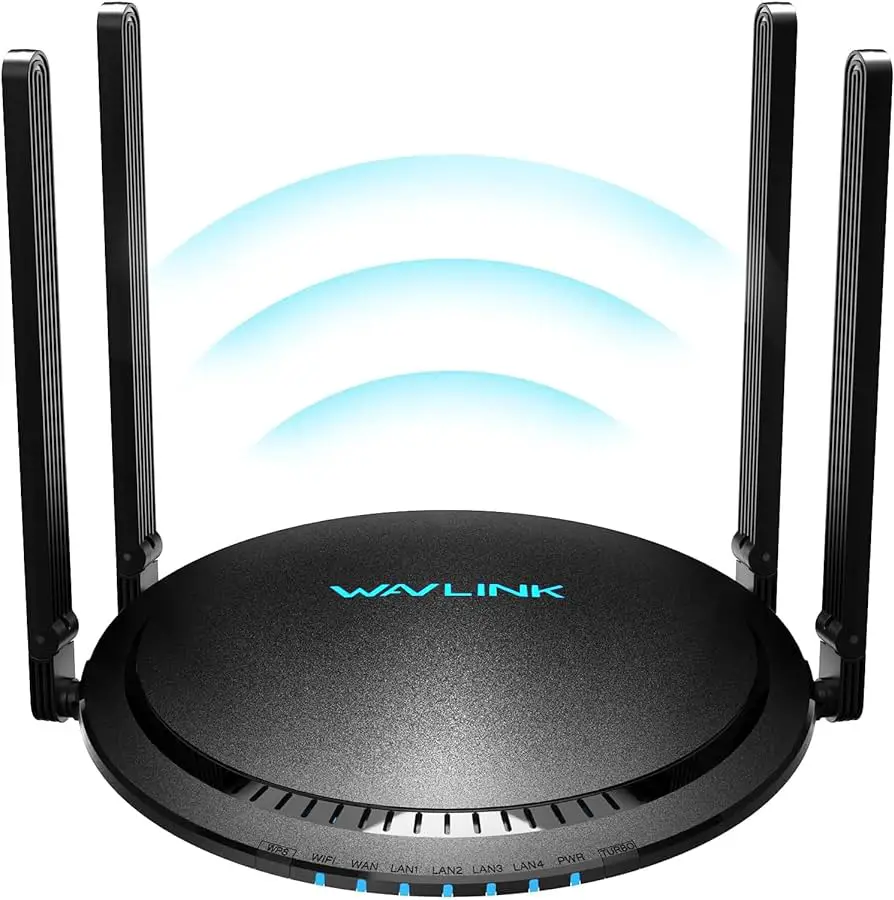
To make Spectrum Internet faster, optimize your Wi-Fi settings and update your router’s firmware. Improving your Wi-Fi signal strength and reducing interference can help boost your internet speed.
Updating your router’s firmware ensures that you have the latest software for optimal performance.
Assessing Your Current Internet Speed
Check your current internet speed using an online speed test
If you’re experiencing slow internet speeds, it’s crucial to first assess your current internet speed. By knowing where your internet speed stands, you’ll be able to determine whether there are issues that need attention or if you’re getting the most out of your Spectrum Internet connection.
Conducting an online speed test is a quick and easy way to check your current internet speed. There are several reputable websites that offer free speed tests, such as Speedtest.net. Simply navigate to the website and click the “Go” or “Start Test” button to begin the speed test.
Understanding the different components of internet speed
Before jumping into the results of your internet speed test, it’s helpful to understand the different components that contribute to your internet speed. Internet speed is typically measured in two primary metrics:
- Download speed: This refers to the speed at which data is transferred from the internet to your device. It affects activities such as streaming videos, downloading files, and browsing websites.
- Upload speed: On the other hand, upload speed refers to the speed at which data is transferred from your device to the internet. Activities such as video conferencing, uploading files, and sharing content heavily rely on upload speed.
Keep in mind that both download and upload speeds are important for a smooth internet experience. While download speed tends to be prioritized by most internet users, upload speed is equally crucial for tasks that involve sending data from your device to the internet.
Identifying factors that might be limiting your internet speed
If you’ve completed an online speed test and found that your internet speed is not up to par, there may be several factors to consider:
- Router placement: The physical placement of your router can have a significant impact on your internet speed. Ensure that your router is positioned in a central location, free from obstructions like thick walls or large furniture that can hinder the signal.
- Distance from the router: The further away you are from your router, the weaker the Wi-Fi signal will be, resulting in slower internet speeds. Try to position yourself closer to the router or consider investing in a Wi-Fi extender to expand the range.
- Number of connected devices: The more devices connected to your network, the more strain is placed on the internet speed. Disconnect unnecessary devices or consider upgrading to a higher bandwidth plan.
- Network congestion: During peak usage times, such as evenings or weekends, the network may become congested, leading to slower internet speeds. If this is the case, you may want to consider using the internet during less congested times.
- Outdated equipment: Outdated routers or modems may not be able to handle higher internet speeds, limiting your overall performance. Consider upgrading your equipment to take advantage of the latest technology.
By identifying these factors that might be limiting your internet speed, you’ll be better equipped to troubleshoot and improve your Spectrum Internet connection. Remember, optimizing your internet speed can significantly enhance your online experience.
Upgrading Your Spectrum Internet Package
Researching different Spectrum internet packages available in your area
When it comes to upgrading your Spectrum internet, one of the first steps is to research the different internet packages available in your area. Spectrum offers a range of packages with varying speeds and prices, so it’s essential to find the one that suits your needs best. Start by visiting the Spectrum website and entering your address to check for availability in your area. This will give you a list of internet packages that you can choose from.
Comparing internet package options based on speed and price
Once you have a list of internet packages available in your area, the next step is to compare them based on both speed and price. Check the speed of each package to ensure it meets your requirements for online activities such as streaming, gaming, or working from home. Spectrum offers packages with speeds ranging from basic to ultra-fast, so consider your usage needs when making a decision.
Alongside speed, it’s important to compare the prices of each package. Look for any promotional offers or discounts available, as they can help you save money while enjoying a faster internet connection. Spectrum often has special deals for new customers, so keep an eye out for those as well.
Contacting Spectrum customer service to upgrade your internet package
Once you have researched and compared the different internet packages, it’s time to take the final step and contact Spectrum customer service to upgrade your internet package. To do this, you can call Spectrum’s customer service number or visit a local Spectrum store. Their representatives will guide you through the process and help you select the best package for your needs.
Be sure to have information ready, such as your account details and the package you are interested in. The customer service agent will assist you with any questions or concerns you may have and ensure a smooth transition to your upgraded internet package.
Upgrading your Spectrum internet package can make a significant difference in your online experience. By researching the available packages, comparing them based on speed and price, and contacting Spectrum’s customer service, you can enjoy a faster and more reliable internet connection in no time.
Optimizing Your Wi-Fi Connection
Having a fast and reliable Wi-Fi connection is essential for a smooth internet experience. If you’re a Spectrum Internet user looking to boost your internet speed, there are several steps you can take to optimize your Wi-Fi connection. By placing your Wi-Fi router in the optimal location, adjusting your router settings, and using Wi-Fi extenders or mesh networks, you can ensure a faster and more stable internet connection. In this article, we’ll explore these methods in detail so you can start enjoying faster internet speeds today.
Placing Your Wi-Fi Router in the Optimal Location
The placement of your Wi-Fi router plays a crucial role in the speed and coverage of your internet connection. Here are a few tips to help you find the optimal location for your router:
- Place the router in a central location in your home to ensure even coverage throughout.
- Avoid placing the router near thick walls or obstructions that may hinder the signal.
- Elevate the router to a higher position, such as on a shelf or mounted on a wall.
- Keep the router away from electronic devices that may interfere with the signal, such as cordless phones or microwaves.
Adjusting Your Wi-Fi Router Settings for Maximum Speed
In addition to the physical placement of your router, adjusting the settings can also improve the speed of your Wi-Fi connection. Here are a few settings you can tweak to maximize your internet speed:
- Change the Wi-Fi channel to avoid interference from other nearby networks.
- Enable Quality of Service (QoS) settings to prioritize certain devices or applications for a faster connection.
- Update the firmware of your router regularly to ensure you have the latest bug fixes and performance improvements.
- Enable Wi-Fi encryption to secure your network and prevent unauthorized access.
Using Wi-Fi Extenders or Mesh Networks to Improve Coverage
If you have a large home or areas with weak Wi-Fi coverage, using Wi-Fi extenders or mesh networks can help improve the range and stability of your connection. Wi-Fi extenders amplify the signal from your router, while mesh networks consist of multiple devices working together to create a seamless Wi-Fi network. Consider these options if you’re experiencing dead spots or slow internet speeds in certain areas of your home.
By following these tips and optimizing your Wi-Fi connection, you can significantly improve the speed and performance of your Spectrum Internet. Experiment with different settings and placement options to find the configuration that works best for your specific needs. With a faster internet connection, you’ll be able to enjoy seamless browsing, streaming, and online gaming like never before.

Credit: www.verizon.com
Managing Connected Devices For Better Speed
When it comes to optimizing your Spectrum Internet connection for better speed, managing the devices connected to your network plays a crucial role. The more devices you have connected, the more likely it is that your internet speed will be distributed among them, resulting in slower internet for each device. In this article, we will explore how you can assess the number of connected devices, control bandwidth usage on specific devices, and prioritize devices for optimal internet speed.
Assessing the number of devices connected to your network
It may surprise you how many devices are connected to your network at any given time. To assess the number of connected devices, you can follow these steps:
- Access your Spectrum Internet router settings by typing the router’s IP address into your web browser.
- Navigate to the “Connected Devices” or a similar section in the router settings.
- Here, you will find a list of all the devices currently connected to your network, along with their IP addresses and other details.
By assessing the number of devices connected, you will have a better understanding of the potential impact on your internet speed.
Controlling bandwidth usage on specific devices
If you notice certain devices consuming excessive bandwidth and slowing down your internet speed, you can take control by limiting their bandwidth usage. To do this:
- Go to the router settings and locate the “Quality of Service (QoS)” or a similar option.
- Enter the MAC address or IP address of the device you want to control.
- Set a maximum bandwidth limit for that device.
By restricting the bandwidth usage of specific devices, you can ensure a fair distribution of internet speed throughout your network.
Prioritizing devices for optimal internet speed
Some devices, such as gaming consoles or video streaming devices, require higher bandwidth for a seamless experience. To prioritize these devices for optimal internet speed:
- Access the router settings and look for the “Device Priority” or a similar feature.
- Select the device you want to prioritize from the list of connected devices.
- Set a higher priority for the chosen device.
By giving priority to devices that require faster speeds, you can ensure a smooth and uninterrupted experience for activities that demand higher bandwidth.
Managing connected devices is an essential step in making your Spectrum Internet faster. By assessing the number of devices, controlling bandwidth usage, and prioritizing certain devices, you can optimize your network for better speed and performance. Implementing these steps will help you make the most of your Spectrum Internet connection and enjoy a faster and more reliable online experience.
Utilizing Wired Connections For Faster Speeds
If you’re tired of experiencing slow internet speeds and constant disruptions when using Wi-Fi, it may be time to consider switching to a wired connection. Wired connections, such as Ethernet cables and powerline adapters, offer several benefits that can significantly enhance your internet speed and overall browsing experience. In this article, we’ll explore the advantages of using wired connections and walk you through the process of setting them up for devices that require high-speed internet.
Understanding the benefits of wired connections over Wi-Fi
While Wi-Fi is undoubtedly convenient, especially for mobile devices and laptops, it is susceptible to interference from other electronic devices and physical barriers like walls and floors. Wired connections, on the other hand, provide more stable and faster internet speeds since it eliminates these obstacles. There are several key benefits of using wired connections:
- Reliability: Wired connections offer a more stable and reliable internet connection, reducing the chances of disruptions or dropouts.
- Speed: Ethernet cables and powerline adapters enable faster data transfer rates, allowing you to download and upload files more quickly.
- Security: Wired connections are typically more secure than Wi-Fi, as they are not exposed to potential breaches from nearby devices or hackers.
- Consistency: Unlike Wi-Fi, which can experience fluctuations in speed due to a variety of factors, wired connections provide a consistent and predictable internet experience.
Setting up wired connections for devices that require high-speed internet
If you have devices that demand high-speed internet, such as gaming consoles or smart TVs, setting up a wired connection can greatly improve their performance. Here’s a simple step-by-step guide to get you started:
- Identify the appropriate connections: Check if your devices have Ethernet ports or USB ports that support Ethernet adapters. These are necessary for establishing a wired connection.
- Purchase the required equipment: Depending on your device’s compatibility, you may need Ethernet cables or powerline adapters. Ethernet cables are useful for connecting devices directly to your router, while powerline adapters utilize your electrical wiring to transmit the internet signal.
- Connect the devices: If you’re using Ethernet cables, simply connect one end of the cable to your router and the other end to the Ethernet port on your device. If you’re using powerline adapters, plug one adapter near your router and connect it via Ethernet cable. Then, plug the other adapter near your device and connect it to the device via Ethernet cable.
- Configure the settings: After connecting the devices, you may need to adjust some settings on your device or router to activate the wired connection. Consult the instruction manual or online resources for specific guidance.
- Test the connection: Once the setup is complete, test the speed and stability of the wired connection. You should notice a significant improvement compared to using Wi-Fi.
Using Ethernet cables and powerline adapters to optimize connections
Now that you understand the benefits of wired connections and how to set them up, let’s explore some additional tips to optimize your connections:
- Use high-quality Ethernet cables: To ensure maximum performance, invest in high-quality Ethernet cables that are compatible with the speed capabilities of your internet package.
- Consider powerline adapters for distant devices: If your devices are located far from your router, powerline adapters can extend the wired connection by utilizing your electrical wiring. This eliminates the need for long Ethernet cables.
- Minimize interference: To prevent interference, avoid running Ethernet cables alongside electrical wires or appliances that emit high levels of electromagnetic signals.
- Regularly update firmware: Keep your router and powerline adapters updated with the latest firmware to ensure optimal performance and security.
By utilizing wired connections and following these recommendations, you can substantially enhance your internet speed, stability, and overall browsing experience. Say goodbye to frustrating buffering and slow downloads, and enjoy a seamless online experience.
Eliminating Network Interference
Network interference can significantly affect the speed and performance of your Spectrum Internet connection. In order to ensure the best possible Internet experience, it is crucial to identify and eliminate sources of network interference. By taking the following steps, you can minimize interference from other electronic devices and troubleshoot common interference issues, resulting in a faster and more reliable Internet connection.
Identifying potential sources of network interference
In order to eliminate network interference, it is important to first identify potential sources. These can include:
- Neighboring Wi-Fi networks: Other Wi-Fi networks in close proximity can interfere with your signal and reduce speed. Using a Wi-Fi analyzer tool, you can detect the channels used by nearby networks and switch to less congested ones.
- Physical barriers: Walls, floors, and other physical objects can obstruct Wi-Fi signals, causing interference. Positioning your Wi-Fi router in a central location and away from obstructions can help minimize interference.
- Electrical devices: Certain electrical devices such as cordless phones, baby monitors, and microwave ovens can emit wireless signals that interfere with Wi-Fi. Keeping these devices away from your router or switching to devices that operate on different frequencies can help alleviate interference.
Minimizing interference from other electronic devices
Once potential sources of network interference have been identified, it is crucial to take steps to minimize their impact. Here are a few strategies to consider:
- Position your Wi-Fi router strategically: Place your router in a central location, away from walls, floors, and other obstructions that can hinder the signal.
- Ensure optimal Wi-Fi router settings: Adjusting the channel and frequency settings on your router can help minimize interference from neighboring networks.
- Use wired connections: Whenever possible, connect devices directly to your router using Ethernet cables. This reduces reliance on Wi-Fi and minimizes potential interference from other devices.
Troubleshooting and resolving common network interference issues
Despite taking preventative measures, network interference issues can still arise. Fortunately, many common issues can be easily resolved. Consider the following troubleshooting steps:
- Reboot your modem and router: Sometimes, a simple reboot can resolve network interference issues by resetting the connection and clearing any temporary glitches.
- Upgrade your equipment: Outdated or malfunctioning equipment can contribute to network interference. Consider upgrading your router or modem to a newer, more reliable model.
- Reset your network settings: Resetting your network settings to their default configuration can resolve any software-related issues that may be causing interference.
By identifying potential sources of interference, minimizing their impact, and troubleshooting common issues, you can eliminate network interference and enjoy a faster and more reliable Spectrum Internet connection.
Updating Your Router Firmware
Understanding the Importance of Router Firmware Updates
One of the key factors that affect your Spectrum Internet speed is the firmware of your router. Router firmware is the software that manages the functionality of your router, including its performance and security features. Regularly updating your router firmware is crucial to ensure a smooth and efficient internet connection.
Checking for and Installing the Latest Firmware for Your Router
To make sure that your Spectrum Internet is running at its best, you need to regularly check for and install the latest firmware for your router. Here are the steps to do so:
- Access your router’s settings by entering the router’s IP address in your web browser’s address bar. The IP address is typically printed on the back of your router or can be found in the user manual.
- Once you’ve accessed the settings, navigate to the firmware update section. This may vary depending on your router’s make and model, but it is usually located under the “Administration” or “Advanced” tab.
- Check if there are any available firmware updates for your router. Most routers have an option to automatically check for updates, so make sure this feature is enabled.
- If there is a new firmware update available, download it from the official manufacturer’s website. Be cautious of downloading firmware from third-party sources, as it can be risky.
- After downloading the firmware update file, go back to your router settings and navigate to the firmware update section again.
- Click on the “Choose File” or “Browse” button to select the firmware update file you downloaded. Then, click on the “Update” or “Upgrade” button to start the firmware installation process.
- Wait patiently for the firmware update to complete. Do not turn off or unplug your router during the installation process, as it can cause damage.
- Once the firmware update is finished, your router will reboot, and the new firmware will be applied. Your router should now have the latest firmware installed.
Troubleshooting Common Firmware Update Issues
While updating your router firmware is generally a straightforward process, you may encounter some common issues along the way. Here are a few troubleshooting steps to help resolve them:
- Make sure you have a stable internet connection before proceeding with the firmware update.
- Double-check if you have downloaded the correct firmware update file for your router’s make and model.
- If the firmware update fails or gets stuck, try restarting your router and computer before attempting the update again.
- Disable any firewall or antivirus software temporarily, as they can sometimes interfere with the firmware update process.
- If you continue to experience issues, consider contacting Spectrum customer support or the router manufacturer for further assistance.
By regularly updating your router firmware and resolving any potential issues, you can ensure that your Spectrum Internet runs at its optimal speed, providing a seamless online experience.
Implementing Quality Of Service (Qos) Settings
Understanding how to implement Quality of Service (QoS) settings for your Spectrum Internet can greatly improve your online experience by ensuring a faster and more reliable connection. QoS allows you to prioritize certain types of network traffic, optimizing your internet speed for specific activities such as streaming, gaming, or video conferencing. In this section, we will dive into the importance of QoS and how you can configure it to maximize your internet speeds.
Understanding QoS and its impact on internet speed
Quality of Service (QoS) is a feature that allows you to prioritize specific types of network traffic over others. It manages and assigns different levels of importance to various data packets, ensuring that critical applications receive the necessary bandwidth and resources to function optimally. By implementing QoS settings, you can allocate bandwidth for activities that require high speeds, minimizing lag and improving overall performance. This not only results in a faster internet connection but also reduces buffering, latency, and disconnections.
Configuring QoS settings to prioritize certain types of network traffic
Configuring QoS settings on your Spectrum Internet is a straightforward process that can significantly enhance your internet speed for specific activities. To prioritize certain types of network traffic, follow these steps:
- Access your Spectrum router’s admin panel by typing your router’s IP address in your web browser’s address bar. The default IP address is usually ‘192.168.0.1’ or ‘192.168.1.1’.
- Login to your router’s admin panel using your credentials. If you haven’t changed them, you can find the default login information in the router’s user manual or on the manufacturer’s website.
- Once logged in, navigate to the QoS settings. The exact location may vary depending on your router model, but it is commonly found under ‘Advanced’, ‘Network’, or ‘QoS’ tabs.
- Enable QoS if it is disabled.
- Assign priorities to different types of network traffic. You can typically prioritize applications such as streaming, gaming, VoIP, or video conferencing by setting them to ‘High’ or ‘Highest’ priority. This ensures that these activities receive more bandwidth and resources.
- Save your settings and restart your router to apply the changes.
Optimizing QoS settings for streaming, gaming, or other specific activities
To optimize QoS settings for specific activities such as streaming or gaming, it is important to understand the requirements of these applications and adjust the settings accordingly. Here are some general guidelines:
- Streaming: Prioritize streaming applications such as Netflix, YouTube, or Hulu. Set them to ‘High’ or ‘Highest’ priority and allocate more bandwidth to them. This will minimize buffering and ensure a smooth streaming experience.
- Gaming: Allocate high priority to gaming applications, platforms, or consoles such as Xbox Live or PlayStation Network. These activities require low latency and a stable connection, so prioritize them accordingly.
- Video Conferencing: Assign high or highest priority to video conferencing applications like Zoom, Microsoft Teams, or Google Meet. This ensures a stable and uninterrupted connection while attending important meetings or online classes.
By optimizing QoS settings based on your specific internet activities, you can enjoy a faster and smoother online experience, minimizing delays and packet loss. Experiment with different settings to find the best configuration that suits your needs.
Implementing QoS settings can make a significant difference in your Spectrum Internet speed. By understanding QoS, configuring the right settings, and prioritizing specific types of network traffic, you can ensure a faster and more reliable connection for activities that matter the most to you.
Monitoring And Maintaining Your Spectrum Internet
Monitoring and maintaining your Spectrum internet is crucial to ensure that you are making the most of your internet service and enjoying a seamless online experience. By taking a proactive approach to monitor, maintain, and troubleshoot your internet connection, you can optimize its performance and keep it running smoothly. In this section, we will explore how you can use available online tools to track internet speed and performance, perform routine maintenance tasks, and troubleshoot common internet issues effectively.
Using available online tools to track internet speed and performance
Having the ability to monitor your Spectrum internet’s speed and performance can provide valuable insights into its performance levels. Fortunately, there are several online tools that can help you with this task. By utilizing these tools, you can easily track your internet speed and identify any potential issues that may be affecting its performance. Some popular online tools that you can use include:
- Spectrum Speed Test: This is an official tool provided by Spectrum that allows you to measure your internet connection’s speed. It provides you with accurate results, allowing you to gauge whether your internet is performing as expected.
- Speedtest by Ookla: Speedtest is a widely used tool that measures your internet speed by analyzing your download and upload speeds, as well as your ping. It offers detailed test results and helps you determine if your Spectrum internet is meeting your expectations.
- GlassWire: GlassWire is a network monitoring tool that not only tracks your internet speed but also provides valuable insights into your internet usage. It can help you identify bandwidth-hogging applications, monitor data usage, and provide alerts for unusual network activity.
By utilizing these tools regularly, you can stay informed about your internet speed and performance, making it easier to identify any potential issues and take appropriate actions to resolve them.
Performing routine maintenance tasks to keep your internet running smoothly
Performing routine maintenance tasks is essential for keeping your Spectrum internet running smoothly. By taking a proactive approach and making these tasks a part of your internet maintenance routine, you can prevent potential issues and optimize your internet’s performance. Here are some important maintenance tasks you should consider:
- Regularly restart your modem and router: Restarting your modem and router periodically helps clear out any temporary glitches or issues that may be affecting your internet performance. Consider doing this once a month or whenever you notice a slowdown in your internet speed.
- Keep your devices and software up to date: Outdated devices and software can sometimes cause compatibility issues and affect your internet’s performance. Make sure to regularly update your devices’ firmware, as well as your computer’s operating system and web browser.
- Manage your Wi-Fi network: If you are using Wi-Fi, ensure that your router is placed in an optimal location, away from potential interferences. You can also consider changing your Wi-Fi password regularly to secure your network and prevent unauthorized access.
By incorporating these routine maintenance tasks into your internet usage habits, you can ensure that your Spectrum internet performs at its best and provides you with a reliable and fast connection.
Troubleshooting common internet issues and seeking support if needed
Despite your best efforts, you might encounter common internet issues from time to time. However, being knowledgeable about troubleshooting techniques can help you resolve these issues quickly and efficiently. Here are some common internet issues and their possible solutions:
| Issue | Solution |
|---|---|
| Slow internet speed | Restart your modem and router, close unnecessary applications, check for malware or viruses, and contact Spectrum support for further assistance if needed. |
| Intermittent connectivity | Check the physical connections of your modem and router, relocate your router to a central location, update your router’s firmware, or contact Spectrum support for help. |
| No internet connection | Ensure that all cables are securely connected, restart your modem and router, check for any service outages in your area, and contact Spectrum support if the issue persists. |
If you have followed the troubleshooting steps and are still unable to resolve the issue, don’t hesitate to seek support from Spectrum’s customer service. Their knowledgeable representatives can provide further assistance and help you get back online quickly.
By monitoring, maintaining, and troubleshooting your Spectrum internet, you can optimize its performance, minimize disruptions, and enjoy a fast and reliable connection for all your internet needs.
Frequently Asked Questions On How To Make Spectrum Internet Faster
How Can I Increase The Speed Of My Spectrum Internet?
To increase the speed of your Spectrum Internet, try these steps:
1. Restart your modem and router. 2. Ensure proper placement of your devices. 3. Clear your browser cache regularly. 4. Connect directly to the modem via Ethernet. 5. Contact Spectrum for troubleshooting assistance.
Does Using A Wi-Fi Extender Help Make Spectrum Internet Faster?
Yes, using a Wi-Fi extender can help improve the speed of your Spectrum Internet. By amplifying and extending the Wi-Fi signal, it allows for a stronger connection in areas with weak coverage. Ensure proper placement of the extender for optimal performance.
What Factors Can Slow Down My Spectrum Internet Connection?
Several factors can slow down your Spectrum Internet connection, including:
1. Distance from the modem/router. 2. Number of devices connected simultaneously. 3. Network congestion during peak hours. 4. Outdated modem/router firmware. 5. Signal interference from other devices or walls.
Is It Necessary To Upgrade My Spectrum Internet Package For Faster Speeds?
Not necessarily. Before upgrading, try troubleshooting steps like restarting modem/router or connecting via Ethernet. If the issue persists, contact Spectrum support for assistance. They may recommend an upgrade based on your specific needs and usage patterns.
Conclusion
Optimizing your Spectrum Internet connection for maximum speed is achievable with a few simple steps. By ensuring you have a reliable modem and router, minimizing interference, and regularly updating your equipment, you can enjoy faster internet speeds with Spectrum. Additionally, implementing some basic network management techniques and using a wired connection when possible can further enhance your online experience.
With these strategies in place, you can make the most of your Spectrum Internet and enjoy seamless browsing, streaming, and downloading.
