To get the Spectrum TV app on Firestick, go to the Amazon Appstore and search for “Spectrum TV.” Click on the app and select “Download” to install it on your Firestick.
If you’re a Spectrum subscriber looking for a convenient way to access your favorite TV shows and movies, you’ll be pleased to know that it’s possible to watch Spectrum TV on your Amazon Firestick. By simply following a few easy steps, you’ll be able to set up the Spectrum TV app on your Firestick and start enjoying your favorite entertainment content hassle-free.
We’ll guide you through the process of getting the Spectrum TV app on your Firestick so you can access your favorite channels, On Demand programs, and DVR recordings on your TV screen in no time.
Spectrum Tv App On Firestick: Easy Install Guide
Spectrum TV app on Firestick is a game-changer for enthusiasts looking to stream high-quality content seamlessly. With its user-friendly interface and wide range of entertainment options, the Spectrum TV app provides an unparalleled viewing experience. In this easy install guide, we’ll walk you through the process of getting the Spectrum TV app on your Firestick, ensuring you can elevate your entertainment experience to new heights.
Importance Of The Spectrum Tv App For Firestick Users
With the Spectrum TV app, Firestick users gain access to an extensive library of live TV, on-demand movies, and shows, all within a single interface. This means that you can enjoy your favorite content without having to switch between multiple apps, providing convenience and ease of access.
Prerequisites For Installation
- Active Spectrum TV subscription
- Stable internet connection
- Amazon Firestick device
Easy Install Guide
The installation process for the Spectrum TV app on Firestick is straightforward and can be completed using the following steps:
- Ensure your Firestick is connected to your TV and powered on.
- Navigate to the home screen and select the ‘Search’ option.
- Type ‘Spectrum TV’ in the search bar and select the app from the results.
- Click on the ‘Download’ button to initiate the installation process.
- Once the installation is complete, open the app and log in using your Spectrum TV account credentials.
- Start exploring the vast array of entertainment options available through the Spectrum TV app on your Firestick.
Prepare Your Firestick For Spectrum App
When it comes to streaming services, Spectrum TV app on Firestick offers a convenient way to access your favorite live TV, on-demand content, and DVR recordings. However, before you can start enjoying the benefits of the Spectrum TV app on your Firestick, you need to prepare your device to allow the installation of apps from third-party sources. In this guide, we will walk you through the steps to prepare your Firestick for the Spectrum app.
Enable ‘apps From Unknown Sources’
To begin the process of setting up your Firestick for the Spectrum TV app, you need to enable the ‘Apps from Unknown Sources’ option. This will allow you to install applications that are not available on the Amazon App Store. Follow the steps below to enable this feature:
- From the home screen of your Firestick, navigate to the top menu and select “Settings”.
- Scroll to the right and select “My Fire TV”.
- Choose “Developer Options”.
- Toggle the “Apps from Unknown Sources” option to the ON position.
- When prompted, click “Turn On” to confirm your selection.
Update Firestick To The Latest Firmware
After enabling the option to install apps from unknown sources, it’s essential to ensure that your Firestick is running on the latest firmware. This will not only optimize the performance of your device but also ensure compatibility with the Spectrum TV app. Follow these steps to update your Firestick:
- From the Firestick home screen, go to “Settings”.
- Scroll to the right and select “My Fire TV”.
- Choose “About” and then select “Check for Updates”.
- If an update is available, follow the on-screen prompts to download and install the latest firmware.
Seamless Downloading Techniques
`official Amazon App Store Method`
To download the Spectrum TV app on Firestick, the official method through the Amazon App Store is the most reliable and straightforward way to ensure a hassle-free installation process. Here are the steps to follow:
- On your Firestick home screen, navigate to the top menu and select the Search option.
- Type “Spectrum TV” in the search bar using the on-screen keyboard.
- Select the Spectrum TV app from the search results and click on the “Download” or “Get” button to initiate the installation process.
- Once the installation is complete, launch the app and log in with your Spectrum TV account credentials to start enjoying your favorite content.
`using The Downloader App For Sideloading`
If the Spectrum TV app is not available in your region’s Amazon App Store, you can sideload the app using the Downloader app. Follow these steps for a seamless sideloading process:
- First, make sure to enable the installation of apps from unknown sources in the Firestick settings. To do this, go to Settings > My Fire TV > Developer Options and turn on the “Apps from Unknown Sources” toggle.
- Next, install the Downloader app from the Amazon App Store. Open the Downloader app and enter the URL for the Spectrum TV app download page.
- Once the download is complete, the Downloader app will prompt you to install the Spectrum TV app. Proceed with the installation and launch the app to start streaming your favorite shows and movies.
Spectrum TV app on Firestick brings a world of entertainment right to your fingertips. Navigating through the app’s features allows you to make the most of your viewing experience. Here’s a walkthrough of the Spectrum TV user interface and how you can customize your viewing experience to suit your preferences.
Walkthrough Of Spectrum Tv User Interface
The Spectrum TV app’s user interface provides an intuitive and user-friendly experience, making it easy to discover and access your favorite shows, movies, and channels. Upon opening the app, you’ll be greeted with a visually appealing home screen that neatly organizes various content categories. The navigation menu allows seamless access to live TV, On Demand, and recorded programs.
Scrolling through the program guide is effortless, and the search feature enables you to quickly find specific content. The easy-to-use interface ensures that you spend less time navigating and more time enjoying your favorite entertainment.
Customizing Your Viewing Experience
Personalizing your viewing experience with the Spectrum TV app is simple and convenient. You can create a watchlist of your preferred shows and movies, enabling quick access to your favorite content. Additionally, the app’s customizable settings allow you to modify video and audio preferences, including closed captioning and parental controls.
- Customize your guide to prioritize your preferred channels
- Set up favorite channels for easy access
- Adjust video playback settings for optimal viewing experience
By taking advantage of these features, you can tailor your Spectrum TV app to cater to your unique viewing habits and preferences. This empowers you to enjoy a personalized and enhanced entertainment experience at your convenience.
Troubleshooting Common Installation Issues
While installing the Spectrum TV app on Firestick is generally a simple process, issues can arise that may prevent a successful installation. Below are common installation issues and troubleshooting methods to resolve them.
Resolving Compatibility Concerns
If you encounter compatibility concerns when attempting to install the Spectrum TV app on your Firestick, it’s essential to ensure that your device meets the necessary requirements. Check that your Firestick model and operating system version are compatible with the Spectrum TV app. Additionally, verify that your Firestick is updated to the latest firmware version to eliminate any compatibility-related issues.
Network Connectivity And Performance Optimization
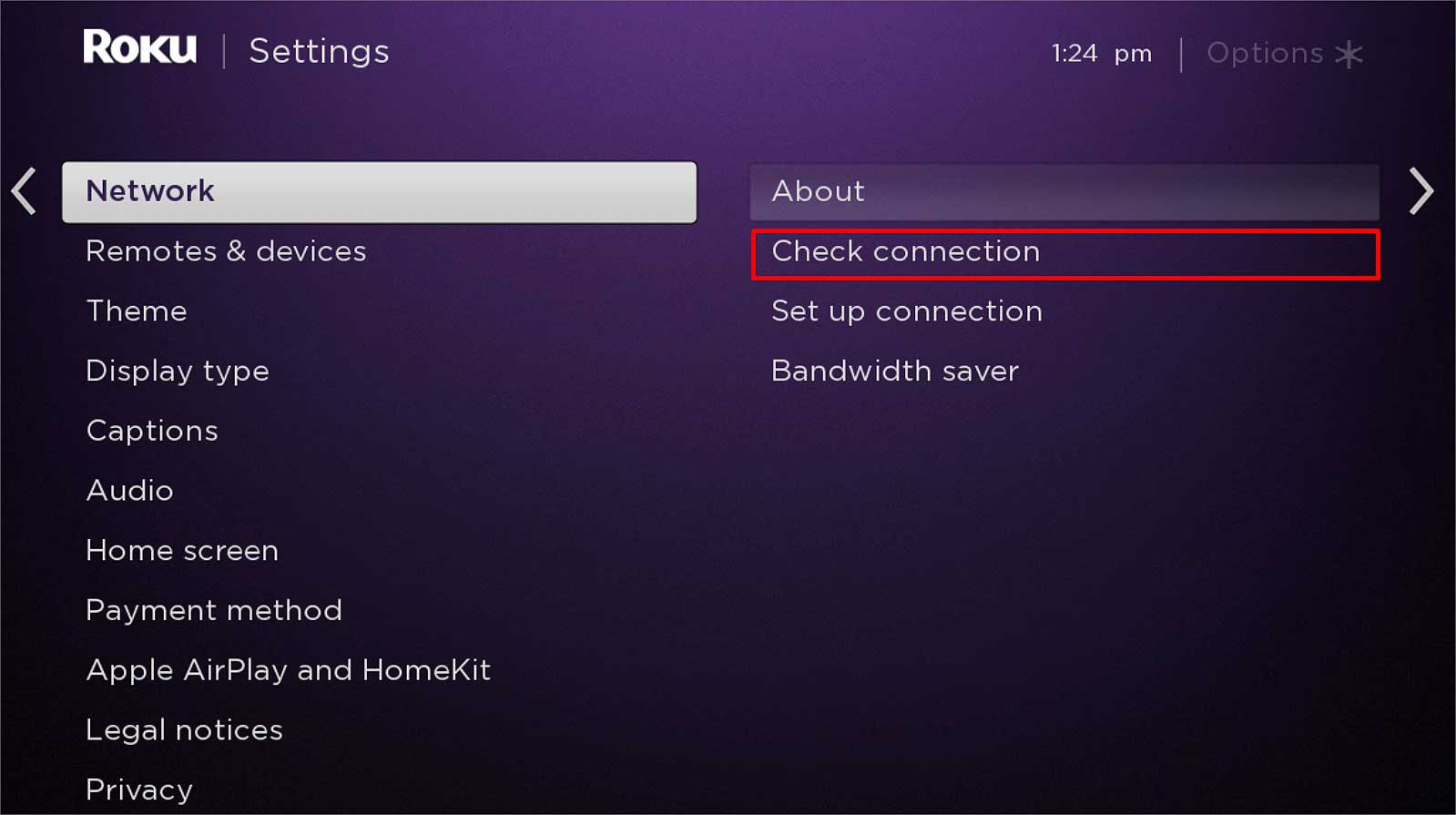
Network connectivity issues can impede the successful installation and operation of the Spectrum TV app on Firestick. Ensure that your Firestick is connected to a stable and reliable Wi-Fi network to prevent network-related installation problems. If you experience sluggish performance during the installation process, consider optimizing your network settings, such as using a 5GHz Wi-Fi network instead of 2.4GHz for faster connectivity.

Credit: www.techhive.com
Maximize Spectrum Tv On Firestick
To maximize your Spectrum TV experience on Firestick, it’s essential to understand the ins and outs of the app. By optimizing the app’s performance and staying up-to-date with maintenance, you can enjoy seamless streaming and access to your favorite content without any interruptions.
How To Keep The App Updated
When it comes to Spectrum TV app on Firestick, regular updates are vital to ensure smooth functionality and access to the latest features. To keep your Spectrum TV app updated:
- Visit the Amazon Appstore on your Firestick device.
- Search for “Spectrum TV” and select the app from the search results.
- If an update is available, click on the “Update” button to install the latest version of the app.
Best Practices For App Usage And Maintenance
To maintain optimal performance and enhance your Spectrum TV app experience on Firestick, consider the following best practices:
- Clear the app cache regularly to free up storage space and improve the app’s speed.
- Avoid running multiple apps simultaneously to prevent potential slowdowns or crashes.
- Ensure a stable internet connection to avoid buffering and playback issues.
- Keep the Firestick device itself updated with the latest firmware and software updates.
- If you encounter any issues, restart the app or device to troubleshoot potential glitches.
Frequently Asked Questions On How To Get Spectrum Tv App On Firestick
What Is Spectrum Tv App?
Spectrum TV App is a streaming service that allows you to watch live TV and On Demand content on various devices. It provides access to a wide range of channels and programs for an enhanced entertainment experience.
How Can I Download Spectrum Tv App On Firestick?
To download the Spectrum TV App on your Firestick, simply go to the Amazon Appstore, search for “Spectrum TV,” select the app, and click on the download or install button. Once installed, you can launch the app and log in with your Spectrum account to start streaming.
Is Spectrum Tv App Available For Free On Firestick?
While the Spectrum TV App itself is free to download, access to the content requires a subscription to Spectrum’s TV services. Users need to have a Spectrum TV subscription to stream live TV and On Demand content via the app on their Firestick.
Conclusion
Installing Spectrum TV app on Firestick is a simple yet effective way to access your favorite shows and movies. With the step-by-step guide provided, you can easily enjoy the convenience and flexibility it offers. Don’t miss out on the entertainment possibilities that this combination of technology brings.
Get started now!
