To install Spectrum on Firestick, search for the Spectrum TV app in the Amazon Appstore and download it. Then, launch the app and sign in using your Spectrum credentials.
Streaming Spectrum on Firestick is a user-friendly process that brings a plethora of content to your fingertips. With the Spectrum TV app, you can enjoy live TV, on-demand shows, and a broad selection of films right on your Amazon Firestick.
The installation is straightforward — just a quick visit to the Amazon Appstore followed by a simple sign-in procedure. This integration allows users to leverage their existing Spectrum subscription without the need for additional hardware, maximizing the Firestick’s potential as a central hub for entertainment. The process is designed to be quick and easy, ensuring that you can get back to watching your favorite shows and movies with minimal hassle.
Prepare Your Firestick For Spectrum
Welcome to the essential guide for unleashing the power of Spectrum on your Firestick device! Preparing your Firestick for Spectrum is the first step towards a seamless streaming experience. Whether you’re eager to watch live TV, on-demand shows, or access a plethora of entertainment options, getting Spectrum up and running is easy. Follow these straightforward steps to ensure your Firestick is Spectrum-ready!
Check Firestick Compatibility
Before diving into the world of Spectrum, make sure your Firestick is compatible. Amazon’s Firestick has varying generations and models, and it’s crucial to ascertain that your device supports the Spectrum app. Primarily, the app is compatible with Firestick devices from the 2nd generation onwards. Verify your Firestick’s generation in the settings menu under ‘Device’ or ‘My Fire TV’ to ensure a hitch-free installation.
Update Firestick Software
To enjoy the latest features and a stable performance, keeping your Firestick software up to date is crucial. Navigate to the ‘Settings’ followed by ‘Device’ or ‘My Fire TV’ and select ‘About’ to check for updates. If an update is available, choose ‘Install Update’ to ensure your Firestick runs smoothly with the Spectrum app.
Regular updates not only improve your device’s functionality but also ensure compatibility with newer apps and services like Spectrum.
Ensure Internet Connectivity
A stable and reliable internet connection is the backbone of any streaming experience. Since Spectrum delivers content over the internet, ensure your Firestick is connected to a robust Wi-Fi network. Navigate to the ‘Network’ settings on your Firestick and verify the connection status. Opt for a network that offers sufficient bandwidth to handle high-quality video streaming without any buffering or lag. If your current internet plan falls short, consider upgrading for an optimized Spectrum experience.
Once you’ve ensured compatibility, updated the software, and established an internet connection, your Firestick will be primed and ready for Spectrum.

Credit: www.amazon.com
Install Spectrum On Firestick
Welcome to the simple guide on setting up Spectrum TV on your Amazon Firestick. Gone are the days of complicated setups and tangled cables. With a digital marketplace at your fingertips, accessing a vast array of entertainment is now effortless. Let’s walk through the steps to unlock a world of television with the Spectrum app on your Firestick device.
Navigate to the Amazon AppstoreEmbark on your streaming adventure by powering on your Firestick. From the home screen, use your Firestick remote to scroll to the search icon, and select the Amazon Appstore. This is your gateway to the diverse collection of apps available for your device, including the Spectrum TV app we are seeking.
Search for Spectrum appSearch For Spectrum App
With access to the Appstore, use the on-screen keyboard to type in “Spectrum TV“. The search results will swiftly appear, showcasing the app among other related applications. It is here where you will find what you’re looking for – Spectrum’s distinctive logo will guide you right to it, ensuring you’re on the right path to your next entertainment destination.
Download and install the applicationDownload And Install The Application
Selecting the Spectrum TV app will lead you to its dedicated page, complete with user ratings and additional app information. Focus on the bright Download button and press it to begin installing the app on your Firestick. The download should be swift, getting you ready to launch into Spectrum’s expansive entertainment offerings in no time. Once the installation is complete, the app will be available directly from your Firestick’s home screen, ready for you to open and sign in with your Spectrum credentials.
Spectrum App Features And Setup
Welcome to the digital era where streaming your favorite content has never been easier. The Spectrum TV app on Firestick unlocks a world of entertainment with its multitude of features and seamless setup process. Let’s dive into the remarkable offerings of the Spectrum app and how to personalize your viewing experience on Firestick.
Explore the app interfaceExplore The App Interface
Getting familiar with the Spectrum app interface is your first step towards a tailored TV watching journey. With a user-friendly layout, navigation is straightforward, offering quick access to various sections:
- Live TV: Watch live channels with ease.
- On-Demand: Browse a vast selection of movies and TV shows.
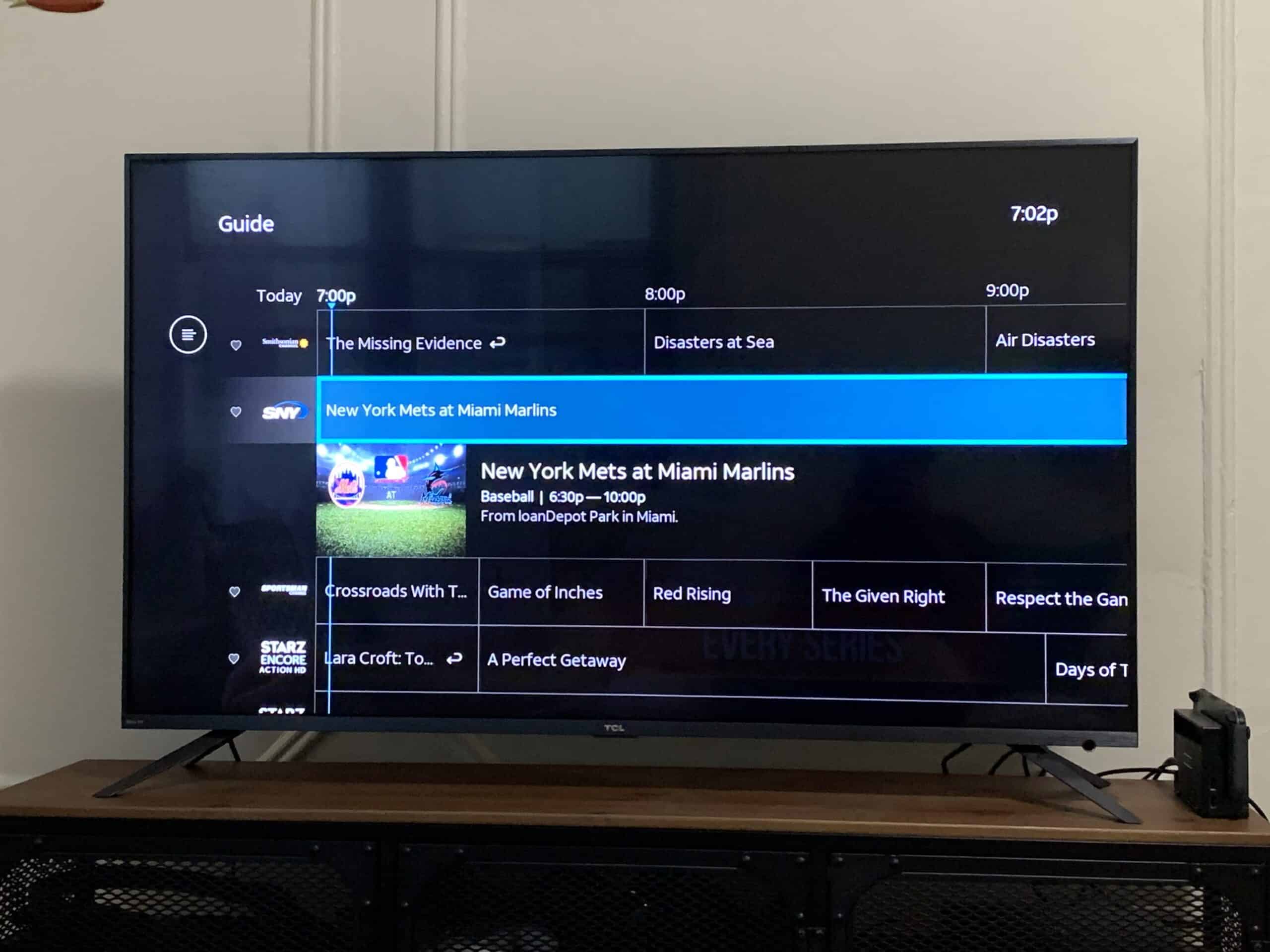
- Guide: Explore the channel guide for what’s airing now and what’s coming up.
- My Library: Keep track of your favorite content and watch history.
Each section has clearly labeled icons and menus, ensuring that whether you’re a first-time user or a seasoned pro, the app is accessible for all.
Personalize user preferencesPersonalize User Preferences
To enhance your Spectrum experience, personalizing the app to your preferences is key:
- Profiles: Set up individual profiles for each household member to receive tailored recommendations.
- Favorites: Mark your frequently watched channels as favorites for quicker access.
- Recent Channels: Easily switch back to your recently viewed channels.
Adapting these settings allows for a curated experience, delivering content that aligns with your interests and viewing habits.
Set up parental controlsSet Up Parental Controls
Parental controls are crucial for keeping young viewers safe from inappropriate content. Here’s how you can enforce these settings on the Spectrum app:
- Navigate to the ‘Settings’ menu.
- Select the ‘Parental Controls’ option.
- Create a PIN to secure your settings and restrict content based on ratings.
With these steps, you can rest assured that your family enjoys suitable content, giving you peace of mind.
Optimize Streaming Experience
Ensuring a seamless streaming experience with Spectrum on Firestick involves more than just a few clicks on your remote. It requires careful attention to various settings and a proactive approach to resolving common challenges that may arise. From tweaking video quality to managing your network’s bandwidth, optimizing your setup can significantly enhance your viewing pleasure. Let’s dive into the details on how to fine-tune your streaming experience.
Adjust video quality settingsAdjust Video Quality Settings
High definition video provides an immersive experience, but it’s not always necessary. Adjusting your video quality settings can lead to smoother streaming, especially on a slow internet connection. Here’s how you can modify these settings on your Firestick:
- Go to the Settings section of your Firestick home screen.
- Select Display & Sounds followed by Video Resolution.
- Choose a lower resolution if you face buffering or if your internet speed is unstable.
Tip: Choose Auto to let your Firestick automatically select the best resolution based on your current internet speed.
Troubleshoot common streaming issuesTroubleshoot Common Streaming Issues
Encountering hurdles during your favorite show can be frustrating. To mitigate common streaming issues:
- Restart your Firestick and router to refresh your network connection.
- Clear the cache on your Firestick by going to Settings, then Applications, and selecting Manage Installed Applications.
- Ensure your Firestick firmware is up to date for optimal performance and the latest features.
Regular maintenance is key to preventing many streaming glitches.
Manage bandwidth for smoother playbackManage Bandwidth For Smoother Playback
Bandwidth is the lifeblood of streaming. Here are a few steps to manage it effectively:
| Step | Action |
|---|---|
| 1 | Monitor the number of devices using your network simultaneously. More devices can mean less bandwidth for your Firestick. |
| 2 | Consider upgrading to a higher-speed internet plan if multiple devices are often in use. |
| 3 | Use an Ethernet adapter for your Firestick to ensure a stable connection. |
Remember: An uninterrupted streaming experience requires a steady and dedicated internet bandwidth. Managing your network correctly can lead to smoother playback without hiccups.
Daily Use Tips For Spectrum On Firestick
Transforming your Firestick into a multimedia powerhouse with Spectrum is a smart move. Having the ability to stream an immense library of movies, live channels, and shows at your fingertips is truly a game-changer. To enhance your viewing experience even further, let’s dive into some daily use tips for Spectrum on Firestick!
Integrate With Alexa For Voice Control
Navigating through your Spectrum app can be made effortless with the power of your voice. Seamlessly integrating Spectrum with Amazon’s Alexa on your Firestick will add a new layer of convenience. Here’s how you can do it:
- First, pair your Firestick with an Alexa-enabled device.
- Then, enable the Spectrum skill through the Alexa app, and link your account.
With this setup, you can simply speak commands like “Alexa, find comedies on Spectrum” or “Alexa, play the latest episode of ‘The Great Baking Show’ on Spectrum.” It’s that easy!
Utilize The Watchlist Feature
To keep your favorite content organized and within reach, make sure to use the watchlist feature on the Spectrum app. Manage your watchlist by:
- Selecting the ‘Add to Watchlist’ option on any movie or show you’re interested in.
- Accessing your watchlist from the main menu to see all your saved titles in one place.
This feature acts like a personal curator, aligning your preferred entertainment for a seamless streaming session every time you tune in.
Access Live Tv And On Demand
One of the delights of Spectrum on Firestick is the mash-up of live TV alongside a vast on-demand library. To make the most out of these services, here’s how you can navigate through them:
| Action | Instructions |
|---|---|
| Live TV | Select ‘Guide’ from the menu to browse the live channels and choose one to start watching in real-time. |
| On Demand | Navigate to ‘On Demand’ for a multitude of genres and select titles to stream instantly. |
Both sections offer a robust selection, enabling you to watch whatever you’re in the mood for, be it the latest episode of a series or a movie that you’ve been waiting to catch.
How To Get Spectrum On Firestick: Easy Streaming Guide
If you’re a Spectrum subscriber with an Amazon Firestick, you’re in for a treat. Combining Spectrum’s extensive channel lineup with the convenience of Firestick, you can streamline your streaming experience like never before. This guide will take you through the essentials of setting up Spectrum on your Firestick, offering practical advice and troubleshooting tips to keep you tuned in without interruption. Embrace these simple steps and unlock a new world of on-demand entertainment.
Summarize The Setup Process
Getting Spectrum onto your Firestick is a straightforward process, but following these steps carefully is key:
- Ensure your Firestick is properly connected to your TV’s HDMI port and to a power source.
- Navigate to your Firestick’s home screen and select the Search icon.
- Type in “Spectrum TV” using the on-screen keyboard and select the Spectrum TV app from the search results.
- Download the app by selecting “Get” or “Download”.
- Open the Spectrum TV app upon installation and sign in with your Spectrum username and password.
- After successful login, explore Spectrum’s content and enjoy streaming on your Firestick.
Offer Best Practices For Use
To maximize your Spectrum experience on Firestick, keep these tips in mind:
- Maintain a strong Wi-Fi connection to ensure smooth streaming without buffering.
- Regularly update the Spectrum TV app to access new features and bug fixes.
- Utilize the Parental Controls within the app to manage content accessibility for younger viewers.
- Customize your Favorite channels for quick access to your preferred content.
- For optimal performance, clear the cache and data of the Spectrum TV app periodically.
Highlight Troubleshooting Steps For Common Problems
Encountering issues while using the Spectrum app on your Firestick can be frustrating. Here are effective solutions to common problems:
| Issue | Troubleshooting Steps |
|---|---|
| App not loading or crashing |
|
| Poor video quality |
|
| Login issues |
|
Frequently Asked Questions For How To Get Spectrum On Firestick
Can You Watch Spectrum On A Firestick?
Yes, you can watch Spectrum on a Firestick by downloading the Spectrum TV app from the Amazon Appstore. Simply search for it, download, and log in with your credentials.
How To Install Spectrum Tv App On Firestick?
To install the Spectrum TV app on Firestick, navigate to the Amazon Appstore, search for “Spectrum TV,” and select the app to download and install. Once installed, you can log in with your Spectrum account.
Is The Spectrum App Free On Firestick?
The Spectrum TV app is free to download on Firestick. However, you must have an existing Spectrum subscription to log in and access the content offered by the app.
What Devices Support Spectrum Tv Streaming?
Spectrum TV supports streaming on various devices including iOS, Android, Roku, Xbox One, and smart TVs. The Firestick is also supported through the Amazon Appstore.
Conclusion
Stepping through the process of installing Spectrum on your Firestick simplifies access to a vast array of entertainment. Enjoy your favorite shows and movies seamlessly with this setup. Remember, a few minutes spent following these instructions can unlock endless streaming possibilities.
Happy viewing on your newly upgraded Firestick experience!
