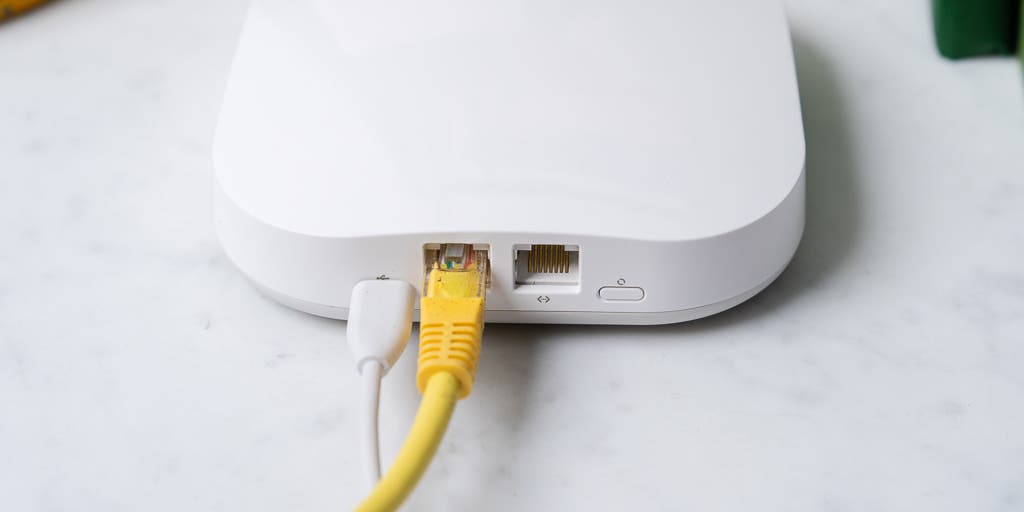
To fix a Spectrum router, look for the ‘Factory Reset’ button on the back of the router, located next to the power button, and press it with a pin or paperclip to initiate the reset process. Additionally, troubleshoot by checking cables and ensuring that the modem’s “Online” light is on.
If the router is still not connecting to the internet, try rebooting the equipment by unplugging the modem and router, waiting for a couple of minutes, and then turning them back on. Regularly updating the router’s firmware can also help resolve any issues.
Remember to contact Spectrum customer support if problems persist.
Red Light Issues
How to Fix Spectrum Router
If you have a Spectrum router and notice a red light indicator, it could indicate an issue that needs to be resolved. The red light is a sign that something might not be functioning correctly, but don’t worry, we’ve got you covered. In this guide, we will walk you through the common causes for a red light on your Spectrum router and provide step-by-step troubleshooting and solutions.
Common causes for a red light on Spectrum router
Before diving into the troubleshooting steps, it’s essential to understand the common causes behind the red light issue on your Spectrum router. Here are a few possible reasons:
- Power supply problems
- Internet connection not established
- Hardware or firmware issues
- Software conflicts
Steps to troubleshoot and fix the red light issue
If you encounter a red light issue on your Spectrum router, follow these steps to troubleshoot and fix the problem:
- Step 1: Check the power supply: Ensure that your router is properly connected to a power source and all cables are securely plugged in.
- Step 2: Verify internet connection: Make sure that your modem is connected to your Spectrum Internet service and that the Internet signal is stable.
- Step 3: Restart your equipment: Unplug the modem, turn off the router, and any connected devices. Wait for a couple of minutes, then plug in the modem and turn on the router and devices.
- Step 4: Perform a factory reset: If the red light issue persists, you may need to perform a factory reset on your Spectrum router. Locate the ‘Factory Reset’ button (usually a small hole) on the back of the router and use a paperclip or a pin to press and hold the button for at least 10 seconds.
- Step 5: Contact Spectrum support: If none of the above steps resolve the red light issue, it’s best to contact Spectrum customer support for further assistance. They can provide specialized troubleshooting guidance.
Possible solutions for different scenarios
Depending on the specific scenario, here are a few possible solutions for the red light issue on your Spectrum router:
| Scenario | Solution |
|---|---|
| Power supply problems | Check the power cable and connection, replace any faulty cables, or try a different power outlet. |
| Internet connection not established | Verify that your modem is properly connected to your Spectrum Internet service and contact your ISP if necessary. |
| Hardware or firmware issues | Update the firmware of your router, or consider resetting the router to its factory default settings. |
| Software conflicts | Check for any conflicting software on your devices and try disabling or uninstalling them to see if it resolves the issue. |
Router Resetting Methods
When it comes to troubleshooting issues with your Spectrum router, one of the most effective solutions is performing a router reset. Resetting your router can help resolve issues like slow internet, intermittent connectivity, or problems with the network settings. In this section, we will discuss two popular methods for resetting your Spectrum router: factory reset options and using the physical reset button or performing a router reset through the web interface.
Factory reset options for Spectrum router
If you are unable to access your router’s web interface or use the physical reset button, performing a factory reset is another way to restore your router to its default settings. Here are the steps to perform a factory reset:
- Locate the ‘Factory Reset’ button on the back of your router. It is usually a small hole labeled ‘Factory Reset.’
- Using a paperclip or a similar tool, press and hold the reset button for about 10 seconds.
- Release the reset button and wait for the router to reboot.
- After the router has rebooted, it will be restored to its factory default settings.
Note: Performing a factory reset will erase all your router’s settings and configurations, so you will need to set up your router again after the reset.
If you have access to your router and can locate the physical reset button, you can perform a reset using the following steps:
- Locate the ‘Factory Reset’ button on the back of your router, which is usually located next to the power button.
- Using a paperclip or a similar tool, press and hold the reset button for about 10 seconds.
- Release the reset button and wait for the router to reboot.
- Once the router has restarted, it will be reset to its default settings.
Performing a router reset through the web interface
If you are able to access your router’s web interface, you can also perform a reset using the following steps:
- Open a web browser and enter the default IP address of your router in the address bar. The default IP address is usually 192.168.1.1 or 192.168.0.1, but you can find the specific IP address in your router’s manual or on the manufacturer’s website.
- Enter the username and password for your router. If you haven’t changed the default credentials, you can find them in the router’s manual or on the manufacturer’s website.
- Navigate to the ‘Administration’ or ‘Management’ section of your router’s web interface.
- Look for the option to reset or restore your router to its factory default settings.
- Click on the reset option and confirm your selection.
- Wait for the router to reset and reboot.
After the reset, your router will be restored to its default settings.
Resetting your Spectrum router can often fix various issues and improve your internet connection. However, remember that resetting your router will erase all customized settings, so it is essential to save a backup of your configurations if needed. If you are unsure about performing a reset or if the issues persist after the reset, it is advisable to contact Spectrum customer support for further assistance.
Password And Connectivity Problems
When it comes to troubleshooting a Spectrum router, password and connectivity problems are among the most common issues users face. Whether you’re unable to connect to the internet or you’ve forgotten your router password, these problems can be frustrating. Fortunately, there are steps you can take to fix them.
Resetting the router password
If you’ve forgotten your Spectrum router password, don’t worry. Resetting the password is a straightforward process that can be done in a few simple steps. Here’s how:
- Locate the ‘Factory Reset’ button on the back of your router. It is typically a small hole labeled ‘Factory Reset.’
- Using a paperclip or a similar object, press and hold the reset button for about 10 seconds.
- Release the button and wait for the router to restart.
- Once the router has restarted, you can access the default username and password, which are usually printed on the router’s label.
It’s important to note that resetting the router password will also reset any custom settings you may have made on the router, so you’ll need to reconfigure your network settings after the reset.
Troubleshooting internet connectivity issues
If you’re experiencing internet connectivity issues with your Spectrum router, there are a few steps you can take to diagnose and fix the problem. Follow these steps:
- Check the cables: Ensure that all cables connecting your router to the modem and the modem to the wall outlet are securely plugged in.
- Power cycle your equipment: Unplug the modem, router, and any connected devices. Wait for a few minutes, then plug them back in one by one, starting with the modem.
- Update your router’s firmware: Visit Spectrum’s support website and check if there are any firmware updates available for your router model. Updating the firmware can often resolve connectivity issues.
- Change the Wi-Fi channel: If you’re experiencing slow internet speeds or intermittent connectivity, changing the Wi-Fi channel may help. You can do this through your router’s settings page.
By following these troubleshooting steps, you should be able to identify and resolve most common connectivity issues with your Spectrum router.
In conclusion, if you’re facing password or connectivity problems with your Spectrum router, don’t panic. By resetting the router password and following the troubleshooting steps for internet connectivity issues, you can get your router back up and running smoothly again.
How To Maximize Router Performance
Understanding WiFi 6 technology
WiFi 6, also known as 802.11ax, is the latest wireless standard that offers significant improvements over its predecessor, WiFi 5 (802.11ac). By understanding the capabilities of WiFi 6, you can maximize the performance of your Spectrum router and enjoy seamless connectivity.
One of the key advantages of WiFi 6 is its ability to handle more devices simultaneously, thanks to its increased capacity and efficiency. This is particularly beneficial for households with multiple smart devices, such as smartphones, tablets, gaming consoles, and smart home appliances. WiFi 6 also introduces improved data speeds, reduced latency, and enhanced coverage, ensuring a fast and reliable internet connection throughout your home.
To take full advantage of WiFi 6 technology, ensure that your devices, including smartphones, laptops, and tablets, are compatible with this new standard. Upgrading your devices to support WiFi 6 will allow you to enjoy its benefits and experience a substantial boost in performance.
Tips to improve router signal strength
Weak signal strength can greatly impact the performance of your Spectrum router, leading to slow internet speeds and unreliable connections. By employing some simple techniques, you can optimize your router’s signal strength and enhance your overall internet experience.
- Place your router in a central location: Position your router in a central area of your home to ensure that the WiFi signal is evenly distributed throughout. Avoid placing it near walls, obstructions, or other electronic devices that may interfere with the signal.
- Elevate your router: Placing your router at a higher elevation, such as on a shelf or table, can help improve the signal coverage by reducing obstructions and interference from objects on the ground.
- Regularly clean your router: Dust and debris can accumulate on your router’s antennas and vents, affecting its signal strength. Make it a habit to clean your router periodically to ensure optimal performance.
- Use a WiFi extender or mesh system: If certain areas of your home experience weak WiFi signals, consider using a WiFi extender or a mesh system. These devices can help extend the coverage of your network, eliminating dead spots and improving signal strength.
Enhancing security settings for better performance
Ensuring that your Spectrum router’s security settings are optimized is crucial for both performance and protection against potential threats. By following these steps, you can enhance the security settings of your router and enjoy a safer and more efficient internet experience:
- Change the default username and password: The default login credentials of your router are usually well-known, making it vulnerable to unauthorized access. Change your username and password to a unique and strong combination to prevent unauthorized users from accessing your network.
- Enable WPA2 or WPA3 encryption: Encryption protocols such as WPA2 and the newer WPA3 provide a secure connection by encrypting the data transmitted between your devices and router. Make sure to enable one of these encryption protocols to protect your network from unauthorized access.
- Regularly update your router’s firmware: Router manufacturers often release firmware updates that address security vulnerabilities and improve performance. Check for firmware updates regularly and apply them to keep your router up to date.
- Disable remote management: Remote management allows you to access your router’s settings from outside your home, but it also makes your network more susceptible to attacks. Disable this feature unless it’s absolutely necessary.
- Enable a guest network: If you frequently have guests accessing your WiFi, consider enabling a guest network. This separate network provides a level of isolation and prevents guests from accessing your primary network.
By following these tips and optimizing the performance of your Spectrum router, you can enjoy faster speeds, wider coverage, and a more secure internet connection. Take the necessary steps to maximize your router’s potential and ensure a smooth online experience for all your connected devices.
Resources And Support
Having trouble with your Spectrum router? Don’t worry, Spectrum offers a range of resources and support options to help you get back up and running smoothly. Whether you prefer troubleshooting on your own or need assistance from their customer support team, there are various ways to fix your Spectrum router issues. Let’s dive into the available resources and support options:
Accessing Spectrum’s Troubleshooting Tool
One of the first steps you can take is to utilize Spectrum’s troubleshooting tool, which is available on their website. This tool provides step-by-step guidance for diagnosing and resolving common router issues. To access the tool:
- Visit the Spectrum website
- Navigate to the support section
- Search for the troubleshooting tool
- Follow the prompts and suggestions provided by the tool
The troubleshooting tool is designed to be user-friendly and provides detailed instructions based on the specific issue you’re facing. It can help you identify and fix problems with your Spectrum router quickly and efficiently.
Online Manuals and Support Videos for Spectrum Router
If you prefer a more visual approach, Spectrum offers online manuals and support videos specifically tailored to their routers. These resources can be accessed on the Spectrum website and are perfect for those who prefer a hands-on learning experience. The manuals provide in-depth information on setting up, troubleshooting, and optimizing your router, while the support videos walk you through various router-related topics.
To access the online manuals and support videos:
- Visit the Spectrum website
- Go to the support section and search for the router manuals
- Choose the manual that corresponds to your router model
- Alternatively, look for the support videos section
- Select the video that covers the specific issue or topic you need help with
These resources provide comprehensive information, visual demonstrations, and troubleshooting tips to help you resolve any router configuration or connectivity issues you may be facing.
Contacting Spectrum Customer Support for Further Assistance
If you’ve tried the troubleshooting tools and online resources but still need help, don’t hesitate to contact Spectrum’s customer support team. They have knowledgeable representatives available to assist you with any router-related problems and provide personalized support.
To get in touch with Spectrum customer support:
- Call their dedicated customer support hotline at [insert phone number]
- Explain the issue you’re experiencing with your Spectrum router
- Follow the instructions and troubleshooting steps provided by the support representative
By contacting Spectrum customer support, you can receive expert assistance and guidance to resolve your router issues effectively.
Remember, whether you choose to use Spectrum’s troubleshooting tool, access their online manuals and support videos, or contact their customer support team, help is just a click or call away. Utilize these resources and support options to fix your Spectrum router and enjoy uninterrupted internet connectivity.

Credit: www.amazon.com
Frequently Asked Questions For How To Fix Spectrum Router
How Do I Get My Spectrum Router To Work Again?
To get your Spectrum router working again, first, locate the ‘Factory Reset’ button on the back of the router. It’s a small hole labeled ‘Factory Reset’ next to the power button. Use a paperclip to press and hold the button for about 10 seconds.
Release the button and wait for the router to restart.
Is There A Reset Button On The Spectrum Router?
Yes, there is a reset button on the Spectrum router. Look for a small hole labeled ‘Factory Reset’ next to the power button on the back of the router. Press and hold this button using a paperclip or similar object for about 10 seconds to reset the router.
How Do I Know If My Spectrum Router Is Bad?
To determine if your Spectrum router is bad, troubleshoot from easiest to most difficult. First, check if your modem’s “Online” light is on or not. If it’s off, there may be an issue with the router or your ISP. Ensure all cables are properly connected before contacting Spectrum customer support.
Why Is My Router Not Connecting To The Internet?
If your router is not connecting to the internet, try these solutions: unplug and plug back in your router, forget and reconnect to your Wi-Fi network, and update your network drivers. Check if your modem’s “Online” light is on. If the issue persists, contact your ISP for further assistance.
Conclusion
To fix your Spectrum router, follow these simple troubleshooting steps. First, locate the ‘Factory Reset’ button on the back of your router. Press it using a small object, like a paperclip, and hold it for 10 seconds to initiate a reset.
After that, unplug both your router and modem, wait for a minute, and then plug them back in. This should help resolve any connectivity issues you’re experiencing. Remember to check if your modem’s “Online” light is on as well. If you’re still facing problems, contact Spectrum customer support for further assistance.
