To download the Spectrum app on an LG Smart TV, access the LG Content Store and search for “Spectrum TV App”. Once found, select the app and click “Install” to add it to your LG TV.
Streaming has revolutionized the television experience, and the Spectrum app on an LG Smart TV merges live TV, on-demand programming, and your favorite streaming apps in one place. For viewers who are subscribers to Spectrum services, this app offers convenient access to a wide range of content.
Downloading and installing the Spectrum app on an LG Smart TV is a straightforward process. It promises a seamless viewing experience directly from your TV’s home screen. Enjoying your favorite shows and movies has never been easier. Embrace the simplicity of app-based viewing and personalize your entertainment setup with the Spectrum TV app on your LG Smart TV today.
Getting Started With Lg Smart Tv Apps
Welcome to the world of entertainment on your LG Smart TV! If you’ve recently purchased one of LG’s innovative Smart TVs, you’re likely eager to dive into the vast sea of apps available at your fingertips. From streaming your favorite shows and movies to keeping up with the news or indulging in interactive games, the LG Content Store is your gateway. Let’s walk through the steps to understand your TV’s model and compatibility, connect it to the internet, and download the Spectrum app for a seamless viewing experience.
Understanding Your LG Smart TV Model and CompatibilityUnderstand Your Lg Smart Tv Model And Compatibility
Before you start downloading apps, knowing your LG Smart TV model is essential. Different models have various capabilities and software that can affect app compatibility. Let’s ensure your TV is ready to run the Spectrum app without a hitch.
- Check Model Information: You’ll find your TV’s model number by looking at the back of your television or by navigating to
Settings > All Settings > General > About this TVon your TV. - Verify Compatibility: Not all LG TVs support every app. Visit the LG Content Store online or the
Supportsection on the LG website to confirm that your device is compatible with the Spectrum app. - Software Updates: Ensure that your TV’s firmware is up-to-date. Outdated software may hinder your ability to download or run new apps. Update your system by going to
Settings > All Settings > General > About this TV > Check for Updates.
Connect To The Internet And Access The Lg Content Store
With your TV’s model and compatibility confirmed, it’s time to connect to the internet and explore the LG Content Store. You’ll need an active connection to download apps and keep them updated.
- Internet Connection: Go to
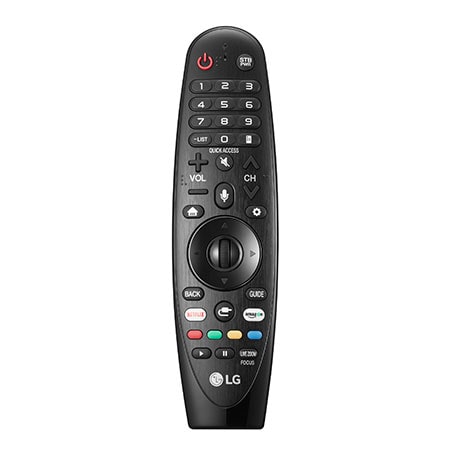
Settings > Networkto connect your LG Smart TV to Wi-Fi or an Ethernet cable for a wired connection. - LG Content Store: Once connected, press the Home button on your remote, and select the LG Content Store—it’s the hub for all your apps and content.
- Browse and Install: Search for the Spectrum app using the search function, or find it under the appropriate category. Select Install to add it to your TV’s app lineup.
By following these simple steps, your LG Smart TV will be equipped with the Spectrum app, ready to deliver endless entertainment right to your living room.
Find Spectrum App On Content Store
Ready to transform your LG Smart TV into an entertainment hub with the Spectrum App? Accessing a vast library of live TV and on-demand content has never been easier. The Spectrum App brings your favorite shows, movies, and sports right to your fingertips, and it’s all available on the LG Content Store. Let’s dive into how you can locate and download the Spectrum App quickly and hassle-free.
Find Spectrum App on Content StoreWith a seamless interface, the LG Content Store is your gateway to a world of entertainment options. Follow these straightforward steps to download the Spectrum App onto your LG Smart TV:
Use the search function effectivelyUse The Search Function Effectively
To begin, power up your LG Smart TV and ensure it’s connected to the internet. Navigate to the home screen and locate the LG Content Store—it’s your starting point for finding new apps. Here’s how you can nail the search process:
- Open the LG Content Store app from your TV’s home screen.
- Look for the magnifying glass icon typically situated at the top-right corner of the screen.
- Click on it to access the search bar.
- Type “Spectrum TV” using the on-screen keyboard.
- Press the Enter button and allow the LG Content Store to display the search results.
Identify The Correct Spectrum App Among Results
After initiating your search, the Content Store will present a variety of apps. It’s crucial to pinpoint the correct Spectrum App among the list. Here’s what to look out for:
- Check the app name is “Spectrum TV” to distinguish it from other applications.
- Look at the developer info; ensure it states “Charter/Spectrum” as a sign of authenticity.
- App icon should display the Spectrum logo for immediate recognition.
- User reviews and ratings can give you a hint of the app’s reliability and user experience.
Once confirmed, select the app and click “Install“. After the installation, open the app, sign in with your Spectrum credentials, and let the binge-watching begin!
How To Download Spectrum App: Quick Guide
Welcome to your streamlined guide on how to download the Spectrum App onto your LG Smart TV. With the Spectrum App, you gain access to a vast library of live and on-demand television, ensuring your entertainment is just a few clicks away. Let’s dive into the simple steps you need to follow to enhance your viewing experience with Spectrum on your LG Smart TV.
Step 1: Navigate to the app page in the LG content storeInitiating the download starts with finding the app within the LG Content Store. Follow these steps:
- Turn on your LG Smart TV and ensure it’s connected to the internet.
- Select “LG Content Store” from the home screen to access the LG app marketplace.
- Use the search function at the top of the screen to look for the Spectrum app.
- Browse through the results and highlight the Spectrum app icon.
Select The Download Or Install Option For The App
Once you’ve located the Spectrum App, you’re just a step away from enjoying a plethora of content:
- With the app highlighted, select the installation option displayed on your screen.
- The LG Smart TV will proceed to download and install the Spectrum App. A progress bar may be visible, indicating the installation status.
- Upon completion, the app will be automatically added to your TV’s application list.
Once installed, simply open the Spectrum App, sign in with your Spectrum credentials, and start streaming your favorite shows and movies!
Streamline Your App Management
Embrace simplicity and efficiency when managing your applications with the Spectrum App on your LG Smart TV. By streamlining app management, your entertainment experience becomes seamless and much more enjoyable. Whether you’re aiming for a minimalist look on your home screen or want to keep your apps updated and organized, these tips will guide you through the process. Let’s jump right into how to arrange apps for easy access and manage your installations like a pro.
Arrange Apps On The Home Screen For Easy Access
For immediate access to your favorite shows and movies on Spectrum, organizing apps on the LG Smart TV home screen is a must. Follow these simple steps:
- Press the home button on your remote to bring up the launcher bar.
- Use the directional keys to highlight the Spectrum App.
- Press and hold the settings button until the app begins to shake.
- Move the app to your preferred location using directional keys.
- Once placed, press Select to confirm the new position.
This arrangement allows you quick and effortless access to your Spectrum content as soon as you turn on your TV.
Manage Apps Efficiently—update And Uninstall Tips
Keeping your apps updated ensures you get the best functionality and security. Likewise, uninstalling apps you no longer use can free up space for new content. Here’s how you can manage your apps efficiently:
- Go to the LG Content Store and click on ‘My Apps’.
- You’ll see a list of your installed apps. Here you can:
- Update individual apps by selecting them and clicking ‘Update’.
- To update all your apps at once, click ‘Update All’ at the top of the screen.
- To uninstall apps:
- Highlight the app you want to remove.
- Press the settings button on your remote.
- Select ‘Uninstall’ and confirm your choice.
Regularly updating and decluttering your app selection will optimize your LG Smart TV’s performance, making for a smoother viewing experience.
Troubleshooting Common Spectrum App Issues
Encounter issues with the Spectrum app on your LG Smart TV? It’s not uncommon to face hurdles when trying to download or enhance the app’s performance. Fortunately, many of these problems have straightforward fixes. Let’s dive into the troubleshooting steps to address typical download and installation errors and improve your entertainment experience by enhancing the Spectrum app performance on your LG Smart TV.
Address Typical Download And Installation Errors
Start by double-checking the compatibility of the Spectrum app with your LG Smart TV. Assuming you’ve confirmed compatibility, here are the steps to resolve common issues:
- Check your network: A stable internet connection is crucial for downloading and installing apps. Ensure your TV is connected to Wi-Fi or ethernet.
- Update your LG Smart TV: Navigate to the settings menu and look for system updates. An outdated TV firmware can hinder app functionality.
- Clear cache: Sometimes, the stored data might become corrupt. Clear the cache by going into the app settings to reset this data.
- App Store issues: If you face trouble accessing the LG Content Store, restart your TV and try again. Persisting issues may require resetting the store app.
Remember: Contacting LG or Spectrum support can provide additional assistance if these solutions do not resolve the problem.
Enhance Spectrum App Performance On Your Lg Smart Tv
A smooth streaming experience is key to enjoying your favorite shows and movies. If the Spectrum app is lagging or frequently crashing on your LG Smart TV, consider these optimization tips:
- Streamline startup applications to ensure your TV has enough memory for the Spectrum app to run efficiently.
- Regularly update the Spectrum app to benefit from the latest patches and performance improvements.
- Reduce the number of active applications and background processes to allocate more resources to the Spectrum app.
- Restart your LG Smart TV periodically to refresh the system and clear temporary files that may affect app performance.
Following these steps can often lead to a more responsive and reliable app experience, allowing for an uninterrupted streaming session.
Credit: www.lg.com
Enhance Your Viewing Experience
Enhance Your Viewing Experience by downloading and customizing the Spectrum app on your LG Smart TV. This guide will walk you through optimizing the app settings and exploring its additional features, including parental controls. Experience seamless access to live TV, on-demand titles, and your DVR recordings, all while personalizing your viewing preferences.
Optimize App Settings For A Better User Experience
To get the most out of the Spectrum app, start by fine-tuning the settings. Navigate to the app settings section and follow the steps below:
- Adjust the video quality to suit your internet speed and data plan, ensuring smooth playback without interruptions.
- Customize the audio settings if you have a surround sound system or prefer stereo audio for a more immersive sound experience.
- Manage your watchlist and favorites, creating a personalized space for the content you love.
Explore Additional Features And Parental Controls
The Spectrum app provides more than just streaming; it offers a suite of features designed to cater to the whole family:
| Feature | Description |
|---|---|
| Live TV | Instant access to a wide range of channels in real-time. |
| On-Demand Titles | A diverse library of movies and shows at your fingertips. |
| Parental Controls | Restrict content and set viewing limitations for child-safe entertainment. |
Make sure to activate the parental control feature and customize it according to your family’s needs. You can:
- Set up a PIN to preserve your settings against unauthorized changes.
- Block specific channels or programs that are not suitable for children.
- Control access to on-demand content by setting rating levels.
Frequently Asked Questions For How To Download Spectrum App On Lg Smart Tv
Can Lg Smart Tvs Support The Spectrum App?
Yes, LG Smart TVs support the Spectrum TV app. Users can stream their favorite channels and on-demand content directly on their TV screen without additional hardware.
How To Install Spectrum App On Lg Smart Tv?
To install the Spectrum App, navigate to the LG Content Store from your TV’s home screen, search for “Spectrum TV,” and click “Install. ” Once downloaded, open the app to sign in with your Spectrum account.
What Models Of Lg Tvs Are Compatible With Spectrum?
Most LG Smart TVs running WebOS 3. 0 and higher are compatible with the Spectrum TV app. It’s recommended to check the LG Content Store on your TV model to confirm availability.
Is Spectrum Tv App Free To Download On Lg Tvs?
Yes, the Spectrum TV app is free to download on LG Smart TVs. However, accessing the content requires a subscription to Spectrum cable services or Spectrum internet for live TV.
Conclusion
Navigating the installation of the Spectrum app on your LG Smart TV is now a breeze with the steps outlined above. Enjoy a universe of entertainment with seamless access to your favorite shows and movies. Remember to ensure your TV’s compatibility and update your software regularly for a smooth streaming experience.
Happy viewing on your LG Smart TV with Spectrum!
