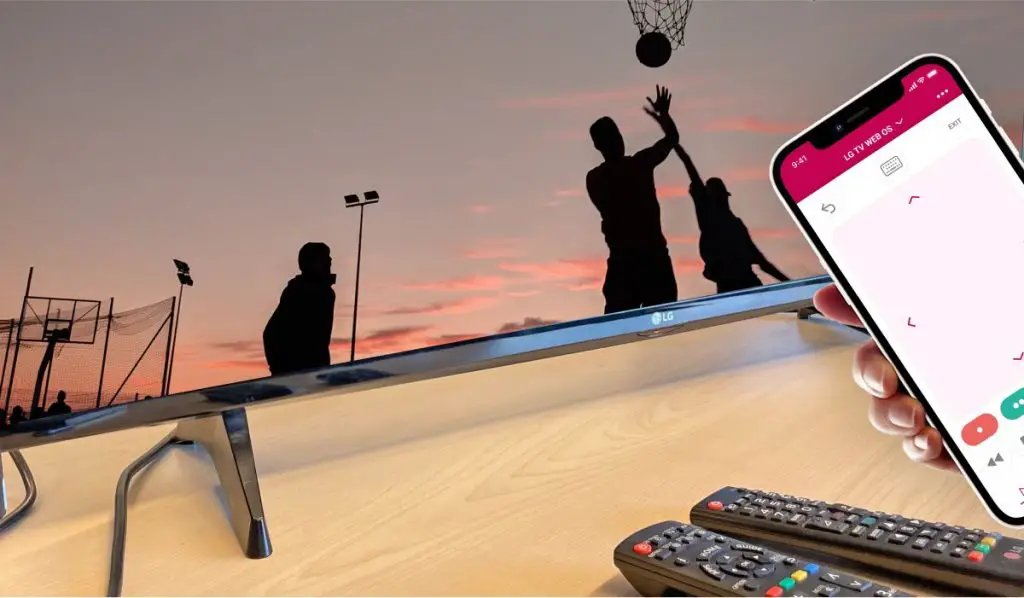
To connect a Spectrum remote to an LG TV, first, turn on your LG TV and Spectrum remote. Then, press and hold the “TV” and “SEL” buttons on the remote until the “TV” button blinks twice.
Afterward, enter the TV’s manufacturer code using the number keys. If successful, the “TV” button will blink twice, indicating that the remote is now connected to your LG TV. In today’s fast-paced digital age, knowing how to connect your Spectrum remote to your LG TV can save you time and hassle when it comes to managing your entertainment system.
By following a few simple steps, you can seamlessly sync your Spectrum remote with your LG TV, allowing you to control both devices effortlessly. This guide will provide you with clear and concise instructions to ensure a smooth and successful connection process.

Credit: www.amazon.com
Preparing For The Setup
Before you get started, it’s important to prepare for the setup to ensure a seamless process of connecting your Spectrum remote to your LG TV. This includes understanding the importance of correct remote pairing, gathering the necessary items, and conducting quick safety checks for both the remote and the TV.
Importance Of Correct Remote Pairing
Pairing your Spectrum remote correctly with your LG TV is crucial for ensuring optimal functionality. Incorrect pairing can lead to issues with controlling the TV, accessing features, and utilizing the remote’s full capabilities, which can be frustrating. Therefore, it is essential to follow the correct pairing process to prevent any potential disruptions in the future.
Items You’ll Need Before Starting
Prior to initiating the setup, gather the following items to streamline the process:
- LG TV model number: This information will help you identify the specific setup instructions for your TV model.
- Spectrum remote: Ensure that the remote is in working condition with functioning batteries.
- Access to power source: Make sure the TV and the remote have access to a nearby power source to avoid interruptions during the setup.
Quick Safety Checks For Remote And Tv
Before commencing the setup, conduct quick safety checks to ensure that both the remote and the TV are in optimal condition:
- Remote: Inspect the remote for any visible damage, corrosion on the battery contacts, or malfunctioning buttons. Replace the batteries if necessary to prevent any disruptions during the setup.
- TV: Check the TV for any physical damage, loose connections, or power issues. Verify that the power cable is securely plugged in and the TV functions properly.
Identifying Your Spectrum Remote Model
When it comes to connecting your Spectrum remote to your LG TV, the first step is identifying the model of your Spectrum remote. This is crucial as it ensures that you have the correct instructions for your specific remote model, making the setup process easier and more efficient. In this section, we will guide you through the process of identifying your Spectrum remote model.
Locating The Model Number
Locating the model number of your Spectrum remote is the first step in the process. The model number is usually located on the back of the remote. It can be found on a sticker or engraved directly onto the remote itself. You may need to remove the battery cover to locate the model number.
Why Knowing Your Remote Model Is Crucial
Knowing your remote model is crucial because it ensures that you have the correct instructions for programming it to work with your LG TV. Different Spectrum remotes may have varying features and methods for programming, so having the accurate model number will ensure a smooth setup process.
How To Connect Spectrum Remote With Lg Tv
When it comes to connecting your Spectrum remote to your LG TV, it’s essential to ensure a seamless experience for controlling your TV and accessing your favorite entertainment content. In this guide, we’ll walk you through the steps to connect your Spectrum remote with your LG TV, making it easy to navigate channels, adjust volume, and explore the Spectrum TV guide.
Turning On The Tv
To start the process, ensure that your LG TV is turned on and ready to be paired with the Spectrum remote. Press the power button on the TV or use the existing LG TV remote to power on the television.
Finding The Spectrum Remote Control Settings
Next, you’ll need to find the remote control settings on your LG TV in order to pair it with the Spectrum remote. To do this, navigate to the “Settings” menu on your LG TV using the existing LG remote and locate the “Remote Control” or “External Devices” settings.
Once you’ve accessed the remote control settings, ensure that the “Pairing” or “Add Device” option is visible, allowing you to pair the Spectrum remote with your LG TV.
Auto-search Method For Easy Pairing
When it comes to configuring your Spectrum remote with an LG TV, the auto-search method is a convenient and hassle-free way to pair your devices. By following a few simple steps, you can quickly connect your Spectrum remote to your LG TV using the auto-search feature, saving you time and effort in the process.
Step-by-step Guide To Auto-search
To initiate the auto-search method for pairing your Spectrum remote with your LG TV, follow the steps outlined below:
- Ensure that your LG TV is turned on and that the Spectrum remote is within range of the TV.
- Press and hold the
Setupbutton on your Spectrum remote until theLEDlight blinks twice. - Enter the code 991.
- Press the
Powerbutton on the remote and aim it at the LG TV. Keep pressing theChannel Upbutton repeatedly until the TV turns off. - Once the TV turns off, press and release the
Setupbutton to lock in the code. - Test the remote by pressing the
Powerbutton to turn on the TV. If the TV powers on, the pairing process is successful.
Possible Troubleshooting Tips
If you encounter any issues during the auto-search method, consider the following troubleshooting tips:
- Ensure that the batteries in your Spectrum remote are properly inserted and functional.
- Check that the LG TV is powered on and within remote range.
- Repeat the auto-search process from the beginning to ensure all steps are followed accurately.
- If the TV does not respond after trying multiple times, reset the remote and start the pairing process again.
Manual Code Entry For Remote Setup
In this section, we will guide you through the manual code entry process to set up your Spectrum remote with an LG TV. Manual code entry allows you to directly enter a specific code to program your remote, ensuring seamless and hassle-free control of your LG TV using the Spectrum remote. Follow the steps below to successfully connect your Spectrum remote to your LG TV using the manual code entry method.
Finding The Correct Code For Lg Tv
Before proceeding with the manual code entry, you need to find the correct code for your LG TV. The correct code is crucial for the successful setup of the Spectrum remote. You can find the code in the Spectrum remote control programming guide or by visiting the official Spectrum website. Alternatively, you can try the codes listed in the user manual for LG TVs or search online for the specific code for your LG TV model.
Detailed Steps To Enter The Code Manually
Once you have identified the correct code for your LG TV, follow the detailed steps below to enter the code manually:
- Turn on your LG TV and your Spectrum remote.
- Press the “SETUP” button on the remote until the LED light flashes twice.
- Enter the four-digit code for your LG TV using the number buttons on the remote. The LED light will flash twice to confirm the code entry.
- Test the remote by pressing the “VOLUME” or “POWER” buttons to check if the LG TV responds to the commands from the Spectrum remote. If the TV responds, the setup is successful.
- If the TV does not respond, repeat the process with the next code for LG TV until you find the correct one that works with your TV.
Confirming Successful Connection
After successfully connecting your Spectrum remote to your LG TV, the next step is to confirm the successful connection to ensure that the setup is working as intended. This will ensure that you can seamlessly control your LG TV using the Spectrum remote.
How To Test The New Setup
To test the new setup, follow these steps:
- Turn on your LG TV using the Spectrum remote.
- Try changing the channels and adjusting the volume to ensure that the remote is controlling the TV functions properly.
- If the remote is working as expected, the setup is successful.
Tips For Optimizing Remote Functionality
Here are some tips to optimize the functionality of your Spectrum remote:
- Ensure that there are no obstructions between the remote and the TV sensor.
- Replace the batteries if the remote is not responding properly.
- Keep the remote and TV within a reasonable distance to ensure a strong signal.
- Regularly clean the remote and TV sensor to maintain proper functionality.
Troubleshooting Common Issues
Having trouble connecting your Spectrum remote to your LG TV? Follow these simple troubleshooting steps to fix common issues. First, make sure the remote batteries are in good condition and properly installed. Then, ensure that the remote is in TV mode and program it to your LG TV using the correct programming code.
Solutions To Frequent Pairing Problems
If you encounter issues with pairing your Spectrum remote to your LG TV, there are several troubleshooting steps you can take to resolve common problems. Sometimes, the remote may not pair correctly or may have connectivity issues. Ensure that your remote is in direct line of sight with your TV. Additionally, replace the batteries in your remote to ensure optimal performance. If the problem persists, you can try re-pairing the remote following the manufacturer’s instructions. If none of these solutions work, it may be necessary to reset your remote.
When To Reset Your Spectrum Remote
Resetting your Spectrum remote may be necessary if you have exhausted all other troubleshooting options and the remote still does not function properly. The process for resetting the remote can vary, so be sure to consult your remote’s user manual for specific instructions. At times, restoring the remote to its default settings can resolve persistent pairing or functionality issues.
Contacting Support For Unresolved Concerns
If you have tried all the troubleshooting steps and are still experiencing issues with connecting your Spectrum remote to your LG TV, it may be time to seek support from Spectrum’s customer service. Contact Spectrum’s customer support team for personalized assistance and guidance in resolving any unresolved concerns with your remote and TV pairing. They can provide additional troubleshooting steps or arrange for a replacement remote if necessary.
Frequently Asked Questions On How To Connect Spectrum Remote To Lg Tv
How Do I Program My Spectrum Remote To Control An Lg Tv?
To program your Spectrum remote to control your LG TV, start by pressing the ‘Menu’ button on the remote. Navigate to ‘Settings’ then select ‘Remote Control Setup. ‘ Follow the on-screen instructions and enter the appropriate codes for LG TV when prompted.
What Should I Do If My Spectrum Remote Is Not Working With My Lg Tv?
If your Spectrum remote is not working with your LG TV, try replacing the batteries first. If that doesn’t work, reprogram the remote again using the appropriate codes for LG TV. If the issue persists, consider contacting Spectrum customer support for further assistance.
Can I Use The Spectrum Remote To Access Lg Tv’s Advanced Settings?
Yes, you can use the Spectrum remote to access LG TV’s advanced settings. Simply press the ‘Menu’ button on the remote and navigate through the options to access features like picture and sound settings, network settings, and more. The remote provides convenient access to various TV functions.
What Are The Common Troubleshooting Steps For Spectrum Remote Connectivity Issues With Lg Tv?
Common troubleshooting steps for Spectrum remote connectivity issues with LG TV include checking the batteries, reprogramming the remote, ensuring there are no obstructions between the remote and the TV, and verifying that the TV is within the remote’s range. Resetting the remote may also resolve connectivity issues.
Conclusion
To sum up, connecting your Spectrum remote to your LG TV doesn’t have to be complicated. By following the simple steps outlined in this guide, you can easily pair your remote and start enjoying seamless control of your TV. With this knowledge, you’ll be able to enhance your viewing experience without any hassle.
