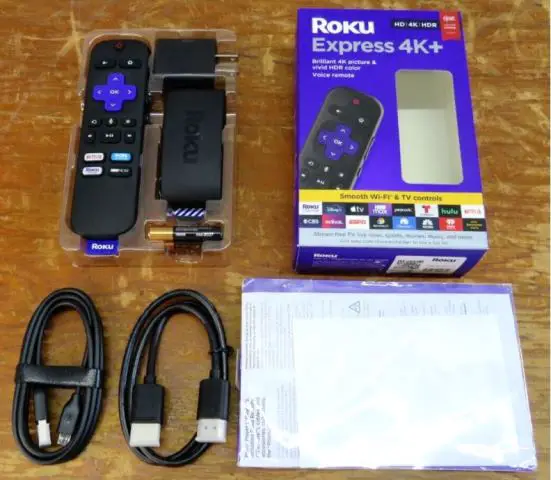
To connect a roku stick to a projector, plug the stick into the projector’s hdmi port and power it up using the usb cable. This allows you to stream content from the stick directly to the projector.
Connecting a roku stick to a projector is a simple process that allows you to enjoy your favorite shows and movies on a big screen. By following these steps, you can easily set up your roku stick with a projector and enhance your viewing experience.
Whether you’re hosting a movie night or giving a presentation, connecting your roku stick to a projector is a convenient way to access and enjoy your favorite content on a larger display.

Credit: thehometheaterdiy.com
Step 1: Check Your Projector’S Compatibility
To connect a roku stick to a projector, the first step is to check the compatibility of your projector with the roku stick. Make sure the projector has an hdmi port and can support the resolution of the roku stick for a seamless connection and optimal viewing experience.
Verify If Your Projector Has An Hdmi Input:
If you want to connect your roku stick to a projector, the first step is to check the compatibility of your projector. Here are the things you need to do:
- Check if your projector has an hdmi input: Most modern projectors have hdmi ports, but it’s important to verify this before proceeding. Look for the hdmi symbol on the projector or refer to the user manual to confirm the availability of an hdmi input.
- Ensure that the projector supports the hdmi version of your roku stick: Hdmi versions can vary, so make sure that your projector supports the hdmi version of your roku stick. This information can be found in the user manual or specifications of both devices. It’s crucial to match the hdmi versions to ensure proper connectivity and optimal performance.
By following these steps, you can determine if your projector can be connected to a roku stick and proceed with the setup process confidently. Once you have confirmed the compatibility, you can move on to the next steps, which will be discussed in the upcoming sections of this blog post.
Remember, it is essential to verify both the presence of an hdmi input on your projector and the compatibility of your roku stick’s hdmi version with the projector.
Step 2: Gather The Necessary Equipment
To connect a roku stick to a projector, the first step is to gather the necessary equipment. This includes the roku stick, an hdmi cable, and a compatible projector with an hdmi port. Ensure you have all the required items before proceeding with the connection process.
Roku Stick:
- The roku stick is a small streaming device that allows you to access various streaming services and apps on your projector.
- It connects to your projector’s hdmi input and provides a user-friendly interface for navigating and streaming content.
- The roku stick supports high-definition video streaming and offers a wide range of streaming channels to choose from.
- It requires an internet connection to function properly, so make sure you have a stable wi-fi network available.
- The roku stick comes with a remote control for easy navigation, but you can also control it using a mobile app on your smartphone.
Hdmi Cable:
- An hdmi cable is essential for connecting the roku stick to your projector. It carries both audio and video signals from the roku stick to the projector.
- Make sure you have an hdmi cable with the appropriate length to reach from the roku stick to the projector.
- Hdmi cables come in different versions, such as hdmi 1.4 and hdmi 2.0. Choose a cable that supports the resolution and features of your projector.
- Connect one end of the hdmi cable to the hdmi port on the roku stick and the other end to the hdmi input on your projector.
Projector Remote (If Required For Input Selection):
- Some projectors may require you to use the projector remote to select the hdmi input for connecting the roku stick.
- Check the user manual or the menu settings of your projector to find the option for selecting the hdmi input.
- Use the projector remote to navigate through the menu and select the appropriate hdmi input for the roku stick.
Power Source (If Necessary):
- The roku stick requires a power source to function. It can be powered directly through the usb port on your projector, if available.
- Check if your projector has a usb port that can provide power to the roku stick. If not, you may need to use an external power adapter.
- Connect the usb cable from the roku stick to the usb port on your projector or the power adapter for power supply.
Remember to follow these steps when connecting your roku stick to a projector:
- Connect one end of the hdmi cable to the hdmi port on the roku stick.
- Connect the other end of the hdmi cable to the hdmi input on your projector.
- If required, use the projector remote to select the hdmi input for the roku stick.
- If necessary, connect the usb cable from the roku stick to the usb port on your projector or use an external power adapter for power supply.
By following these steps and gathering the necessary equipment, you will be ready to start enjoying your favorite streaming content on a larger screen using your roku stick and projector.
Step 3: Connect The Roku Stick To The Projector
To connect a roku stick to a projector, simply plug the roku stick into the projector’s hdmi port and power it up. It’s a straightforward process that allows you to enjoy streaming content on a bigger screen.
To enjoy your favorite streaming content on a larger screen, follow these steps to connect your roku stick to a projector:
- Plug one end of the hdmi cable into the hdmi port on the roku stick: Take the hdmi cable, which usually comes with your roku stick, and insert one end into the hdmi port located on the roku stick. This port is usually found on the side of the device.
- Connect the other end of the hdmi cable into the hdmi input on the projector: Locate the hdmi input on your projector and plug the other end of the hdmi cable into it. Ensure that the cable is securely connected to both the roku stick and the projector.
- Adjust the projector settings: Once the physical connection is established, you may need to adjust the settings on both the roku stick and the projector. Refer to the user manuals of both devices for specific instructions on how to select the correct hdmi input and configure the display settings.
- Power on the devices: Once all the connections are made and the settings are configured, power on both the roku stick and the projector. Allow them a few moments to establish a connection.
- Select the appropriate input: On the projector, select the hdmi input that corresponds to the port you connected the roku stick to. This will enable the projector to receive the signal from the roku stick.
- Enjoy your streaming content: With the roku stick successfully connected to the projector, you can now enjoy your favorite movies, tv shows, and other streaming content on a bigger screen.
Remember, the specific steps may vary depending on the model and brand of your roku stick and projector. It’s always a good idea to consult the user manuals for detailed instructions.
Step 4: Power Up The Roku Stick And The Projector
To connect a roku stick to a projector, follow step four by powering up both the roku stick and the projector. This will initiate the connection between the two devices, allowing you to enjoy your favorite roku content on the big screen.
To fully enjoy your roku stick on a projector, follow these steps to power up both devices:
Connect The Usb Power Cable To The Roku Stick (If Necessary):
- Locate the usb port on the roku stick.
- Insert one end of the usb power cable into the usb port on the roku stick.
Plug The Other End Of The Usb Power Cable Into A Power Source:
- Find a power source near your projector, such as a wall outlet or a usb port on the projector itself.
- Plug the other end of the usb power cable into the power source to provide power to the roku stick.
Turn On The Projector And Wait For It To Fully Power Up:
- Use the power button on the projector or its remote control to turn it on.
- Wait for the projector to fully power up. This may take a few moments, so be patient.
Remember, it’s important to ensure that both the roku stick and the projector are powered up before proceeding to the next steps. This will ensure a smooth and uninterrupted viewing experience.
Step 5: Select The Hdmi Input On The Projector
To connect a roku stick to a projector, follow step 5 by selecting the hdmi input on the projector. This will allow you to display the roku stick’s content on the projector screen.
To connect your roku stick to a projector, you need to select the hdmi input on the projector. Here’s how you can do it:
- Use the projector remote:
- Locate and press the “input” or “source” button on the projector remote.
- A menu will appear on the screen, displaying different input options.
- Navigate through the menu using the arrow buttons on the remote and select the hdmi input option.
- Press the “ok” or “enter” button to confirm the selection.
- The projector will now switch to the hdmi input and wait for the roku signal.
- Use the projector’s control panel:
- Locate the control panel on the projector, which usually has buttons for power, volume, and input selection.
- Look for a button labeled “input” or “source” on the control panel.
- Press the “input” or “source” button to access the input options.
- Use the navigation buttons on the control panel to select the hdmi input.
- Press the “ok” or “enter” button to confirm the selection.
- The projector will now switch to the hdmi input and wait for the roku signal.
Once you have selected the hdmi input on the projector, you need to wait for the roku interface to appear on the projector screen. Make sure your roku stick is properly connected to the hdmi port on the projector. If everything is set up correctly, you should see the roku interface on the projector screen, allowing you to access your favorite streaming apps and enjoy your content on the big screen.
Remember, selecting the correct hdmi input is crucial for successfully connecting your roku stick to a projector. Follow the steps mentioned above using either the projector remote or the control panel, and you’ll be ready to enjoy an immersive streaming experience.
Step 6: Set Up The Roku Stick
To set up the roku stick with a projector, follow step 6: set up the roku stick. Connect the roku stick to the projector’s hdmi port and power it up for a seamless streaming experience.
To fully enjoy your roku stick on a projector, you’ll need to properly set it up and connect it to your wi-fi network. Follow these simple steps:
- Follow the on-screen instructions to connect the roku stick to your wi-fi network: Once you power on the roku stick and connect it to the projector, you’ll see instructions on how to connect to your wi-fi network. Use the remote control to navigate through the steps and enter your wi-fi credentials when prompted. This will ensure that your roku stick can access the internet and stream content.
- Sign in to your roku account or create a new one if needed: If you already have a roku account, sign in using your email and password. If you don’t have an account, you can create one by following the on-screen instructions. Having a roku account allows you to easily access and manage your favorite channels, settings, and preferences on multiple devices.
Remember to keep your roku account credentials secure and log out after each use, especially if you’re using a shared or public projector.
That’s it! Once you have successfully set up your roku stick and connected it to your wi-fi network, you can start exploring the wide range of streaming options and enjoy your favorite content on the big screen.
Remember to adjust the display settings on your projector, such as screen size, aspect ratio, and resolution, to ensure optimal picture quality. Additionally, if your projector supports audio output, you may need to connect external speakers or a sound system for a complete home theater experience.
Now that you have completed the setup process, you are ready to enjoy the convenience and entertainment of streaming content from the roku stick on your projector. Happy streaming!
Step 7: Configure Audio And Video Settings
In step 7, you will need to configure the audio and video settings to ensure a seamless connection between your roku stick and projector. Make sure to follow the instructions carefully for optimal performance.
To fully optimize your roku stick’s performance with your projector, it’s important to configure the audio and video settings according to your preferences and your projector’s capabilities. This step will ensure that you have the best viewing experience possible. Follow the instructions below to adjust the settings:
- Navigate to the roku settings menu:
- Go to the roku home screen by pressing the home button on your roku remote.
- Using the arrow keys, navigate to the left side of the screen and select the “settings” option.
- In the settings menu, select the “audio” option to access the audio settings.
- Next, select the “video” option to adjust the video settings.
- Adjust audio settings:
- In the audio settings menu, you will see various options to configure the audio output.
- Select the “audio mode” option to choose the desired audio format.
- If your projector supports surround sound, select the appropriate audio mode.
- Adjust the volume level according to your preference by using the volume control options.
- Adjust video settings:
- In the video settings menu, you will find a range of options to optimize the video output.
- Select the “display type” option to set the resolution that matches your projector’s capabilities.
- Choose the highest resolution available for the best picture quality.
- If your projector supports hdr (high dynamic range), enable hdr for enhanced color and contrast.
- Use the “screen mirroring” option to enable or disable screen mirroring with your projector.
- Ensure that the “hdmi cec” option is turned on if you want to control your projector using the roku remote.
By configuring the audio and video settings on your roku stick, you can customize the audio output and video quality to suit your preferences and the capabilities of your projector. Enjoy your favorite content with the optimal audio and visual experience!
Step 8: Enjoy Streaming With Roku Stick On Your Projector
Step 8: enjoy seamless streaming on your projector by connecting a roku stick. Stream your favorite shows and movies effortlessly for an immersive home theater experience.
Once you have successfully connected your roku stick to your projector, you can start enjoying your favorite movies, shows, and more on the big screen. Here’s how you can make the most out of your streaming experience:
- Launch your desired streaming apps or channels on the roku stick:
- Open the roku home screen by pressing the home button on your remote.
- Navigate to the streaming channels section and select the app store or channel store.
- Browse through the vast selection of streaming apps or channels available.
- Find the ones you want to use and select them to download and install.
- Start enjoying your favorite movies, shows, and more on the big screen:
- Once your desired apps or channels are installed, go back to the home screen.
- Find the app or channel you want to use and select it.
- Browse through the content available and select what you want to watch.
- Sit back, relax, and enjoy streaming your favorite content on the projector’s large display.
Remember, with the roku stick connected to your projector, you have access to a wide range of streaming services, including popular platforms like netflix, hulu, amazon prime video, and more. You can also explore free channels and discover new content to enhance your entertainment experience.
So grab some popcorn, dim the lights, and immerse yourself in the world of streaming on the big screen!
Step 9: Troubleshooting Tips (Optional)
Having trouble connecting your roku stick to a projector? Follow these troubleshooting tips to ensure a seamless connection and enjoy your favorite content on the big screen.
If you experience any issues, try the following troubleshooting tips to fix any problems you encounter while connecting your roku stick to a projector:
- Unplug and reconnect the hdmi cable: Sometimes, the hdmi connection may become loose or lose signal. To resolve this, simply unplug the hdmi cable from both the roku stick and the projector, and then reconnect it firmly. This can help establish a proper connection and ensure uninterrupted playback.
- Ensure that the hdmi input on the projector is properly selected: Projectors usually have multiple hdmi inputs. If you’re not getting any display on the screen, make sure that the correct hdmi input is selected on the projector. Use the projector’s remote or on-screen menu to switch between the available hdmi inputs until you see the roku stick’s display.
- Check the connections and cables for any damage or loose connections: Inspect the hdmi cable and other connections for any visible damage or loose connections. If you find any issues, replace the cable or tighten the connections to ensure a secure and reliable connection. Damaged cables or loose connections can cause display problems and affect the overall performance of the setup.
Remember to try these troubleshooting tips if you encounter any issues while connecting your roku stick to a projector. They can help you quickly identify and fix common problems, allowing you to enjoy your favorite content seamlessly.
Frequently Asked Questions Of How To Connect A Roku Stick To A Projector
How Do I Connect My Streaming Stick To My Projector?
To connect your streaming stick to your projector, follow these steps: 1. Plug the streaming stick into the projector’s hdmi port. 2. Connect one end of the usb cable to the streaming stick. 3. Connect the other end of the usb cable to a power source or the projector’s usb port.
4. Turn on the projector and switch it to the hdmi input where the streaming stick is connected. 5. Follow the on-screen instructions on the projector to complete the setup process. By following these steps, you will be able to connect your streaming stick to your projector and start enjoying your favorite streaming content on the big screen.
Which Roku Works With Projector?
To connect a roku device to a projector, you can use either the roku express, roku streaming stick, or roku ultra. Unlike roku tvs, there are no projectors with roku tv built-in, so you’ll need to use one of these roku streaming devices.
These devices can be connected to your projector’s hdmi port, allowing you to stream your favorite content on the big screen. Simply plug the roku device into the projector’s hdmi port, and you’ll be able to enjoy your favorite movies, tv shows, and more.
Choose the roku device that best suits your needs and start enjoying your favorite content on your projector.
How Do I Connect My Roku Stick?
To connect your roku stick to your projector, follow these steps: 1. Plug the roku stick into your projector’s hdmi port. 2. Connect one end of the usb cable to your roku stick. 3. Insert the other end of the usb cable into a power source to power up the roku stick.
4. Turn on your projector and select the hdmi input where the roku stick is connected. 5. Follow the on-screen instructions to set up your roku stick. 6. Connect your roku stick to your wi-fi network and sign in to your roku account.
7. Once connected, you can start streaming your favorite movies and tv shows on your projector using the roku stick. Remember to ensure that your projector and roku stick are compatible and have the necessary ports for connection. Enjoy your streaming experience on the big screen!
How Do I Connect My Roku Stick To Hdmi?
To connect your roku stick to hdmi, follow these steps: 1. Insert the roku stick into the hdmi port on your tv or projector. 2. Use the usb cable to connect the roku stick to a power source. 3. Turn on your tv or projector and select the corresponding hdmi input.
4. Follow the on-screen prompts to connect the roku stick to your wi-fi network. 5. Once connected, sign in to your roku account or create a new one. 6. Complete the setup process by following the instructions on the screen.
7. You can now start streaming your favorite content through the roku stick. Note: make sure you have a stable internet connection and that your tv or projector supports hdmi connectivity.
Conclusion
Sticks with a projector. Connecting a roku stick to a projector is a simple process that can enhance your entertainment experience. First, make sure your projector has an hdmi port and a usb port. Then, plug the roku stick into the hdmi port and the usb cable into the usb port for power.
Switch on the projector and select the corresponding hdmi input. Follow the onscreen instructions to connect your roku stick to your wi-fi network and log in to your roku account. Once connected, you can enjoy streaming your favorite shows, movies, and music directly on the big screen.
With the roku stick and a projector, you can transform any room into a home theater and enjoy a cinematic experience. So, go ahead and connect your roku stick to a projector for endless entertainment possibilities.
