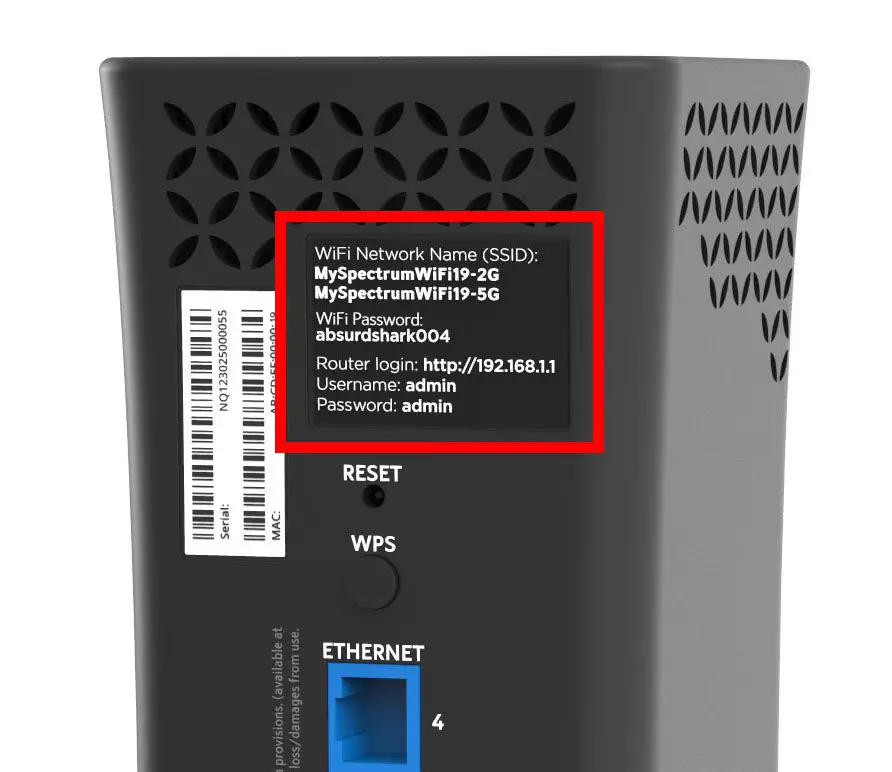
To change your Spectrum WiFi name and password, log into your Spectrum router’s web interface. Access the Wireless Settings and update your network SSID and passphrase.
Ensuring your home Wi-Fi is secure and personalized is essential for protecting your digital privacy and enhancing connection clarity. With cyber threats on the rise, maintaining strong, unique credentials for your Wi-Fi network isn’t just a precaution—it’s a necessity. Spectrum, as one of the leading Internet Service Providers, offers a user-friendly way to customize your Wi-Fi settings to keep your online experience both safe and distinct.
Regularly updating your WiFi name and password helps safeguard your network against unauthorized access and makes it easier for you and your guests to connect to the right network. Dive into your router’s settings with ease and take control of your online security with these simple adjustments to your Spectrum service.
Spectrum Wifi Customization Made Simple
Welcome to the ultimate guide for Spectrum Wifi Customization Made Simple. If you’re a Spectrum user looking to enhance your wireless experience by personalizing your wifi name and password, this easy-to-follow guide is tailor-made for you. We’ll take you through why it’s critical to update your credentials, assist you in identifying your router model, and provide step-by-step instructions to make the changes effortlessly. Let’s jump right into making your Spectrum Wifi work best for you!
Understanding the need for changing wifi credentialsUnderstanding The Need For Changing Wifi Credentials
Securing your home network is more important than ever, and the first step in doing so is updating your wifi credentials. Why? Because factory-set default names and passwords can be easily predictable, making your network an easy target for unauthorized access. Ensure that your personal information, online activities, and smart devices are protected by taking control of your wifi settings.
Identifying your Spectrum router modelIdentifying Your Spectrum Router Model
To customize your Spectrum wifi settings, you first need to recognize which router model you have. This knowledge is crucial as different models may have various interfaces and procedures. The model is typically found on a label on the bottom or back of the router. Look for a combination of letters and numbers, such as RAC2V1K or SAC2V1K. Once you have this information, you’re set to modify your wifi name and password confidently.
Preliminary Steps Before Changing Wifi Details
Embarking on the journey to change your Spectrum Wifi name and password not only enhances your network’s security but also allows you to customize your internet experience. Before diving into the setup process, certain foundational measures are imperative to ensure a seamless transition. Let’s take a closer look at these essential preliminary steps.
System requirements for accessing router settingsSystem Requirements For Accessing Router Settings
Before you start, ensuring that your device meets the necessary system requirements is crucial. A compatible operating system and a web browser are mandatory for accessing your router’s settings:
- Operating System: Windows, macOS, or Linux
- Web Browser: Latest version of Chrome, Firefox, Safari, or Edge
- Device must be connected to the Spectrum network, either by Wi-Fi or an Ethernet cable
Avoid using outdated or unsupported browsers, as this can hinder your ability to navigate and save new configurations.
Before you proceed: Backing up your current router configurationBefore You Proceed: Backing Up Your Current Router Configuration
Backing up your router’s current configuration is a critical step that should not be overlooked. This safety net grants the ability to restore previous settings without any hassle, should the need arise. Follow these instructions:
- Access the router’s web interface using a compatible device.
- Navigate to the settings or backup section within the interface.
- Look for ‘Backup Settings’, ‘Save Configuration’, or a similar option.
- Follow the on-screen instructions to save a copy of your current configuration.
Storing the backup file securely on your device ensures you can manage unexpected scenarios with confidence. Now you’re all set to proceed with changing your Spectrum Wifi name and password.
Accessing Spectrum Router Interface
Accessing the Spectrum Router Interface is the first step toward taking control of your home network’s security and performance. Whether you aim to change your WiFi name (SSID) or password, knowing how to log into your router’s settings is essential. Follow the steps below meticulously to ensure a successful and stress-free customization of your WiFi network settings.
To begin the process, you must connect to the Spectrum router’s interface through its IP address. This is a numeric address that allows you to communicate directly with the router from any browser:
- Ensure your device is connected to the Spectrum network.
- Open a web browser of your choice.
- Enter the following IP address in the address bar: 192.168.0.1 or 192.168.1.1. These are the most common default IPs for Spectrum routers.
- Press Enter and wait for the router login page to appear.
Using The Right Login Credentials To Access Router Settings
Once you reach the login page, you will be prompted for a username and password. These credentials are crucial for gaining access to the settings:
- Check for any default credentials on the label at the back or bottom of your Spectrum router.
- Standard default usernames are often “admin” and passwords are typically “password”, but this can vary based on the router model.
- If you have changed your login details previously and forgotten them, you might need to reset your router which brings back the default settings.
Input the credentials and click the login button. With the correct username and password, you should gain full access to your router’s settings, ready to make the necessary changes to your WiFi name and password.

Credit: www.amazon.com
Changing Spectrum Wifi Network Name
Personalizing your home Wi-Fi network by changing its name not only customizes your digital space but also enhances security. For Spectrum users, updating the Wi-Fi network name (SSID) can be a quick and painless process. Follow these clear steps to ensure your Spectrum Wi-Fi network reflects a name that’s more you and less random strings of numbers and letters.
Locating The Wireless Settings Option
Begin by accessing the wireless settings where you can adjust your network name. To find this, ensure you are connected to your Spectrum Wi-Fi network. Then, open a web browser and enter your router’s IP address which is typically 192.168.0.1 or 192.168.1.1. Log in with your admin credentials—these may be the default ones provided on your router or personalized ones you’ve set up.
Steps To Update The Spectrum Wi-fi Name (ssid)
- Once logged in to the router’s interface, navigate to the Wireless or Wi-Fi section.
- Locate a field labeled SSID or Network Name. This will display your current Wi-Fi name.
- Select the SSID field and clear it. Then, type in your new desired network name. Keep the name simple but unique to identify your network easily.
- While you’re here, consider checking out your Wi-Fi security settings to ensure they meet your privacy needs.
- Save your changes by clicking on the Apply or Save button.
With these steps, you can efficiently update your Wi-Fi network name to something that stands out or perhaps adds a personal touch. Make sure your new SSID is easy to remember but hard enough for others to guess.
Ensuring Network Name Change Success
The final step in changing your network name is to ensure the changes take effect successfully. After saving your new SSID, the router may reboot. Once it’s back online, search for the new network name on your device’s Wi-Fi settings. If you spot your new SSID listed, connect to it using your existing Wi-Fi password. It’s always a good practice to update your devices with the newly named network to avoid any connection issues. Also, remember to inform any household members of the change to avoid confusion and connection disruptions.
How To Change Spectrum Wifi Password: Quick Guide
Adjusting your Spectrum WiFi network details is a crucial step in maintaining your online security. Regularly changing your WiFi name and password helps prevent unauthorized access to your network and ensures a secure connection for all your devices. In this quick guide, I will walk you through the simple process to refresh your credentials and bolster your WiFi network’s defense.
Accessing The Wireless Security Settings
To initiate the process, you first need to navigate to your router’s settings. This can be accomplished by entering the IP address provided by Spectrum, typically found on the sticker on the router, into your web browser. After the login prompt, enter your current username and password to access the router’s dashboard.
Selecting The Appropriate Security Mode
Within the dashboard, locate the section for wireless security. Here, you need to ensure your network is equipped with the latest security protocols, like WPA2 or WPA3, which provide robust protection against potential threats.
| Security Protocol | Description |
|---|---|
| WEP | Outdated and less secure |
| WPA | Better security but superseded by WPA2 |
| WPA2 | Recommended for strong encryption |
| WPA3 | Latest and most secure (if compatible) |
Creating A Strong And Secure New Password
For the final step, it’s time to craft a new password that is both strong and hard to guess. A good password should be a mix of uppercase and lowercase letters, numbers, and special characters, with a length of at least 12 characters to ensure maximum security.
- Avoid common passwords like ‘password123’ or ‘admin’.
- Do not use personal information such as birthdates or names.
- Consider using a passphrase or a combination of words that is easy for you to remember but hard for others to guess.
- Update your devices with the new password immediately to maintain connectivity.
After setting your new password, make sure to save the changes before logging out of the router settings. With these adjustments, your Spectrum WiFi network is now more secure, giving you peace of mind as you connect to the digital world.
Post-change Actions For A Smooth Transition
Successfully changing your Spectrum WiFi name and password signifies a fresh start for your home network, but it’s not quite time to kick back just yet. To ensure your devices benefit from the new security measures and stay connected, follow these straightforward post-change actions.
Updating connected devices with new wifi detailsUpdating Connected Devices With New Wifi Details
Quickly reestablish your device’s internet connection by updating them with your new WiFi credentials. Neglect this step, and you may find yourself disconnected from the digital world:
- Boldly march through your home, updating all smartphones, tablets, laptops, and smart home devices.
- Your devices may fail to recognize the new network. Be proactive and forget the old network settings, then reconnect with the updated information.
Trouble-shooting Common Connectivity Issues After Changes
Even after updating your devices, you might hit a snag. Here’s how to overcome common post-change hurdles:
- Ensure you input the WiFi details accurately. Even the smallest typo can cause a connection meltdown.
- A simple reboot can solve many connectivity mysteries. Turn off your device, wait a minute, then restart and reconnect.
- Still struggling? Check the signal strength. Best practice suggests chilling closer to your router or consider a WiFi extender to boost the signal.
When To Reset Your Spectrum Router To Default Settings
Occasionally, changes don’t pan out the way you planned. Here’s how to determine if it’s time to perform a full-reset:
- Chronic Connectivity Issues: Persistent problems following your WiFi name and password change might require a fresh start.
- Forgotten New Credentials: If your new details are lost in the abyss of your memory, reverting to default settings allows you to start anew.
- To reset, locate the small reset button on your router. Hold it down for about 20 seconds, then release. Your router will return to its original, out-of-the-box settings.
Frequently Asked Questions For How To Change Spectrum Wifi Name And Password
How Do I Reset My Spectrum Wifi Password?
To reset your Spectrum WiFi password, sign in to your account on the Spectrum website or use the My Spectrum app. Navigate to services, select Internet, and then choose your WiFi network to update your password.
Can I Change My Spectrum Wifi Name Online?
Yes, you can change your Spectrum WiFi name online. Log into your Spectrum account or the My Spectrum app, go to the Internet service section, and edit the name (SSID) of your home network.
What Is The Default Spectrum Wifi Password?
The default Spectrum WiFi password is usually provided on a label on the router. It’s a unique combination of numbers and letters. If it was changed and you forgot it, you may need to reset it through your Spectrum account.
Where To Find Spectrum Wifi Settings?
You can find Spectrum WiFi settings by logging into the Spectrum account on their website or through the My Spectrum mobile app. The settings are under the ‘Services’ and ‘Internet’ sections, where you’ll find options to manage your network.
Conclusion
Changing your Spectrum WiFi credentials is a smart move for digital safety. This guide has outlined the steps clearly, ensuring that even beginners can navigate the process with ease. Remember, regular updates to your login info keep your connection secure.
Now that you’re equipped with this knowledge, take a moment to apply what you’ve learned and maintain a safe, personalized WiFi experience.
