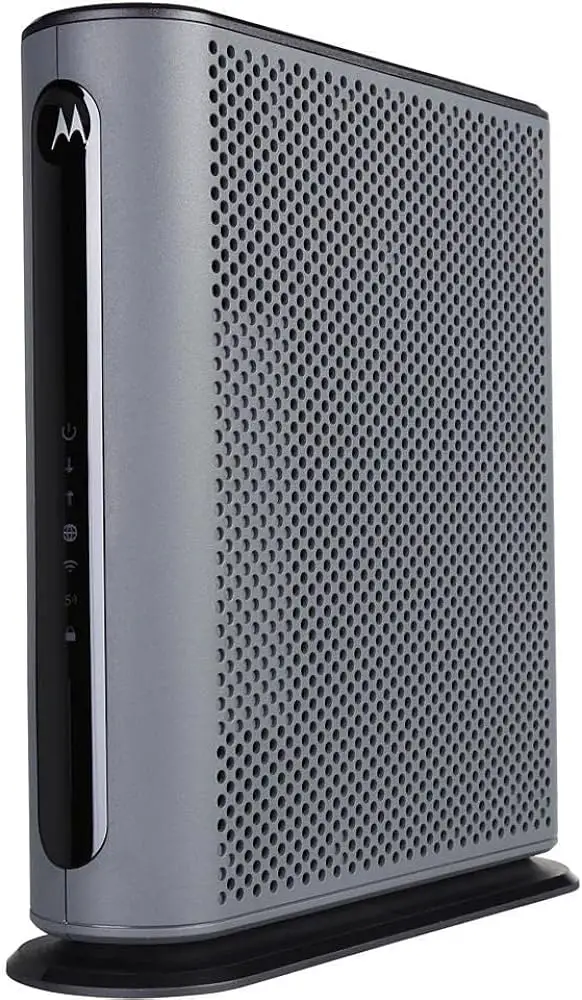
To change your internet to the 2.4Ghz spectrum, access your router settings and navigate to the wireless settings section to make the adjustment. Switching to the 2.4Ghz spectrum can improve the range and penetration of your Wi-Fi signal, which can be beneficial in larger homes or areas with interference from other devices.
It’s important to note that while the 2. 4Ghz spectrum offers better coverage, it may not provide the same level of speed and performance as the 5Ghz spectrum. However, in certain situations, such as when extending your Wi-Fi network to reach distant areas, shifting to the 2.
4Ghz spectrum can be a practical solution. Understanding how to modify your Wi-Fi settings to optimize your internet connection can significantly enhance your overall online experience.
Understanding 2.4ghz Connectivity
The Basics Of 2.4ghz Vs. 5ghz Frequencies
When it comes to wireless connectivity, understanding the differences between 2.4Ghz and 5Ghz frequencies is crucial. The primary distinction lies in their range and speed capabilities. While 5Ghz provides faster speeds, it has a shorter range, making it ideal for high-bandwidth applications within close proximity. On the other hand, 2.4Ghz operates at a lower frequency, offering a wider coverage area but at the cost of decreased speed.
Factors That Influence Wireless Signal Strength
Several factors can influence wireless signal strength, affecting the performance of devices connected to the network. These factors include distance from the access point, physical obstructions, interference from other electronic devices, and the presence of reflective surfaces. Understanding and mitigating these influences are essential for optimizing wireless connectivity.
Benefits Of Using 2.4ghz For Certain Devices And Environments
Utilizing the 2.4Ghz spectrum presents several benefits, particularly for devices and environments that require extended coverage and minimal signal interference. This frequency is well-suited for older devices, IoT (Internet of Things) devices, and smart home devices that do not demand high-speed connections. Moreover, the lower frequency of 2.4Ghz enables signals to penetrate walls and traverse through obstacles, making it an ideal choice for larger areas and buildings.
Identifying Your Network Band
When it comes to optimizing your internet connection, understanding and identifying your network band is crucial. The band, specifically the 2.4GHz spectrum, plays a significant role in ensuring a stable and reliable Wi-Fi connection. Identifying your network band allows you to determine whether you are operating on the 2.4GHz frequency, which is essential for various devices and applications.
How To Check Your Current Wi-fi Band
Before making any changes, it’s essential to confirm which Wi-Fi band you are currently using. Most routers provide an administration panel accessible through a web browser. Log in to your router’s settings and navigate to the wireless settings section. Within this section, you should be able to locate and identify the Wi-Fi band your router is currently operating on. In case your router does not provide this information, you can also check your computer or mobile device’s network connection settings to determine the band in use.
Common Indicators Of A Mixed-band Setup
In some cases, your Wi-Fi network might be set up to operate on both the 2.4GHz and 5GHz bands simultaneously. If this is the case, you may notice multiple network names (SSIDs) when searching for available Wi-Fi networks. Typically, the SSID for the 2.4GHz band will have a different name than the SSID for the 5GHz band, allowing you to distinguish between the two.
Tools To Analyze Wireless Frequencies
There are various tools and applications available that can help you analyze the wireless frequencies and identify which band your network is using. Software tools such as Wi-Fi Analyzer for Android or inSSIDer for Windows can provide detailed insights into the wireless networks available in your vicinity, including their respective bands and signal strengths. Leveraging these tools can aid in making informed decisions when adjusting your network band settings.
Switching To 2.4ghz Spectrum
When it comes to optimizing your Wi-Fi network, switching to a 2.4Ghz spectrum can be a game-changer. This frequency band is often less crowded than the 5Ghz band, resulting in better coverage and performance, especially in areas with many obstructions. If you’re looking to change your Wi-Fi band settings to 2.4Ghz, this step-by-step guide will walk you through the process.
How To Access Router Settings Via Web Interface
To begin, you need to access your router’s web interface. Here’s a simple guide to help you do that:
- Connect your device to your home network either by Ethernet cable or via Wi-Fi.
- Open a web browser such as Chrome, Firefox, or Safari.
- In the address bar, type in the default gateway of your router. This is usually
192.168.1.1or192.168.0.1. Press Enter. - You will be prompted to enter your router’s username and password. This information can usually be found on a sticker on your router.
- Once logged in, navigate to the wireless settings or Wi-Fi settings section of the web interface.
Step-by-step Guide To Change Wi-fi Band Settings
Now that you’re in the router’s web interface, follow these steps to change your Wi-Fi band settings to 2.4Ghz:
- Look for the option to change the frequency band or channel settings within the wireless settings section.
- Select the 2.4Ghz band from the available options. Some routers may have a dropdown menu for band selection, while others may have a radio button or checkbox to choose the 2.4Ghz band.
- Save your changes and allow the router to reboot if necessary.
Tips For Ensuring Changes Take Effect
After making the switch to the 2.4Ghz spectrum, it’s important to ensure that the changes take effect. Here are a few tips to consider:
- Restart your router to apply the new settings effectively.
- Ensure that all your devices are now connected to the 2.4Ghz network.
- Use a Wi-Fi analyzer app to check for signal strength and potential interference in your area, adjusting the channel settings if needed.

Credit: www.ekahau.com
Troubleshooting 2.4ghz Setup Issues
When troubleshooting 2.4Ghz setup issues, it’s important to be equipped with the right knowledge and resources to address any potential problems that may arise during the transition. In this section, we will explore common issues after switching to the 2.4Ghz spectrum and provide guidance on how to resolve them. Additionally, we will discuss tech support resources and the importance of considering firmware or hardware updates for optimal performance.
Resolving Common Problems After Switching Bands
Switching to the 2.4Ghz spectrum can sometimes lead to connectivity issues or interference, especially in high-traffic areas. Here are some common problems you might encounter and how to resolve them:
- Interference: If you experience interference from other devices or networks, try changing the channel on your router to minimize signal overlap. Utilizing a Wi-Fi analyzer app can help identify the least congested channels.
- Weaker Signal: If you notice a weaker signal strength after switching bands, consider repositioning your router to a more central location within your home or office to optimize coverage.
- Compatibility: Some older devices may not fully support the 2.4Ghz band. If you encounter connectivity issues with specific devices, make sure they are compatible with the 2.4Ghz spectrum or consider upgrading to newer hardware.
How To Change Internet To 2.4ghz Spectrum: Tech Support Resources
When troubleshooting 2.4Ghz setup issues, having access to reliable tech support resources can be invaluable. Here are a few resources you can turn to for assistance:
| Resource | Description |
|---|---|
| Manufacturer’s Website | Check the manufacturer’s website for FAQs, troubleshooting guides, and software updates related to your router or networking devices. |
| Community Forums | Joining online forums or communities dedicated to networking and Wi-Fi issues can provide insights and solutions from individuals with similar experiences. |
| Customer Support | Contacting the customer support team of your router’s manufacturer can provide direct assistance for complex setup issues. |
When To Consider Updating Firmware Or Hardware For Better Performance
Regular firmware updates can enhance the overall performance and security of your router, ensuring a smoother transition to the 2.4Ghz spectrum. Consider updating firmware if:
- Your router’s manufacturer releases a new firmware version that addresses known connectivity or performance issues.
- You observe a decline in the router’s stability or performance after switching to the 2.4Ghz band.
- Your device compatibility issues persist despite troubleshooting efforts.
Optimizing 2.4ghz Network Performance
Looking to improve your internet connection? Changing to the 2. 4GHz spectrum can optimize network performance, ensuring better coverage and signal strength for your devices. Simply adjusting your router settings can make a significant difference in your online experience.
The 2.4GHz spectrum is a widely used frequency band for wireless communication and internet connectivity. Optimizing your 2.4GHz network performance is crucial for ensuring a seamless and reliable internet experience. To enhance the performance of your 2.4GHz network, it is essential to consider best practices for device placement and router positioning, channel selection for reducing interference, and advanced settings to boost 2.4GHz connectivity. “`htmlBest Practices For Device Placement And Router Positioning
“` When setting up your 2.4GHz network, placing your wireless router in a central location within your home or office can help provide even coverage to all areas. Keep the router away from large metal objects, concrete walls, and electronic appliances that may cause interference. Elevating the router off the floor and positioning its antennas vertically can also improve signal transmission. “`htmlChannel Selection For Reducing Interference
“` Selecting the optimal channel for your 2.4GHz network can significantly reduce interference and enhance performance. Use a WiFi analyzer tool to identify the least congested channels in your area, and then manually set your router to operate on the chosen channel. This can minimize interference from neighboring WiFi networks and other electronic devices, leading to better signal quality and stability. “`htmlAdvanced Settings To Boost 2.4ghz Connectivity
“` In addition to basic router configurations, there are advanced settings that can be adjusted to further optimize 2.4GHz connectivity. Adjust the transmission power to a level that provides adequate coverage without causing unnecessary interference. Enabling features such as WMM (WiFi Multimedia) and adjusting the RTS (Request to Send) threshold can help prioritize and manage data traffic, leading to improved overall performance. Optimizing your 2.4GHz network using these best practices and settings can lead to a more reliable and efficient wireless internet experience. By paying attention to device placement, channel selection, and advanced configurations, you can maximize the potential of your 2.4GHz network for seamless connectivity.Sustaining Enhanced Connectivity
As technology evolves, sustaining enhanced connectivity is crucial for a seamless internet experience. While many networks operate within the 5Ghz spectrum, the 2.4Ghz spectrum remains a viable option for ensuring consistent connectivity, particularly in areas with multiple devices. To maintain and optimize the performance of your 2.4Ghz network, it’s essential to implement regular maintenance checks, adapt to changing connectivity needs, and stay updated with the latest solutions for 2.4Ghz challenges.
Regular Maintenance Checks For Your 2.4ghz Network
Keeping your 2.4Ghz network in optimal condition requires regular maintenance checks. This involves inspecting the network hardware, such as routers and access points, to ensure they are functioning efficiently. Additionally, monitoring the signal strength and addressing any interference issues is essential for sustaining a reliable 2.4Ghz connection.
How To Monitor And Adapt To Changing Connectivity Needs
Monitoring and adapting to changing connectivity needs is vital for sustaining an enhanced 2.4Ghz network. Utilizing network monitoring tools can help in identifying potential bottlenecks, signal disruptions, or areas of low coverage. By assessing the usage patterns and demands of connected devices, adjustments can be made to accommodate evolving connectivity requirements.
Staying Updated With The Latest Solutions For 2.4ghz Challenges
Staying informed about the latest solutions for 2.4Ghz challenges is crucial to maintaining enhanced connectivity. Regularly researching and implementing new advancements in wireless technology, such as firmware updates, security protocols, and interference mitigation techniques, can help in addressing and resolving any connectivity issues effectively.
Frequently Asked Questions Of How To Change Internet To 2.4ghz Spectrum
Can I Change My Internet To 2.4ghz Spectrum For Better Connectivity?
Yes, you can change your internet to 2. 4Ghz spectrum by accessing your router settings. This can help improve connectivity, especially in areas with interference from other devices.
What Are The Benefits Of Switching To 2.4ghz Spectrum For Internet?
Switching to 2. 4Ghz spectrum can provide better coverage and penetration through walls and obstacles, making it ideal for larger spaces. It also offers compatibility with a wide range of devices and can reduce interference from neighboring networks.
How Do I Change The Frequency Band From 5ghz To 2.4ghz?
To change the frequency band from 5Ghz to 2. 4Ghz, access your router’s settings and navigate to the wireless options. Look for the frequency band settings and choose 2. 4Ghz. Save the changes and allow the router to restart for the new settings to take effect.
What Devices Are Compatible With 2.4ghz Spectrum?
Most modern devices, including smartphones, tablets, laptops, and smart home devices, are compatible with the 2. 4Ghz spectrum. Older devices may also benefit from the broader compatibility offered by this frequency band.
Conclusion
Incorporating 2. 4GHz spectrum in your internet usage can significantly enhance connectivity and speed. By following the steps mentioned you can make this transition effortlessly. Enjoy the benefits of a more stable and reliable internet connection by switching to the 2.
4GHz spectrum today.
