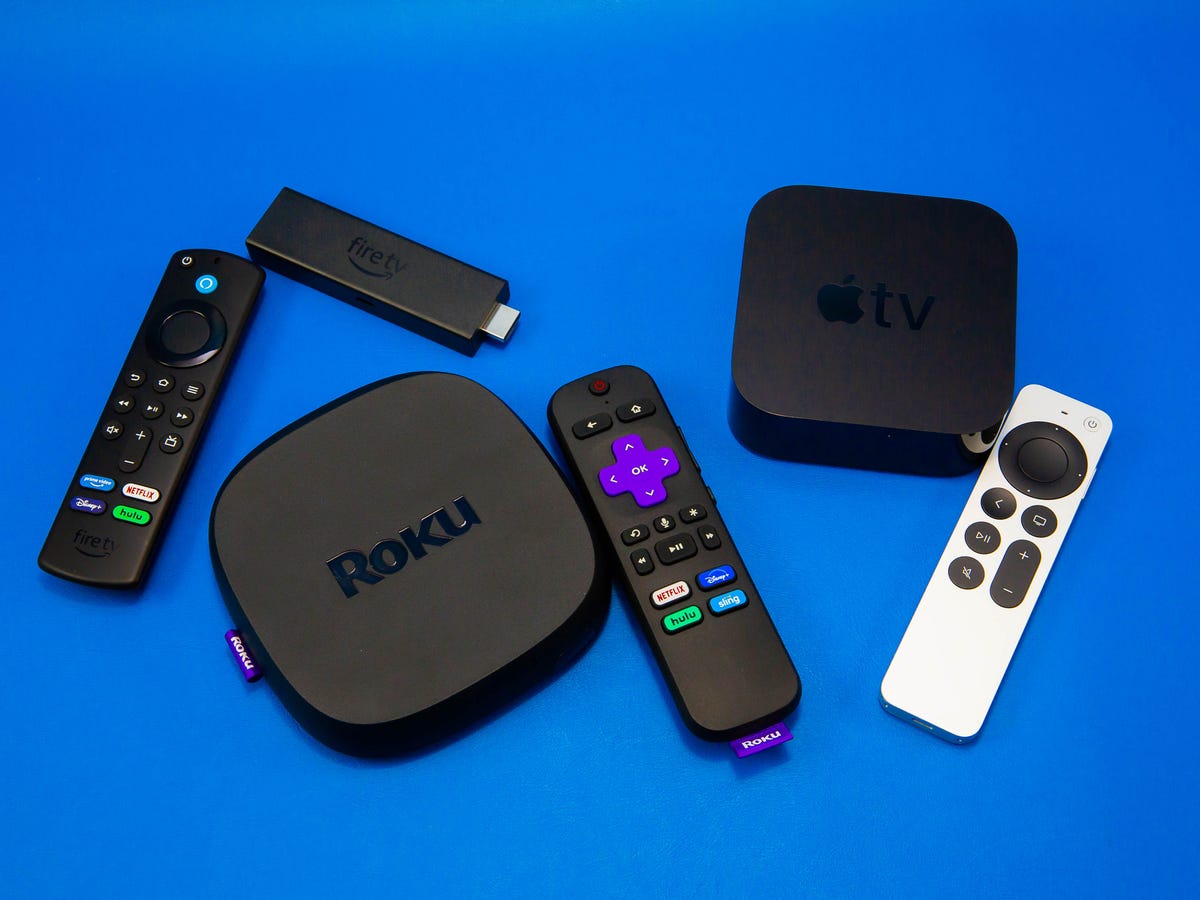
Yes, you can get Spectrum TV on Firestick. You just need to download the Spectrum TV app from the Amazon Appstore and log in with your Spectrum account.
If you’re a Spectrum TV subscriber and you own a Firestick, you may be wondering if you can access your Spectrum TV service on this streaming device. The good news is that you can indeed enjoy Spectrum TV on Firestick.
With the Spectrum TV app, you can access live TV, on-demand content, and more. We’ll explore how to get Spectrum TV on Firestick and the benefits of using this combination for your entertainment needs. Whether you’re a sports fan, a movie buff, or just looking for a way to cut the cord and still enjoy quality content, Spectrum TV on Firestick has you covered.
Credit: www.roku.com
Spectrum Tv On Firestick Installation Guide
Spectrum TV on Firestick allows you to stream your favorite TV shows, movies, and live sports events directly to your television. In this installation guide, we will walk you through the process of setting up Spectrum TV on your Firestick, so you can start enjoying the wide range of entertainment options it offers.
Benefits Of Having Spectrum Tv On Your Firestick
By installing Spectrum TV on your Firestick, you gain access to a variety of benefits, including:
- Ability to watch live TV and on-demand content
- Access to a wide range of channels and shows
- Convenient streaming on a larger screen
- Enhanced viewing experience with high-definition content
Prerequisites For Installation
Prior to installing Spectrum TV on your Firestick, ensure you have the following prerequisites:
- A reliable internet connection
- An active Spectrum TV subscription
- A compatible Firestick device
With these prerequisites in place, you can proceed with the installation process to start enjoying Spectrum TV on your Firestick.
Checking Compatibility For Spectrum App
When considering using Spectrum TV on Firestick, it’s crucial to check if your Firestick is compatible with the Spectrum TV app. This involves verifying your Firestick version and determining the app requirements for Spectrum TV. Ensuring compatibility is essential to ensure a seamless and enjoyable streaming experience.
Verify Firestick Version
To begin, you need to verify the version of your Firestick to see if it is compatible with the Spectrum TV app. Follow these steps to ensure your Firestick is compatible:
- Turn on your Firestick and navigate to the home screen.
- Select “Settings” from the top menu.
- Scroll right and select “My Fire TV.”
- Choose “About” and look for the “Device” option to find the Firestick version.
Determine Spectrum Tv App Requirements
Once you have verified your Firestick version, it’s important to determine the requirements for the Spectrum TV app:
- Check for available storage space on your Firestick to ensure there is enough room for the Spectrum TV app.
- Ensure your Firestick is updated to the latest software version for optimal app performance.
- Look for any specific hardware or software requirements for the Spectrum TV app on the official Spectrum website or app store.
Downloading Spectrum Tv On Firestick
When it comes to watching your favorite TV shows and movies, Spectrum TV is a popular choice. With the advancement in technology, it has become easier to stream content on various devices. If you are wondering whether you can get Spectrum TV on your Firestick, the answer is yes! You can easily download and install the Spectrum TV app on your Firestick to enjoy seamless entertainment at your convenience. In this post, we will guide you through the process of downloading Spectrum TV on Firestick with a step-by-step approach.
Step-by-step Guide To Find And Download
Here is a comprehensive guide that will help you find and download the Spectrum TV app on your Firestick:
- Make sure your Firestick is connected to the internet and turned on.
- From the home screen, navigate to the search bar at the top left corner.
- Enter “Spectrum TV” using the on-screen keyboard and select the app from the search results.
- Click on the “Download” or “Get” button to start the installation process.
- Once the app is downloaded, open it and log in with your Spectrum account credentials.
Ensuring Each Heading Adheres To Html Syntax
Using HTML syntax, each H3 heading adheres to the appropriate format:
| Heading | HTML Syntax |
|---|---|
| Step-by-step guide to find and download | Step-by-step guide to find and download |
| Ensuring each H3 heading adheres to HTML syntax | Ensuring each H3 heading adheres to HTML syntax |
Can I Get Spectrum Tv On Firestick?
When it comes to streaming services, many users wonder if they can access their favorite cable or live TV channels on their Firestick. One common query is, “Can I get Spectrum TV on Firestick?” Spectrum TV is a popular choice for streaming live TV, on-demand content, and more. Fortunately, with the right steps, you can indeed access Spectrum TV on your Firestick device.
Locate Spectrum Tv In The App Store
Finding the Spectrum TV app in the app store is the first step to accessing Spectrum TV on your Firestick. To install the app, follow these simple steps:
- Using your Firestick remote, navigate to the home screen and select the “Find” option.
- Enter “Spectrum TV” into the search bar and click on the search icon.
- When the app appears in the search results, select it and choose the “Download” option to install the Spectrum TV app on your Firestick device.
Understanding Spectrum Service Availability
It’s important to understand that Spectrum service availability may vary by location. Before attempting to access Spectrum TV on your Firestick, check the availability of Spectrum services in your area. To do this:
- Contact Spectrum customer support or visit their official website.
- Enter your zip code or address to verify service availability in your location.
- If Spectrum services are available in your area, proceed with installing and accessing the Spectrum TV app on your Firestick.
Setting Up Spectrum Tv After Installation
Setting up Spectrum TV on your Firestick is a seamless process that allows you to enjoy your favorite TV shows, movies, and live sports. After successfully installing the Spectrum TV app on your Firestick, the next step is to set it up for optimal use. From signing in to your account to customizing the app settings, this guide will take you through the essential steps to maximize your Spectrum TV experience.
Instructions On Signing In To Your Account
Upon launching the Spectrum TV app on your Firestick, you will be prompted to sign in to your account. Follow these steps to sign in:
- Open the Spectrum TV app on your Firestick.
- Navigate to the “Sign In” option and select it.
- Enter your Spectrum username and password.
- Click on the “Sign In” button to access your account.
Customizing App Settings For Optimal Use
Customizing the app settings can enhance your Spectrum TV viewing experience. Here are the key settings to consider:
- Video Quality: Adjust the video quality settings to match your internet speed for smooth streaming.
- Parental Controls: Set up parental controls to restrict access to certain content based on ratings.
- Subtitle Preferences: Customize subtitle language and appearance to suit your preferences.
- App Notifications: Manage app notifications to stay informed about upcoming shows and events.
Maximize Your Spectrum Tv Experience
When it comes to streaming services, Spectrum TV on Firestick opens up a world of entertainment at your fingertips. To ensure you fully maximize your Spectrum TV experience, it’s important to navigate the interface efficiently and troubleshoot common issues. Let’s dive into some essential tips and strategies for enhancing your Spectrum TV on Firestick experience.
Maximizing your Spectrum TV experience starts with mastering the interface. Use these tips to navigate the Spectrum TV interface seamlessly:
- Customize your favorite channels: Tailor your channel lineup to easily access your preferred content.
- Utilize the search function: Easily find your desired shows and movies by using the search feature.
- Take advantage of parental controls: Manage what content your family can access with the parental control settings.
- Explore On Demand content: Access a vast library of On Demand content for even more entertainment options.
Troubleshooting Common Issues With Spectrum Tv On Firestick
If you encounter any issues while using Spectrum TV on Firestick, these troubleshooting tips can help you resolve them swiftly:
- Check your internet connection: Ensure your Firestick has a stable internet connection to avoid streaming interruptions.
- Restart the Firestick and app: Sometimes a quick reboot can resolve minor technical glitches.
- Clear app cache: Clearing the app cache can resolve performance issues and errors.
- Update the Spectrum TV app: Keep the app updated to access the latest features and bug fixes.
Frequently Asked Questions On Can I Get Spectrum Tv On Firestick
Can I Download Spectrum Tv On Firestick?
Yes, you can download the Spectrum TV app on Firestick to enjoy live TV, on-demand shows, and more. Simply search for the app in the Amazon Appstore and install it to start streaming your favorite content.
What Are The Requirements To Use Spectrum Tv On Firestick?
To use Spectrum TV on Firestick, you need a Spectrum TV subscription, a compatible Firestick device, and a stable internet connection. Ensure your Firestick has the latest software version, and then sign in to your Spectrum account to start watching TV.
How Do I Sign In To My Spectrum Account On Firestick?
After downloading the Spectrum TV app on Firestick, open the app and select “Sign In. ” Enter your Spectrum username and password, then follow the on-screen prompts to complete the sign-in process. Once signed in, you can access your subscribed channels and on-demand content.
Conclusion
Spectrum TV on Firestick offers a convenient way to access your favorite shows. With a simple set-up process and a wide range of channels, it provides a seamless streaming experience. By following our guide, you can easily enjoy Spectrum TV on your Firestick device.
Get ready for endless entertainment at your fingertips.
