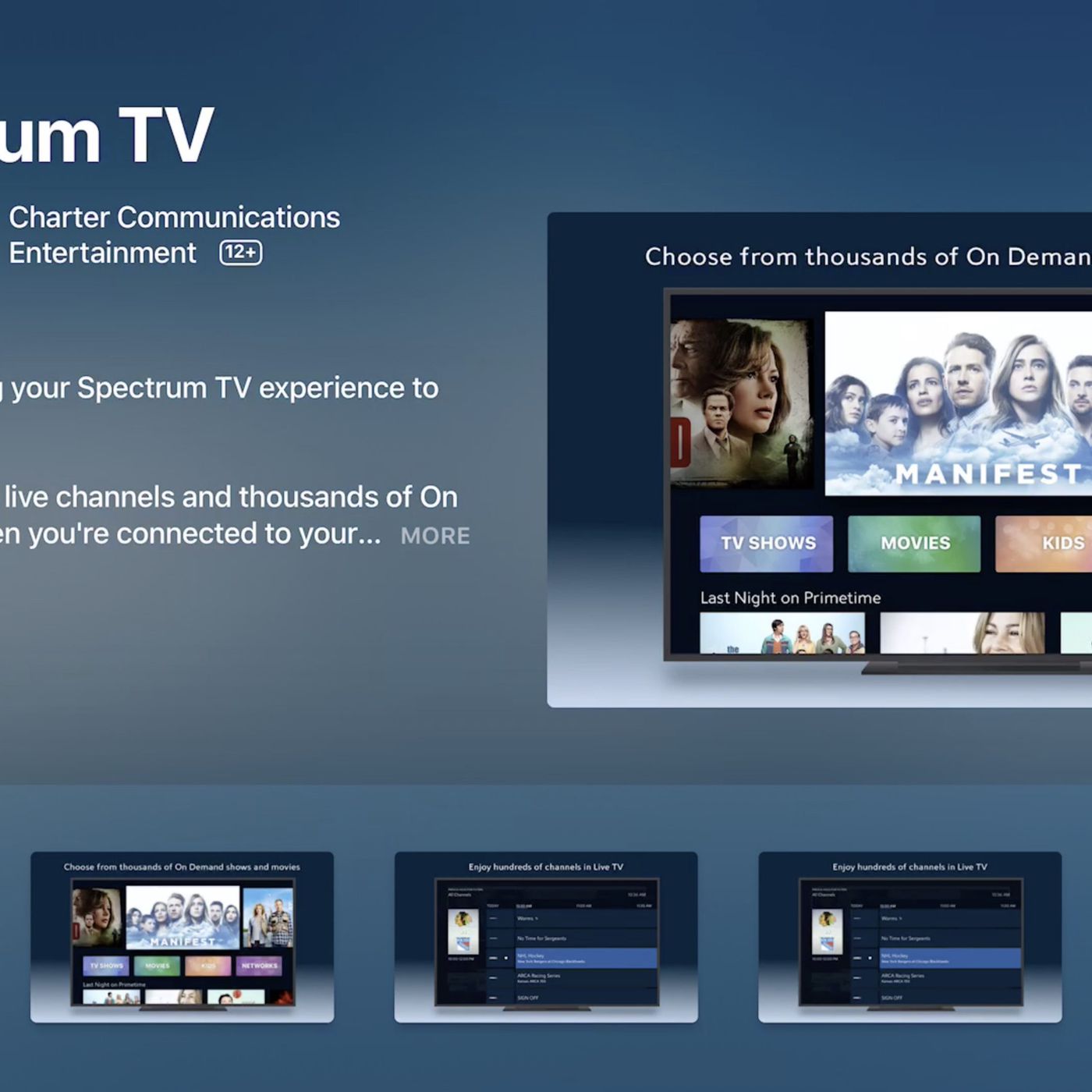
The Spectrum TV App is a free mobile app for Android and iOS devices that allows Spectrum TV customers to stream live TV and on-demand content. It is also available on smart TVs, Apple TV, Roku, Xbox One, and Google Chromecast, giving users the flexibility to watch Spectrum TV at home or on-the-go.
Additionally, the app is compatible with most smartphones, tablets, and streaming devices, providing easy access to Spectrum TV for all customers. With the Spectrum TV App, users can enjoy their favorite shows and movies anytime and anywhere.
Compatibility Of Android Tv Spectrum App
List of smart TVs compatible with the Spectrum app
If you’re a Spectrum TV customer and own a smart TV, you’ll be glad to know that the Spectrum app is compatible with a wide range of smart TV brands. This means you can now enjoy your favorite TV shows, movies, and on-demand content directly on your big screen. Here is a list of smart TV brands that support the Spectrum app:
| Brand | Model |
|---|---|
| Samsung | All Samsung smart TVs (2016 models and newer) |
| LG | All LG smart TVs (2016 models and newer) |
| Sony | All Sony Android TVs |
| Vizio | All Vizio smart TVs (2016 models and newer) |
| TCL | All TCL smart TVs (2017 models and newer) |
| Hisense | All Hisense smart TVs (2018 models and newer) |
Devices and platforms supported by the Spectrum app
Not only is the Spectrum app compatible with smart TVs, but it also supports a wide range of devices and platforms, allowing you to access your Spectrum TV content wherever you are. Here are some devices and platforms supported by the Spectrum app:
- Android smartphones and tablets
- iOS smartphones and tablets (iPhone, iPad, iPod Touch)
- Roku streaming devices
- Apple TV
- Xbox One
- Google Chromecast
Importance of compatibility for seamless streaming experience
Compatibility plays a crucial role in ensuring a seamless streaming experience when using the Spectrum app. When your smart TV or device is compatible with the app, you can enjoy all the features and functionalities without any limitations. This means you can easily navigate through the app, access your favorite channels, watch on-demand content, and even control playback using your TV remote. With compatibility, you won’t have to worry about missing out on your favorite shows or experiencing technical issues.
Therefore, before choosing a smart TV or device, it is important to check whether it is compatible with the Spectrum app. This will ensure that you can make the most of your Spectrum TV subscription and enjoy entertainment at its best, whether you’re at home or on the go.
Installing And Setting Up The Android Tv Spectrum App
Installing and Setting Up the Android TV Spectrum App
—————–
Step-by-step guide to installing the Spectrum app on Android TV
Setting up the Spectrum app on your Android TV is a straightforward process that allows you to enjoy all your favorite TV shows and movies. Here’s a step-by-step guide to installing the Spectrum app on your Android TV:
- Turn on your Android TV and connect it to the internet.
- Open the Google Play Store on your Android TV.
- Using the search bar, type “Spectrum TV” and press Enter.
- Locate the Spectrum TV app from the search results and select it.
- Click the “Install” button to begin the installation process.
- Wait for the app to download and install on your Android TV.
- Once the installation is complete, click the “Open” button to launch the Spectrum app.
Now that the Spectrum app is installed on your Android TV, you are only a few steps away from enjoying your favorite content.
Configuring settings for optimal performance
To ensure optimal performance on your Android TV Spectrum app, it’s important to configure certain settings. Here are a few tips to help you get the best experience:
- Make sure your internet connection is stable and fast.
- Check for app updates regularly to ensure you have the latest features and bug fixes.
- Adjust the video quality settings based on your internet speed to avoid buffering issues.
- Customize the closed captioning settings according to your preferences.
- Enable parental controls if you have children to filter out inappropriate content.
By following these configuration settings, you can enhance your viewing experience on the Spectrum app.
Troubleshooting common installation issues
Encountering installation issues when setting up the Spectrum app on your Android TV can be frustrating. Here are some common installation issues you may face and how to troubleshoot them:
| Issue | Solution |
|---|---|
| The app is not installing. | Make sure your Android TV has enough storage space and try reinstalling the app. If the issue persists, restart your Android TV and try again. |
| The app is crashing or freezing. | Check for app updates and install them if available. Clear the app cache and data, or uninstall and reinstall the app to resolve any software conflicts. |
| No audio or video on the app. | Ensure that your audio and video cables are securely connected to your Android TV. Check the app’s volume settings and adjust them accordingly. |
| The app is not loading any content. | Check your internet connection and make sure it is stable. If the issue persists, try restarting your Android TV and relaunching the app. |
If you are still experiencing issues after troubleshooting, it’s recommended to reach out to Spectrum customer support for further assistance.
Now that you have successfully installed and configured the Spectrum app on your Android TV, you can enjoy a wide range of entertainment options right at your fingertips.
When it comes to streaming live TV and on-demand content, the Android TV Spectrum App offers an interactive and user-friendly experience. With its intuitive interface and easy navigation features, exploring different sections and customizing preferences has never been easier. In this article, we will dive into the key aspects of navigating the Android TV Spectrum App, focusing on the user interface and navigation features, exploring different sections such as Live TV, On-Demand, Channels, and more, and customizing preferences to enhance your viewing experience.
The Android TV Spectrum App boasts a sleek and modern user interface that makes it effortless to navigate through its various features. The main screen provides a clear layout, with a menu bar at the top and different sections showcased below. From Live TV to On-Demand and Channels, you can easily switch between these sections with just a few clicks. The navigation is smooth and responsive, ensuring a seamless streaming experience.
Exploring different sections – Live TV, On-Demand, Channels, etc.
One of the standout features of the Android TV Spectrum App is the ability to explore different sections to satisfy your entertainment needs. The Live TV section allows you to stream your favorite channels in real-time, giving you access to a wide range of content at your fingertips. With a simple click, you can switch between channels and never miss out on your favorite shows or live sports events.
The On-Demand section is perfect for those who prefer to watch their favorite movies and TV shows at their own convenience. With a vast library of on-demand content, you can browse through a plethora of options and choose what you want to watch. The app also provides recommendations based on your viewing history, ensuring that you always have something new and exciting to discover.
The Channels section allows you to explore various categories and genres, making it easy to find content that aligns with your interests. From sports to news, documentaries to comedy, the Android TV Spectrum App has it all. With a simple search feature, you can quickly find specific channels or browse through the extensive channel list.
Customizing preferences and creating playlists
To personalize your streaming experience, the Android TV Spectrum App offers a range of customization options. You can easily customize your preferences by selecting your favorite channels, enabling parental control settings, and adjusting the video quality to match your internet connection. These features ensure that you have full control over your viewing experience.
In addition, the app allows you to create playlists of your favorite shows and movies. Whether you want to create a playlist of binge-worthy series or a collection of must-watch movies, the playlist feature lets you organize your content and easily access it whenever you want.
Credit: www.roku.com
Streaming Live Tv With The Android Tv Spectrum App
With the Android TV Spectrum app, you can now enjoy the convenience of streaming live TV channels right from your Android TV. This app provides a seamless and user-friendly experience, allowing you to access your favorite TV shows and movies with just a few taps of your remote. In this article, we will explore the various features of the Android TV Spectrum app, including how to access live TV channels, search for specific shows or channels, and use interactive features like pause, rewind, and fast forward.
Accessing live TV channels
When it comes to accessing live TV channels, the Android TV Spectrum app offers a wide range of options. Whether you want to catch up on the latest news, watch your favorite sports team in action, or indulge in some binge-watching, the app has got you covered. By simply launching the app on your Android TV, you will have instant access to a variety of live TV channels.
With a user-friendly interface and intuitive navigation, browsing through the available channels is a breeze. You can easily scroll through the channel list or use the search function to find a specific channel. Once you’ve found your desired channel, simply select it, sit back, and enjoy the live broadcast in high-definition quality.
Searching for specific channels or shows
Searching for specific channels or shows has never been easier with the Android TV Spectrum app. Whether you want to watch your favorite TV series, sports events, or news programs, the app allows you to search for them effortlessly.
Simply navigate to the search feature within the app and enter the name of the channel or show you’re looking for. The app will instantly display relevant results, making it easy for you to find your desired content. You can even use voice search for a hands-free experience. So, whether you want to catch up on the latest episode of your favorite show or want to watch a specific sporting event, the Android TV Spectrum app has got you covered.
Using interactive features like pause, rewind, and fast forward
The Android TV Spectrum app not only allows you to stream live TV channels but also provides interactive features that enhance your viewing experience. With features like pause, rewind, and fast forward, you have complete control over your TV watching.
If you need to take a break from watching your favorite show, simply pause it and resume it later from where you left off. Want to catch that epic moment again? Just rewind and relive the action. And if you need to skip ahead, fast forward through the commercials or parts you’ve already seen.
The interactive features of the Android TV Spectrum app ensure that you never miss a moment of your favorite shows or movies. With just a few clicks of your remote, you have the power to control your entertainment experience.
Exploring On-Demand Content With The Android Tv Spectrum App
When it comes to accessing a wide range of on-demand movies and shows, the Android TV Spectrum App is a game-changer. With its user-friendly interface and effortless navigation, this app opens up a whole new world of entertainment possibilities. Let’s dive into some of the exciting features that make exploring on-demand content a breeze.
Browsing and searching for on-demand movies and shows
Browsing and searching for your favorite on-demand movies and shows has never been easier with the Android TV Spectrum App. Whether you are in the mood for a classic movie or a trending TV series, the app provides a seamless browsing experience. Simply navigate through different genres, explore popular titles, or use the search feature to find exactly what you are looking for. With just a few clicks, you can dive into a world of captivating content.
Creating watchlists and managing favorite content
Keeping track of your favorite shows and movies has never been simpler. With the Android TV Spectrum App, you can create personalized watchlists to organize and manage your favorite content. Whether you want to catch up on a series or bookmark a movie for later, this feature ensures you never miss out on the content that matters to you. Plus, you can easily access and update your watchlists across multiple devices, making it convenient to continue watching your favorites wherever you go.
Recommendations and personalized content suggestions
One of the standout features of the Android TV Spectrum App is its ability to provide personalized content suggestions. Gone are the days of endlessly scrolling through options that don’t interest you. The app analyzes your viewing habits and preferences to offer tailored recommendations, ensuring that you discover new and exciting content that aligns with your interests. With these personalized suggestions, you can expand your horizons and explore content that you may not have found otherwise.
In conclusion, the Android TV Spectrum App revolutionizes the way we interact with on-demand content. Its intuitive browsing and searching capabilities, along with the convenience of creating watchlists and personalized recommendations, make it a must-have for any entertainment enthusiast. Download the app today and embark on a thrilling journey of exploring your favorite movies and shows like never before.
Additional Features And Functionality Of The Android Tv Spectrum App
The Android TV Spectrum App offers a wide range of additional features and functionalities that enhance your streaming experience. Let’s explore some of the key features that make this app stand out:
Integration with other streaming services
With the Android TV Spectrum App, you can seamlessly integrate your favorite streaming services, such as Netflix, Hulu, and Amazon Prime Video, all in one place. Say goodbye to switching between different apps and enjoy a unified streaming experience. Simply log in to your accounts and access your favorite shows and movies from a single app.
Parental control options
Keeping your children safe while they enjoy their favorite content is a top priority. The Android TV Spectrum App offers a variety of parental control options to help you manage and restrict what your children can access. Set age-based restrictions, block specific content, and create personalized viewing profiles for each family member. Take full control of your family’s streaming experience.
Accessibility features for users with disabilities
The Android TV Spectrum App is committed to inclusivity by providing a range of accessibility features for users with disabilities. With closed captioning and audio description options, visually impaired and hearing-impaired individuals can enjoy their favorite shows and movies with ease. The app also supports screen magnification and color inversion for users with visual impairments. Everyone deserves equal access to entertainment, and the Android TV Spectrum App ensures that.
From integrating multiple streaming services to providing robust parental control options and accessibility features, the Android TV Spectrum App goes above and beyond to deliver a comprehensive and inclusive streaming experience. Take full advantage of these additional features and enhance your entertainment time.
Tips And Tricks For An Enhanced Android Tv Spectrum App Experience
Enhance your Android TV Spectrum App experience with these tips and tricks that will optimize video quality, provide hands-free control through voice commands, and maximize app performance while minimizing latency.
Optimizing Video Quality and Buffering
Buffering and low-quality video can be frustrating when trying to enjoy your favorite shows or movies. By following these tips, you can improve your video streaming experience:
- Make sure you have a stable internet connection to avoid interruptions and buffering.
- Check your internet speed and consider upgrading if it’s lower than recommended for streaming.
- Position your Android TV device closer to your Wi-Fi router to improve signal strength.
- Reduce the number of devices connected to your Wi-Fi network to reduce network congestion.
- Close any background apps or processes that may be using up bandwidth.
- Try using an Ethernet cable instead of Wi-Fi for a more stable connection.
- Clear the cache and data of the Spectrum app regularly to keep it running smoothly.
Using Voice Commands for Hands-Free Control
With the Android TV Spectrum App, you can control your TV and navigate through the app using voice commands for a hands-free experience. Here’s how to take advantage of this feature:
- Ensure your Android TV device is connected to a microphone or a remote with a built-in microphone.
- Press the microphone button on your remote or say the wake phrase, “Hey Google” to activate the voice command feature.
- Use commands like “Play [show/movie name],” “Go to channel [channel number],” or “Open the guide” to control the app and your TV.
- Experiment with different voice commands to discover more functionalities, such as adjusting volume, launching other apps, or searching for specific genres.
Maximizing App Performance and Minimizing Latency
To ensure smooth performance and minimal latency with the Android TV Spectrum App, follow these tips:
- Keep your Android TV device and the app updated with the latest software versions.
- Regularly check for updates in the Google Play Store and install them when available.
- Close any unnecessary apps running in the background to allocate more resources to the Spectrum app.
- Consider clearing the cache and data of other apps to free up storage space and improve overall device performance.
- If you experience significant latency or issues, try restarting your Android TV device to resolve any temporary glitches.
- Ensure your Android TV device meets the minimum system requirements recommended by Spectrum to guarantee optimal performance.
By following these tips and tricks, you can enhance your Android TV Spectrum App experience, allowing you to enjoy high-quality video streaming, hands-free control, and smooth app performance.
Frequently Asked Questions On Android Tv Spectrum App
Does Android Smart Tv Have Spectrum App?
Yes, Android Smart TV does have the Spectrum app. You can download and install the Spectrum TV app on your Android Smart TV to stream live TV and on-demand content. It is available for free to Spectrum TV customers and can be used at home or on the go.
What Smart Tvs Support The Spectrum App?
The Spectrum TV app is available on Android smart TVs. It allows customers to stream live TV and On Demand content on their smart TV, along with other compatible devices such as Apple TV, Roku, Xbox One, and Google Chromecast.
Is The Spectrum Tv App In The Google Play Store?
Yes, the Spectrum TV app is available in the Google Play store. It is a free app that allows Spectrum TV customers to stream live TV and On Demand content on their mobile devices or smart TVs.
Does Spectrum Have A Mobile Tv App?
Yes, Spectrum has a mobile TV app that allows customers to stream live TV and on-demand content on their mobile devices or smart TVs. The app is available for free and compatible with most smartphones, tablets, and streaming devices.
Conclusion
Stream live TV and On Demand content with the Spectrum TV App on your Android TV and enjoy the convenience of watching your favorite shows anytime, anywhere. With compatibility across various devices, including smartphones, tablets, Roku, Apple TV, Xbox, Google Chromecast, and Samsung Smart TVs, Spectrum TV App enhances your TV viewing experience.
Download the app today and unlock access to a wide range of channels and programs, ensuring entertainment at your fingertips. Stream, relax, and enjoy the world of television with the Spectrum TV App.
