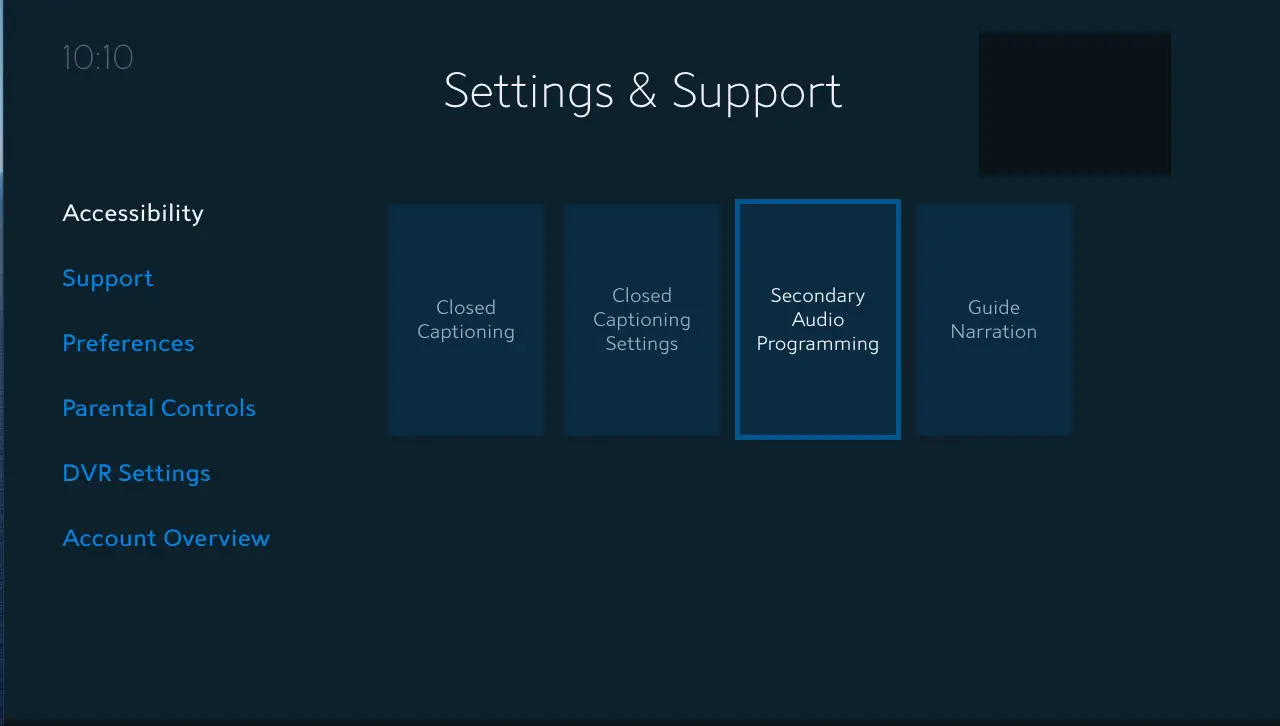
To turn off subtitles on Spectrum TV, navigate to the “Settings” menu and select “Accessibility.” Then, choose “Closed Captioning” and disable the option.
This simple process allows you to turn off subtitles on your Spectrum TV. If you’re a Spectrum TV user, you may occasionally find yourself in need of turning off subtitles while watching your favorite programs. Whether you’re looking to remove distractions or prefer to watch without captions, understanding how to disable subtitles on Spectrum TV is essential.
By following a few easy steps, you can easily customize your viewing experience and enjoy your shows and movies without the distraction of subtitles. In this guide, we will walk you through the process of turning off subtitles on Spectrum TV, ensuring you can navigate the settings with ease and watch your content exactly as you prefer.
Understanding Spectrum Tv Subtitles
Importance Of Subtitles For Accessibility
Spectrum TV subtitles play a crucial role in enhancing the accessibility of TV shows and movies for individuals with hearing impairments or those who speak a different language. Subtitles allow these users to follow the dialogues and understand the content with ease. This accessibility feature is invaluable in ensuring that all viewers can enjoy the programming offered through Spectrum TV.
How Subtitles Can Interfere With Clear Viewing
While subtitles are essential for accessibility, they can also interfere with the viewing experience for some users. In some cases, the presence of subtitles on the screen may distract from the visual content, particularly during scenes with fast-paced action or important visual details. It’s important for users to have the option to disable subtitles when they prefer an unobstructed viewing experience.
Spectrum Tv And User Accessibility Options
Spectrum TV recognizes the importance of providing comprehensive user accessibility options. In addition to subtitles, the platform offers a range of settings that allow users to customize their viewing experience according to their preferences. This includes the ability to adjust subtitle font size, color, and background to suit individual needs. By incorporating these accessibility features, Spectrum TV ensures that all users can fully enjoy the content while catering to their specific needs.
When it comes to customizing your Spectrum TV experience, navigating the settings is essential. Whether you want to turn off subtitles, adjust the audio, or change the display settings, navigating the Spectrum TV settings menu allows you to tailor your viewing experience to your preferences.
Accessing The Main Menu On Spectrum Tv
When you access the Spectrum TV main menu, you gain access to all the settings and options for your viewing experience. To access the main menu on Spectrum TV:
- Using your remote, press the menu button.
- Navigate to the Settings option using the arrow buttons.
- Press the OK button to enter the Settings menu.
Key Sections In The Settings For Subtitles
Once you’ve accessed the main menu on Spectrum TV, you can easily find the settings for subtitles. Simply follow these steps:
- Scroll to the Accessibility option by using the arrow buttons on your remote.
- Press the OK button to enter the Accessibility settings.
- Navigate to the Subtitles option and press the OK button to enter the Subtitles settings.
- Toggle the Subtitles option to Off to disable subtitles. Press the OK button to confirm your selection.
Disabling Subtitles On Spectrum Guide
Disabling subtitles on Spectrum Guide is a simple process that allows you to customize your viewing experience according to your preferences. By turning off subtitles, you can enjoy your favorite shows and movies without any distractions. In this guide, we will walk you through the steps to disable subtitles on Spectrum TV.
Steps To Access Spectrum Guide Settings
To begin, you need to access the settings for the Spectrum Guide. This can be done by following these steps:
- Press the “Menu” button on your Spectrum remote control.
- Navigate to the “Settings” option using the arrow keys and press “OK”.
- From the Settings menu, select “Display” and press “OK”.
Selecting The Accessibility Tab
Once you have accessed the Display settings, you will need to select the “Accessibility” tab to proceed. Here’s how you can do it:
- Scroll down to find the “Accessibility” option and press “OK”.
Turning Off Subtitles Via Spectrum Guide
After selecting the Accessibility tab, you can easily turn off subtitles by following these simple steps:
- Scroll to the “Closed Caption” option using the arrow keys and press “OK”.
- Choose the “Closed Captioning” option and select “Off” to disable subtitles.
- Press “OK” to save the changes and exit the settings menu.
Spectrum Tv Remote Shortcuts
When it comes to enhancing your television viewing experience, knowing the various shortcuts on your Spectrum TV remote control can be incredibly helpful. One such useful feature is the ability to control subtitles with just a few clicks. This article will guide you through the process of utilizing your Spectrum TV remote’s shortcuts to turn off subtitles, ensuring you enjoy your favorite shows and movies exactly the way you prefer.
Utilizing Remote Control For Subtitle Settings
If you find yourself in need of turning off subtitles while watching a program on Spectrum TV, you can easily achieve this by utilizing the remote control’s dedicated shortcuts. Follow the simple steps below to seamlessly manage your subtitle preferences:
- Ensure your Spectrum TV receiver is switched on and your TV is set to the appropriate input source.
- Using the Spectrum remote control, navigate to the program or channel for which you want to adjust the subtitle settings.
- Press the Menu button on your remote control to access the main menu.
- Scroll through the menu options using the arrow buttons and locate the Subtitles or Closed Captioning settings.
- Once you have highlighted the subtitle settings, use the OK button to enter the submenu.
- Select the ‘Off’ option to disable subtitles and return to your program with the changes applied.
Shortcut Buttons For Closed Captioning
Alternatively, if you prefer quick and easy access to closed captioning controls, your Spectrum TV remote offers convenient shortcuts to manage this feature on the fly. With the following shortcut buttons, you can effortlessly toggle closed captioning settings while watching TV:
| Button | Function |
|---|---|
| CC | Enables/disables closed captioning |
| Info | Displays information about the currently playing program, including closed captioning options |
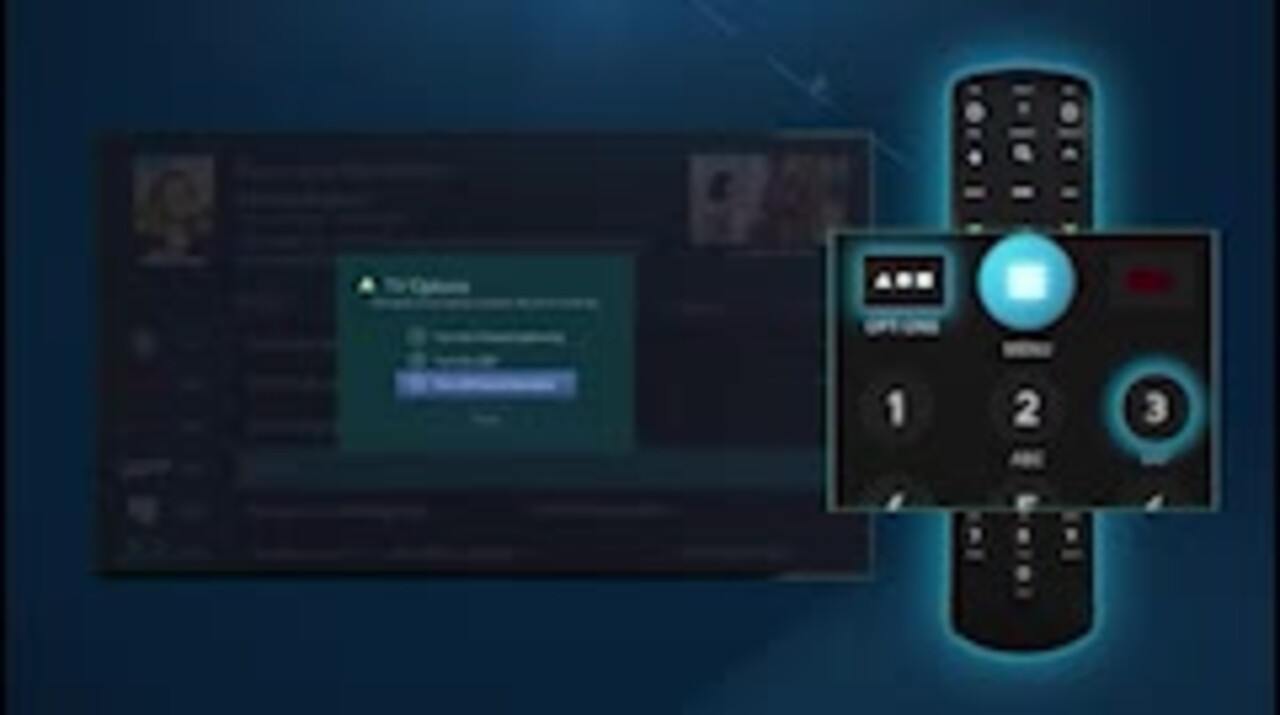
| Options | Accesses a menu allowing you to modify closed captioning settings |
By utilizing these shortcut buttons, you can swiftly manage closed captioning settings as per your preferences without interrupting your viewing experience.
Checking For Successful Subtitle Removal
After turning off subtitles on your Spectrum TV, it’s important to verify that the settings have successfully taken effect. This ensures a clear and uninterrupted viewing experience without any distracting subtitles. Here’s how you can check for successful subtitle removal:
Verifying The Settings Have Taken Effect
- Step 1: Press the “Info” button on your Spectrum remote while watching a program to display the Info banner.
- Step 2: Look for the “CC” or “Subtitles” option in the Info banner. If it’s no longer displayed, the subtitles have been successfully turned off.
- Step 3: If the subtitles are still visible, navigate to the Settings menu and double-check the “Closed Captioning” or “Subtitles” settings to ensure they are disabled.
Ensuring Clear Viewing Without Subtitles
Once you’ve verified that the subtitles have been removed, it’s crucial to ensure a clear viewing experience without any unwanted text on the screen. By following these steps, you can make sure that the subtitles are no longer affecting your viewing:
- Check different channels and programs to confirm that the subtitles are turned off universally and not just for a specific channel or show.
- Pause and resume playback to ensure that the subtitles do not reappear when starting or stopping a program.
Troubleshooting Common Issues Related To Subtitles
In some cases, you may encounter issues with subtitle removal despite following the steps. Here are some common issues and troubleshooting tips to address them:
| Issue | Troubleshooting Tip |
|---|---|
| Subtitles persist on certain channels | Adjust the closed captioning settings specifically for that channel to turn off subtitles. |
| Subtitles reappear after changing channels | Ensure that the subtitle settings are applied universally across all channels and not specific to individual programs. |
Ensuring Clear Viewing Post Adjustment
Enjoying Spectrum Tv Without Subtitles
Once you’ve adjusted the settings to turn off subtitles on Spectrum TV, you can enjoy your favorite shows and movies without any distractions. With clear viewing and no text cluttering the screen, you can fully immerse yourself in the content and have an enhanced viewing experience.
Additional Settings To Enhance Viewing Experience
Aside from turning off the subtitles, there are additional settings that can further improve your viewing experience on Spectrum TV. By adjusting the picture and sound settings, you can tailor the display to your preferences and ensure optimal audio and visual quality.
Credit: www.spectrum.net
Frequently Asked Questions For How To Turn Off Subtitles On Spectrum Tv
How Do I Turn Off Subtitles On Spectrum Tv?
To turn off subtitles on Spectrum TV, simply press the “CC” or “Text” button on your remote. Select “Off” to disable subtitles. If you’re using the Spectrum TV app, go to the video player settings and toggle off the subtitles option.
Can I Customize The Appearance Of Subtitles On Spectrum Tv?
Yes, you can customize the appearance of subtitles on Spectrum TV. Navigate to the accessibility settings on your TV or the Spectrum TV app. From there, you can adjust the font size, color, and background to suit your preferences.
Are Subtitles Available For All Shows And Movies On Spectrum Tv?
Subtitles are available for most shows and movies on Spectrum TV. However, some older content or certain live broadcasts may not have subtitles. Check the show or movie details to see if subtitles are available for a specific program.
Conclusion
Turning off subtitles on Spectrum TV is an easy process that can enhance your viewing experience. By following the simple steps outlined in this blog post, you can enjoy your favorite shows and movies without the distraction of subtitles. With this knowledge, you can now fully utilize your Spectrum TV subscription to its fullest potential.
