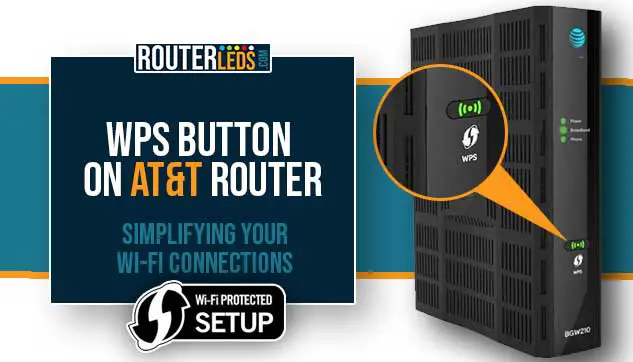
The WPS button on your Spectrum router allows you to quickly connect devices to your Wi-Fi network without entering the password. It simplifies the process of adding devices to your network securely.
The WPS button, or Wi-Fi Protected Setup, is a feature on your Spectrum router that enables easy connection of devices to your Wi-Fi network. By pressing the WPS button on both your router and the device you want to connect, the two will automatically pair without the need to input the Wi-Fi password.
This can be particularly useful for guests or when setting up new devices swiftly. Understanding and using the WPS button can enhance the user experience and provide a more convenient way to connect devices to your Spectrum Wi-Fi network.
Unlocking Wps Features On Spectrum Routers
If you’ve ever wondered about the little “WPS” button on your Spectrum router and what it actually does, this article is for you. The WPS (Wi-Fi Protected Setup) button is a nifty feature that can help simplify the process of connecting devices to your home network. In this post, we’ll delve into the function of WPS, its benefits, and how to make the most of this convenient feature on your Spectrum router.
Understanding The Function Of Wps
WPS is designed to make the process of connecting devices to your Wi-Fi network as hassle-free as possible. Essentially, by pressing the WPS button on your router and then on your device within a short timeframe, you can establish a secure connection without the need to manually enter your network’s SSID and password.
Benefits Of Using Wps For Network Connectivity
Utilizing WPS for network connectivity brings several advantages, such as:
- Convenience: WPS offers a simpler and quicker method of adding devices to your network without the need to input lengthy Wi-Fi passwords.
- Enhanced Security: Despite its ease of use, WPS ensures that the connection process remains secure by employing advanced encryption protocols.
- Compatibility: WPS is supported by a wide array of routers and devices, making it a versatile option for seamless network connectivity.
When it comes to setting up your Spectrum router, understanding the WPS button is important for quickly and securely connecting your devices. Navigating to Your Router’s WPS Button can be a straightforward process once you know where to look.
Locating The Physical Wps Button
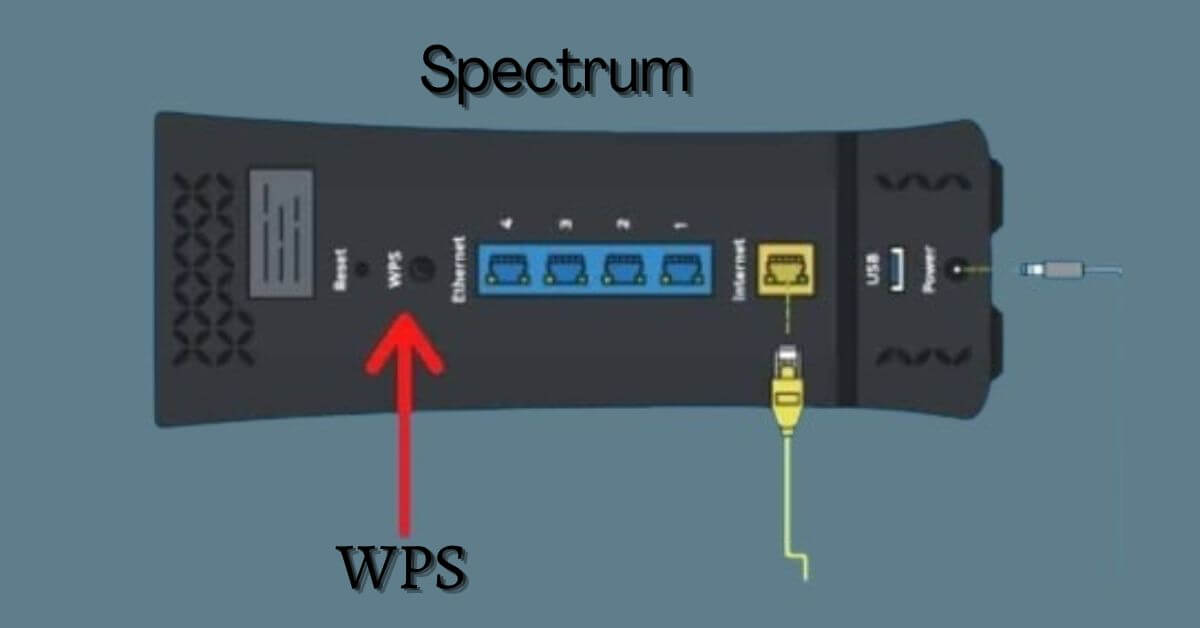
If you want to use the WPS feature on your Spectrum router, the first step is to locate the physical WPS button on the device. The location of the WPS button may vary depending on the router model, but it is often labeled as “WPS” and can typically be found on the front or back panel of the router. Some routers have the WPS button on the top or side panel. Refer to the user manual or the manufacturer’s website for specific guidance on finding the WPS button on your particular router model.
Alternative Ways To Access Wps Features
If your Spectrum router doesn’t have a physical WPS button or you find it inconvenient to use, there are alternative ways to access WPS features. One method is to access the router’s web interface through a web browser. You can do this by entering the router’s IP address in the browser’s address bar, logging in with your credentials, and navigating to the WPS settings in the router’s configuration interface. Another alternative is using the WPS PIN code method, which allows you to connect devices to the router without pressing the physical WPS button. This can be done by entering the WPS PIN code into the device’s network settings to establish a secure connection.
Simplify Setup With Wps On Spectrum
The WPS (Wi-Fi Protected Setup) button on your Spectrum router is designed to simplify the process of connecting your devices to your wireless network. By pressing the WPS button, you can quickly establish a secure connection without having to manually enter the network password. This blog post will explain how WPS enhances your wireless network setup process and provide a step-by-step guide to connecting devices with WPS.
How Wps Enhances Your Wireless Network Setup Process
WPS streamlines the setup process by eliminating the need to enter the network password manually. This not only saves time but also reduces the possibility of errors when entering the password. With WPS, you can quickly connect devices to your network without having to navigate through complex setup menus.
Step-by-step Guide To Connecting Devices With Wps
To connect a device using WPS, follow these simple steps:
- Press the WPS button on your router. This will activate the WPS mode, indicated by a blinking light on the router.
- On your device, navigate to the Wi-Fi settings and locate the WPS option. Select this option to initiate the WPS connection process.
- Once the device detects the WPS-enabled router, the connection will be established automatically. You will receive a confirmation message indicating a successful connection.
It’s important to note that not all devices support WPS, so it’s advisable to check the device’s user manual or manufacturer’s website to confirm compatibility.
Credit: robots.net
Troubleshooting Wps Issues
When it comes to troubleshooting WPS issues on your Spectrum router, it’s important to understand the common problems and solutions that may arise. By familiarizing yourself with these potential issues, you can effectively troubleshoot connectivity problems and optimize your router’s performance.
Common Wps Connection Problems And Solutions
If you encounter issues with the WPS connection on your Spectrum router, it can be frustrating and disruptive to your internet usage. Here are some common problems you might experience, along with their solutions:
- Weak Signal: If the WPS connection is not successful, try moving closer to the router to ensure a strong signal.
- Incorrect PIN: Double-check that the WPS PIN entered during the setup process is accurate, as an incorrect PIN can lead to connection issues.
- Interference: Nearby electronic devices or appliances can cause interference with the WPS connection. Try relocating the router away from potential sources of interference.
- Outdated Firmware: Ensure that your router’s firmware is up to date, as outdated software can lead to connectivity problems.
When To Avoid Using Wps And Opt For Manual Setup
While WPS can offer convenience, there are situations where manual setup may be a more reliable option. Here are some scenarios where you should avoid using WPS and opt for manual configuration:
- Security Concerns: WPS has known vulnerabilities that can compromise the security of your network. For enhanced security, it’s advisable to avoid using WPS and manually configure your router.
- Compatibility Issues: Some devices may not fully support WPS, leading to connectivity problems. In such cases, manual setup can provide a more stable connection.
- Advanced Configuration: If you require specific network settings or advanced configuration options, manual setup gives you greater control and customization.
Maximize Your Network Security
When it comes to securing your wireless network, the WPS (Wi-Fi Protected Setup) button on your Spectrum router plays a vital role. By understanding the balance between WPS convenience and network security, as well as implementing best practices, you can ensure that your wireless network remains secure while enjoying the ease of WPS setup.
The Balance Between Wps Convenience And Network Security
WPS offers the convenience of quickly connecting devices to your wireless network without the need to enter a password. However, this convenience comes with potential security risks. The WPS button on your Spectrum router allows devices to be paired with the network with the press of a button, which, if not managed properly, can lead to unauthorized access. Balancing WPS convenience with network security is essential to safeguard your data and privacy.
Best Practices For Keeping Your Wireless Network Secure With Wps Enabled
- Change the default WPS PIN: If your router allows it, change the default WPS PIN to a custom one to strengthen security.
- Disable WPS when not in use: When you’re not actively adding new devices to your network, disable the WPS feature to prevent unauthorized connections.
- Regularly update router firmware: Keeping your router’s firmware up to date helps protect against known vulnerabilities and ensures the latest security patches are in place.
- Use strong encryption: Enable WPA2 or WPA3 encryption for your wireless network to add an extra layer of security for WPS-enabled devices.
Frequently Asked Questions For What Is The Wps Button On My Spectrum Router
What Is The Wps Button On The Spectrum Router?
The WPS button on your Spectrum router stands for Wi-Fi Protected Setup. It allows you to connect devices to your Wi-Fi network without the need for a password. By simply pressing the WPS button, you can easily set up a secure connection.
How Do I Use The Wps Button On My Spectrum Router?
To use the WPS button on your Spectrum router, first, locate the button on the device. Then, press the WPS button on your router and follow the instructions on the device you want to connect. This allows for seamless and secure connection without needing to enter the Wi-Fi password.
Is It Secure To Use The Wps Function On My Spectrum Router?
Using the WPS button on your Spectrum router is generally secure. However, it is important to keep in mind that some older devices may not support the latest WPS security standards. Always ensure your router’s firmware is up to date to maintain optimal security.
Can I Disable The Wps Feature On My Spectrum Router?
Yes, you can disable the WPS feature on your Spectrum router. Access your router’s settings through the web interface or app, and navigate to the Wi-Fi settings to disable the WPS function. This can provide an extra layer of security for your Wi-Fi network.
Conclusion
Understanding the WPS button on your Spectrum router is essential for seamless connectivity. By following the simple steps outlined in this post, you can easily set up secure and efficient connections. Remember to prioritize network security and enjoy the benefits of this easy-to-use feature.
With proper knowledge of the WPS button, you can optimize the performance of your Spectrum router.
