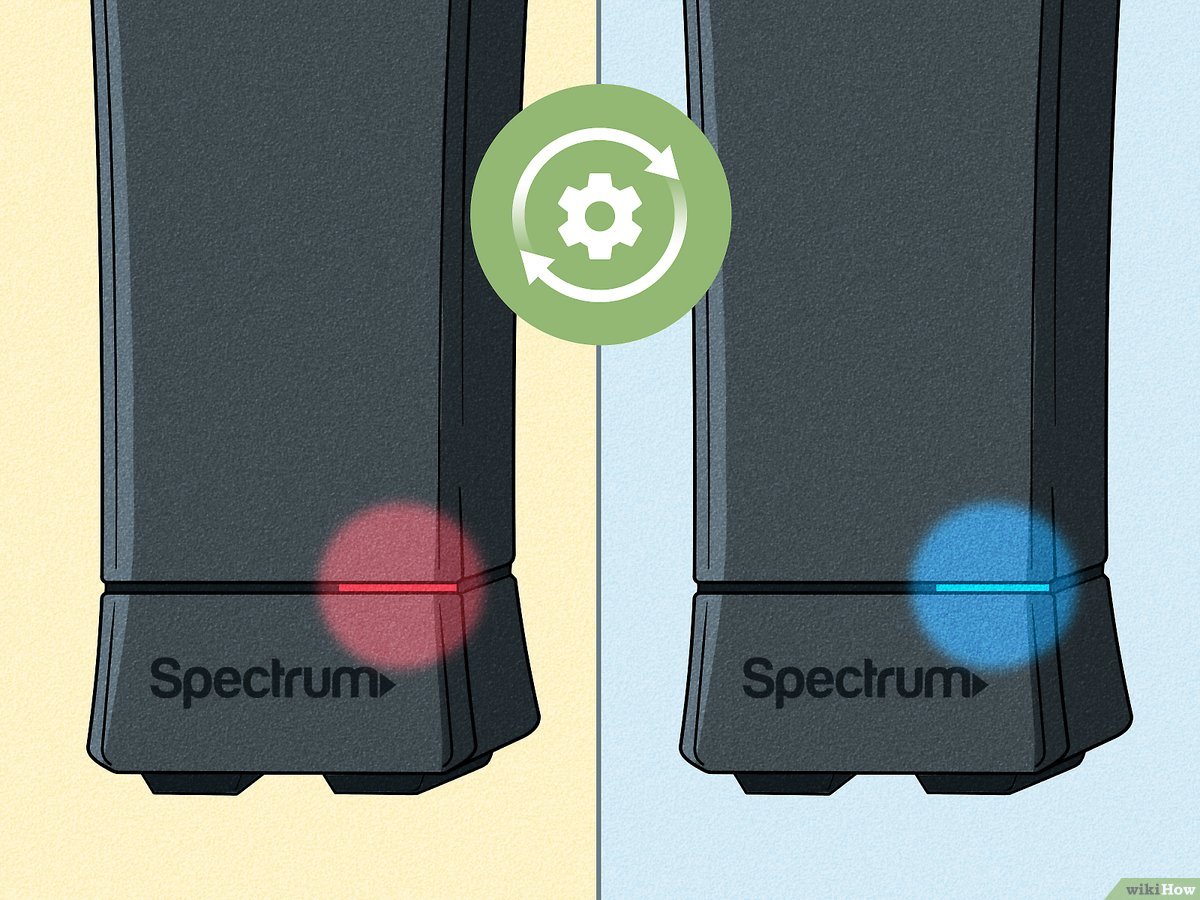
The red light on your Spectrum WiFi router indicates a connectivity issue or an error in your network setup. Spectrum WiFi router red light indicates a problem with connectivity or network setup.
If you see a red light on your Spectrum WiFi router, it could mean that your internet connection is not working properly or that there is an issue with the setup of your network. This could be due to various reasons, such as a faulty internet connection, a problem with the router’s firmware, or incorrect network settings.
We will explore the possible reasons for the red light on your Spectrum WiFi router and provide troubleshooting steps to help you resolve the issue. By following these steps, you should be able to get your Spectrum WiFi router up and running smoothly again.
Loose Connection Or Power Supply Issue
If you are experiencing a red light on your Spectrum WiFi router, it could indicate a loose connection or a power supply issue. These are common problems that can disrupt the functionality of your router and should be addressed promptly. In this article, we will explore the possible causes for this red light and provide some troubleshooting steps to help you resolve the issue.
Loose power cable connection
A loose power cable connection is one of the most common reasons for a red light on your Spectrum WiFi router. If the power cable is not securely plugged into the router, it may cause intermittent power supply issues. To resolve this problem, follow these steps:
- Unplug the power cable from the router.
- Inspect the power cable for any visible damage or fraying. If you notice any issues, consider replacing the cable.
- Make sure the power outlet is functioning properly by plugging in another device.
- Insert the power cable firmly into the power port of the router.
- Check if the red light on the router has turned off. If not, proceed to the next troubleshooting step.
Faulty power adapter
A faulty power adapter can also cause a red light on your Spectrum WiFi router. If the power adapter is damaged or not functioning correctly, it may not supply enough power to the router, resulting in connectivity issues. To troubleshoot this problem, follow these steps:
- Unplug the power adapter from the wall outlet and the router.
- Inspect the power adapter for any physical damage or signs of wear and tear.
- If you notice any issues, contact your service provider to request a replacement power adapter.
- Once you have a new power adapter, plug it into the wall outlet and the router.
- Check if the red light on the router has turned off. If not, move on to the next troubleshooting step.
Power outage in the area
In some cases, a red light on your Spectrum WiFi router may be due to a power outage in your area. Before assuming there is a problem with your router, it is essential to verify if there is a power outage. To do this:
- Check if the lights in your house are working correctly. If not, there may be a power outage.
- Contact your local power utility company or check their website for any reported power outages.
- If there is a power outage, you will need to wait until the power is restored to resolve the issue with the red light on your router.
By following these troubleshooting steps, you can identify and resolve the loose connection or power supply issue causing the red light on your Spectrum WiFi router. However, if the problem persists, it is recommended to contact your service provider for further assistance.
Credit: www.reddit.com
Network Connectivity Problems
Network connectivity problems can be frustrating, especially when you rely on a stable internet connection for your daily tasks. One common issue that Spectrum Wifi Router users encounter is the red light on their router, indicating a problem with network connectivity. In this article, we will discuss some of the possible reasons behind this connectivity issue and how to resolve them.
Weak or unstable internet signal
If you are experiencing a red light on your Spectrum Wifi Router, one possible reason could be a weak or unstable internet signal. This means that the router is struggling to establish a reliable connection with your internet service provider. To address this issue, you can try the following:
- Reposition your router: Ensure that your router is placed in a central location, away from obstructions such as walls or large objects that may interfere with the signal.
- Check for signal interference: Other electronic devices or appliances near your router could cause signal interference. Move these devices away or turn them off to see if it improves the signal strength.
- Upgrade your router: If you consistently have a weak signal, it may be worth considering upgrading to a router with better range and performance.
Router not connected to the modem properly
Another reason for the red light on your Spectrum Wifi Router could be that it is not properly connected to the modem. It is essential to ensure that the router and modem are connected correctly for a stable internet connection. Follow these steps to confirm the connection:
- Check the cables: Make sure that the ethernet cable is securely connected to the router’s WAN or internet port and the modem.
- Restart your devices: Try power cycling both your router and modem by unplugging them, waiting for a few seconds, and then plugging them back in. This can help establish a fresh connection.
- Reset the router: If the issue persists, you can try resetting your router to its factory settings. Keep in mind that this will erase any custom settings you have made.
Incorrect network settings
Incorrect network settings can also lead to a red light on your Spectrum Wifi Router. Check the following settings to ensure they are correctly configured:
- SSID and password: Verify that the network name (SSID) and password you are using are correct. In some cases, the router’s default settings might have been changed.
- IP address settings: Ensure that your router is set to obtain IP addresses automatically or has the correct IP settings for your network.
- Firewall settings: Check if your router’s firewall settings are too restrictive, causing issues with network connectivity. Adjust the settings if needed.
By addressing these network connectivity problems, you can resolve the red light issue on your Spectrum Wifi Router and enjoy a stable and reliable internet connection once again.
Firmware Or Software Issues
Firmware or Software Issues
When it comes to troubleshooting the red light issue on your Spectrum WiFi router, one of the possible causes could be firmware or software issues. Firmware refers to the embedded software that runs on your router, while software issues involve glitches, bugs, or configuration errors in the router’s software.
Outdated router firmware
Outdated router firmware is one of the common reasons for the red light on your Spectrum WiFi router. Firmware updates are released by manufacturers to improve the router’s performance, security, and compatibility with the latest technologies.
If your router is running on outdated firmware, it may encounter compatibility issues with your devices or fail to function properly. To resolve this, check for any available firmware updates from Spectrum or the router manufacturer. Updating the firmware is usually a straightforward process, and it can be done through the router’s administration interface.
Configuration errors in router settings
Configuration errors in the router settings can also contribute to the red light problem. These errors can occur due to incorrect network settings, misconfigured security settings, or conflicts with other devices on the network.
To rectify this issue, access your router’s settings by entering its IP address in a web browser. Ensure the network settings are correctly configured, including the IP address, subnet mask, and default gateway. Verify the security settings and ensure they match the requirements of your devices.
If you are unsure about the correct settings, you can contact your Internet Service Provider (ISP) or refer to the router’s user manual. Additionally, power cycling the router can also help resolve configuration errors. Simply unplug the router from the power source, wait for a few seconds, and then plug it back in.
Router software glitch or bug
If neither outdated firmware nor configuration errors seem to be the cause of the red light on your Spectrum WiFi router, a software glitch or bug might be the culprit. Software glitches can occur due to various reasons, such as conflicts with other software or improper shutdown of the router.
To troubleshoot this issue, try resetting the router to its default settings. This will revert any software changes or configurations back to the original state. Most routers have a reset button that can be pressed using a paperclip or similar pointed object. Hold down the button for about 10 seconds until the router restarts.
If the red light issue persists even after resetting the router, you may need to contact Spectrum customer support for further assistance. They can provide guidance on advanced troubleshooting steps or help you determine if a replacement router is necessary.
Check Power Supply And Connection
Your Spectrum WiFi router’s red light can indicate a power supply or connection issue. To resolve this problem, you should first check the power supply and connection. Follow these steps:
Verify power cable connection
Ensure that the power cable is properly connected to both the Spectrum WiFi router and the power source. Sometimes, the power cable might become loose due to accidental movement or other reasons. Check both ends of the cable to ensure a secure connection. If necessary, gently disconnect and reconnect the power cable to ensure a proper connection.
Test power outlet with another device
To eliminate the possibility of a faulty power outlet, it is essential to test it with another device. Choose a device with a compatible power adapter, such as a smartphone charger or laptop charger, and plug it into the power outlet. Make sure the device receives power and functions properly. If the second device also fails to receive power or function correctly, there might be an issue with the power outlet itself. It is recommended to consult an electrician to resolve any electrical issues.
Replace faulty power adapter if necessary
If the power cable, power outlet, and connections all seem to be functioning correctly, the problem might lie with the power adapter. Over time, power adapters can wear out or become faulty. In such cases, it is advisable to replace the power adapter with a new one. Ensure that the replacement power adapter is compatible with your Spectrum WiFi router model. You can contact your router’s manufacturer or Spectrum customer support for assistance in acquiring a suitable replacement.
Note: When connecting and disconnecting cables or replacing the power adapter, always ensure that the router is powered off to prevent any potential electrical damage.
By following these steps and checking the power supply and connection, you can troubleshoot the red light issue on your Spectrum WiFi router. Remember to test each component carefully and seek professional help if needed.
Ensure Proper Network Setup
If you’re experiencing a red light on your Spectrum WiFi router, it indicates an issue with your network setup. To ensure a proper network setup, you’ll need to check the cable connections between your router and modem, restart both devices, and update the network settings if needed. Follow the steps below to troubleshoot the red light issue on your Spectrum WiFi router.
<h3>Check cable connections between router and modem</h3>
Start by verifying the cable connections between your router and modem. A loose or damaged cable can prevent the router from receiving a strong signal from the modem, resulting in a red light. Follow these steps to check the cable connections:
- Ensure the router is properly connected to the modem using an Ethernet cable.
- Make sure both ends of the cable are securely plugged in, with no wiggle room.
- Inspect the cable for any signs of damage, such as frayed ends or bent connectors. If you notice any damage, replace the cable with a new one.
<h3>Restart modem and router</h3>
Restarting both your modem and router can help resolve connectivity issues and reset any temporary glitches that may be causing the red light. Follow these steps to restart your modem and router:
- Unplug the power adapter from both the modem and router.
- Wait for 30 seconds to ensure they are fully powered down.
- Plug the power adapter back into the modem first, and then into the router.
- Wait for the devices to fully power up and establish a stable connection.
<h3>Update network settings if needed</h3>
If checking the cable connections and restarting the devices didn’t resolve the red light issue, you may need to update your network settings. Follow these steps to update your network settings:
- Access the router’s administration panel by typing its IP address (usually 192.168.1.1 or 192.168.0.1) into your web browser’s address bar.
- Enter your router’s username and password when prompted. If you haven’t modified these credentials, check the router manual or contact your Internet Service Provider for the default login details.
- Navigate to the network settings section and check if they match the settings provided by your Internet Service Provider.
- If the settings are incorrect or outdated, update them as per your provider’s instructions.
By ensuring a proper network setup, including checking cable connections, restarting the devices, and updating network settings, you can troubleshoot the red light issue on your Spectrum WiFi router. If the problem persists, it’s recommended to contact your Internet Service Provider for further assistance.
Update Router Firmware And Settings
In order to troubleshoot the red light issue on your Spectrum WiFi router, it is crucial to update the router firmware and adjust the settings. Firmware updates not only fix any existing bugs or glitches but also enhance security and provide improved performance. Resetting the router settings to default can help in resolving any conflicts or misconfigurations that may be causing the red light error. In this section, we will guide you through the necessary steps to access the router settings page, check for firmware updates, and reset the settings if required.
Access Router Settings Page
To access the Spectrum WiFi router settings page, follow these steps:
- Connect to the WiFi network of your router using a computer or smartphone.
- Open a web browser such as Google Chrome or Mozilla Firefox.
- In the address bar, type in the default IP address of your Spectrum router, which is typically 192.168.1.1 or 192.168.0.1.
- Press Enter to proceed.
- You will be redirect to the router login page where you need to enter the username and password for your router. This information should be provided by your Internet Service Provider (ISP).
- Once logged in, you will have access to the router settings page.
Check for Firmware Updates and Install If Available
Keeping your Spectrum WiFi router firmware up to date is essential for optimal performance and security. Here’s how you can check for firmware updates:
- On the router settings page, navigate to the “Firmware” or “Software Update” section.
- Click on the “Check for Updates” or “Update Firmware” button.
- The router will automatically connect to Spectrum’s servers to check for available updates.
- If an update is found, follow the on-screen instructions to install it.
- Wait for the installation process to complete, and the router will reboot once finished.
- After the reboot, the router will be running the latest firmware version.
Reset Router Settings to Default if Necessary
If the red light issue persists even after updating the firmware and adjusting settings, resetting the router settings to default can help resolve the problem. Here’s how you can do it:
- Locate the small reset button on the back or bottom of the Spectrum WiFi router.
- Using a pointed object such as a paperclip or pin, press and hold the reset button for about 10 seconds.
- The router lights will blink, indicating that the reset process has started.
- Release the reset button and wait for the router to reboot.
- Once the router has restarted, it will be restored to its factory default settings.
- You can now reconnect your devices and reconfigure the router settings if needed.
By updating the router firmware and adjusting the settings, you can ensure that your Spectrum WiFi router is functioning optimally and eliminate the red light issue. Try these troubleshooting steps to resolve the problem and enjoy uninterrupted wireless connectivity.
Perform A Hard Reset
Performing a hard reset on your Spectrum Wifi router can help resolve various issues, including the presence of a red light indicating a problem. By following these simple steps, you can easily reset your router and reconfigure its settings from scratch.To initiate the hard reset process, locate the reset button on your Spectrum Wifi router. Typically, this button is small and recessed to prevent accidental resets. Insert a thin, pointed object such as a paperclip into the reset button and press down firmly. Hold the button for about 10-15 seconds.
After holding the reset button down for the designated time, carefully release it. Be patient, as the resetting process may take a few moments to complete. You may notice the router’s lights flashing or turning off momentarily during this period.
Reconfigure router settings from scratch
Once the hard reset is complete, it’s time to reconfigure your router settings from scratch. This step is crucial to ensure that your router functions optimally and securely. Start by accessing your router’s setup page. Consult your router’s manual or visit the manufacturer’s website for detailed instructions on how to access the setup page. Once you’ve accessed the setup page, you can begin reconfiguring the router settings. This includes setting up a unique SSID (network name) and secure password, selecting the appropriate encryption method, and adjusting other advanced settings according to your preferences. Make sure to save your changes after reconfiguring each setting. By performing a hard reset and reconfiguring your Spectrum Wifi router, you give it a fresh start, resolving any existing issues and ensuring a stable and secure internet connection. Remember to reach out to your internet service provider (ISP) for additional assistance if necessary. Table: Troubleshooting Steps for Spectrum Wifi Router Red Light | Step | Description | |—————————–|—————————————————————————————————| | Locate Reset Button | Find the reset button on your Spectrum Wifi router | | Press and Hold | Insert a paperclip or similar object and press the button down for 10-15 seconds | | Release Button | Carefully release the reset button and wait for the router to reset | | Access Setup Page | Open a web browser and enter the router’s IP address to access the setup page | | Reconfigure Settings | Set up an SSID, password, encryption method, and adjust other settings according to your needs | | Save Changes | Remember to save your changes after reconfiguring each setting | | Contact ISP for Assistance | If you’re still experiencing issues after the hard reset, contact your ISP for further assistance | Performing a hard reset on your Spectrum Wifi router can be a simple and effective solution when faced with a red light indicating a problem. Follow the steps outlined above to reset your router and reconfigure its settings from scratch, thereby ensuring a stable and secure internet connection.Replace Router Or Contact Spectrum Support
If you’ve been experiencing a red light on your Spectrum WiFi router, it’s essential to troubleshoot the issue promptly to restore your internet connection. However, if you’ve exhausted all troubleshooting steps and the red light persists, it may be time to consider replacing the router or reaching out to Spectrum support for further assistance. Here are two options you can explore:
Consider replacing the router if all troubleshooting steps fail
If you’ve gone through the troubleshooting process but the red light on your Spectrum WiFi router continues to haunt you, it might be an indication that there is a hardware issue. In such cases, it’s worth considering replacing your router to resolve the problem. A faulty router could hinder your internet connectivity and disrupt your everyday online activities. However, before making any decisions, it is recommended to contact Spectrum support to confirm that the red light on your router is indeed a hardware issue.
Contact Spectrum support for further assistance
If you’re not quite ready to give up on your current router, or if you are unsure about whether a replacement is necessary, contacting Spectrum support is your best bet. The professionals at Spectrum are trained to assist with a wide range of technical issues and can guide you through the troubleshooting process. They can help determine whether the red light on your router can be resolved through troubleshooting or if there is a need for a replacement. You can reach Spectrum support by phone or through their online support platform.
When contacting Spectrum support, be sure to have your account details ready and provide them with a clear description of the problem you’re encountering. Remember, their expertise can save you time and effort, so it’s always worth seeking their assistance before making any decisions on your own.
Check warranty and repair options
Lastly, before replacing your router, it’s important to check the warranty and repair options available to you. If your router is still covered under warranty, you may be eligible for a free replacement or repair. Contact Spectrum support to inquire about your warranty status and explore the available repair options. Keep in mind that attempting to repair the router on your own may void the warranty, so it’s advisable to seek professional assistance.
In conclusion, when faced with a persistent red light on your Spectrum WiFi router, exploring options like replacing the router or contacting Spectrum support can help you resolve the issue and restore your internet connectivity. Don’t hesitate to take the necessary steps to get back online and enjoy uninterrupted browsing, streaming, and gaming.
Frequently Asked Questions For Spectrum Wifi Router Red Light
What Does A Red Light On A Spectrum Wifi Router Indicate?
A red light on your Spectrum WiFi router typically indicates a problem with the connection or settings. It could mean that the router is not receiving a signal, there is an issue with the internet service, or there is a problem with the hardware.
In any case, it is best to troubleshoot the issue or contact Spectrum customer support for assistance.
How Do I Fix A Red Light On My Spectrum Wifi Router?
To fix a red light on your Spectrum WiFi router, you can try a few troubleshooting steps. First, check that the router is properly connected to the power source and that the cables are securely in place. If that doesn’t work, try resetting the router by unplugging it for a few seconds and then plugging it back in.
If the issue persists, contact Spectrum customer support for further assistance.
Why Is My Spectrum Wifi Router Showing A Red Light On The Internet Indicator?
If your Spectrum WiFi router is showing a red light on the internet indicator, it means there is a problem with your internet connection. This could be due to a variety of factors, such as an outage in your area, a fault with your modem, or issues with your Spectrum internet service.
To resolve the issue, try restarting your router and modem, or contact Spectrum customer support for further assistance.
Conclusion
Dealing with a red light on your Spectrum WiFi router can be frustrating but understanding the possible causes and troubleshooting steps can help resolve the issue. Whether it’s a configuration problem, signal interference, or a hardware malfunction, following the tips mentioned in this blog post can guide you towards a solution.
Remember, seeking professional assistance is always an option if the problem persists. Stay connected and enjoy uninterrupted internet access with your Spectrum WiFi router.
