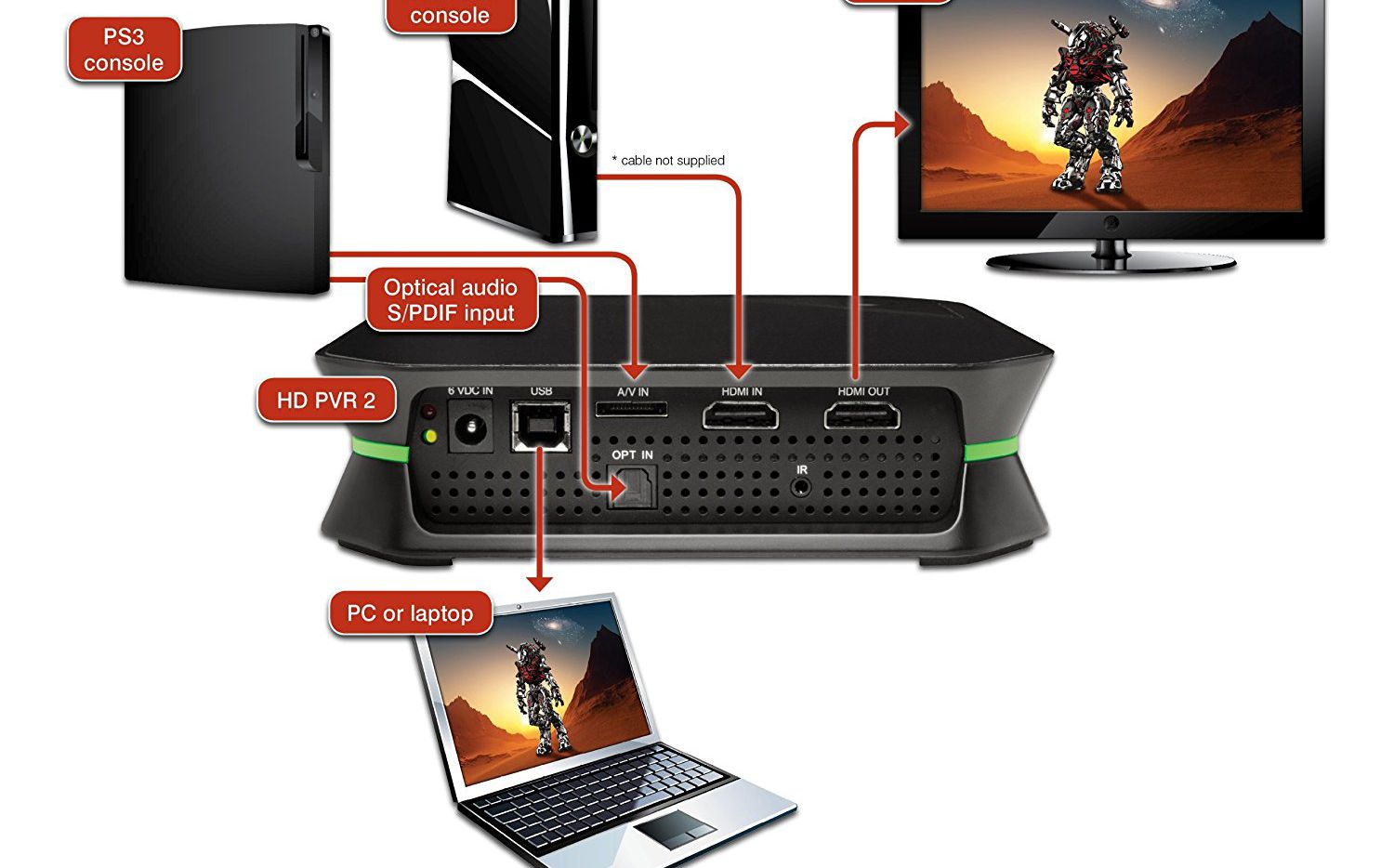
To transfer Spectrum DVR recordings to your computer, you need to use a capture card and compatible software. Spectrum DVR allows you to conveniently record your favorite shows, movies, and sports events.
However, there may be times when you want to transfer these recordings to your computer for easier access, sharing, or editing purposes. We will guide you on how to transfer Spectrum DVR recordings to your computer using a capture card and compatible software.
By following these steps, you will be able to enjoy your recorded content on your computer and make the most out of your Spectrum DVR experience. So let’s dive into the process and explore how you can seamlessly transfer your Spectrum DVR recordings to your computer.
Reasons To Transfer Spectrum Dvr Recordings To Computer
If you are a Spectrum DVR user, you may have considered transferring your recordings to your computer. This can be a beneficial move for several reasons, providing you with easier access, flexibility, and the ability to back up important recordings. Moreover, transferring your Spectrum DVR recordings to your computer enables you to share them with others, ensuring your favorite shows and movies are not limited to your living room.
Easier access and flexibility
One of the primary reasons to transfer your Spectrum DVR recordings to your computer is the improved access and flexibility it provides. Instead of being tied to your living room television, you can watch your favorite shows and movies on your computer whenever and wherever you want. Whether you are traveling, working from a coffee shop, or simply prefer to watch content on your computer, transferring your Spectrum DVR recordings allows you to enjoy your entertainment on your own terms.
Backing up important recordings
Another significant benefit of transferring your Spectrum DVR recordings to your computer is the ability to back up your important recordings. We all know that technology can be unpredictable, and there is always a risk of losing your DVR recordings due to hardware failure or unforeseen events. By transferring these recordings to your computer, you can ensure that your favorite shows and movies are safely stored and easily recoverable, eliminating the worry of losing them forever.
Sharing recordings with others
If you have ever wanted to share your favorite TV shows or movies with friends or family, transferring your Spectrum DVR recordings to your computer is the perfect solution. Instead of inviting everyone over to watch a show together, you can simply transfer the recording to your computer and share it with others through email, cloud storage, or other file-sharing methods. This allows everyone to enjoy the content at their own convenience, without any scheduling conflicts or geographical limitations.
In conclusion, transferring your Spectrum DVR recordings to your computer offers a multitude of benefits. It provides you with easier access to your favorite shows and movies, allows you to easily back up important recordings, and enables you to share your entertainment with others. By taking advantage of this transfer option, you can enhance your viewing experience and make the most out of your DVR recordings.
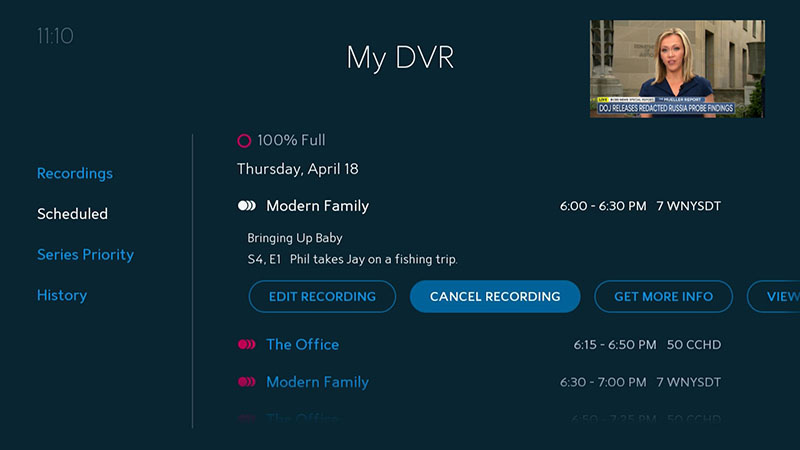
Credit: www.spectrum.net
Checking Dvr Compatibility With Computer Transfer
Before transferring your Spectrum DVR recordings to your computer, it is essential to check the compatibility between your DVR and the computer. This step ensures that the transfer process will go smoothly without any compatibility issues. In this section, we will discuss two crucial aspects of compatibility: ensuring your DVR model supports transfer and checking available storage space on your DVR.
Ensuring your DVR model supports transfer
Not all DVR models support the transfer of recordings to a computer. It is necessary to verify whether your specific DVR model has this capability. To find out, you can follow these steps:
- Refer to the user manual or documentation that came with your DVR. Look for any information related to transferring recordings to a computer.
- If you are unable to find the required information in the user manual, visit the official Spectrum website or contact their customer support for assistance. They can provide you with the necessary guidance based on your DVR model.
While checking for transfer support, it is worth noting that Spectrum offers various DVR models with different features and capabilities. Models like Spectrum 3000 and Spectrum 4000 are known to support transfer functionality. However, it is vital to reference the official documentation or consult with Spectrum customer support to confirm compatibility with your specific DVR model.
Checking available storage space on DVR
Once you have confirmed that your DVR model supports transfer, the next consideration is the available storage space on your DVR. Since recordings can occupy a significant amount of space, it is crucial to ensure that you have enough storage to accommodate the transferred files. To check the available storage space on your DVR:
- Access the DVR menu using your television remote control.
- Navigate to the storage settings or disk usage section. Depending on your DVR model, this may be found under the “Settings” or “System” menu.
- Check the available storage capacity and compare it to the size of your desired recordings that you intend to transfer. Make sure there is enough space to accommodate the transferred files.
If you find that your DVR’s available storage space is insufficient, you may need to consider deleting unnecessary or older recordings to free up space before initiating the transfer process. Alternatively, you can explore options to expand the storage capacity of your DVR, provided it supports external storage devices.
Connecting Your Spectrum Dvr To Computer
Transferring your Spectrum DVR recordings to your computer can be a convenient way to free up storage space and have your favorite shows and movies readily accessible. To begin the process, you’ll need to connect your Spectrum DVR to your computer. There are a few different methods you can use to establish this connection, including using an HDMI or VGA cable.
Using HDMI or VGA cable
One of the most common ways to connect your Spectrum DVR to your computer is by using an HDMI or VGA cable. Here’s a step-by-step guide on how to do it:
- First, locate the HDMI or VGA port on your Spectrum DVR. These ports are typically located on the back of the device and labeled accordingly. Ensure that your computer also has a compatible port.
- Next, connect one end of the HDMI or VGA cable to the corresponding port on your Spectrum DVR.
- Then, connect the other end of the cable to the HDMI or VGA input port on your computer.
- Once the cable is securely connected, turn on your computer and navigate to the display settings.
- In the display settings, select the option to detect an external display or monitor. This will allow your computer to recognize the Spectrum DVR connection.
- After the connection is detected, you should see your Spectrum DVR screen displayed on your computer monitor.
Configuring audio settings
To ensure you have optimal audio quality when transferring Spectrum DVR recordings to your computer, it’s important to configure the audio settings correctly. Follow these steps:
- Open the audio settings on your computer by clicking on the speaker icon in the taskbar.
- Check that the audio output is set to the appropriate device, which in this case, is likely the HDMI or VGA output.
- Adjust the volume levels as desired to achieve the desired sound level.
- You may also have the option to enable or disable audio enhancements. Experiment with these settings to find the best audio experience for your preference.
Troubleshooting connection issues
If you encounter any issues with your Spectrum DVR connection to your computer, here are a few troubleshooting steps to try:
- Ensure that all cables are securely connected and that there are no loose connections.
- Restart both your Spectrum DVR and your computer to refresh the connection.
- Check that your computer’s display settings are configured correctly, including the resolution settings.
- If you are using an HDMI cable, try using a different port on your computer or a different HDMI cable to rule out any potential hardware issues.
- If the issue persists, you may need to consult the user manual for your Spectrum DVR or contact customer support for further assistance.
By following these steps and troubleshooting tips, you’ll be able to successfully connect your Spectrum DVR to your computer and transfer your favorite recordings for easy access anytime.
Using Capture Cards Or Video Capture Devices
Using Capture Cards or Video Capture Devices Capturing and transferring Spectrum DVR recordings to your computer can be easily done with the help of capture cards or video capture devices. These devices allow you to connect your DVR to your computer, enabling you to transfer and save your recordings for future viewing. In this section, we will guide you through the process of using capture cards or video capture devices to transfer your Spectrum DVR recordings to your computer. Understanding different types of capture cards Capture cards come in various types, each with its own set of features and functionalities. It’s important to understand the different types of capture cards available in the market so that you can choose the one that suits your needs. Here are a few types of capture cards commonly used for transferring DVR recordings to a computer: 1. Internal Capture Cards: These capture cards are installed inside your computer and offer high-quality video capture capabilities. They are ideal for users who want an efficient and seamless transfer of DVR recordings. 2. External USB Capture Cards: These capture cards connect to your computer via USB ports, making them versatile and easy to use. They are a great choice if you want a portable solution for transferring Spectrum DVR recordings to your computer. 3. PCIe Capture Cards: Designed for high-performance applications, PCIe capture cards offer advanced features such as real-time streaming and multiple input options. They are suitable for professionals or enthusiasts who require top-notch video capture capabilities. Installing and configuring capture card software Once you have selected the appropriate capture card for your needs, it’s time to install and configure the software that comes with it. Follow these steps to get started: 1. Start by inserting the capture card into an available PCIe slot on your computer or connect the external USB capture card to a USB port on your computer. 2. Download and install the software provided with the capture card. Follow the on-screen instructions to complete the installation process. 3. After the installation is complete, open the capture card software and configure the settings according to your preferences. This may include selecting the input source (in this case, your Spectrum DVR), adjusting video settings, and setting the output location for your transferred recordings. Transferring recordings to computer using capture card Once the capture card and software are set up, you are ready to transfer your Spectrum DVR recordings to your computer. Follow these steps to ensure a successful transfer: 1. Connect the capture card to your Spectrum DVR using the appropriate cables. Refer to the documentation provided with the capture card for the correct connections. 2. Launch the capture card software on your computer and select the input source as your Spectrum DVR. 3. Start playing the recording you want to transfer on your Spectrum DVR. 4. In the capture card software, click the record button to initiate the transfer. The software will capture and save the DVR recording on your computer’s hard drive. 5. Once the transfer is complete, you can access the transferred recording on your computer and enjoy it at your convenience. Using capture cards or video capture devices is a reliable and efficient method for transferring Spectrum DVR recordings to your computer. Whether you opt for an internal capture card or an external USB capture card, these devices provide you with the ability to save and organize your favorite DVR recordings for future viewing. So go ahead, explore the different types of capture cards available, install and configure the software, and start transferring your Spectrum DVR recordings to your computer today!Using Spectrum Dvr Transfer Software
Transferring DVR recordings to a computer can be a convenient way to enjoy your favorite shows and movies on a larger screen or save them for later viewing. While there are several methods to transfer Spectrum DVR recordings to a computer, using Spectrum DVR Transfer Software is an efficient and user-friendly option. This software allows you to effortlessly download and transfer your recordings, ensuring you never miss your favorite content.
Downloading and installing Spectrum DVR transfer software
To begin the process of transferring Spectrum DVR recordings to your computer, you will first need to download and install the Spectrum DVR transfer software. Follow these simple steps:
- Go to the official Spectrum website and navigate to the DVR transfer software download page.
- Click on the download link to initiate the software download.
- Once the download is complete, locate the downloaded file on your computer.
- Double-click on the file to start the installation process.
- Follow the on-screen instructions to complete the installation.
Connecting DVR to computer through software
After successfully installing the Spectrum DVR transfer software, the next step is to connect your DVR to your computer. Here’s how you can do it:
- Launch the Spectrum DVR transfer software on your computer.
- Connect your DVR to your computer using a USB cable or any other compatible connection.
- Ensure that both your DVR and computer are powered on.
- Wait for the software to detect and establish a connection with your DVR.
- Once the connection is established, you are ready to proceed with transferring your recordings.
Transferring recordings to computer using software
With the Spectrum DVR transfer software successfully downloaded, installed, and the connection established between your DVR and computer, you can begin transferring your recordings. The software provides a simple and intuitive method to complete this process. Follow these steps to transfer the recordings:
- Open the Spectrum DVR transfer software on your computer.
- Select the recordings you wish to transfer. You can choose individual recordings or select multiple recordings simultaneously.
- Click on the “Transfer” button to start the transfer process.
- Wait for the software to transfer the selected recordings from your DVR to your computer.
- Once the transfer is complete, you can access and enjoy your recordings on your computer whenever you want.
By using Spectrum DVR Transfer Software, you can conveniently transfer your Spectrum DVR recordings to your computer, offering flexibility and freedom in how you enjoy your favorite content. Start downloading, connecting, and transferring your recordings today!
Converting Dvr Recordings To Compatible Formats
Transferring DVR recordings to your computer not only allows you to free up space on your Spectrum DVR but also gives you the flexibility to watch your favorite shows and movies on any device at your convenience. However, before you can enjoy your DVR recordings on your computer, you need to convert them to compatible formats. In this article, we will explore the process of converting DVR recordings to a file format suitable for playback on your computer.
Choosing appropriate file format for playback
When it comes to transferring Spectrum DVR recordings to your computer, one of the key considerations is choosing the right file format for playback. Different devices and media players support different file formats, so it’s important to select a format that is widely compatible. Some popular and widely supported file formats for video playback include MP4, AVI, MKV, and MOV.
Here are a few tips to help you choose the appropriate file format:
- Check the specifications of your media player or device to ensure it supports the desired file format.
- Consider the video quality and file size. Formats like MP4 and MKV are known for their ability to maintain high video quality while keeping the file size relatively small.
- Compatibility with editing software. If you plan to edit the DVR recordings on your computer, make sure the file format is compatible with your video editing software.
Using video conversion software for conversion
If your DVR recordings are not in a compatible format, you will need to use video conversion software to convert them. Video conversion software allows you to convert videos from one format to another, making them playable on your computer. There are several video conversion software options available, both free and paid, that offer a range of features and customization options.
Follow these steps to convert your DVR recordings using video conversion software:
- Choose a reliable and user-friendly video conversion software. Some popular options include HandBrake, Freemake Video Converter, and Movavi Video Converter.
- Install the software on your computer.
- Open the software and import your DVR recordings by clicking on the “Add File” or “Import” button.
- Select the desired output format (e.g., MP4) from the available options.
- Specify the output folder where you want the converted files to be saved.
- Click on the “Start” or “Convert” button to begin the conversion process.
- Once the conversion is complete, you can transfer the converted files to your computer and enjoy them at your convenience.
In conclusion, converting DVR recordings to compatible formats is essential to ensure smooth playback on your computer. By choosing an appropriate file format and using video conversion software, you can easily transfer and enjoy your Spectrum DVR recordings on your computer.
Organizing And Storing Transferred Recordings
Once you have successfully transferred your Spectrum DVR recordings to your computer, it’s important to keep them organized and easily accessible. In this section, we will explore two effective methods for organizing and storing your transferred recordings: creating folders and playlists, and utilizing cloud storage options.
Creating Folders and Playlists
One of the simplest ways to keep your transferred recordings organized is by creating folders and playlists. This allows you to easily categorize and group your recordings based on different criteria, such as TV shows, movies, or sports events.
To create folders, follow these steps:
- Open the file explorer on your computer.
- Navigate to the location where your transferred recordings are saved.
- Right-click on an empty space and select “New Folder”.
- Give the folder a descriptive name, such as “TV Shows” or “Movies”.
- Repeat these steps to create additional folders as needed.
Once you have created folders, you can easily move your transferred recordings into the appropriate folders by dragging and dropping them. This will help you keep track of your recordings and find them more efficiently when you want to watch them.
In addition to folders, you can also create playlists to further organize your recordings. Playlists allow you to create customized collections of recordings that can be played in a specific order. For example, you can create a playlist for all your favorite TV shows or create a playlist for a specific genre, such as comedy or drama.
To create playlists, follow these steps:
- Open your media player software on your computer.
- Locate the option to create a new playlist.
- Give your playlist a descriptive name.
- Add your transferred recordings to the playlist by dragging and dropping them.
- Arrange the order of the recordings within the playlist as desired.
By using folders and playlists effectively, you can ensure that your transferred recordings are well-organized and easily accessible whenever you want to watch them.
Utilizing Cloud Storage Options
In addition to organizing your transferred recordings on your computer, you can also take advantage of cloud storage options to ensure that your recordings are securely backed up and accessible from multiple devices.
Cloud storage services such as Google Drive, Dropbox, or Microsoft OneDrive offer generous free storage plans and easy-to-use interfaces that allow you to upload and store your recordings in the cloud.
To utilize cloud storage options for your transferred recordings, follow these steps:
- Create an account with a cloud storage provider of your choice.
- Install the cloud storage provider’s desktop client on your computer.
- Access the client and locate the folder where your transferred recordings are stored.
- Select the recordings you want to upload to the cloud.
- Initiate the upload process to transfer your recordings to the cloud.
Once your recordings are uploaded to the cloud, you can access them from any device with an internet connection. This allows you to stream your recordings on your computer, smartphone, or tablet, providing you with flexibility and convenience.
Remember to regularly backup your recordings to the cloud to ensure that you never lose your precious content due to hardware failure or other unforeseen circumstances.
Editing, Sharing, And Viewing Transferred Recordings
Transferring Spectrum DVR recordings to your computer opens up a whole new world of possibilities. Once you have the recordings on your computer, you can do so much more with them, including editing, sharing, and viewing them on various devices. In this section, we’ll explore how you can take your transferred recordings to the next level.
Using video editing software to enhance recordings
Now that you have your Spectrum DVR recordings on your computer, you can use video editing software to enhance them and make them even better. Whether you want to remove commercials, add introductory or closing scenes, or apply filters to improve the quality, video editing software gives you the power to transform your recordings. You can even cut and merge different sections of recordings to create a seamless final product.
When it comes to video editing software, there are several options available. Some popular choices include:
- Adobe Premiere Pro
- Final Cut Pro
- DaVinci Resolve
- Camtasia
Each of these software options has its own set of features and capabilities, so you can choose the one that suits your specific needs and skill level. Once you’ve finished editing your transferred recordings, you can export them in various formats, such as MP4 or AVI, and share them with others.
Sharing recordings with friends and family
One of the greatest advantages of transferring Spectrum DVR recordings to your computer is the ability to share them with friends and family. Whether it’s a memorable family event, a favorite TV show, or an exciting sports game, you can easily share these recordings with your loved ones.
There are several ways you can share your transferred recordings:
- Upload the recordings to a cloud storage service like Google Drive or Dropbox and share the link with others.
- Burn the recordings onto a DVD or Blu-ray disc and give it to someone as a gift.
- Transfer the recordings to a USB drive and physically share it with others.
- Share the recordings through messaging apps or social media platforms like WhatsApp, Facebook, or Instagram.
With these sharing options, you can make sure that your friends and family get to enjoy the same recordings you do, even if they don’t have access to Spectrum DVR.
Playing recordings on various devices
When you transfer Spectrum DVR recordings to your computer, you’re not limited to just viewing them on one device. Thanks to the versatile nature of digital files, you can play your transferred recordings on various devices and enjoy them wherever you go.
Here are some devices on which you can play your transferred recordings:
| Device | Capability |
|---|---|
| Computer | You can play the recordings directly on your computer using media players like VLC, Windows Media Player, or QuickTime. Simply double-click on the file, and it will start playing. |
| Smartphone | Transfer the recordings to your smartphone and play them using the default video player or any other third-party apps available. This way, you can enjoy your recordings on the go. |
| Tablet | If you prefer a larger screen, transfer your recordings to a tablet and watch them using the built-in video player or any other available apps. |
| Smart TV | Some smart TVs allow you to directly play video files from a USB drive or connect your computer to the TV to stream the recordings. Check your TV’s user manual or consult the manufacturer’s website for instructions. |
By playing your transferred recordings on different devices, you can make sure you never miss a moment of your favorite shows or movies, no matter where you are.
So, start exploring the world of editing, sharing, and viewing your transferred Spectrum DVR recordings on your computer. With the right software, sharing methods, and devices, you can take your entertainment experience to a whole new level.
Maximizing Transfer Speed And Efficiency
Closing unnecessary programs during transfer
One of the key factors in maximizing the transfer speed and efficiency of Spectrum DVR recordings to your computer is closing unnecessary programs during the transfer process. When you have multiple programs running in the background, they can consume valuable system resources, which can slow down the transfer speed and impact the overall performance of your computer.
To ensure a smooth and efficient transfer, it is recommended to close any unnecessary programs that are not required for the transfer process. This includes web browsers, media players, and any other resource-intensive applications.
Adjusting DVR and computer settings for optimal performance
In addition to closing unnecessary programs, adjusting the settings on both your DVR and computer can further enhance the transfer speed and efficiency.
Starting with the DVR settings, you can explore the option of enabling the “High-Quality” or “Fast Transfer” mode, if available. These settings are designed to prioritize the transfer process and may result in faster transfer speeds. Consult your DVR’s user manual or contact the Spectrum support team for specific instructions on how to access and modify these settings.
On the computer side, there are a few adjustments you can make to optimize performance. Firstly, make sure your computer is running on a high-performance power plan. This can be done by navigating to the power options in the control panel or settings menu and selecting the “High Performance” option. This ensures that your computer utilizes its resources to their maximum potential during the transfer process.
Furthermore, disabling any unnecessary startup programs can help improve performance. These are programs that automatically launch when you start your computer and can consume resources in the background. You can manage startup programs by accessing the Task Manager or using third-party software designed for this purpose.
Lastly, ensuring that your computer’s operating system and drivers are up-to-date can also contribute to optimal performance. Regularly check for updates and install any available updates to keep your system running smoothly.
By following these steps, you can maximize the transfer speed and efficiency when transferring Spectrum DVR recordings to your computer. Remember to close unnecessary programs, adjust settings on both your DVR and computer, and keep your system updated for an optimal transfer experience.
Common Issues And Their Solutions
If you are looking to transfer your Spectrum DVR recordings to your computer, you may encounter some common issues along the way. These issues can range from the DVR not being recognized by your computer to corrupted or incomplete recordings. Additionally, you may experience difficulty in playing the transferred recordings. In this section, we will explore these issues and provide you with practical solutions to overcome them.
DVR not being recognized by computer
If your computer is not recognizing your Spectrum DVR when you connect it, there are a few steps you can take to troubleshoot the issue:
- Make sure that the USB cable you are using is working properly. Try using a different cable to see if that resolves the problem.
- Check that the USB ports on your computer are functioning correctly. Try connecting the DVR to a different USB port to rule out any hardware issues.
- Restart your computer and DVR. Sometimes a simple restart can fix connectivity problems.
- Verify that the DVR is in the correct mode for transferring recordings. Consult the user manual or contact Spectrum customer support for guidance on how to switch to the appropriate mode.
- If none of the above steps work, it is possible that there is a compatibility issue between your DVR and computer. In this case, you may need to consider using alternative methods to transfer your recordings, such as using a DVD recorder or a video capture device.
Corrupted or incomplete recordings
It can be frustrating to transfer your DVR recordings to your computer only to find that they are corrupted or incomplete. Here are some solutions to address this issue:
- Ensure that your DVR is functioning properly and that the recordings are not corrupted on the DVR itself. Try playing the recordings on your TV to verify their integrity.
- Check the available storage space on your DVR. If the DVR is running low on space, it may result in incomplete or corrupted recordings. Delete unnecessary recordings or consider upgrading your DVR’s storage capacity.
- If you are using a USB transfer method, make sure that the USB drive you are using is in good condition. Try using a different USB drive to see if the issue persists.
- Verify that your computer has enough storage space to accommodate the transferred recordings. Insufficient storage space could lead to corrupt or incomplete files.
- If you suspect that the issue lies with the DVR itself, you may need to contact Spectrum customer support for further assistance or consider replacing the DVR.
Difficulty in playing transferred recordings
After successfully transferring your recordings to your computer, you may encounter difficulties in playing them. Here are some tips to help you overcome this issue:
- Ensure that you have the necessary video playback software installed on your computer. Commonly used media players such as VLC or Windows Media Player should be able to play most video formats.
- If the transferred recordings are in a format that is not natively supported by your media player, you may need to install additional codecs or convert the files to a compatible format.
- Check for any updates to your media player software. Sometimes updates can resolve playback issues or provide added compatibility.
- Scan the transferred recordings for any potential malware or viruses. Malicious software can affect the playback performance and stability.
- If all else fails, consider using alternative media players or seek assistance from online forums and communities dedicated to video playback troubleshooting.
By addressing these common issues and implementing the suggested solutions, you can overcome obstacles and successfully transfer your Spectrum DVR recordings to your computer. Enjoy the flexibility and convenience of accessing your favorite shows and movies on your preferred device!
Frequently Asked Questions For How To Transfer Spectrum Dvr Recordings To Computer
How Do I Transfer Spectrum Dvr Recordings To My Computer?
To transfer Spectrum DVR recordings to your computer, you can use a video capture card or software like PlayOn. Connect the DVR to your computer and use the software to record and save the DVR content onto your computer’s hard drive.
Can I Transfer Spectrum Dvr Recordings To An External Hard Drive?
No, transferring Spectrum DVR recordings directly to an external hard drive is not possible. However, you can transfer the recordings to your computer and then save them onto an external hard drive if you want to free up space on your DVR.
What Are The Benefits Of Transferring Spectrum Dvr Recordings To A Computer?
Transferring Spectrum DVR recordings to a computer allows you to free up space on your DVR and access your recordings from any device with the playback software installed. It also enables you to edit and share your recordings easily.
How Can I Play Spectrum Dvr Recordings On My Computer?
To play Spectrum DVR recordings on your computer, you can use video playback software like VLC Media Player or Windows Media Player. Simply open the software, navigate to the location where you saved the DVR recordings, and select the file to play it.
Conclusion
Transferring Spectrum DVR recordings to your computer is a simple and convenient process. By using the Spectrum DVR Manager, you can easily download and save your favorite shows and movies onto your computer for offline viewing. This allows you to enjoy your DVR content anytime, anywhere, without the need for a TV or cable connection.
So why wait? Start transferring your Spectrum DVR recordings to your computer today and enhance your entertainment experience.
