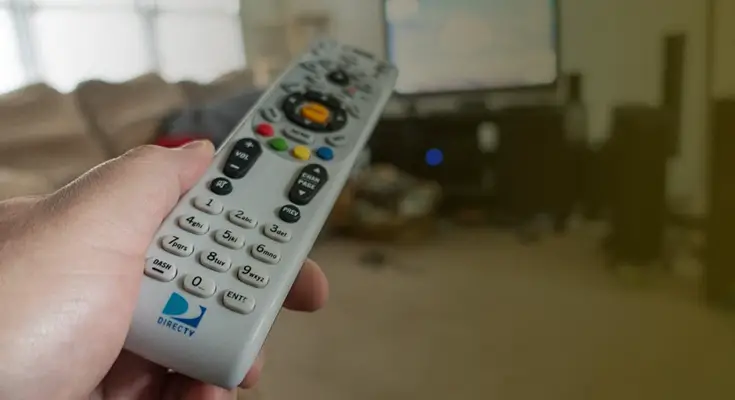
To program a Spectrum remote to a Samsung TV, first, turn on your TV and remote. Press and hold the “TV” and “SELECT” buttons on your remote until the TV button blinks twice.
Then, enter the 3-digit code for your Samsung TV using the number pad on your remote. Once the TV button blinks twice, the remote is programmed to your Samsung TV. Are you ready to simplify your TV viewing experience by programming your Spectrum remote to your Samsung TV?
If so, you’re in the right place. By following a few simple steps, you can easily set up your Spectrum remote to control your Samsung TV. Whether you’re a tech-savvy individual or a beginner, this guide will walk you through the process step by step, ensuring that you can start enjoying seamless control of your TV in no time. Let’s get started!
Preparing To Program Your Spectrum Remote
When it comes to enjoying the convenience of controlling your Samsung TV with your Spectrum remote, it’s essential to know how to program the remote properly. Preparing to program your Spectrum remote involves understanding the remote, identifying the Samsung TV model, and gathering the necessary materials.
Understanding The Spectrum Remote
The Spectrum remote is a powerful device that allows you to control your cable box, TV, and other devices with ease. It comes with a variety of buttons and features designed to enhance your viewing experience. Knowing how to navigate the remote is crucial for successful programming.
Identifying The Samsung Tv Model
Before programming your Spectrum remote, it’s important to identify the exact model of your Samsung TV. This information is usually found on the back or side of the TV, or in the user manual. Having the model number handy will ensure that the programming process is tailored to your specific TV model.
Gathering Necessary Materials
To program your Spectrum remote to your Samsung TV, you’ll need the following materials:
- A Spectrum remote
- The model number of your Samsung TV
- The user manual for your Samsung TV (optional)
Having these materials readily available will streamline the programming process and prevent any interruptions or delays.
Spectrum Remote To Samsung Tv Programming Guide
When it comes to programming your Spectrum remote to control your Samsung TV, it’s important to locate the programming instructions. This can usually be found in the user manual or on the Spectrum website. Ensuring you have the programming instructions at hand will streamline the process and make it easier to proceed with the setup.
The next step in this Spectrum remote to Samsung TV programming guide is to find the Samsung TV code. This code is essential for syncing your remote with your TV. You can find the code in the programming instructions, which often include a list of codes for various TV brands. Once you have the code, you can proceed with entering it into your remote and testing the functionality.
Initial Setup For Spectrum Remote
When setting up your Spectrum remote to control your Samsung TV, the initial setup is crucial to ensure a seamless and hassle-free experience. This process involves installing the batteries in the Spectrum remote, powering on the Samsung TV, and ensuring a clear line of sight between the remote and the TV.
Installing Batteries In The Spectrum Remote
To begin the initial setup, install the batteries in the Spectrum remote by following these simple steps:
- Open the battery compartment on the back of the remote.
- Insert the required batteries, ensuring the correct polarity (+ and -).
- Close the battery compartment securely.
Powering On The Samsung Tv
After installing the batteries, it’s time to power on your Samsung TV using the Spectrum remote:
- Press the “Power” button on the remote to turn on the TV.
- If the TV does not power on, verify that the batteries are correctly installed and have sufficient charge.
Ensuring Clear Line Of Sight Between Components
Once the remote is powered on and the TV is active, ensure there is a clear line of sight between the Spectrum remote and the Samsung TV. This will ensure that signals from the remote are received by the TV without interference.
Credit: www.reddit.com
Entering Samsung Tv Remote Codes
Programming a Spectrum remote to control your Samsung TV is a simple process that can enhance your viewing experience. To get started, you’ll need to enter specific codes into the remote to establish the connection with your TV. Below, we’ll guide you through the steps to access the code entry mode on your Spectrum remote, try out different codes, and confirm the correct code entry for seamless control of your Samsung TV.
Accessing The Code Entry Mode On The Spectrum Remote
Before entering Samsung TV remote codes, you must first access the code entry mode on your Spectrum remote. Follow the steps below to do so:
- Turn on your Samsung TV and Spectrum remote.
- Press and hold the
Setupbutton until the selected mode key blinks twice. - Enter
9-9-1using the number buttons. The selected mode key will blink twice. - Aim the remote at your TV and press
Power. - Continue pressing
Powerevery 2 seconds until the TV turns off.
Trying Out Different Codes For Samsung Tv
Once you’ve accessed the code entry mode, you can try out different codes to find the one that works with your Samsung TV. Here’s how to do it:
- After the TV turns off, press the
Setupbutton once to lock in the code. - Test the remote to ensure it controls the TV functions such as volume, channel, and power.
- If the remote does not properly control the TV, repeat the process using the next available code listed for your TV model.
Confirming The Correct Code Entry
After trying out different codes, you’ll want to confirm the correct code entry to ensure full control of your Samsung TV with the Spectrum remote. To do this:
- Point the remote at the TV and press
Powerto turn the TV back on. - Test the remote to ensure all TV functions are responsive and working as expected. If necessary, repeat the code entry process with the remaining codes until the remote fully controls the TV.
Testing Spectrum Remote Functions
After successfully programming your Spectrum remote to your Samsung TV, it’s important to ensure that all functions are working properly. Testing the remote functions will help confirm that the setup is complete and that you can seamlessly control your TV using the Spectrum remote.
Checking Power Control
Once the programming is finished, check if the power control function of the Spectrum remote is operational. Press the power button to turn the TV on and off. If the TV responds correctly, the power control functions are successfully programmed.
Testing Volume And Mute Buttons
Verify the volume and mute buttons on the Spectrum remote by adjusting the volume level and muting and unmuting the TV. Increasing and decreasing the volume using the remote should reflect on the TV, and the mute button should effectively silence the TV audio.
Ensure that the channel navigation buttons on the remote allow you to switch channels seamlessly, and the input selection buttons enable you to switch between different input sources such as HDMI, AV, or component inputs.
Frequently Asked Questions Of How To Program A Spectrum Remote To A Samsung Tv
How Do I Program A Spectrum Remote To A Samsung Tv?
To program a Spectrum remote to a Samsung TV, first, turn on your TV and press the “Menu” button. Then, select “Settings” and choose “Remote Control. ” Next, select “Pair Remote” and follow the on-screen instructions to complete the programming process.
What Should I Do If My Spectrum Remote Doesn’t Work With My Samsung Tv?
If your Spectrum remote doesn’t work with your Samsung TV, try troubleshooting steps. First, check the batteries and replace them if needed. Then, reset the remote by holding the “Setup” button until the LED blinks twice. If the issue persists, contact Spectrum customer support for assistance.
Can I Use A Spectrum Universal Remote To Control My Samsung Tv?
Yes, you can use a Spectrum universal remote to control your Samsung TV. To do so, follow the programming instructions provided with the remote. Typically, this involves entering a specific code for Samsung TVs. Refer to the remote’s manual or contact Spectrum customer support for assistance with programming the remote.
Conclusion
Programming your Spectrum remote to a Samsung TV is a straightforward process. With the step-by-step guide provided in this post, you can easily synchronize your remote control for seamless use with your TV. By following these instructions, you’ll be able to enjoy a hassle-free viewing experience in no time.
