To connect your TV to Spectrum WiFi, simply access the TV’s settings and select the WiFi network name. Then, enter the network’s password to complete the connection process.
Connecting your TV to Spectrum WiFi allows you to access streaming services and on-demand content seamlessly. This convenient feature offers an array of entertainment options, including live TV, movies, and shows, enhancing your viewing experience. With a stable and reliable WiFi connection, you can enjoy uninterrupted entertainment whenever you desire.
Additionally, connecting your TV to Spectrum WiFi provides access to Spectrum’s extensive library of content, ensuring that you never run out of things to watch. By following these steps, you can easily set up your TV to work seamlessly with your Spectrum WiFi network.
How To Connect Tv To Spectrum Wifi
Connecting your TV to Spectrum Wifi allows you to enjoy seamless streaming and access a variety of content. Whether you want to catch up on your favorite shows or stream movies, setting up your TV to connect to Spectrum Wifi is a straightforward process. In this guide, we will cover the necessary steps to help you easily pair your TV with Spectrum Wifi.
Understanding The Prerequisites For Connection
Before connecting your TV to Spectrum Wifi, there are a few prerequisites you need to be aware of:
- Ensure that your TV is compatible with a wireless connection and has built-in Wifi capabilities.
- Have your Spectrum Wifi network name (SSID) and network password ready.
- Check that your Spectrum Internet service is active and running smoothly.
Locating Your Spectrum Wifi Credentials
It’s crucial to have your Spectrum Wifi credentials on hand before initiating the connection process. Here’s how you can access this information:
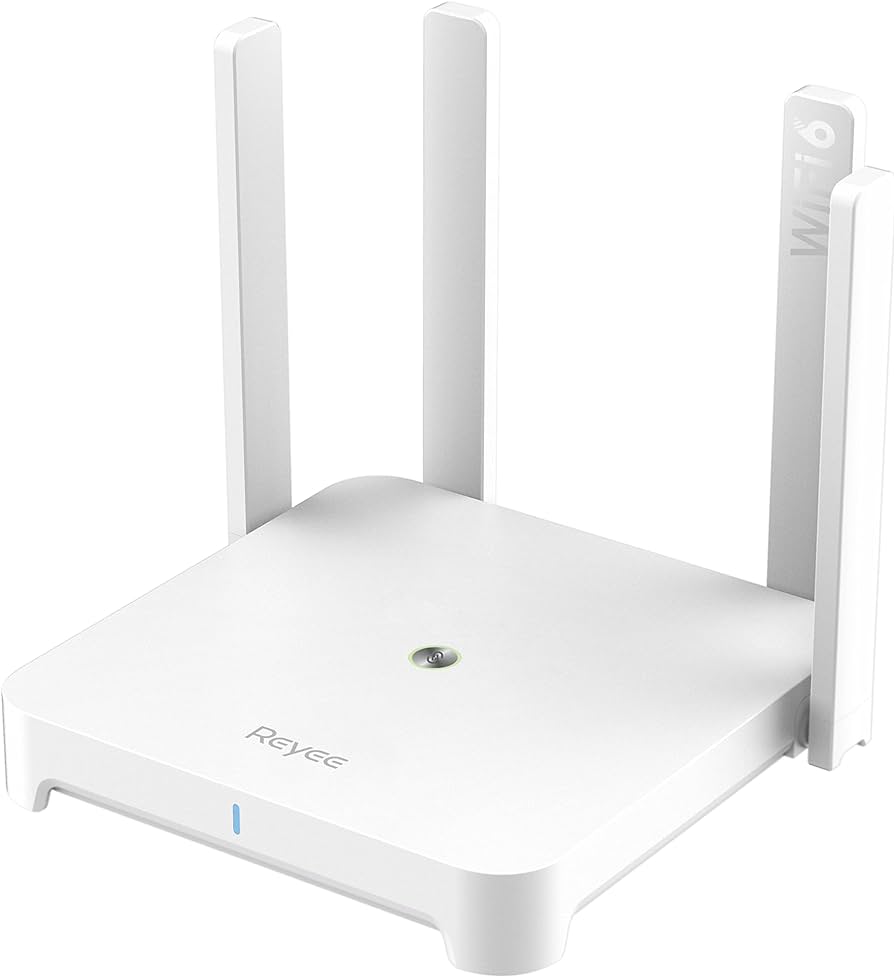
- First, locate the sticker or plate on your Spectrum Wifi router. This label typically contains the network name (SSID) and password.
- If you are unable to find the credentials on the router, you can retrieve them by logging into your Spectrum online account or contacting customer support.
Set Up Guide For Tv And Spectrum Wifi
Welcome to our set up guide for connecting your TV to Spectrum Wifi. In this guide, we will walk you through the process of ensuring compatibility, accessing network settings, and selecting Spectrum Wifi from the available networks. Let’s get started!
Ensuring Compatible Hardware And Software
Before connecting your TV to Spectrum Wifi, it’s important to ensure that your TV has the necessary hardware and software compatibility. Check your TV’s manual or manufacturer’s website for specific requirements. Common requirements may include Wi-Fi functionality and compatibility with the Spectrum TV app.
Guide On Accessing The Network Settings On Your Tv
Accessing the network settings on your TV is essential for connecting to Spectrum Wifi. Here’s a general guide for accessing network settings on your TV:
- Go to the main menu of your TV and select “Settings.”
- Navigate to the “Network” or “Internet” settings option.
- Choose the option to “Set up a new connection” or “Connect to a network.”
- Follow the on-screen instructions to configure your TV’s network settings.
Steps For Selecting Spectrum Wifi From Available Networks
Once you’ve accessed the network settings on your TV, follow these steps to select Spectrum Wifi from the available networks:
- Locate the list of available wireless networks within the network settings menu.
- Find and select “Spectrum Wifi” from the list of available networks.
- Enter the network password (if prompted) to establish the connection.
- Wait for the TV to connect to Spectrum Wifi and confirm the successful connection.
Connectivity Troubleshooting Tips
When setting up your TV to connect to Spectrum WiFi, encountering connectivity issues can be frustrating. To ensure a seamless streaming experience, it’s essential to troubleshoot and resolve common problems. Below are some tips to address connectivity issues and get your TV connected to Spectrum WiFi efficiently.
Common Issues During The Wifi Connection Process
Connecting your TV to Spectrum WiFi can sometimes be met with common hurdles. These include:
- Weak signal strength
- Incorrect network credentials
- Interference from other devices
- Outdated software or firmware
- Hardware limitations
Quick Fixes For The Most Frequent Connection Problems
To address the issues mentioned above, consider the following quick fixes:
- Position your router to ensure a stronger signal to the TV.
- Double-check the network name and password for accuracy.
- Turn off other devices that may cause signal interference.
- Update the TV’s software and the router’s firmware to the latest versions.
- Consider using a WiFi extender or a mesh network to expand coverage.

Credit: www.kaspersky.com
Enhancing Wifi Connection Stability
Tips For Optimal Router Placement And Interference Reduction
Optimizing the placement of your router can significantly enhance your Spectrum Wifi connection stability. Place your router in a central location within your home to ensure uniform coverage. Avoid positioning the router near large metal objects and electronic appliances that emit electromagnetic waves, such as microwaves and cordless phones, as they can cause interference.
- Place the router in a central location within your home
- Avoid positioning the router near large metal objects and electronic appliances
- Ensure a clear line of sight between the router and the devices
Advice On Network Settings Adjustments For Improved Connectivity
Adjusting your network settings can vastly improve the stability of your Spectrum Wifi connection. Ensure that your router’s firmware is updated to the latest version to benefit from improved performance and security features. Utilize the 5GHz band for devices that require high-speed internet, while allocating the 2.4GHz band for devices that are located farther away from the router but don’t necessarily require high bandwidth.
- Update router’s firmware to the latest version
- Utilize the 5GHz band for high-speed internet
- Allocate the 2.4GHz band for devices located farther away
Spectrum Wifi Connection Best Practices
Connecting your TV to Spectrum Wifi provides you with the convenience of accessing a wide range of entertainment options. However, ensuring a seamless and secure connection requires best practices for maintenance and security. In this post, we’ll delve into the essential strategies for maintaining a reliable connection and keeping your network secure while connected to Spectrum Wifi.
Regular Maintenance For A Seamless Connection
Regular maintenance of your Spectrum Wifi connection is crucial for an uninterrupted streaming experience. To ensure a seamless connection, here are some best practices you should follow:
- Regularly check for software updates on your TV and wifi router to ensure they are running the latest firmware, which can help optimize performance.
- Keep your wifi router in an open area and away from obstructions to minimize signal interference and maximize coverage.
- Conduct periodic speed tests using Spectrum’s speed test tool to monitor your connection’s performance and identify potential issues.
- Consider restarting your router occasionally to refresh the connection and resolve any temporary glitches.
Keeping Your Network Secure While Connected To Spectrum Wifi
Security is paramount when connecting your TV to Spectrum Wifi. By implementing the following practices, you can enhance the security of your network:
- Change the default network name (SSID) and password of your wifi router to create a unique and secure network identity.
- Enable encryption such as WPA2-PSK (AES) on your router to safeguard your network from unauthorized access.
- Regularly update your router’s login credentials and avoid using easily guessable passwords to prevent unauthorized access to your network.
- Consider using a firewall to add an extra layer of security to your wifi network, protecting it from online threats.
Frequently Asked Questions On How To Connect Tv To Spectrum Wifi
How Can I Connect My Tv To Spectrum Wifi?
To connect your TV to Spectrum WiFi, you can use a WiFi-enabled TV or a streaming device that connects to your TV. From there, you will need to select the Spectrum WiFi network on your TV and enter the network password.
You may also need to contact Spectrum for assistance with any network or connectivity issues.
What Are The Benefits Of Connecting My Tv To Spectrum Wifi?
Connecting your TV to Spectrum WiFi allows for seamless streaming of on-demand content, faster access to Spectrum’s TV app, and the ability to use your TV and mobile devices simultaneously. Additionally, with a connected TV, you can receive software updates and enjoy enhanced entertainment options.
Can I Connect Multiple Tvs To Spectrum Wifi?
Yes, you can connect multiple TVs to Spectrum WiFi by ensuring that each TV has access to the Spectrum WiFi network. Whether through built-in WiFi capabilities or a streaming device, each TV can be connected to the network, providing access to Spectrum’s wide range of entertainment options.
Conclusion
The process of connecting your TV to Spectrum WiFi is straightforward. By following the simple steps outlined in this guide, you can ensure a seamless and hassle-free connection. Enjoy uninterrupted access to your favorite shows and movies with Spectrum WiFi and enhance your home entertainment experience effortlessly.
