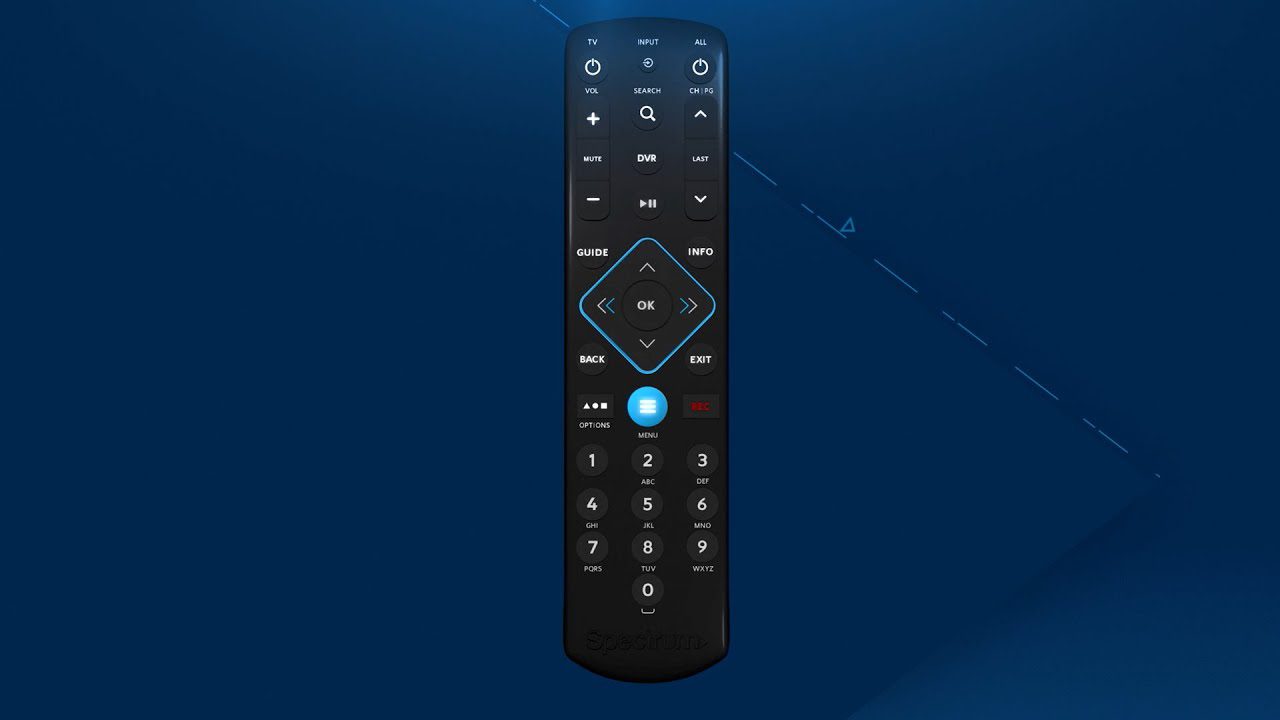
To connect a Spectrum remote to your TV, first ensure the remote has batteries, then follow the TV pairing instructions provided by Spectrum. Power on your TV and hold the Spectrum remote’s program button until the LED light flashes, then enter the TV’s brand code.
Setting up your Spectrum remote with your TV enhances your viewing experience by consolidating control to a single remote. By eliminating the hassle of juggling multiple remotes for different devices, you can streamline your home entertainment system. The process of connecting your Spectrum remote to your TV is relatively simple and can be done in just a few minutes with the right instructions.
A successful pairing lets you adjust volume, change channels, and access other functions through one interface. The key is to follow the specific steps for your Spectrum remote model and your TV brand, ensuring that the two devices communicate properly for seamless operation.
Sync Spectrum Remote To Tv: A Quick Guide
Welcome to our quick guide on how to sync your Spectrum remote to your TV. Whether you are setting up a new TV or just need to reconnect your remote, this guide will provide you with the simple steps needed to ensure seamless control of your entertainment experience. Let’s dive into the process, so you can get back to enjoying your favorite shows with ease.
Importance Of Correctly Syncing Your Remote
Syncing your Spectrum remote with your TV is essential for a couple of reasons:
- Intuitive Control: A properly synced remote enhances your viewing experience by providing effortless management of your TV’s functions.
- Time-saving: Avoid the hassle of manually adjusting settings with multiple gadgets. One remote does it all.
- Accessibility: Ensure that all members of your household can easily operate the TV.
Overview Of Spectrum Remote Types
Spectrum provides a variety of remote controls to match different TV models and user needs:
| Remote Type | Compatibility | Features |
|---|---|---|
| Standard Remote | Common TV brands and models | Basic control functions, including power, volume, and channel navigation |
| Universal Remote | Wide range of devices, including DVD players | Programmable keys for customized control |
| Smart Remote | Smart TVs and Spectrum’s DVR | Voice control and touchpad for advanced navigation |
Steps To Sync Spectrum Remote To Tv
Below is a streamlined process to connect your Spectrum remote with your TV:
- Identify Your Remote: Begin by determining the type of Spectrum remote you have. Refer to the Spectrum remote user manual for precise model identification.
- Turn on Your TV: Ensure that your TV is powered on and set to a visible and active channel.
- Locate the Program Button: On your Spectrum remote, find the program button. This might be labeled as ‘Prog’ or ‘Setup’ depending on the model.
- Enter Sync Mode: Press and hold the program button until the remote’s LED light turns on, indicating it is in pairing mode.
- Select TV Brand Code: Use the code provided in the Spectrum remote manual that corresponds with your TV brand. Enter this code using the remote’s number pad.
- Test Functions: Try adjusting the volume, changing the channel, or turning the TV off and on to test if the remote has paired successfully.
- Confirm Sync: If the remote operates as expected, the sync is successful. If not, repeat the process, or refer to troubleshooting guidelines in your manual.
Prepare For Quick Sync
Syncing your Spectrum remote to your TV couldn’t be more straightforward. With the right preparation, you’ll switch channels and control your television like a pro in no time. The Quick Sync process involves a few simple yet critical steps: finding your TV brand’s specific code, ensuring your remote batteries are fresh and the connections are proper. Follow these directives, and your remote will be paired before you know it.
Locating your TV brand’s codeLocating Your Tv Brand’s Code
Each TV brand has a unique code that allows the Spectrum remote to communicate effectively with it. Firstly, ensure you have access to the list of codes provided by Spectrum. You can find these codes in the Spectrum remote instruction manual or on Spectrum’s official website. Keep your TV brand’s code on-hand for a smooth syncing experience.
Checking remote batteries and connectionsChecking Remote Batteries And Connections
A common hiccup in remote setup is weak or depleted batteries. Begin by checking the batteries in your Spectrum remote. Make sure they’re fresh and installed correctly with the positive and negative ends matching the remote’s battery compartment designations. Weak batteries can cause intermittent functionality, hindering the sync process. Furthermore, check for any obstructions between your remote and the TV that might block the signal. Clear line of sight is paramount for an optimal syncing process.
Initial Sync Steps
Embarking on the journey to sync your Spectrum remote to your TV can feel daunting at first. The Initial Sync Steps form the bedrock of a seamless content viewing experience and facilitate intuitive control of your TV’s functions. Follow these fundamental steps for a successful pairing process that integrates your remote and TV as if they were long-lost dance partners finding their rhythm together.
Subheading 1: Switching your TV onSwitching Your Tv On
Ensuring that your television is powered up is the first critical step in syncing your Spectrum remote. Locate the power button either on the TV itself or the original TV remote to turn the screen on. A visible LED light or a startup screen should signal that your TV is alive and well, ready for the syncing dance.
Subheading 2: Pointing Remote Towards the TVPointing Remote Towards The Tv
Now, hold the Spectrum remote in your hand and aim it squarely at your television’s sensor. The distance between the remote and the TV should not exceed ten feet to ensure a strong connection. The infrared signals from the remote need to travel directly to the TV without obstructions, so make sure that the path is clear of any obstacles that could impede the syncing process.
- Ensure the TV is switched on and set to the appropriate input for your cable or satellite box.
- Point the Spectrum remote directly at the TV’s sensor, noting any potential obstructions.
- Stand close enough to the TV, typically within five to ten feet, to maintain a clear signal path.
By giving attention to these Initial Sync Steps, you set the stage for a hassle-free setup. The remote control needs to properly communicate with your TV before you can proceed with the actual pairing process. With your TV on and the remote pointed correctly, you are now prepared to move on with the syncing operation, which further involves specific commands and procedures tailored to your Spectrum remote model.
| Pre-Sync Checklist | |
|---|---|
| TV Power | On with visible LED light or startup screen |
| Remote Pointing | Towards the TV, within 10 feet, no obstructions |
Execute The Syncing Process
Pairing your Spectrum remote to your TV is a breeze, but it’s a step-by-step journey that requires meticulous attention. A successfully synced remote will enhance your viewing experience, giving you seamless control over your TV’s functions. Follow these straightforward instructions to initiate the syncing process.
Entering The Tv Brand’s Code
To connect your Spectrum remote to your TV, the crucial first step involves entering a specific code that corresponds with your TV’s brand. Each brand has a unique code, and Spectrum provides a list to help you find the appropriate one. Here’s how:
- Turn on your TV manually or using the original remote that came with the device.
- Hold the Spectrum remote and press the TV button to signal you’re syncing to a television.
- Press and hold the Setup button on the remote until the TV button blinks twice. This indicates the remote is ready to accept the code.
- Consult the Spectrum remote manual or online support page to locate your TV brand’s code.
- Enter the code using the number buttons on the remote. If the code is correct, the TV button should blink twice.
If the TV button only blinks once or stays lit, you may have entered an incorrect code and should try again or use a different code associated with your TV brand.
Testing Remote Functions For Confirmation
With the correct code entered, it’s time to ensure that the Spectrum remote is communicating effectively with your TV:
- Test the Power button by turning the TV off and on.
- Adjust the Volume to confirm the remote can control audio levels.
- Access the Menu using the remote to verify that menu navigation is functional.
- Change channels to make sure the remote can interface with your cable or satellite box.
If all these functions operate correctly, congratulations, your remote is now synched! If not, repeat the process with another code or refer to your Spectrum remote’s user guide for further troubleshooting. Remember, carefully testing each function is key to confirming a successful sync, ensuring the convenience of a single-remote setup.
Troubleshooting Sync Issues
Experiencing difficulty syncing your Spectrum remote to your TV can transform a relaxing night into a frustrating technical challenge. But there’s no need to let sync issues disrupt your viewing plans. In this section, we delve into the common stumbling blocks encountered during the sync process and offer practical tips to help you resolve the issue swiftly. With the right approach, you’ll be back to hassle-free channel surfing in no time.
Common issues during Spectrum Remote syncCommon Issues During Spectrum Remote Sync
- Incorrect Remote Code: Entering the wrong code is a frequent trip-up.
- Batteries: Drained batteries are often overlooked.
- Distance and Obstructions: Being too far from the TV or having objects in the way can interfere with the signal.
- TV Input: Not being on the correct input source can prevent syncing.
- Remote Compatibility: Some remotes may not be compatible with all TV models.
Tips For Resolving Unsuccessful Attempts
- Double-check the Remote Code: Verify you have the right code for your TV brand.
- Replace Batteries: Swap in a fresh set of batteries to ensure your remote has sufficient power.
- Repositioning: Try syncing the remote closer to the TV or clearing the path between them.
- TV Input Adjustment: Make sure your TV is set to the input the Spectrum receiver is connected to.
- Contact Support: If all else fails, Spectrum’s customer support can assist further.
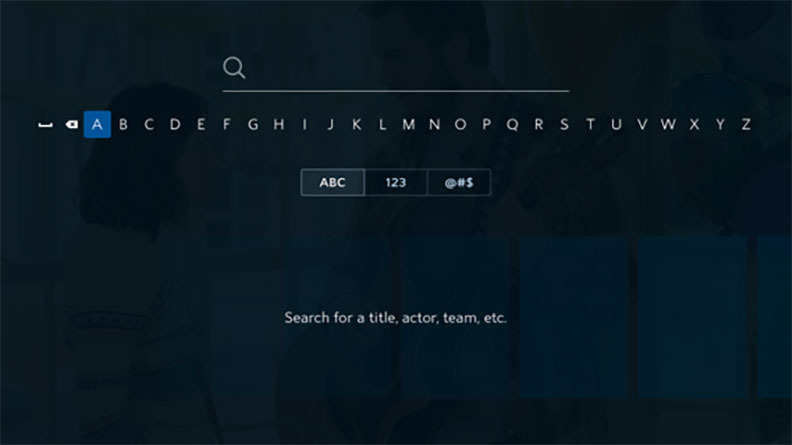
Credit: www.spectrum.net
How To Connect Spectrum Remote To Other Devices
Expanding the horizons of convenience, the Spectrum remote not only deftly controls your TV but also extends its prowess to other devices. In a tech-savvy home, versatility is key, and syncing your Spectrum remote with additional devices enhances your multimedia experience. With an easy-to-follow setup process, this guide will ensure your entertainment system operates seamlessly under the command of just one remote.
Syncing Spectrum Remote With Additional Devices
Integrate your home entertainment system simply with these steps to sync your Spectrum remote with various devices:
- Start by turning on the device you want to pair the remote with.
- Hold the device key on the Spectrum remote. If your remote does not have a dedicated device key, refer to the user manual for the right combo.
- Press and hold the Setup key until the device key blinks twice.
- Type in the device code from Spectrum’s list of manufacturer codes. If you don’t have the list, Spectrum’s support site will guide you.
- If the code is correct, the device key will blink twice. If it doesn’t, repeat the process with the next code on the list.
- Perform a function test to ensure the device operates correctly with your remote (e.g., changing channels or volume control).
Troubleshooting Tip: If the remote fails to sync, power cycle your device and attempt the pairing process again.
Maintaining Functionality Across All Devices
To ensure a flawless user experience, maintaining the functionality of the Spectrum remote across all synced devices is crucial:
- Regularly check for software updates for all devices connected to the remote.
- Keep the remote’s batteries fresh to avoid connectivity issues.
- Make sure the sensors on the devices are unobstructed to enable the remote’s signals to be received.
- Reset the remote to factory settings as a last resort to resolve unresponsive behavior, then attempt re-syncing.
With these steps, enjoy a streamlined control experience over all your devices, and say goodbye to juggling multiple remotes!
Frequently Asked Questions For How To Connect Spectrum Remote To Tv
Can I Easily Program A Spectrum Remote To My Tv?
Yes, programming a Spectrum remote to your TV is straightforward. You’ll typically use a simple sequence of button presses on the remote pointed at your TV. The exact steps may vary by remote model, but generally involve accessing a programming mode and entering a code specific to your TV brand.
What Are The Steps To Connect Spectrum Remote To Tv?
To connect a Spectrum remote to your TV, turn on the TV, press and hold the TV button on your remote, then enter the code for your TV’s brand. If you don’t know the code, you can usually find it in the remote’s instruction manual or Spectrum’s online support page.
Where Can I Find Spectrum Remote Codes For My Tv?
Spectrum remote codes are available in the user’s manual provided with your remote. Alternatively, Spectrum’s official website has a support or FAQs section where you can find a list of codes, or you can search for the specific make and model of your TV.
How Do I Sync My Remote If Code Entry Fails?
If code entry fails, Spectrum often provides an auto-search function. Hold down the TV button on your remote until the power button blinks, then press the power button repeatedly until the TV turns off, and press any other key to save the configuration.
Conclusion
Mastering the setup of your Spectrum remote with your TV enhances your viewing experience significantly. By following the straightforward steps outlined, you’ve taken control, combining ease with functionality. Remember, a bit of patience goes a long way. If challenges arise, Spectrum’s support is there to guide you.
Happy channel surfing!
